Schedule

Oct 07, 2025
Schedule
Schedule is used to keep track of upcoming WOs and view activity by month, week, or daily. By default, the first 100 work orders are shown and users with the appropriate permission levels can filter, modify, and create new work orders.
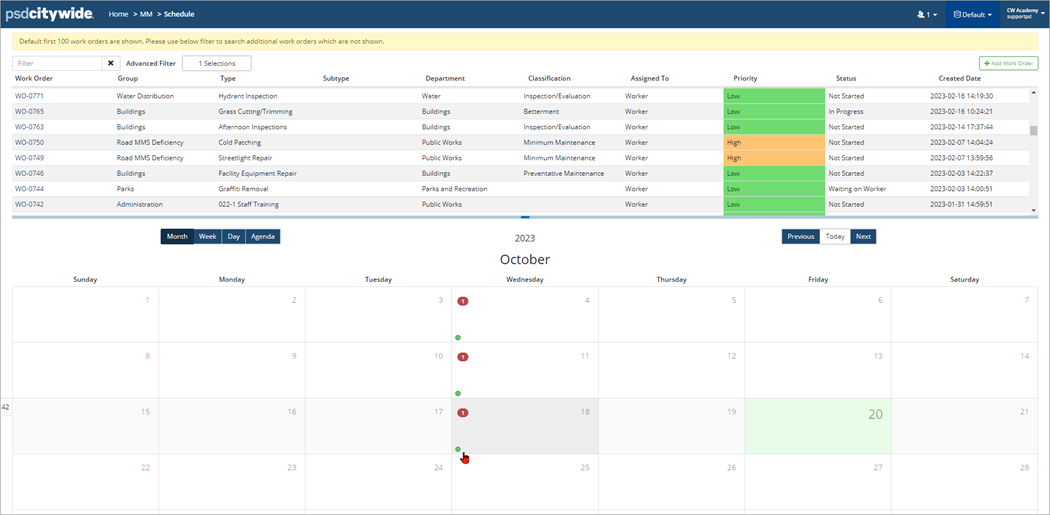
To view or edit a WO schedule in the calendar view:
- Use the screen partition
 (blue horizontal bar) to expand the calendar view as needed.
 - In the Month view, WOs are represented with a dot (i.e., ). Hover over the dot to see details and click to edit as needed.
-
 Low priority
 Medium priority
 High priory
 Critical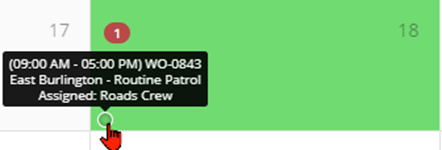
- In the Edit Work Order Schedule window, users can view and modify WO details and schedule dates.
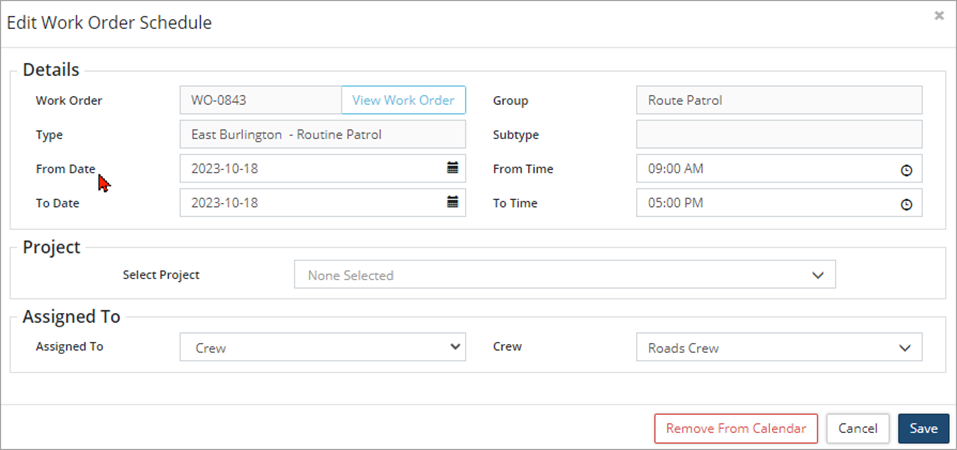
- Click Remove From Calendar in the lower right corner, to delete the scheduled start/end date and time. Click Remove in the prompt and the WO will be removed from the calendar view. (Navigate back into the appropriate WO and set the scheduled date/times on the Detail screen if the information was inadvertently deleted.)
- In the Week view, it shows the current week. You are able to navigate to a view of the previous week as well as to the following week.
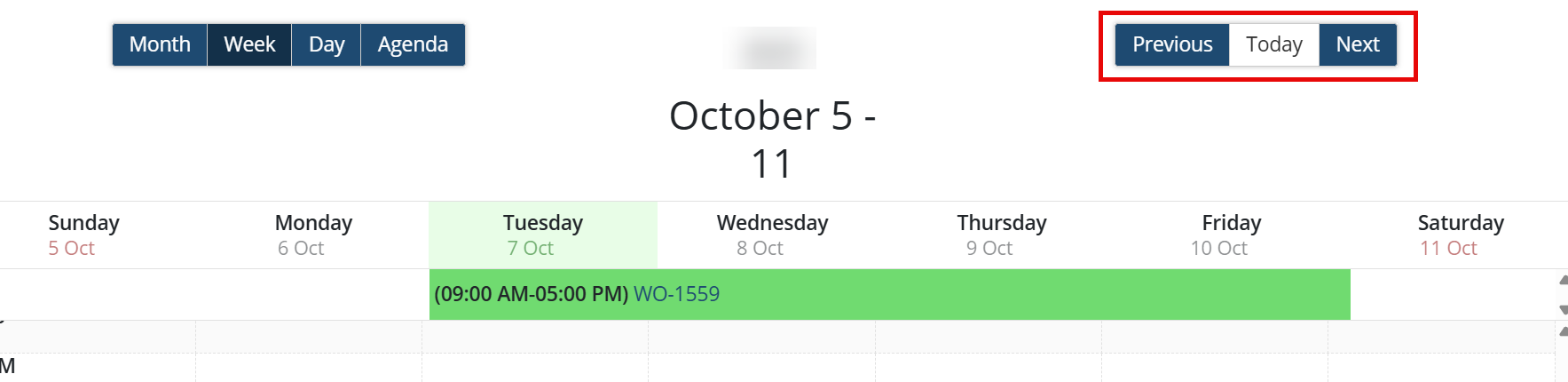
- In the Day view, it shows the current day. You are able to navigate to a view of the previous day as well as to the following day.
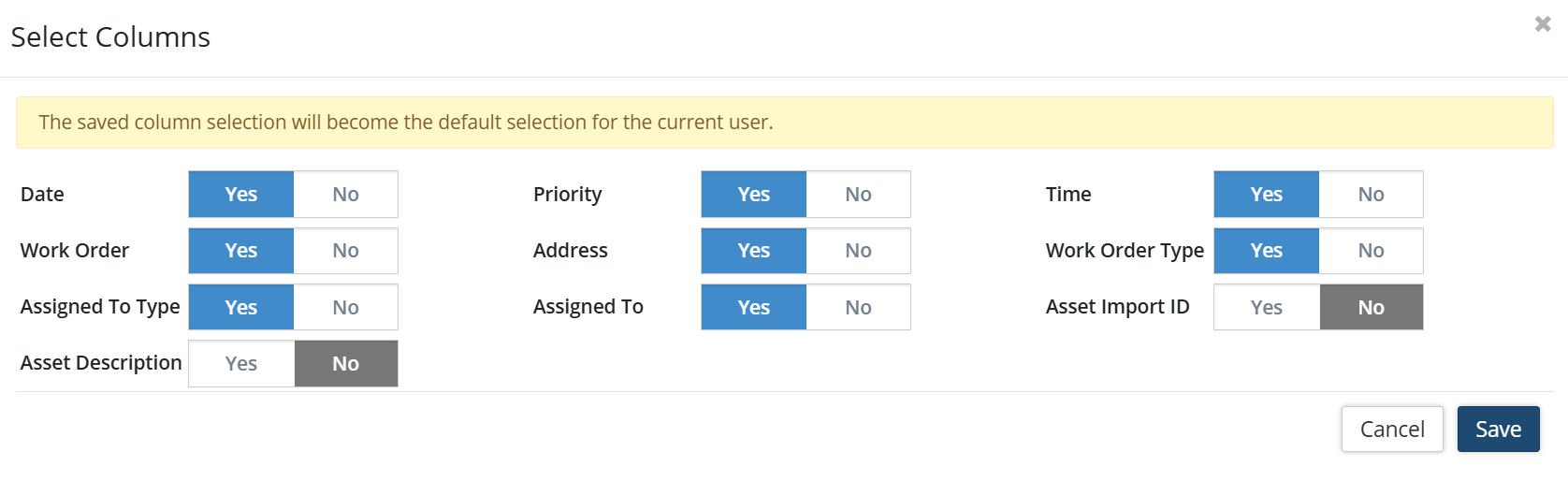
- Agenda view shows a list of your work orders with the ability to select the columns you would like displayed. The Select Columns window allows you to choose the column selections that you would like displayed. The saved selection will become the default for the current user.