Maintenance Reports Overview

Jan 22, 2026
Citywide Maintenance offers several reports meeting a variety of reporting requirements. Each report includes parameters, filters and/or report types such as data view, graph view, and pie chart.
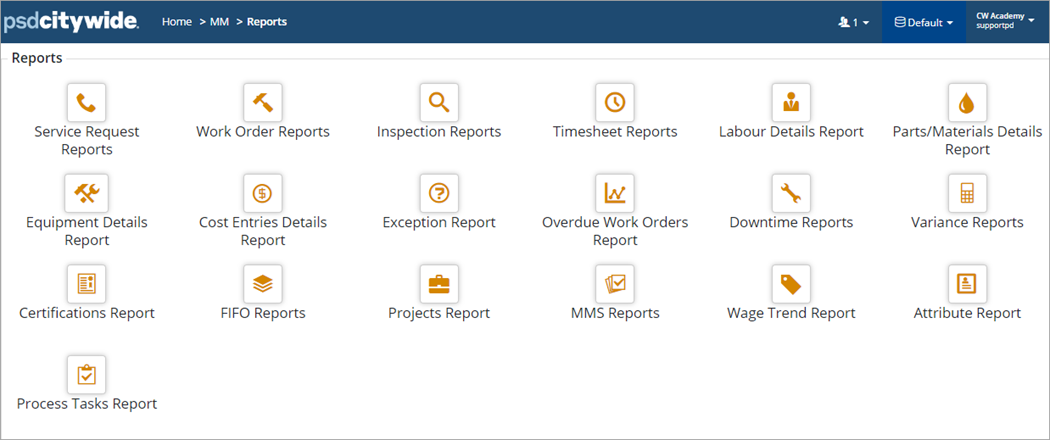
The following table briefly describe each available report:
| Report | Description |
| Service Request | Reports on SR types by department and filters down any additional information as required such as responsible person, status, priority etc. |
| Work Order | Reports on WO type grouped by asset and filters down any additional information such as worker, department, status, priority, etc. |
| Inspection | Reports on WO Inspections and filters down by specific asset, status, department, priority, etc. |
| Timesheet | Checks labour time showing totals based on the start and end dates; will also show wage type and employee ID if applicable and filters down by worker |
| Labour Details | Reviews labour details (i.e., wage types, hours, by worker) including a summary of GL Codes if applicable |
| Parts/Materials Details | Reviews parts and materials costing transaction details (including GL Codes; shows a total summary by GL code at the bottom if applicable) |
| Equipment Details | Reviews equipment costing transactions (including GL Codes; shows a total summary by GL code at the bottom) |
| Cost Entries Details | Reviews all costing transaction details together including labour, Equipment, parts and materials |
| Exception | Reports on mismatched data and checks for duplicates |
| Overdue Work Orders | Checks WOs that have an Overdue status based on the target dates |
| Downtime | Reports on asset downtime transactions recorded either via a work order or directly via the asset record in Citywide Assets. This can be for any asset in AM such as a vehicle, equipment, a bridge, a road, etc. |
| Variance | Reports WO Budget variance when using WO budgets |
| Certifications | Reports on expired or issued certifications during a certain period of time |
| FIFO | Reports on Parts/Materials lots and Parts/Materials reconciliation |
| Projects | Reports on project related WOs and the project budget status |
| MMS | Reports on route patrol deficiencies as well as asset patrol and compliance reporting |
| Wage Trend | Generates a wage trend report based on position |
| Attribute | Generates an Attribute report by SR or WO |
| Process Tasks | Generate Process Tasks reports by department as well as by WO type |
To generate the Work Order Report using a data view:
- Click Home 🢡 Maintenance 🢡 Reports and click Work Order Reports.
- The report type defaults to Data View. Select a Report By option and determine a Primary and Secondary Grouping. Set Filters and Dates as needed.
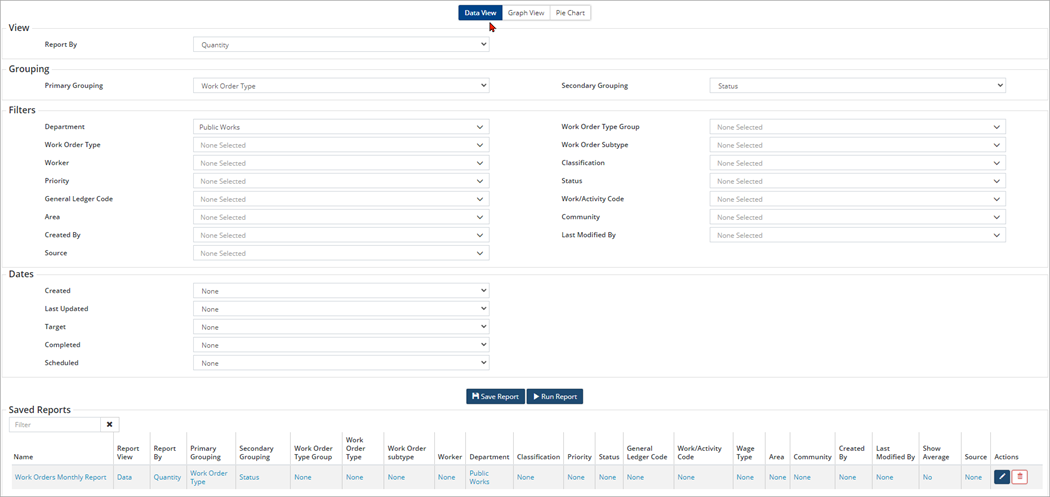
- Click Run Report.
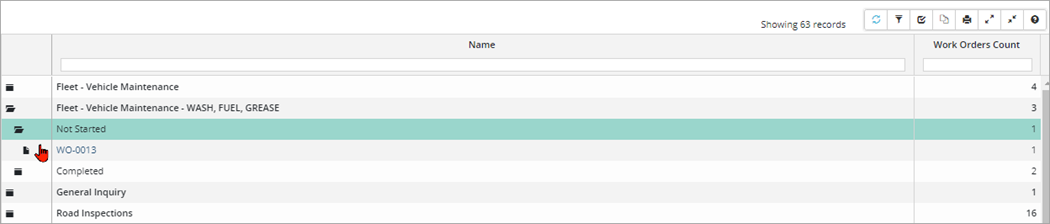
- The report output includes expandable folders and customized columns (e.g., click Customize Columns on the toolbar to create and save a custom view for the report).
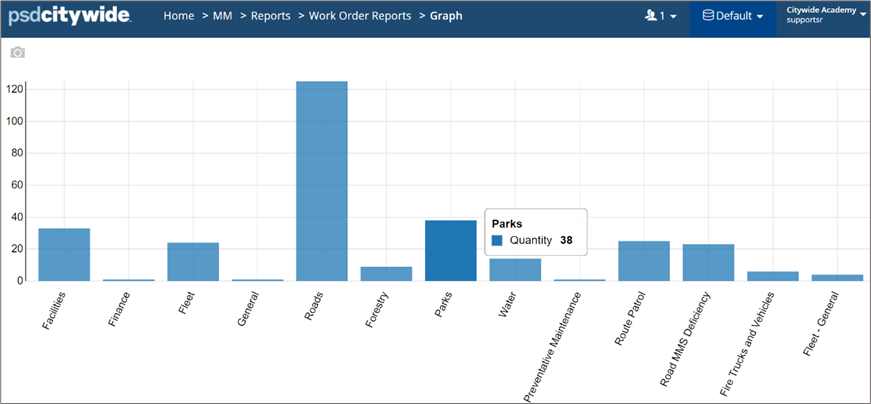
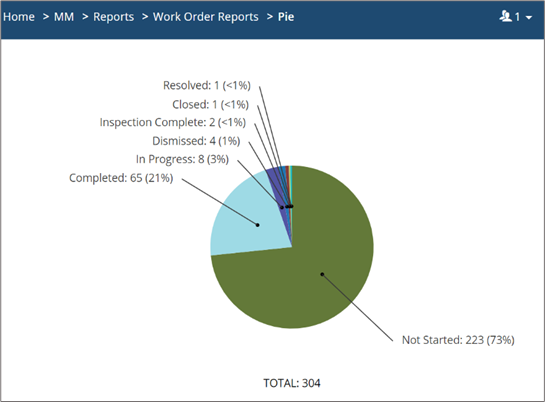
Users can also run the Work Order Report in a graph view or pie chart. These visualization reports can be exported as a JPG or PNG file to be included in reports and/or presentations.
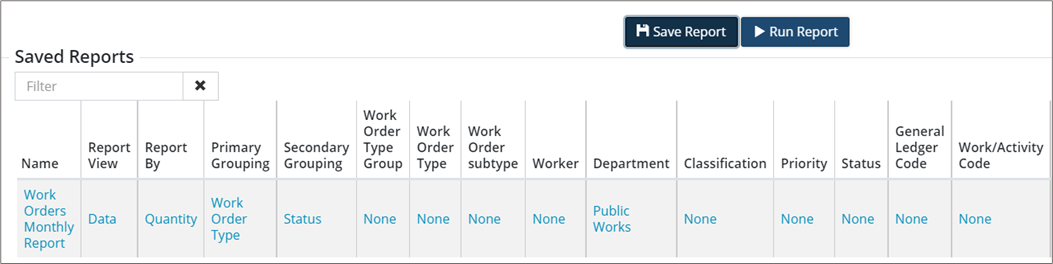
Saved Reports
Report parameters can be saved by clicking Save Report after setting each field as needed. An entry will be added to the Saved Reports table. Use this setting to standardized reporting.