


Overview
General information on an asset is captured in the Asset Details / Flags screen. Users with edit level permissions can modify fields such as Name, Location, Description and assign Asset Flags as needed. Click Save ❶ to apply any changes made on the asset.
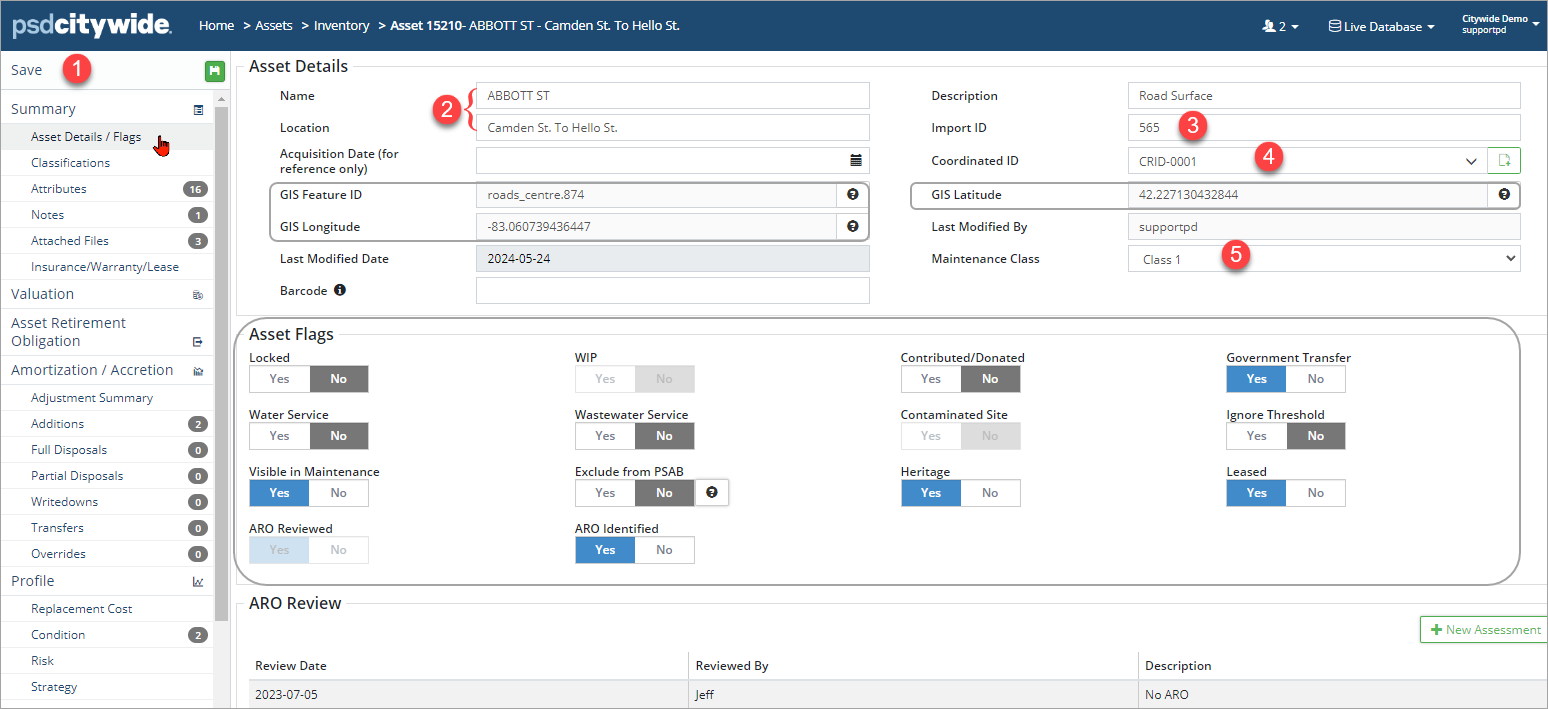
The Name, Location, and Description fields are used to identify the asset. Searches can be performed on these fields in the Inventory grid. The Name and Location fields appear in the banner ❷ at the top, which is always visible when in the asset view.
The Import ID ❸ field is an identifier and can also be a linking key within a GIS asset layer.
The Acquisition Date is for reference purposes only and is often the date that the asset was acquired. (The In-Service-Date found on the Valuation screen is used to start amortization in Citywide.)
Coordinated IDs ❹ are an asset management tool used to group co-located assets for reporting purposes. For example, different segments of a road can be grouped with its nearby sublinear assets so that condition, risk, and capital replacement reports can be generated for the group.
- Click the dropdown arrow and select an ID.
- If the dropdown list is empty, click
 to add a Coordinated ID.
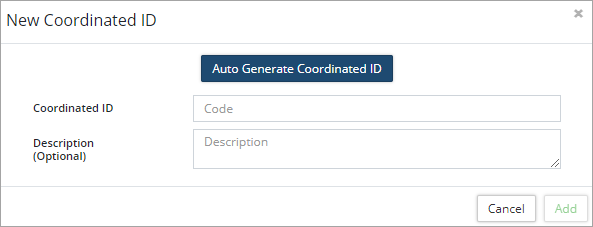
- Enter a code in the Coordinated ID field. Coordinated IDs can contain letters, numbers, special characters or spaces.
- Alternatively, click Auto Generate Coordinated ID and the system will add a new alphanumeric ID starting with CRID-0001.
- Enter a Description (optional).
- Click Add .
Coordinated ID's are managed on the Assets landing page (Home ð Assets) in the Manage section.
GIS Feature ID, GIS Latitude, and GIS Longitude are set automatically when the asset is linked to GIS. These fields cannot be edited.
Last Modified By and Last Modified Date shows when the asset data was last modified and by which user. The data in these fields are system generated and cannot be edited.
Maintenance Class is available for use on Road assets to identify the road class for Citywide Maintenance and Route Patrol modules.
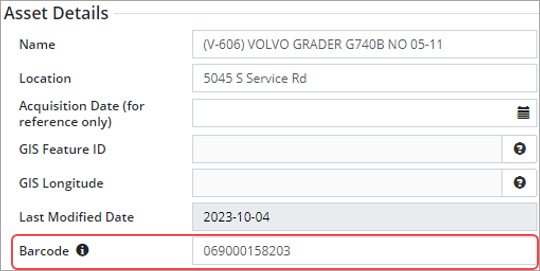
The Barcode field is used for barcode scanning to identify the asset. If an asset with a barcode is linked to an equipment from the Maintenance module, the asset barcode will be shared, ad any changes to one will affect the other. Supported barcodes include UPC-E, CODE39, EAN13, EAN8, CODE93, CODE128, PDF417, QR, AZTEC, ITF and DATAMATRIX barcode types.
Asset Flags
Asset flags are used to tag and group assets for reporting purposes. The following table lists all available flag properties:
| Flag | Description |
| Locked | Prevents any edits to the asset. Only admin users can unlock the asset. |
| WIP | Work-in-Progress (WIP) assets incur costs but are not being amortized because they are not yet in-service (i.e., a construction project). WIP assets display with a yellow rectangular icon in the inventory view. |
| Contributed/Donated | Include the asset when generating a Contributed/Donated financial report. |
| Government Transfer | Include the asset when generating a Government Transfer financial report. |
| Water Service | Include the asset when generating a Water Service financial report. |
| Wastewater Service | Include the asset when generating a Wastewater Service financial report. |
| Contaminated Site | Include the asset when generating a Contaminated Site financial report. |
| Ignore Threshold | Use to ignore a Capitalization Threshold. For example, if an asset such as a phone or laptop is purchased in multiples, individually the asset is below the capitalization threshold but when grouped together the amount is higher. Apply the Ignore Threshold flag when adding the asset to the Inventory so it doesn’t aggregate when reporting. |
| Visible in Maintenance module | The asset is visible in the Maintenance module. (Only applicable for clients using Maintenance). |
| Exclude from PSAB | Assets with this flag will not be included in financial reports. |
| Heritage | Include the asset when generating a Heritage financial report. |
| Leased | Include the asset when generating a Leased financial report. |
| ARO Reviewed | Under PS 3280 all assets will need to be reviewed and an Asset Retirement Obligation determined. Use this flag to identify those assets that have been reviewed. Note: Once the flag is set to Yes and the asset saved, it cannot be toggled off. |
| ARO Identified | Use this flag to identify and report on assets with a retirement obligation. Note: This flag activates once the asset is reviewed and the ARO Reviewed flag is set to yes. |


