


Customers

Sep 10, 2025
Overview
Customers and Contacts are the same records, containing the same fields - they are referenced differently in the Citywide modules. "Customer" is used in the Maintenance module, whereas "Contact" is used in the Permitting module, where a contact can be assigned to various roles: an applicant, an owner, builder, etc. Thus, while the icon here says "Customers," both customers and contacts can be added here.
- Click on + Add Customer ❶.
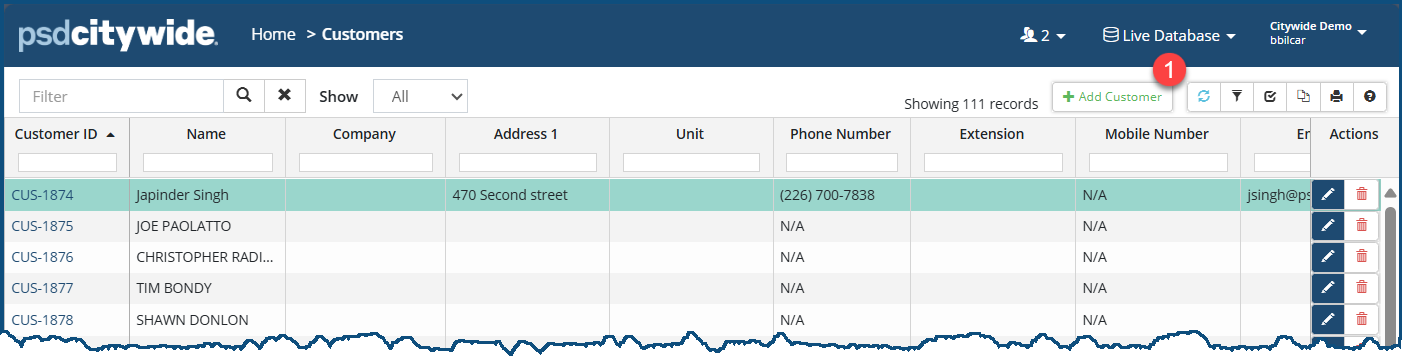
The New Customer dialog box appears:
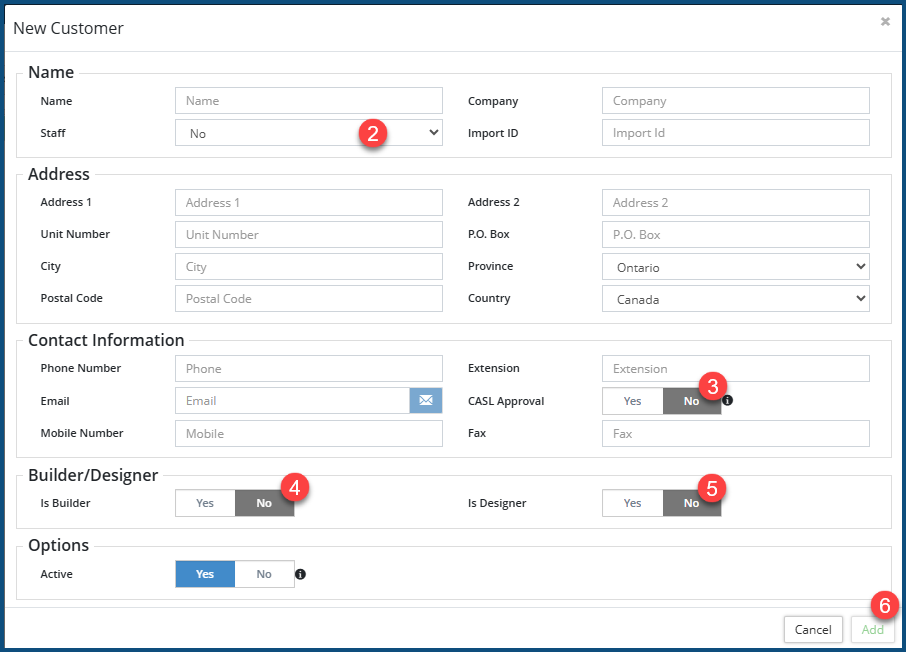
- Staff ❷: Select Yes or No concerning whether this is a staff person.
- CASL Approved ❸: Select Yes if this customer has provided consent to receive unsolicited emails from your organization.; No, if not. (CASL, which stands for "Canadian Anti-Spam Legislation," involves passage of nation-wide legislation in Canada.)
- Is Builder ❹: Select Yes if this customer is a Builder; No, if not.
- Is Designer ❺: Select Yes if this customer is a Designer; No, if not.
- Click Add ❻.


