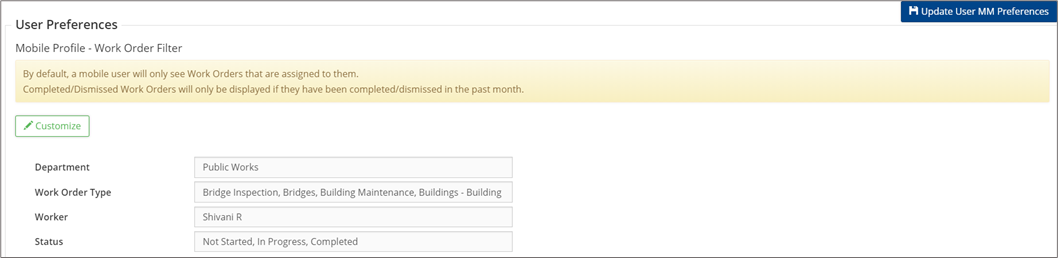
Global and User Preferences are set under Maintenance 🢡 Preferences. Users with the appropriate permission levels can define whether certain resources are available (i.e., Parts/Material Inventory) as well as update Summary Report Settings.
|
Global Preferences |
Description |
|
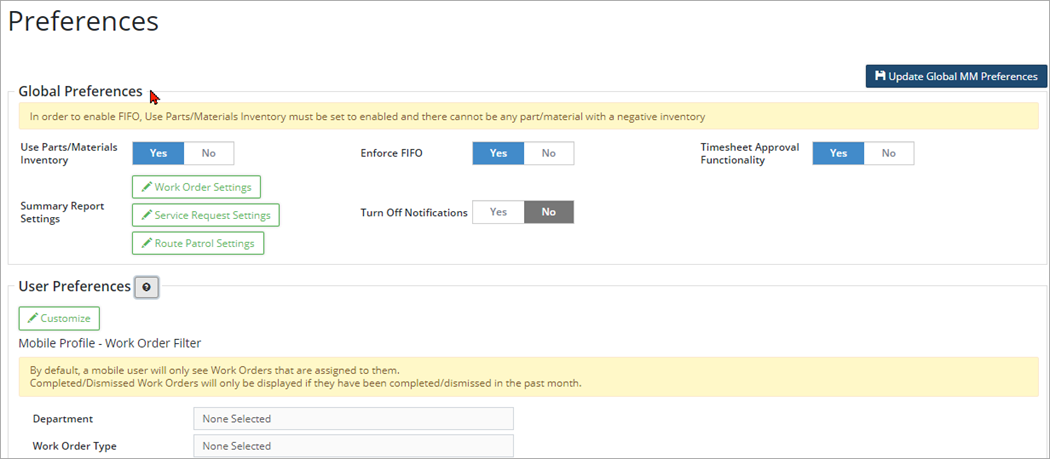
* Click Update Global Preferences to save changes for all users across the database. |
|
|
Use Parts/Materials Inventory |
Set the flag to yes to make the Parts/materials Inventory available for use within the database. |
|
Enforce FIFO (First In, First Out) |
Set the flag to yes to enable FIFO. The flag is available for selection only when the Use Parts/Materials Inventory flag is set to Yes and a negative inventory does not exist. If Use Parts/Materials Inventory is set to yes and the Enforce FIFO flag is dimmed then a negative inventory exists. Citywide will not activate FIFO if the inventory count is negative. If the database is FIFO enabled then mobile users will not be able to attach and cost parts and materials on the mobile app. |
|
Timesheet Approval Functionality |
Set the flag to yes to activate the timesheet approval functionality. |
|
Summary Report Settings |
Set flags to view/hide sections within reports |
|
Set View/Hide Sections, add extra blank rows and signature labels for WO. |
|
Set View/Hide Sections, and add extra blank rows for SR. |
|
Set View/Hide Sections, and add extra blank rows for Route Patrol. |
|
Turn off Notifications |
Set the flag to yes to disable notifications. |
|
User Preferences |
|
|
* These preferences are specific to each user. |
|
|
Customize |
Mobile preferences allow users to access relevant work orders when on the mobile app. Click Customize and select the Department and Route-Work Order (WO) Types, as well as the Worker assigned, and the WO statuses. Save your selection and click on Update Global preferences. Hover over |
 for additional information on setting user preferences.
Mobile Profile Work Order Filter
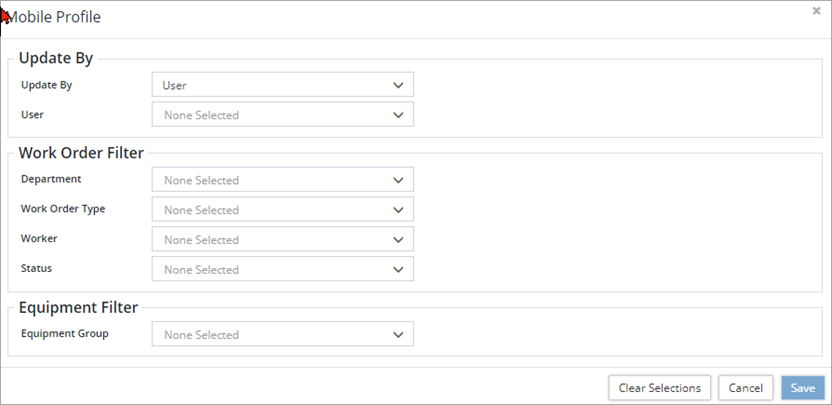
- Click on Customize and select the Department and Route-Work Order (WO) Types, as well as the Worker assigned, and the WO statuses.
- Save your selection and click on Update Global Preferences.