

Inspectors

Last updated: Aug 13, 2025
Overview
Most permit types involve inspections, which in turn needs inspectors. Setting up inspectors is a simple process involving a single requirement—that the prospective inspector be set up as a Citywide user. That requirement can be met by a Permitting Admin user when setting up the Inspector account. Inspectors are classified solely by the inspection types along these broad divisions: Building Permits, Other Permits, and Licences. Their accounts can be enabled for any combination of these permitting types.
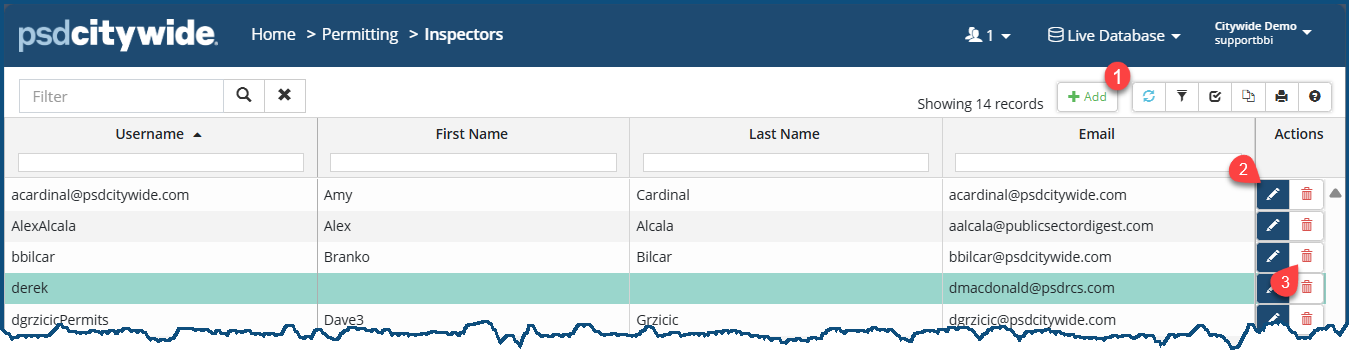
Add an Inspector
To add an inspector:
- Click on + Add ❶. The New Inspector dialog box appears:
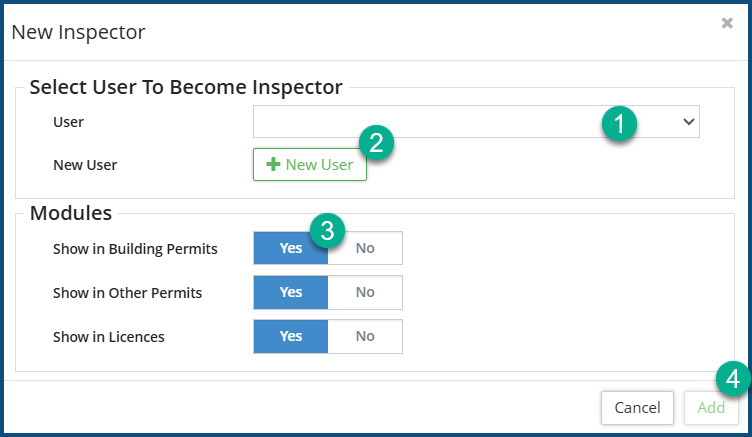
- Select a user from the User ❶ pull-down. If the prospective inspector has not been setup yet as a User and if you have Admin privileges, you can set up a new user account on the fly by clicking on + New User ❷. (Click here from instructions on adding a new user.)
- Click Yes ❸ for each of the modules' permits the inspector will inspecting.
- Click Add ❹.
Edit an Inspector Record
- Click on the Edit tool
 ❷. The Edit Inspector dialog box appears
 - Click Yes or No for each module as required.
- Click on Edit.
Delete an Inspector Record
- Click on the Delete tool
 ❸.When prompted, click on Remove .


