


Overview
The Other Permits page is essentially a control console where all non-building permits are first entered (or received through the PSDCitywide PortalThe PSDCitywide Portal is an online customer-facing application used to submit Permitting applications. See the PSDCitywide Portal User's Guide for details.) and from where all other matters pertaining to permits are accessible. It opens up in a grid in which each row contains a permit with pertinent information appearing across a set of columns (which can be augmented and rearrangedSee Grid Customization for details. as required).
Permits rely on a variety of categories, such as Permit Types, Inspection Types, Fees, etc. whose contents must be fully set up in advance. These are all the categories that appear within the Home 🢡 Permitting 🢡 Other Permits: Manage section. An Other permit record, for example, cannot be created without the appropriate permit type, along with numerous other pre-sets.
This is the Other Permits screen, which lists all the Other Permits in the system (currently) sorted in reverse chronological order by their unique, system-assigned Permit number ❶:
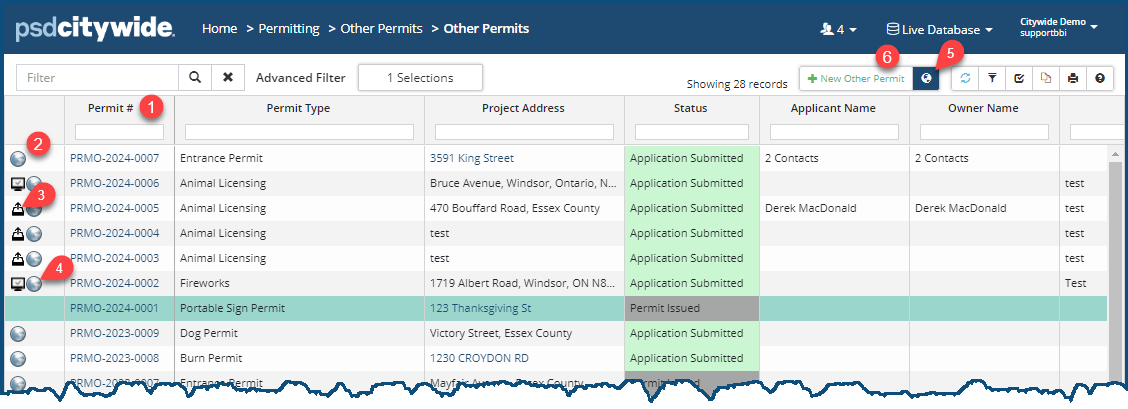
The first column ❷ may contain one or two icons: the checkbox icon  ❸, indicates that the current record was created using PSDCitywide Portal, while the globe icon
  ❹ indicates that the property the permit is associated with has a GIS mapping. No icon, of course, indicates that that the building permit was created on the full CW system and that it does not have a GIS mapping. Clicking on the GIS globe icon
  ❺ will allow you to access a map where you can see the GIS-mapped sites and view basic permitting information concerning those sites.
Add a Building Permit
Property
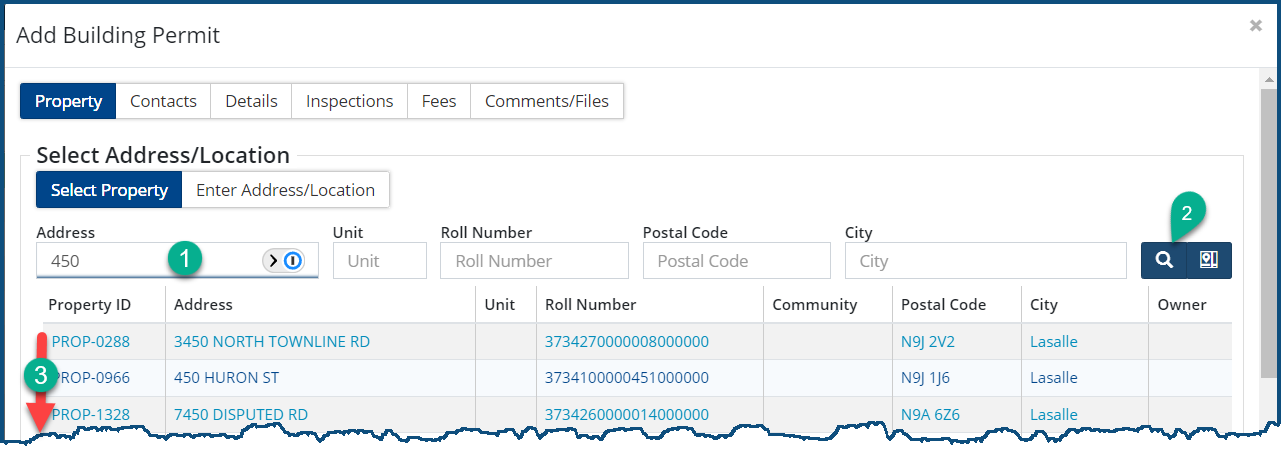
- Click on + New Other Permit ❻. The Add Building Permit wizard appears, with the Property tab pre-selected:
- You have three options here:
- Enter full or partial information ❶ in any one of the fields on the screen and click on the Search icon ❷ to product a list ❸ from which you can select the property:
- Click on Enter Address/Location ❹:
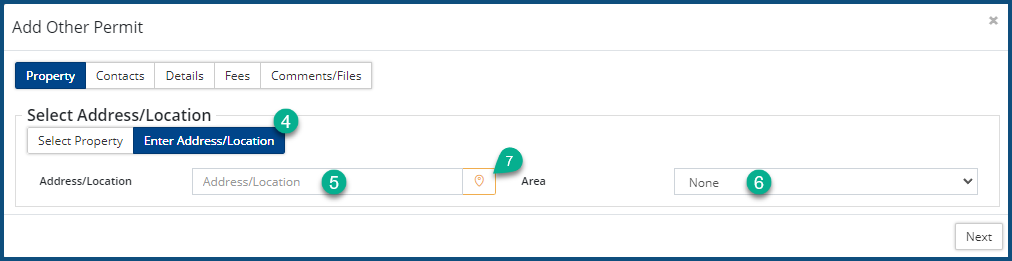
- Enter a (street) Address or (GPS coordinate) Location ❺. You can also specify the Area ❻.
- Optionally, you can click on the map marker icon ❼ to select a location from the GIS map:
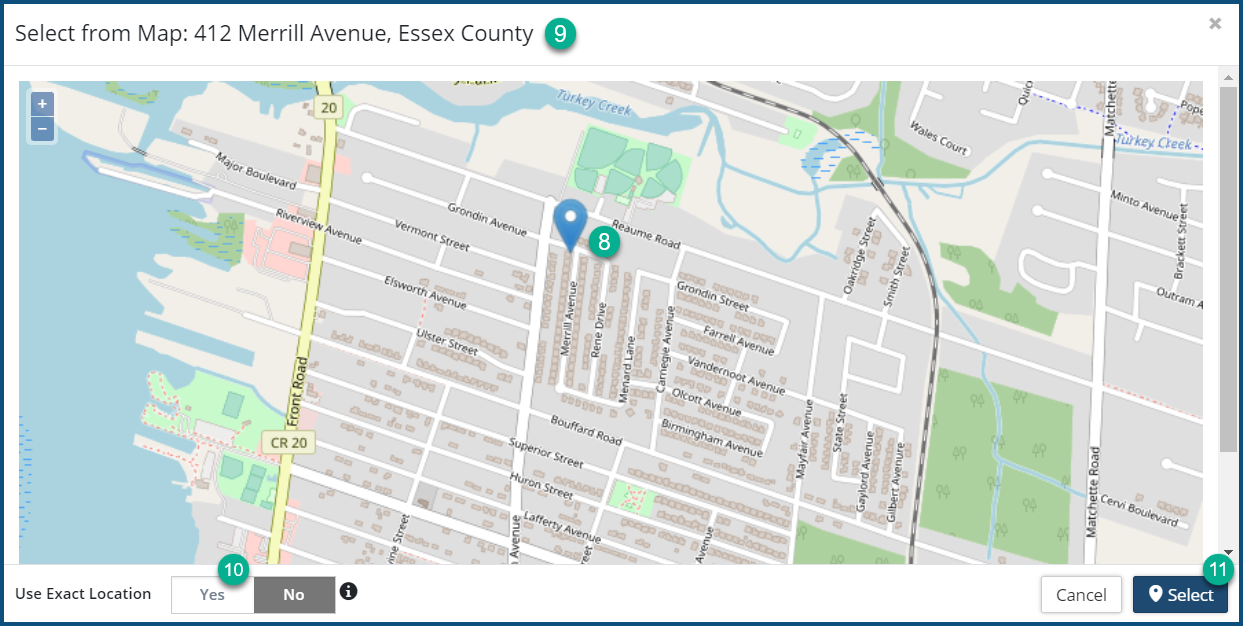
- Pinpoint the property by clicking on it on the map ❽. The address will appear in the header ❾. Alternatively, you can generate the GPS coordinates for the selected pin point by selecting Yes ❿ under Use Exact Location.
- Click Select ⓫.
- Click on + New Property to add a new property ❶. (This option will only be available to you if your account is configured with the appropriate permissions to add new properties.)
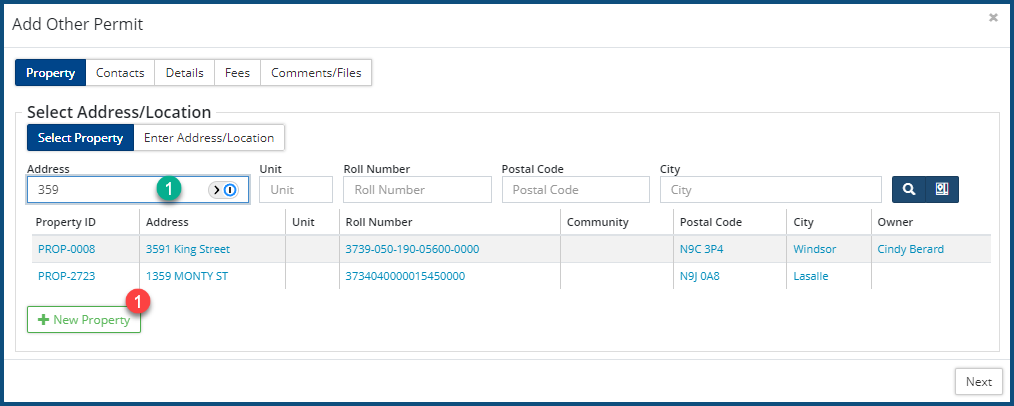
The New Property dialog box appears: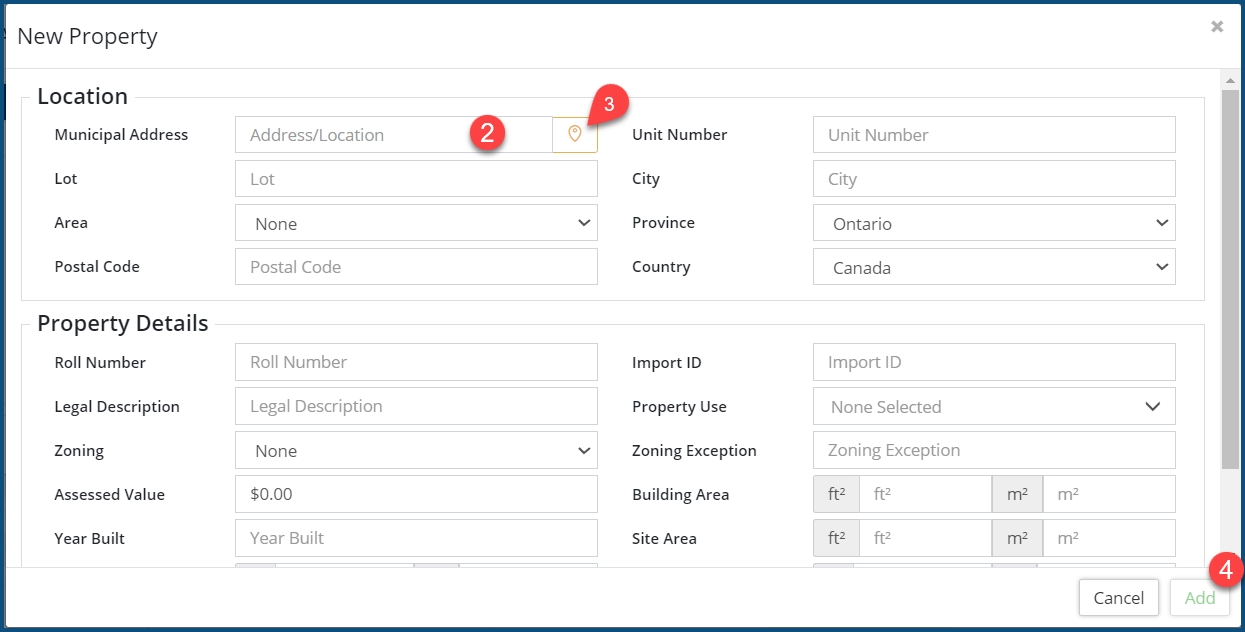
- Enter as many of the fields as you deem necessary. Only the Municipal Address field ❷, which can involve either a street name and number or GPS coordinates, is required.
- Click on the map marker icon ❸ to select a location from the GIS map (as per the above instructions).
- Click Add ❹.
- Click Next ❺.
- Enter full or partial information ❶ in any one of the fields on the screen and click on the Search icon ❷ to product a list ❸ from which you can select the property:
Contacts
Contacts refers to all the individuals associated with the Building Permit. Contacts can comprise a variety of types that are hard coded in the system (e.g. Owner, Builder, Designer, etc.) and/or they can also include custom types that you can set up in Home 🢡 Permitting: Manage: Other Contact Types. You can add as many contacts (e.g. multiple Builder contacts) as required.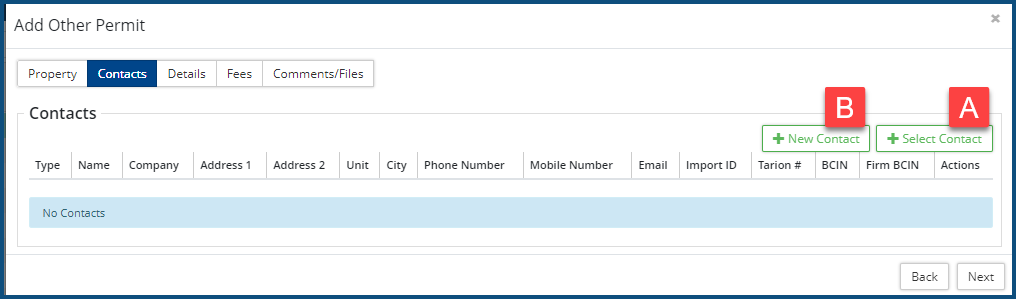
You can select an existing contact 🅰, or, if your if your user account is configured with the appropriate permissions, you can add 🅱a new contact here on the fly.
To select an existing contact:
- Click on + Select Contact 🅰. The Select Contact dialog box appears:
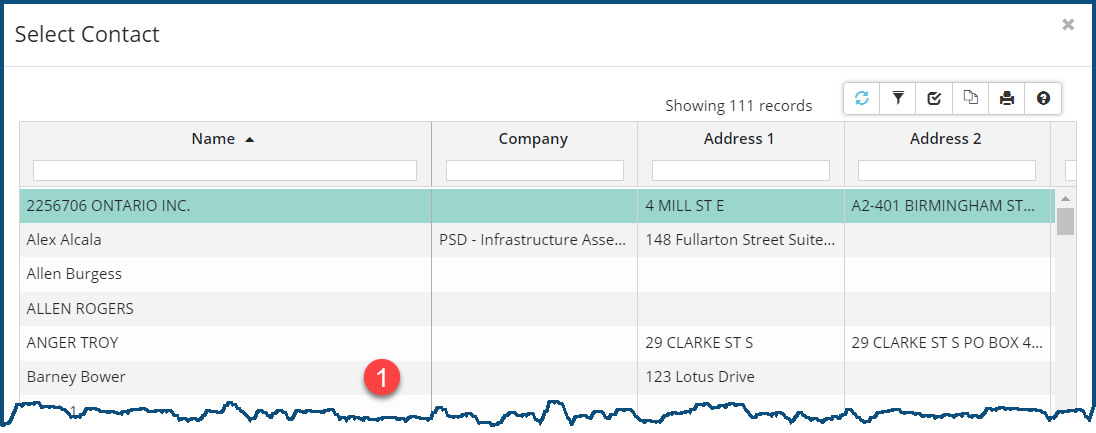
- Click anywhere on the row ❶ of the contact to be included. The Contact Type options appear:
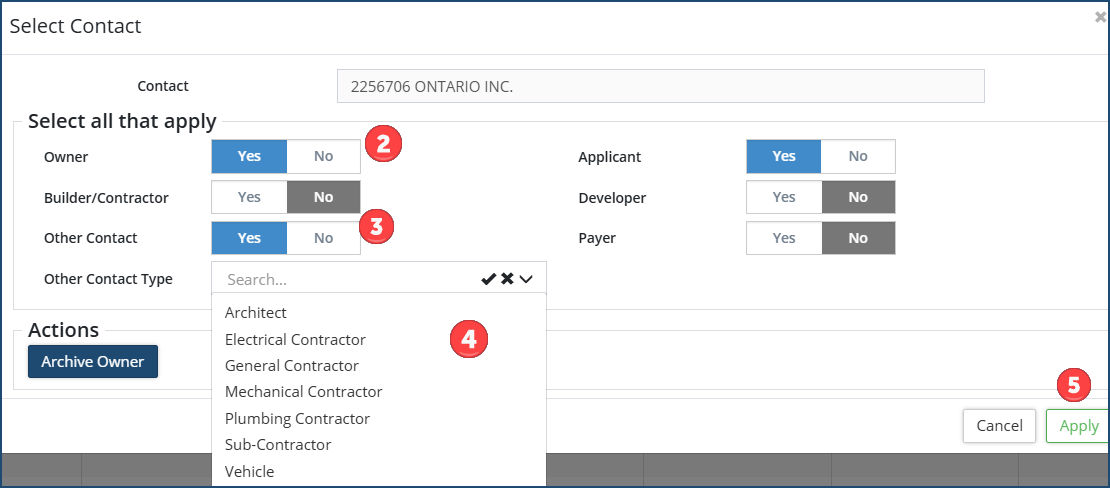
- Check Yes for all the applicable types. Selecting Owner ❷ will link the contact as an/the owner in the Property record. Clicking Yes on the Other Contact Type ❸ option will produce a drop-down ❹ that contains all the Other Contact Types added to the system and enabled (there to appear here) for Building Permits.
- Optional: Click
 if you need to archive the current owner of the property and continue to either select an existing contact or add a new contact as the new property owner.
 - Click Apply ❺.
- Repeat all the above steps to select an additional contact.
To Add a Contact:
- Click on + New Contact 🅱. The New Contact dialog box appears:
- The New Contact dialog box appears:
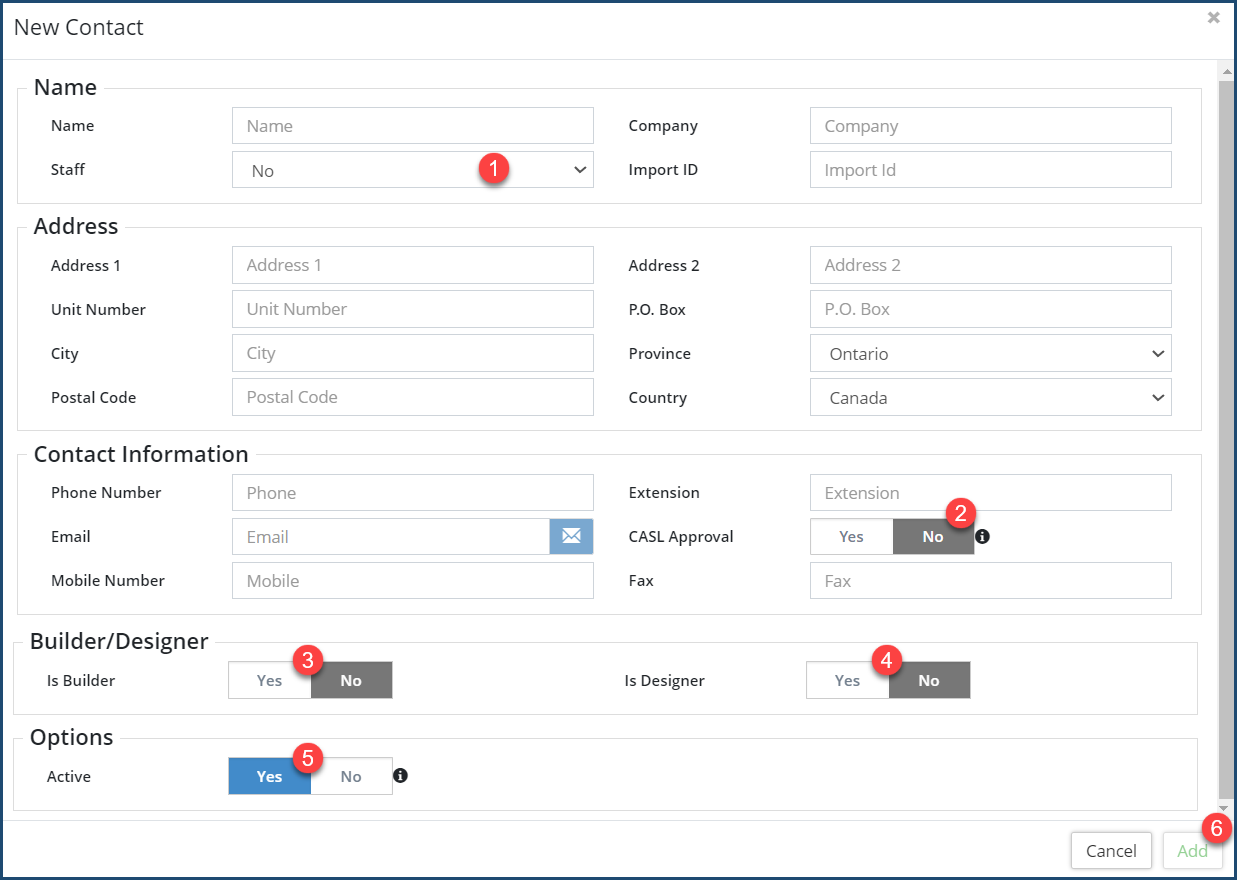
- Staff ❶: Select Yes or No concerning whether this is a staff person.
- CASL Approved ❷: Select Yes if this contact has provided consent to receive unsolicited emails from your organization; No, if not. (CASL, which stands for "Canadian Anti-Spam Legislation," involves passage of nation-wide legislation in Canada.)
- Is Builder ❸: Select Yes if this contact is a Builder; No, if not. Selecting Yes may produce additional fields. In Ontario, for example, builders are required to register with Tarion (a non-profit organization whose purpose is to ensure that purchasers of new homes receive the coverage they are entitled to under their builder's warranty) and have a Tarion Number issued to them. Selecting Yes produces a Tarion Number field on the screen.
- Is Designer ❹: Select Yes if this contact is a Designer; No, if not. Selecting Yes may produce additional fields. In Ontario, for example, building designers must be licenced and issued either an individual or firm-based BCIN (Building Code Identification Number) number. These two additional BCIN fields will appear when Yes is selected.
- Active ❺: Select Yes to make this contact active within the system; No, if not.
- Click Add ❻.
- Repeat all the above steps to add an additional contact.
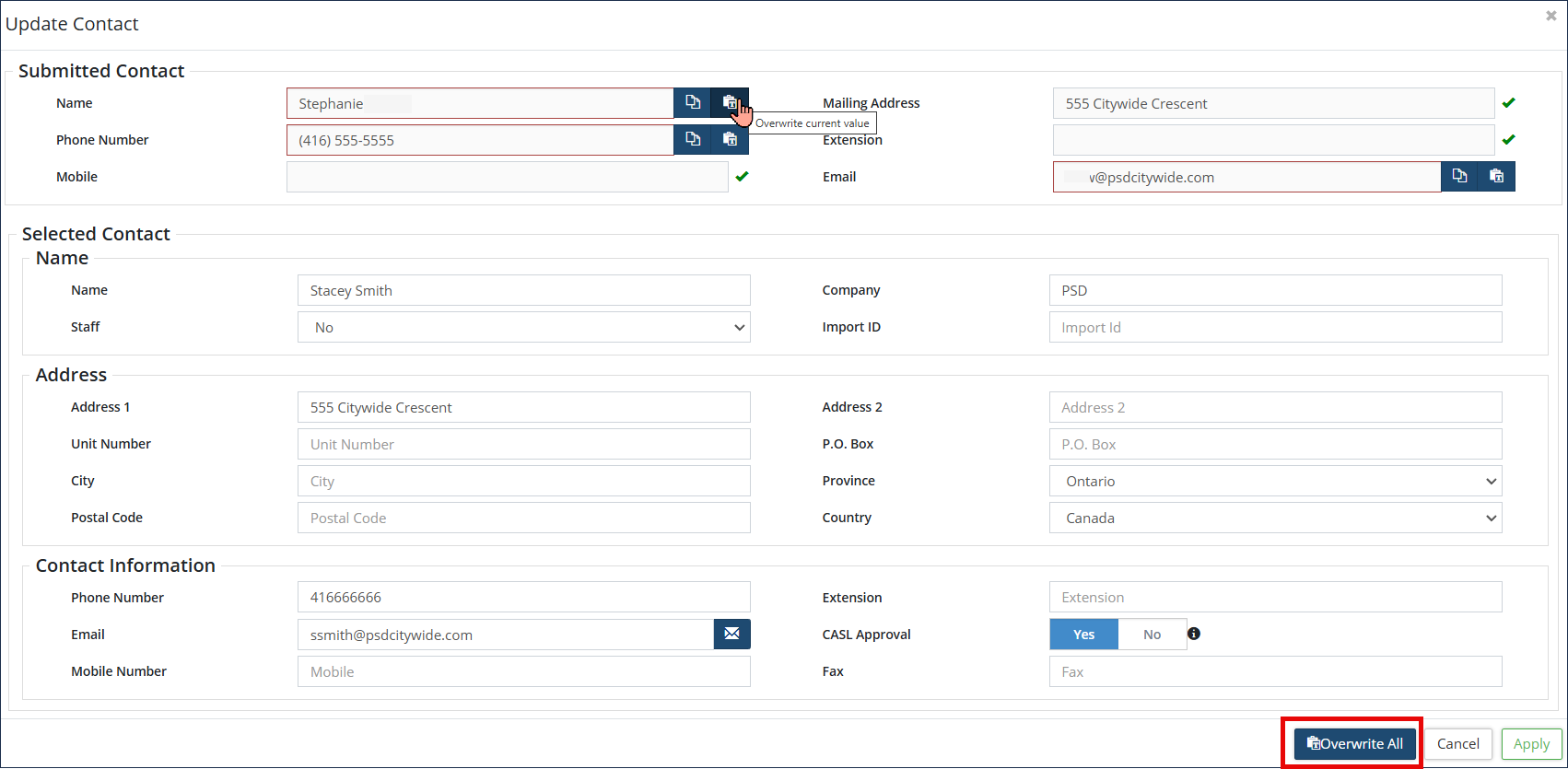
To update the contact details with information submitted via Citywide Portal:
- When an application is submitted via Citywide Portal, the suggested customer contact(s) are displayed. If required, you can 'overwrite' the suggested contact information with the submitted contact details from the application.
- Click the Suggested Contact to update the contact details
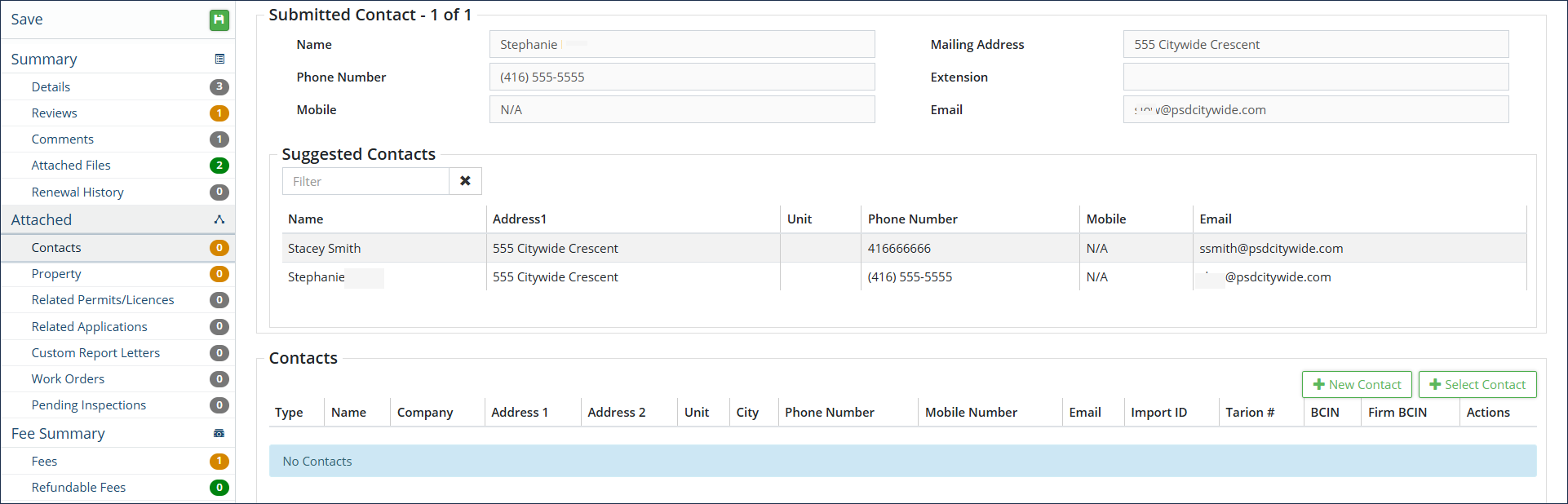
- Overwrite each required field or Overwrite All to overwrite the current values with the contact information submitted on the application. Then click Apply.
Details (Add Mode)
The Details screen contains all the details pertaining to the chosen Permit type. It's contents are specific in each case to the chosen permit type, and each permit type has been individually defined by your Permitting administrator to contain all the relevant fields for that permit type. Also, the layout and structure of this screen can vary from one permit type to another, each designed to facilitate a logical data entry flow (or e.g. to mimic an existing set of forms). That being said, you also have a great deal of flexibility in modifying the screen for each new permit you create. You can, for example, add individual fields (within a field grouping) or even add an entire field group when entering the permit details. This allows you to precisely define the individual permit you are entering over and above the pre-set default field and field group settings that the chosen permit type starts off with.
This is an example of an Other Permit Details screen for an Entrance Permit:
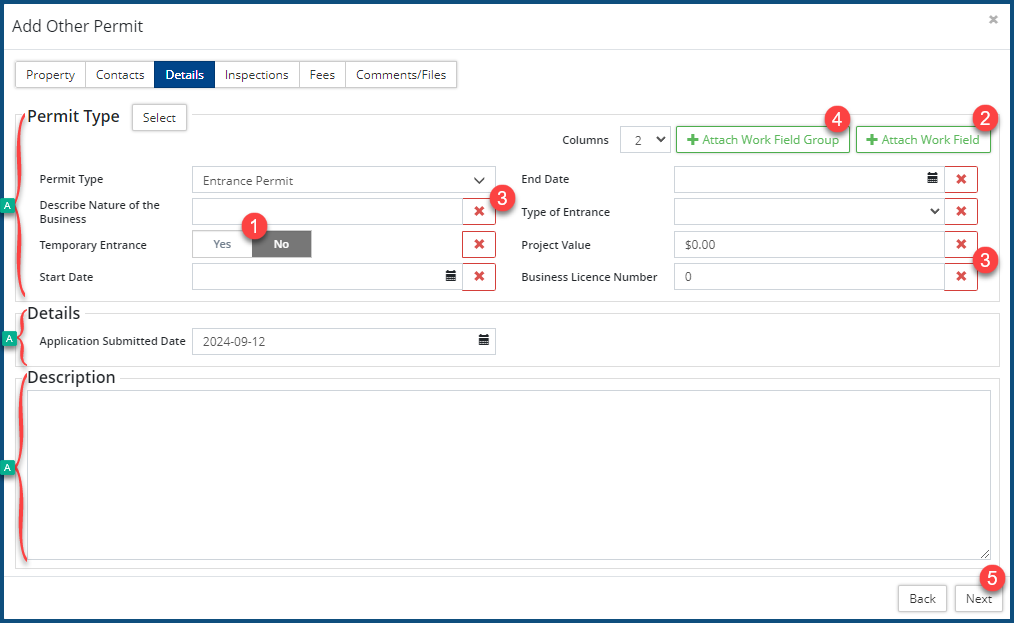
It contains a variety of sections and fields that have been set up specifically by this municipality for this particular permit type. There are only a few fields here that are customary in all CW Permit Types (the most obvious one, of course, being Permit Type), and only some fields that this municipality has elected to set up for all Other Permits (e.g. Application Submitted Date).
Most of the fields on this screen are self-explanatory. The Temporary Entrance field ❶ is unlikely to appear in any other Other Permit type. You would set it to Yes only if this was if the permit was for a temporary entrance. All the other fields on any one of your Other Permits should be known to you, or, if unusual or uncustomary, they should be separately documented by the permit author who has created the permit in which they appear.
The screen is organized around a set of field groups 🅰. each group containing a set of related fields. You can click on + Attach Work Field ❷ within a group to add a new field. Fields, such as "Describe Nature of the Business" and "Business Licence number" can be removed by clicking on the X ❸ next to them, if, for example, this permit does not apply to a commercial property. field to remove it. Click on + Attach Work Field Group ❹ to add a new group to the screen, where you can then add fields to it.
Click Next ❺.
Inspections
Different building projects will, of course, involve a different set of inspections, which is reflected on the Inspections page, whose contents are determined by the Permit Type selected in the previous (Details) page. The set of inspections here are defaults set up by your Permitting administration. However, any one of the inspections in the list can be removed ❶ and additional inspections added ❷. This, then, is the Inspections screen associated with the "Deck Building" permit type: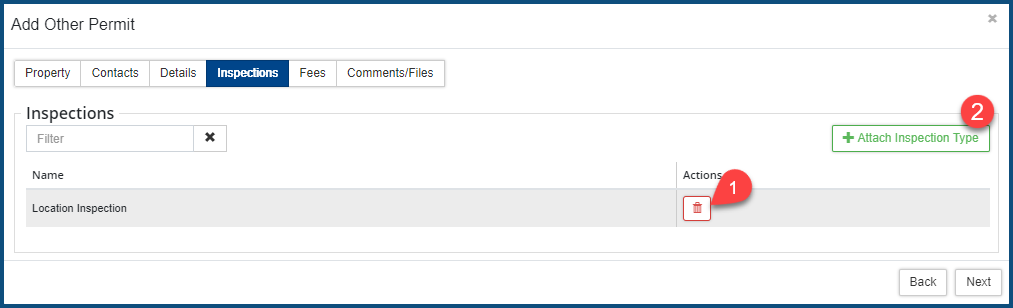
To add an Inspection:
- Click on + Attach Inspection Type ❷. The Select Inspection Type dialog box appears:
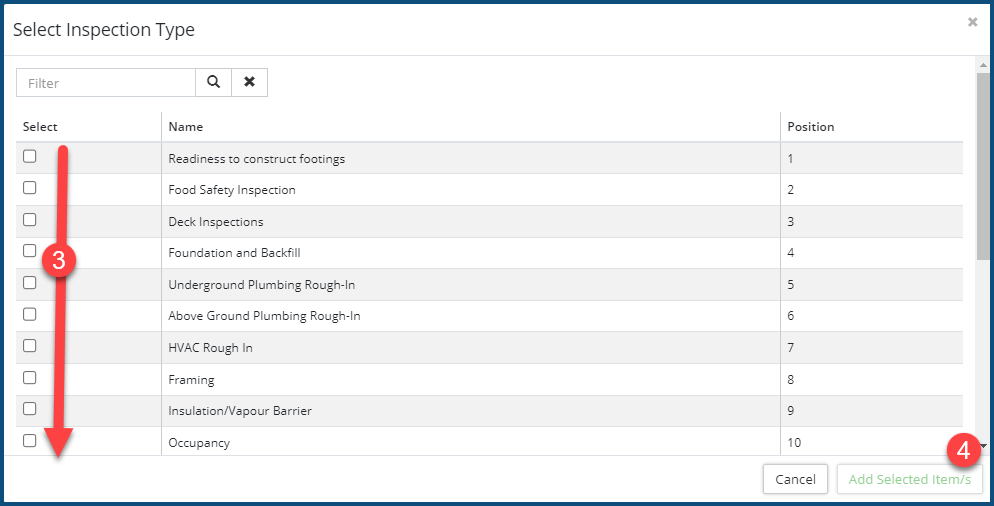
- Check ✅ ❸ all the inspection type to be added.
- Click Add Selected Item/s ❸.
- Click Next ❺.
Fees and Refundable Fees
All the fees (charged and refunded) associated with the Permit appear on this screen. At least one of the fees that appear on this screen is linked to the Permit Type— in this example, the "Entrance Permit Fee" ❶ fee that is fixed fee ❷ of $500.00 ❸. Other may be calculated. (See Fees for details.)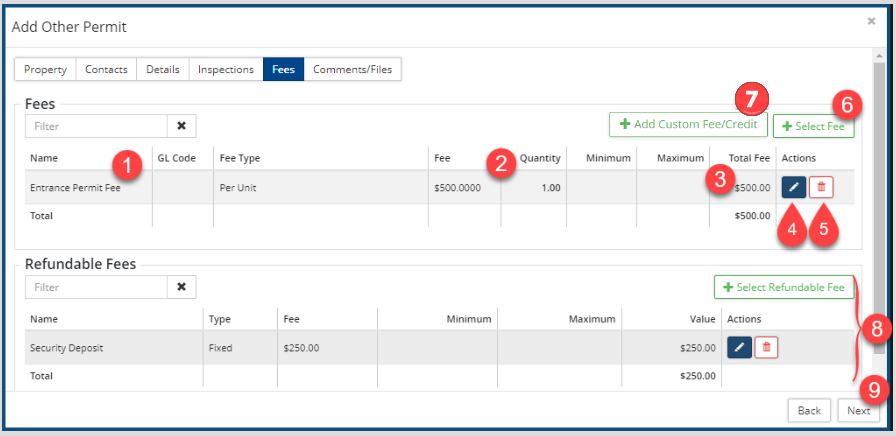
Any of the fees on the screen can be edited by by clicking on the Edit  icon ❹, which allows you to either overwrite the Quantity 🅰 (and have the total recalculated if it was based on a calculation) or the Total Fee 🅱 (which allows for a new fee to overwrite the original fee even if it was based on a calculation):
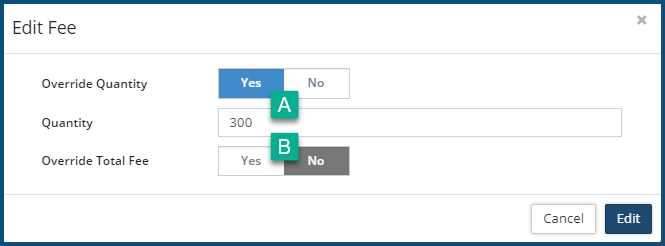
Click on the Delete icon  ❺ to delete a fee/refund row.
Click on + Select Fee ❻ to add a fee from the list of fees set up in the system. The Select Fee dialog box appears: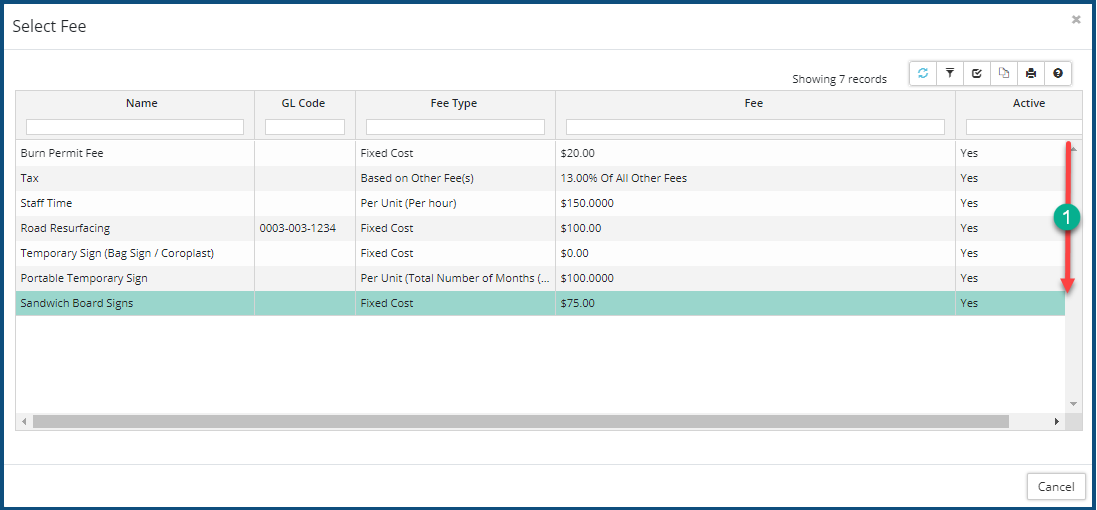
- Click on the fee to be added ❶.
Click on + Add Custom Fee/Credit ❼ to add a fee or credit that does not exist in the system. The Add Custom Fee/Credit dialog box appears: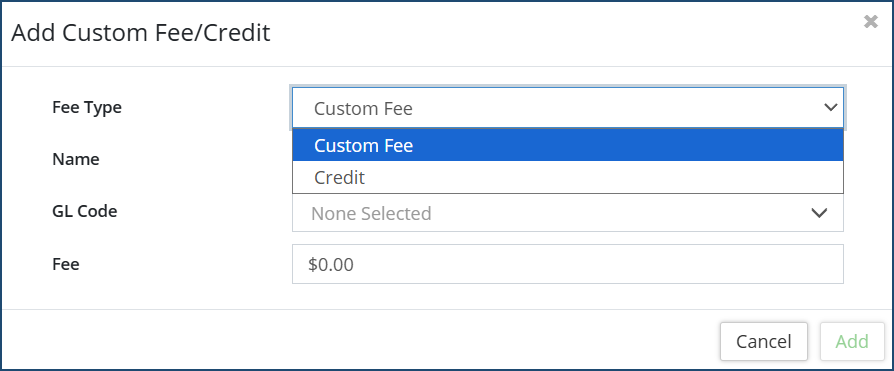
- Select the Fee Type from the pull-down: Either Custom Fee or Refund.
- Provide a Name for it.
- Select the GL Code (optional) that the Fee/Credit amount will be written to. GL Codes are maintained in the General Ledger Codes.
It is important to select the correct GL Code here in all cases, in that the fees can be exported through the GL Code Report and then imported into your accounting system. Entering the incorrect GL account code here may, when imported into your accounting system, create distortions there.
-
Enter the Fee/Credit Amount.
-
Click Add ❺.
Comments/Files
This is where you can add Internal Comments, which may be helpful or informative for anyone within your office having to review this permit. "Internal" means that it will not be visible to permit applicants and other contact in, say, the Citywide Portal.
Files refers to the Required Documents and other adjunct support files that must be (or can be) attached to the permit. Required Documents will be named in the Attached Files list. Those that have already been attached will have a checkmark ✅next to them; required documents that have not yet been attached will have a red "x" next to them  . Permits cannot be issued unless all required documents are attached to the permit.
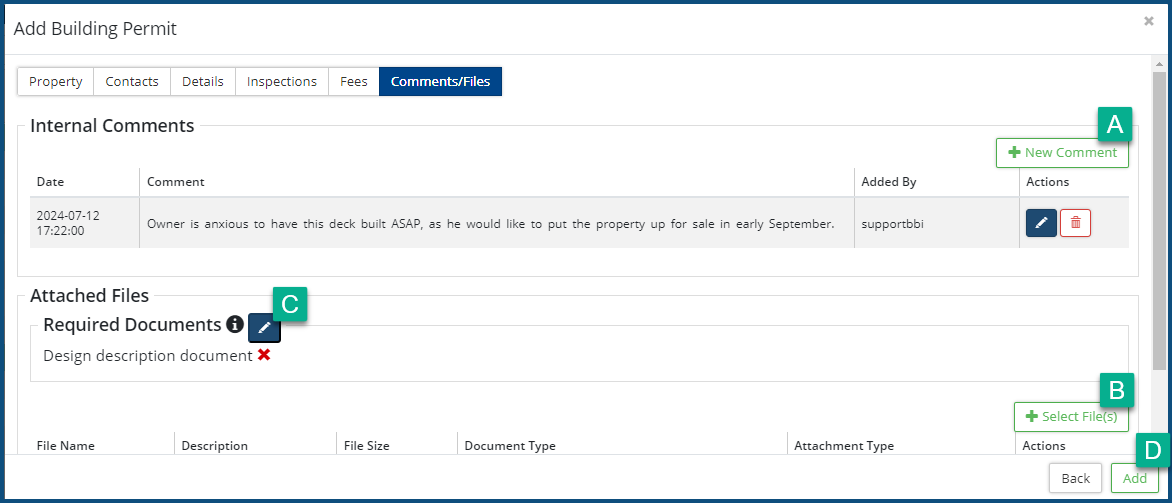
To add an Internal Comment, click on + New Comment 🅰. The Add Comment dialog box appears:
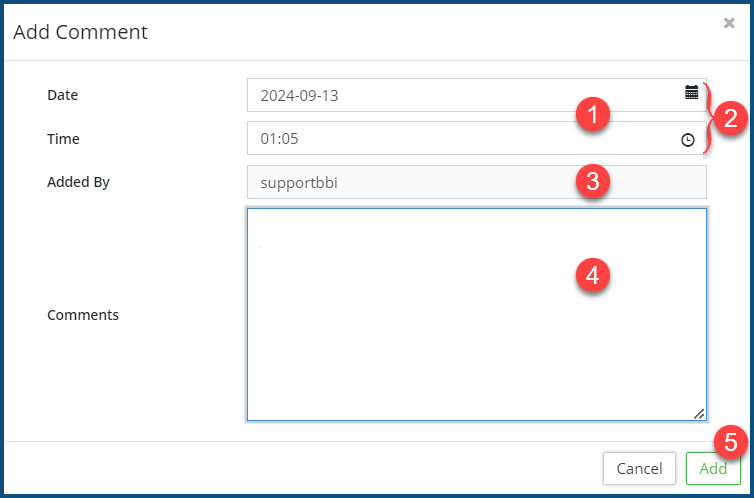
- Enter a Date and Time ❶ in their respective fields, or leave the current time in place. Clicking on the icons at the ends of the two fields ❷ allow you to select a date and the time.
- Your CW username will appear in the Added By ❸ field. It cannot be altered.
- Enter Comments ❹. The text box can be expanded to facilitate the full scope of your comments.
- Click Add ❺.
To attach Required Documents and other files, click on the + Select File(s) 🅱. The Add Files dialog box appears:
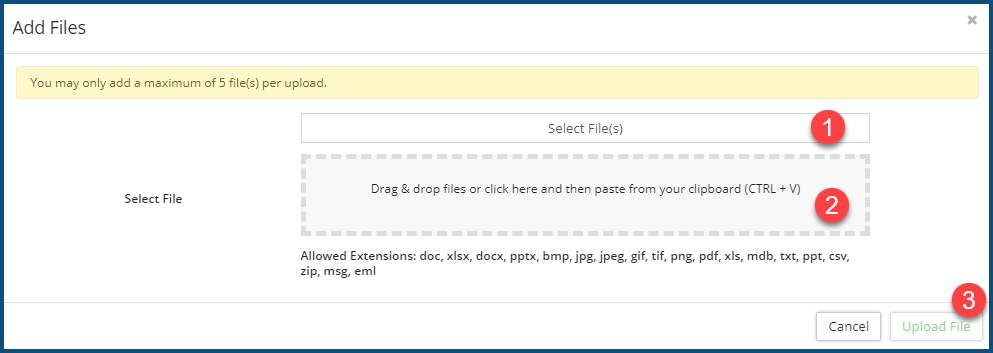
- Click on Select File(s) ❶ to select files from your system file manager, or
- Drag and drop ❷ files in the provided box.
- Click on Upload File ❷.
To add any ancillary or missing Required Documents from the repository, click on the large Edit icon 🅲. The Manage Required Documents dialog box appears:
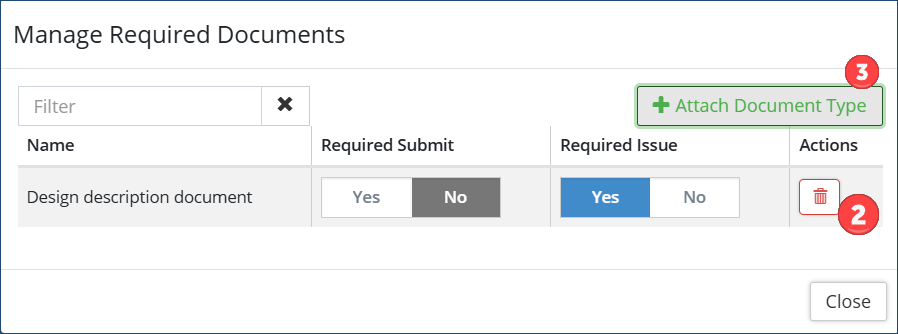
All the current documents will appear in the list (involving only one document in this case)
- Click on the Delete icon ❷ to delete a document from the list.
- Click on + Attach Document Type ❸ to add an additional document. The Select Document Type dialog box appears:
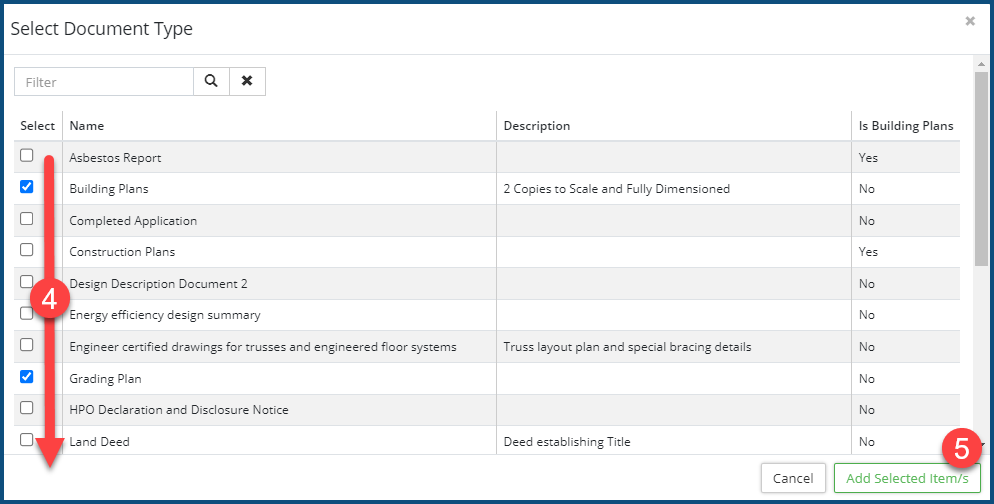
- Check ✅ all the additional documents to be added to the list.
- Click Add Selected Item(s) ❺.
- Then, select the required document option if it is Required Submit or Required Issue.
Click Add 🅳 when all Comments and Files have been added.
Open an Individual Building Permit
Individual building permits are accessible by clicking on the link ❶ in the Permit # column that corresponds to the permit to be accessed.
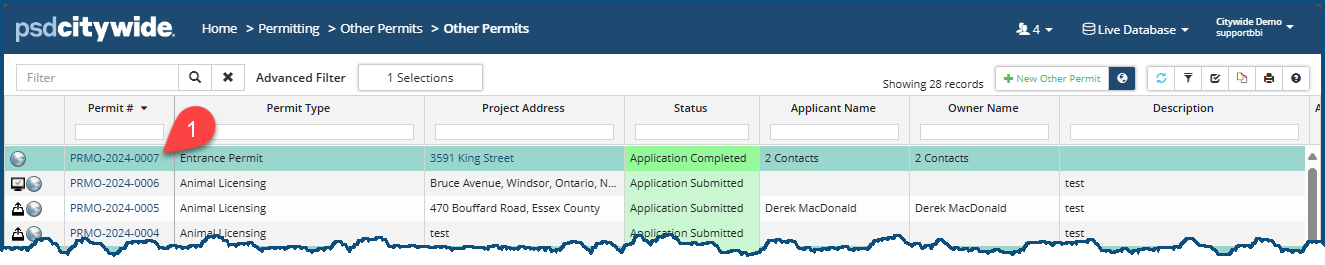
Permits can be edited and updated from within the Affiliate Panel. But, more than this, all the operations that are affiliated with the individual permit—inspections, reviews, support documents, fees, etc.—are also accessible from the Affiliate Panel.
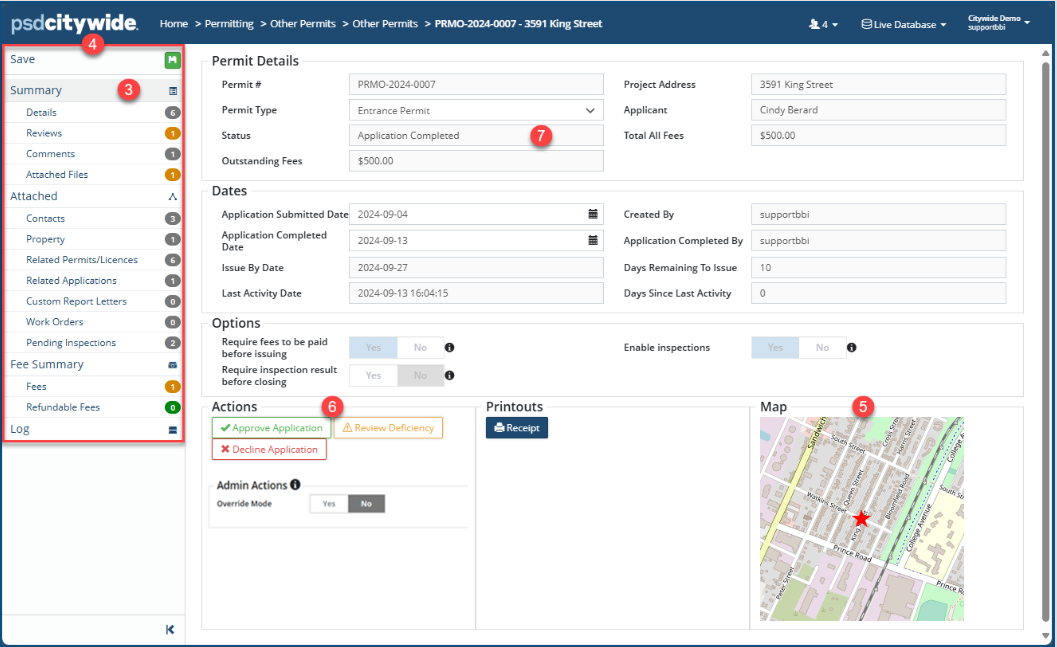
To open an individual permit opens, automatically displaying Permit Details ❷, which correspond to the Summary ❸ option in the Affiliate Panel ❹.
Changes made throughout the permit must be saved by clicking on the Save icon  at the top of the Affiliate Panel.
Summary and Application Actions
The Summary ❸ screen displays pertinent details concerning the individual permit, all of which are self-explanatory on the above screen, and all of which can be edited.
The location of the property in indicated on the Map ❺ with a red star ★. Clicking on the image will open up the GIS Viewer, once again indicating the location of the property. See GIS Viewer for details.
Actions ❻ contains next-step action items. In the above example, the Status ❼ of the Permit is "Application Submitted," for which three possible next-step actions are possible: Application Complete, Application Incomplete, or Decline Application. Once the application is completed, the next status actions are Review Deficiency or Approve Application. Any deficiencies need to be resolved before the application can be approved. If the Status of the Permit were "Approved," the next-step action items would be Issue Permit, Awaiting Customer and Decline Application. Awaiting Customer status indicates that there are outstanding items required by the customer to continue the application (ie. payment or documentation still required). Or, where the Status is "Permit Issued," the next-step action items would be Revoke Permit, and Cancel Permit. If the Status of the Permit was 'Permit Closed', the next step action item would be Reopen Permit.
To invoke a next-step Action item:
- Click on the Action item (e.g. Application Complete). Note: clicking on some options (e.g. Application Incomplete) may bring up a dialog box in which a note can be attached.
- Confirm your selection.
Note the changes on the screen: the Status ❼ will change, and a new set of next-step Action items will appear in the Actions box.
Admin Actions allows administrators to override and change an application type or status as required. (This option is only available to users with the Permits Admin permission.)
Printouts ❽ contains options for various types of printouts. Receipt (involving municipal fees) and Region Receipt (involving regional fees) are common printouts, but others, such as a Summary Report, can also appear here. This is what the Permit Fee receipt for the above Permit looks like: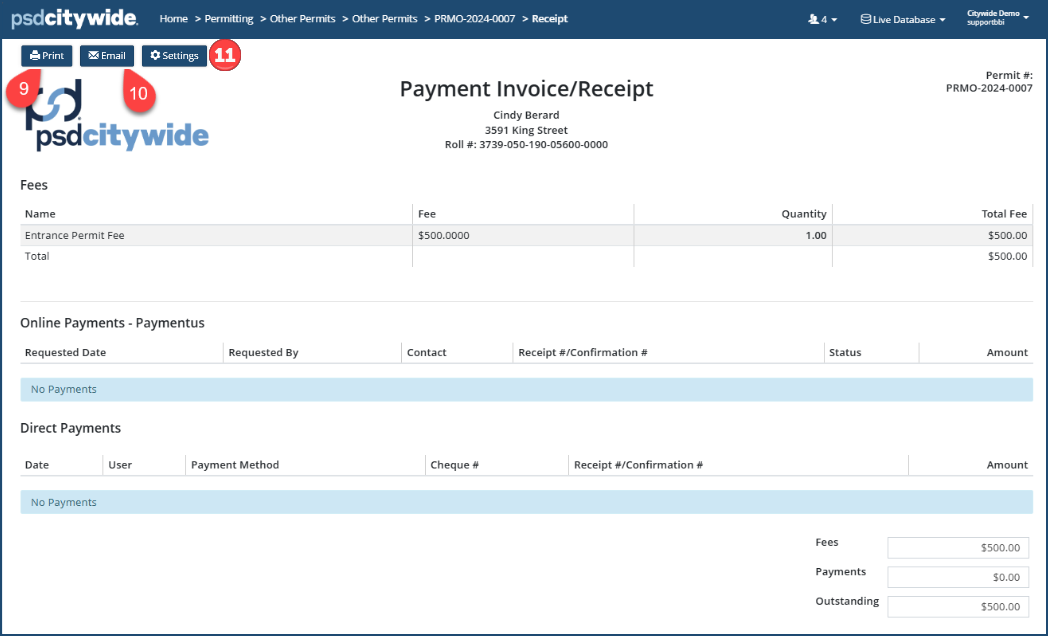
It displays not only the fee amounts, but the payments and payment history.
- The receipt can be Printed to a printer or to a PDF file ❾
- Or it can be Emailed ❿ to the applicant or contact
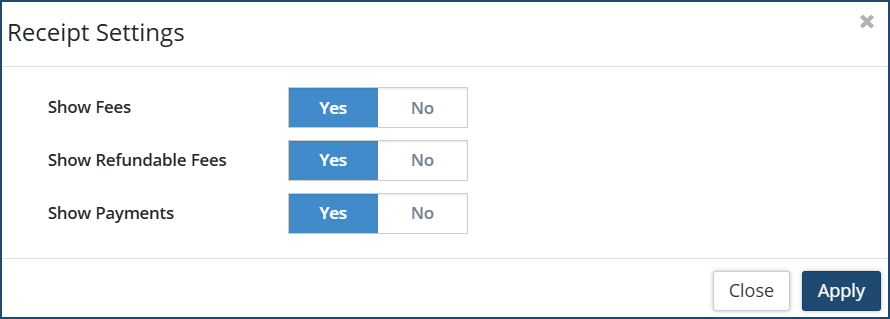
- ⓫ Settings: This allows the user to select which fees are visible on the receipt before printing or emailing. Toggle Yes or No on the desired option. Then click Apply.
Details (Edit Mode)
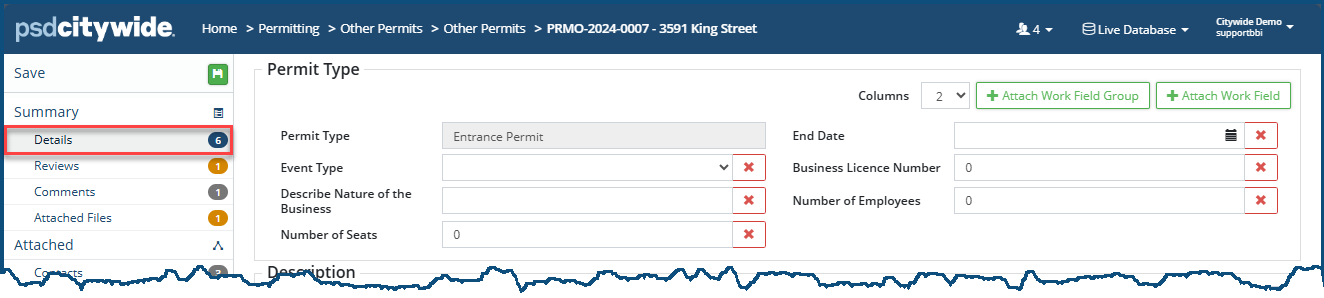
The Details section here is identical to the above Add an Other Permit 🢡 Details section. Click here to shuttle to that section. As indicated in the above section, you can add fields and field groups here as needed, as well as make any other required edits.
Reviews constitute a checklist of mandatory action items (tasks) associated with various permits, each of which must be checked ✅ before the associated permit can be issued. The tasks that constitute each of the reviews will depend on the building project type. Here, for this Desk Building permit, for example, there are two reviews with a total of three tasks.
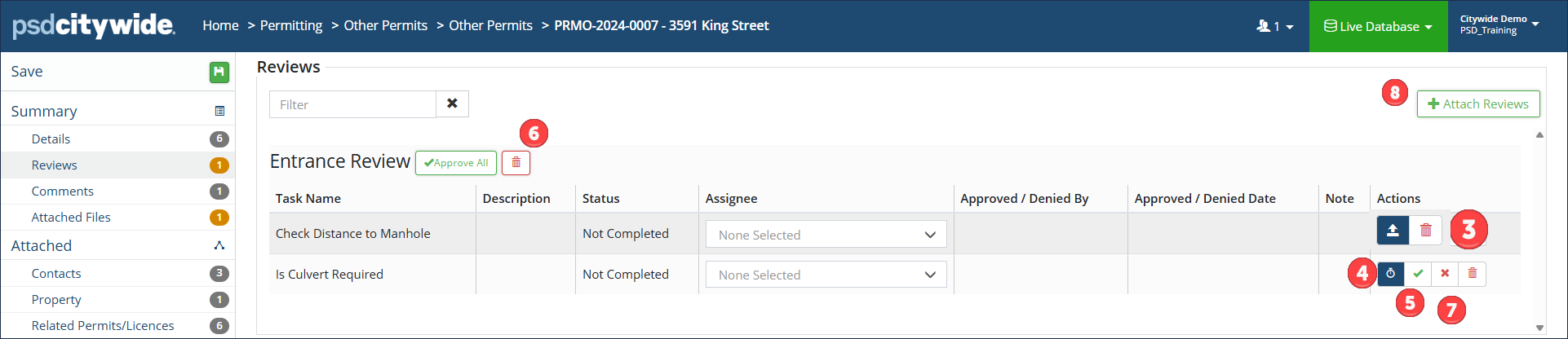
The reviews and the tasks within them are arranged in a logical sequence in which their execution proceeds from top to bottom. The Review has been approved by ❶ user "supportbbi" on the indicated date and time ❷. The "Is Culvert Required" review task has yet to be reviewed.
Approved tasks can be reopened by clicking on the Reopen icon  ❸ or the Delete icon
  in the Actions column.
Clicking on the Stopwatch icon  ❹ records the time that the task was being altered.
Clicking on the Checkmark icon ✅ ❺ marks the task as Approved. All tasks can be approved at the same time by clicking on the Approve All ❻.
Clicking on the X icon ❼ marks the task as Denied.
Each time you click on one of the above Actions icons, a dialog box with a Notes text box appears. This is where you can record notes concerning the altered task status.
- Any deficiencies requiring review and resolution, the application status can be changed to Review Deficiency. (If user notifications are required for this type of application status, see the Permitting Notifications article for steps on setting up Other Permit notifications.)
- Once the deficiencies are resolved, the application action can be changed to Resolve Deficiency/Complete Application. This action confirms that the deficiency is resolved, which then changes the application status to Application Complete.
To attach one or more additional reviews to the list:
- Click on +Attach Reviews ❽. The Select Reviews dialog box appears:
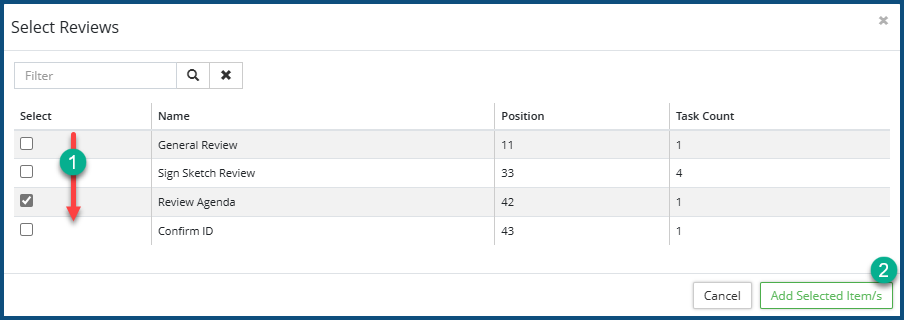
- Check ✅ ❶ the reviews to be added.
- Click Add Selected Item/s ❷.
Comments
There are two types of comments: Internal Comments ❶, involving internal comments and notes with in your organization, and External Comments ❷, involving input from and visibility to external actors. Permit applications made through the Citywide Portal  will automatically generate a summary ❸ of the submitted application in the Internal Comments section, as in the following case: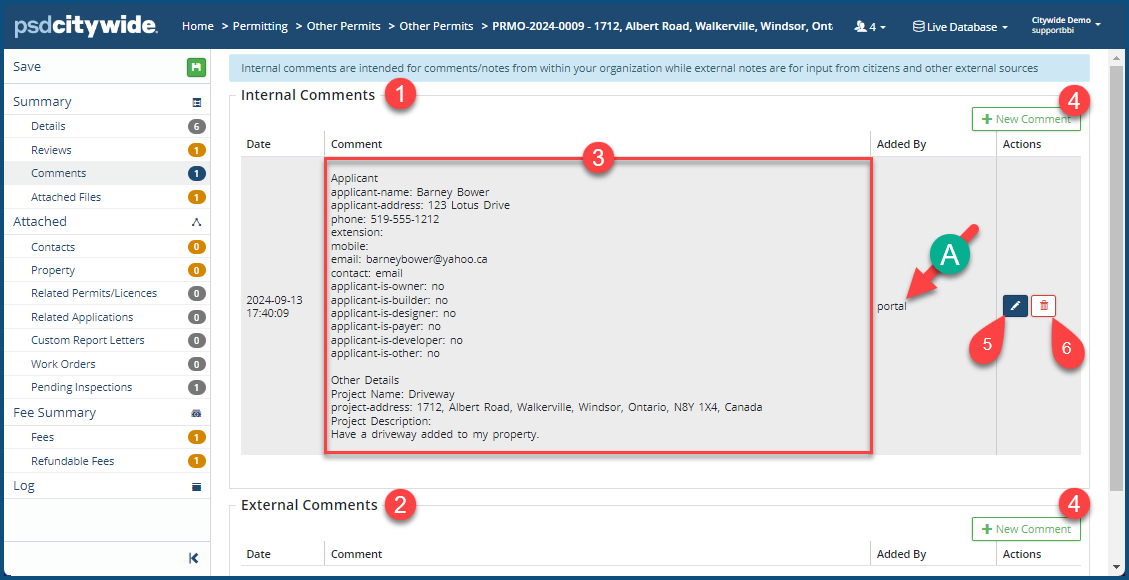
To add a new (Internal or External) Comment:
- Click on + New Comment ❷. The Add Comment dialog box appears:
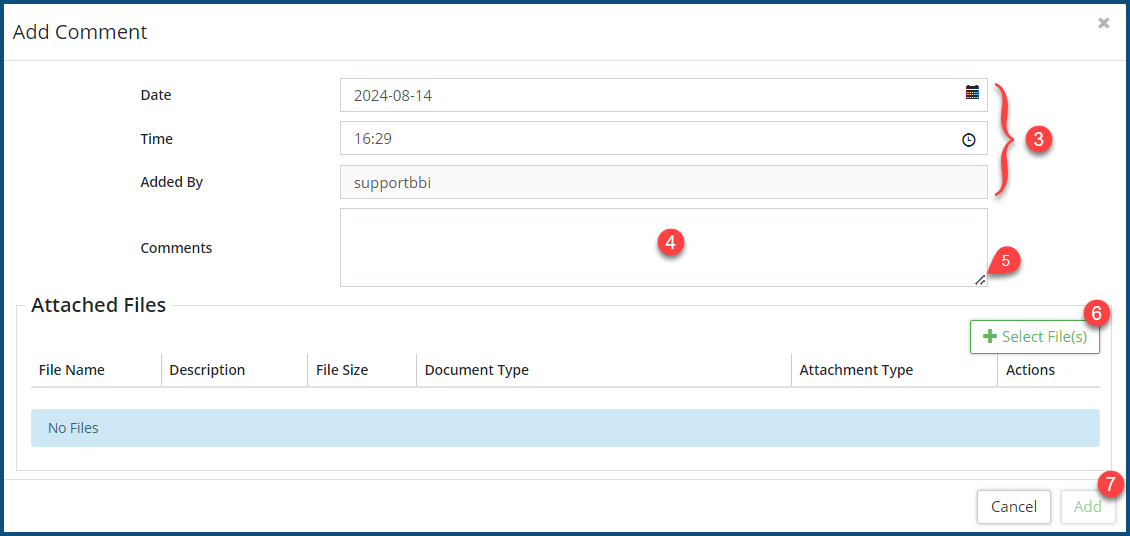
- The Date, Time, and Added By fields ❶ are prefilled with the current date and time, as well as your username. The date and time can be edited directly or by clicking on the calendar or clock in their respective fields. The Added By field cannot be edited.
- Add your comment in the Comments ❷ field. Use the drag handle ❸ in the bottom right corner to resize the text box.
- Click on + Select File(s) ❹ to attach any files that are relevant to the comments being made. You can either select files from your file manager or drag and drop them into the system.
- The Attached Files here should not be mistaken for the Attached Files (many of which are mandatory for the select permit) that are discussed in the next section. These attachments should be strictly related to the comments. Any mandatory documents should be attached in the next section.
- Click Add ❺.
To edit a comment, click on the Edit icon  ❺.
❺.
To delete a comment, click on the Delete icon  ❻.
❻.
Attached Files
Attached Files is where all the documents required for the current permit are uploaded. However, it can also include other documents, drawings, worksheets, or other type of file that provides informational, instructional, or in some other manner helpful information or resources pertaining to the current permit.
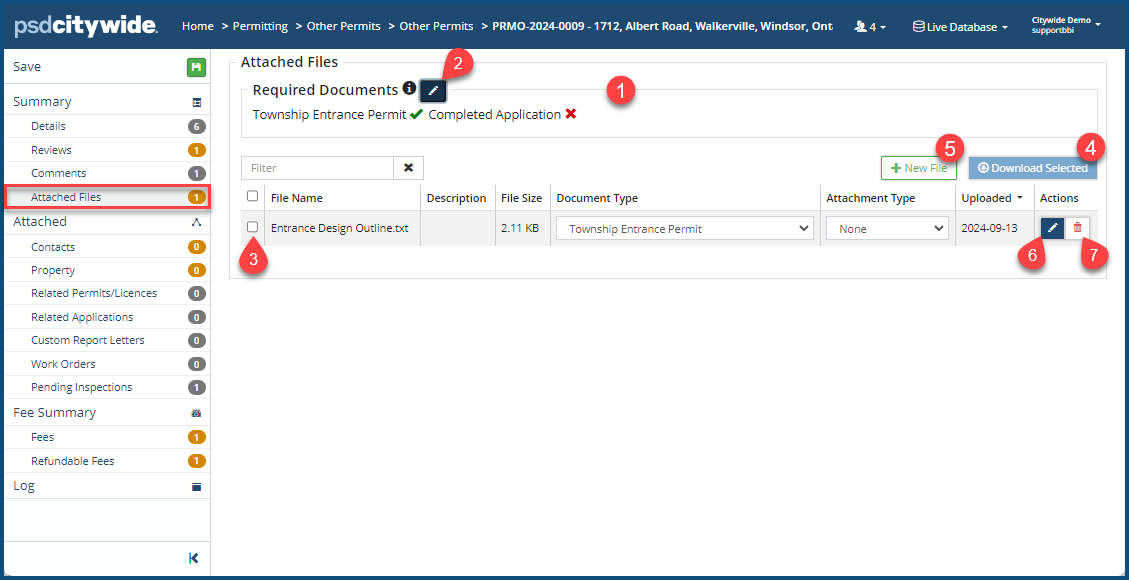
The Required Documents section ❶ lists all the required documents. Those that have already been submitted are checked ✅, which those that have yet to be submitted have an X next to them.
Clicking on the Manage Documents icon ❷ allows you to select additional required documents or to remove existing ones (if you have Permitting Admin privileges):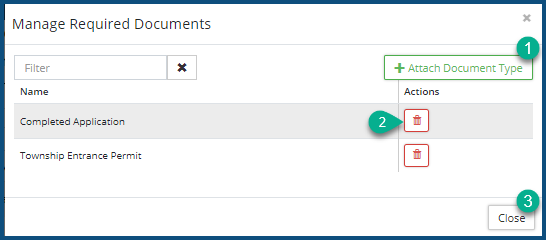
- Click on + Attach Document Type ❶ to select from a list of documents in the Document repository set up by your Permitting administrator.
- Click on the Delete icon ❷ to remove a document from the required list.
- Click Close ❸.
To download one or more of the files in the list:
- Check ✅❸ the file(s) to be downloaded.
- Click Download Select ❹ and then select the folder to which the selected files are to be written.
To add a new file:
- Click on +New File ❺. The Add Files dialog box appears:
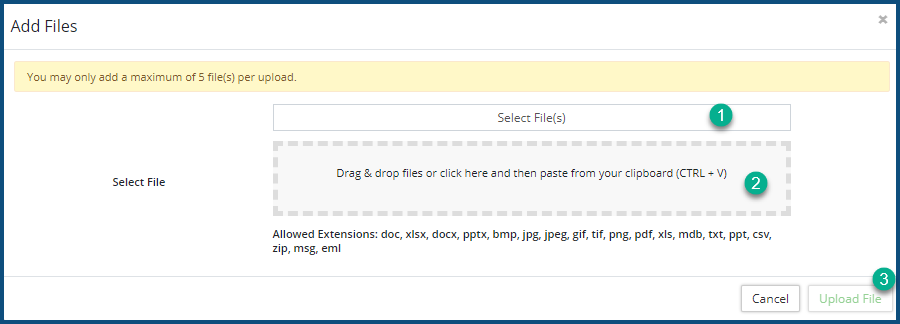
- Click on Select Files(s) ❶ to locate and select files using your File Manager, or drag and drop the files into the perforated box ❷.
- Click Upload File(s) ❸.
To edit a the file Description, click on the Edit icon ❻.
If this permit was initiated from the Citywide Portal, a  will appear in the actions column. Clicking on it will lock it so that it cannot be edited or removed from within the Portal. It will assume a dark shaded background
  when the file is locked, which, when clicked, will revert the file back to the unlocked state.
To remove a file, click on the Delete icon ❼.
Contacts
The Contacts screen shows all existing contacts associated with the current Permit. These can be property owners, applicants, builders, etc. The contact type ❶ is defined in the first column, and, as you can see in the first row, a contact can have more than a single type classification.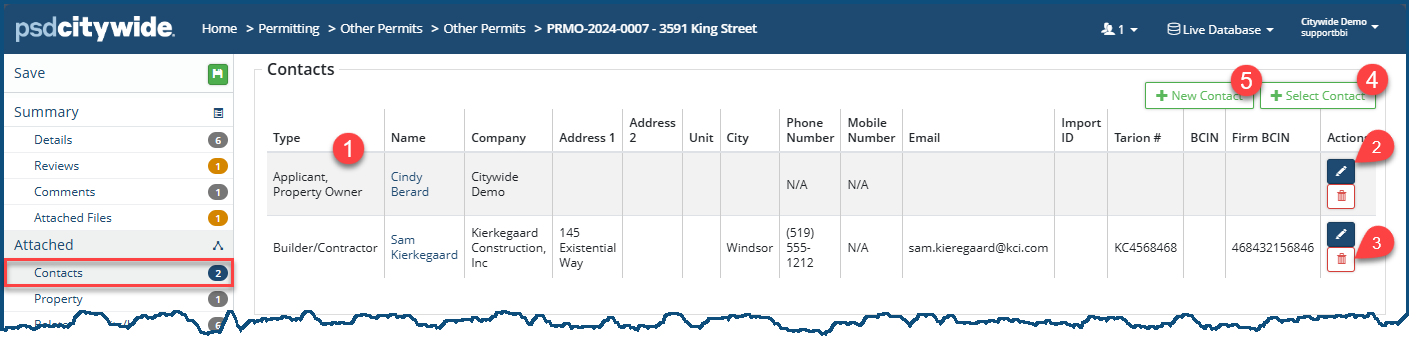
To add or remove a type classification to an existing contact:
- Click on the Edit
 ❷ button. The Select Contact dialog box appears:
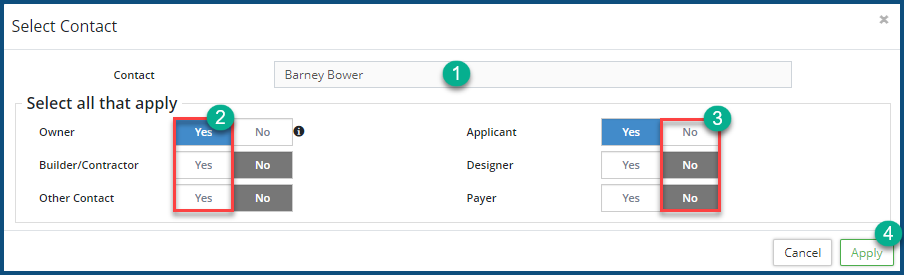
- The Contact Name ❶ cannot be edited. If it has been misspelled and is otherwise in need of editing, you will have to do so from Permitting: Manage 🢡 Customers page to make that change. (See Customers for details.)
- Select Yes ❷ to apply a classification type; No ❸ to stop/prevent its application.
- Click Apply ❹.
To Delete a contact row, click on the Delete icon  ❸.
❸.
To Select an existing contact (one that has already been entered into the system):
Click + Select Contact ❹. The Select Contact dialog box appears:
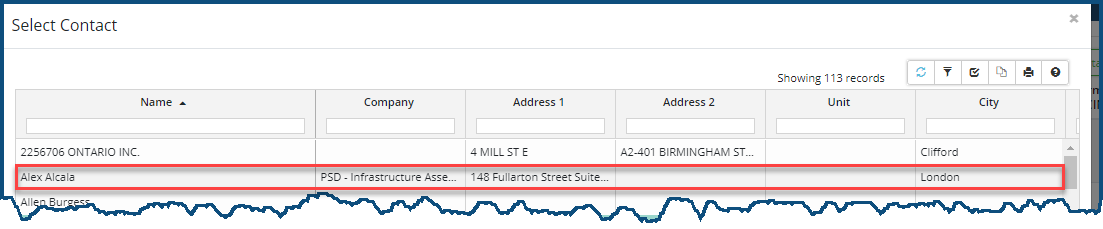
- Click on a contact row
- The Contact Name ❶ cannot be edited. If it has been misspelled and is otherwise in need of editing, you will have to do so from Permitting: Manage 🢡 Customers page to make that change. (See Customers for details.)
- Select Yes ❷ to apply a classification type; No ❸ to stop/prevent its application.
- Click Apply ❹.
To add a New Contact on the fly (one that does not as yet exist in the system)—which will be available to you only if you have Admin privileges:
- Click on + New Contact ❺. The New Contact dialog box will appear:
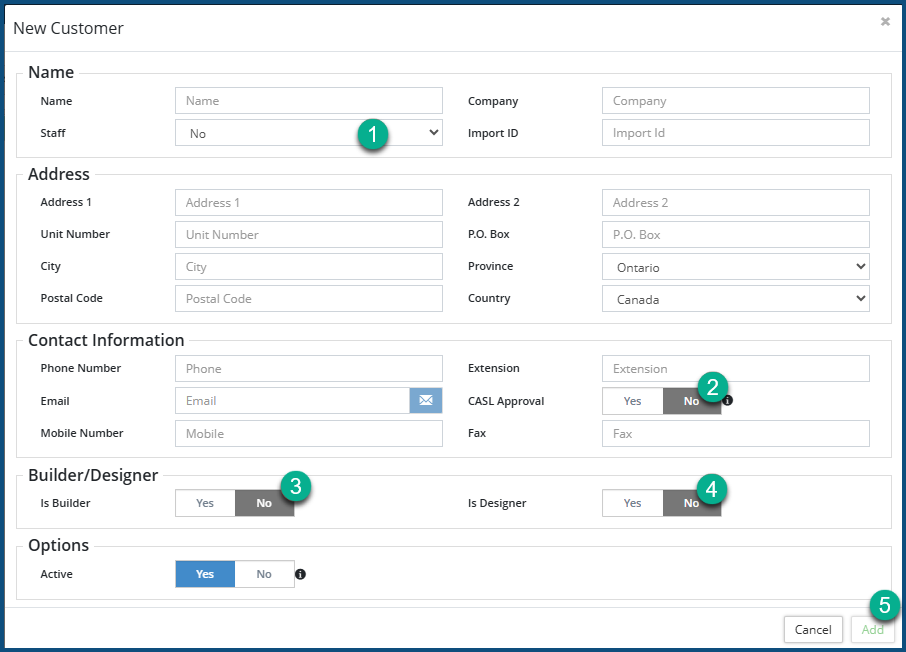
- Staff ❶: Select Yes or No concerning whether this is a staff person.
- CASL Approved ❷: Select Yes if this customer has provided consent to receive unsolicited emails from your organization.; No, if not. (CASL, which stands for "Canadian Anti-Spam Legislation," involves passage of nation-wide legislation in Canada.)
- Is Builder ❸: Select Yes if this customer is a Builder; No, if not.
- Is Designer ❹: Select Yes if this customer is a Designer; No, if not.
- Click Add ❺.
Property
The screen that appears on this page depends on whether the permit application was submitted using the PSDCitywide Portal or entered directly on the desktop system. Both are covered here.
Portal submissions will contain the first two sections—Submitted Property and Suggested Property.
The Property page as a whole(with and without the above two sections) provides read-only information about the property associated with this permit:
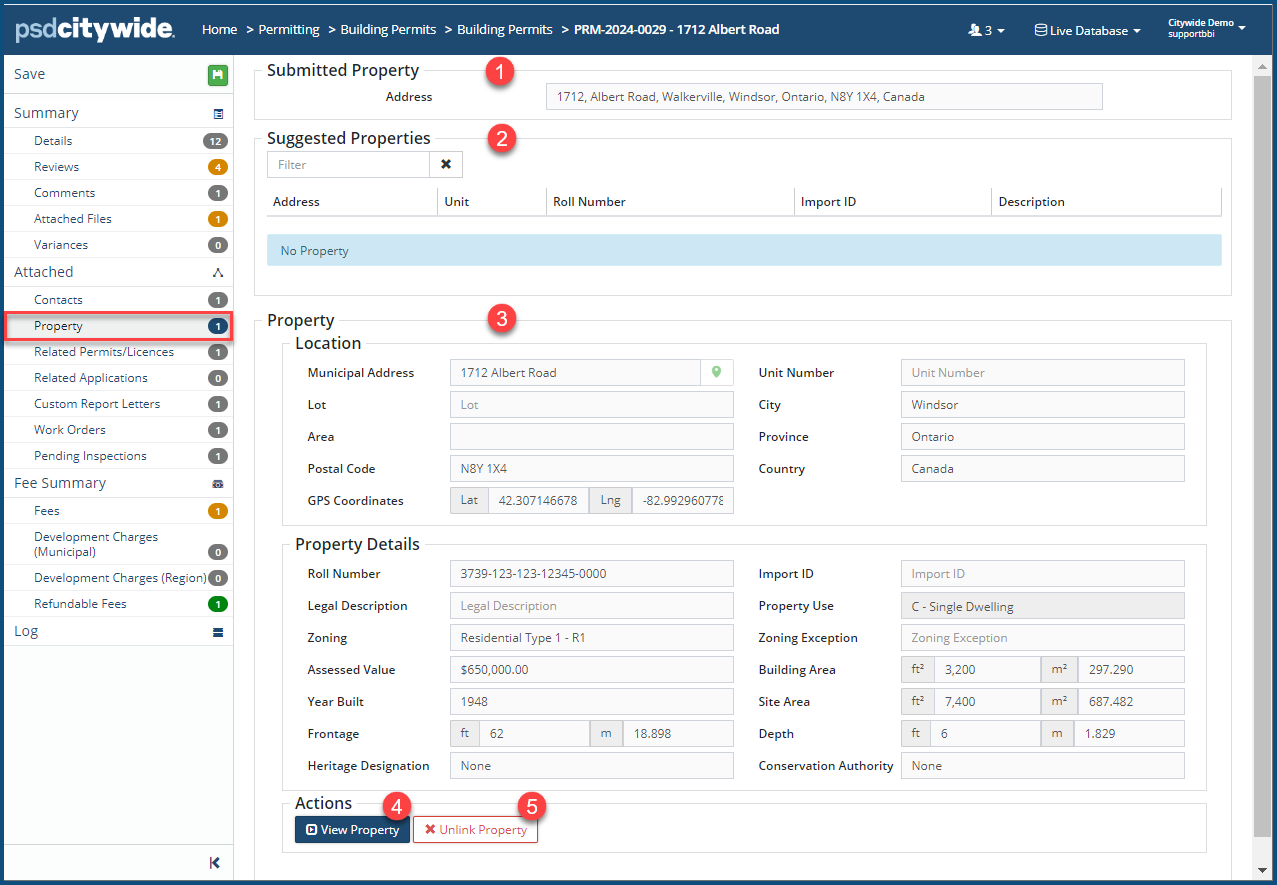
- Submitted Property ❶ refers to the property that was entered and submitted by a user via the PSDCitywide PortalThe PSDCitywide Portal is an online customer-facing application used to submit Permitting applications. See the PSDCitywide Portal User's Guide for details.. If an exact match is found for the submitted property in the CW database (see Properties), the details of the submitted/matched property will appear in the Property box ❸.
- Suggested Properties ❷ lists the properties in the CW database that are the closest (non-exact) matches to the Submitted Property. Clicking on the correct match will convey data from the Properties page to the Property box ❸.
- The Property box ❸ always appears on this screen and will display pertinent information concerning the property.
Click on View Property ❹ to further view and—if your account permissions allow it—edit the Property record.
Click on X Unlink Property ❺ to unlink the currently linked property. When you do so, the Property ❸ box appears:
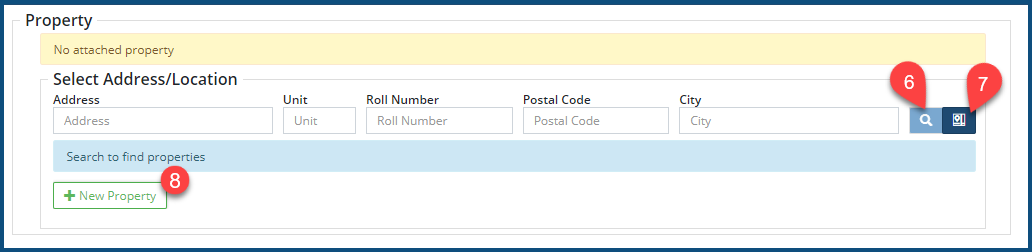
- Enter full or partial search criteria into one or more of fields, and then click on the Search icon
 ❻ or the Map Search icon
  ❼ to select the property from the generated lists of properties.
 - Click on the property to select it.
- Click on + New Property ❽ to create a new Property record (if your account permissions allow it). The New Property dialog box appears. Enter the new property information as per the information in Properties.
Related Permits/Licenses
Other Permits and/or Licences associated with the current property appear here: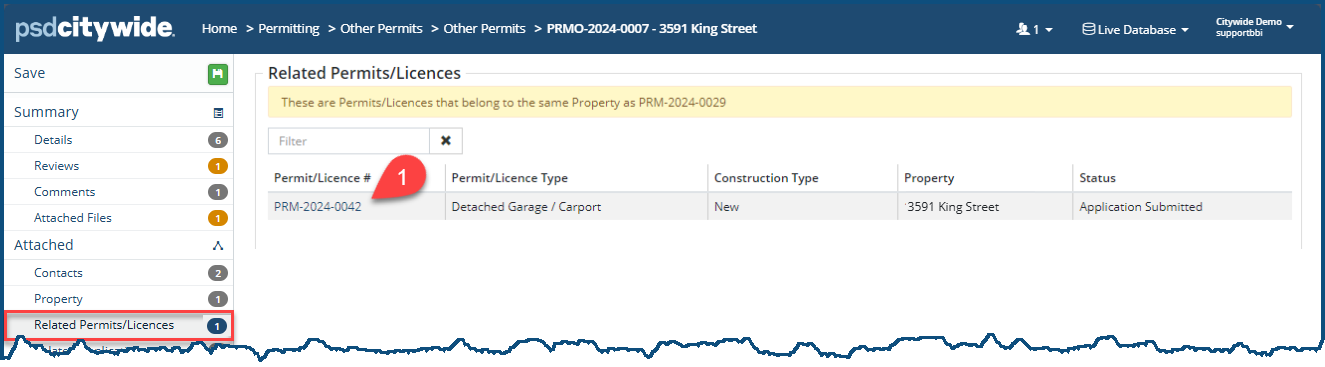
Click on the link ❶ in the Permit/Licence # to open the permit or licence.
Related Applications
Related Applications lists all the applications associated with the current property. In the following example, a rezoning is attached to the property: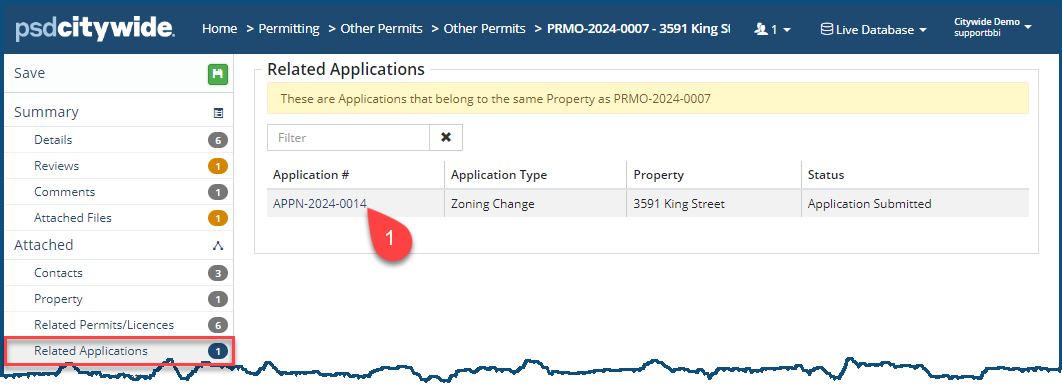
Click on the link ❶ in the Application # to open the application.
Custom Report Letters
Customer Report Letters display a list of all letters that have been generated and either sent or printed and presented to the relevant permit contacts. These are letters that have been generated on the basis of templates that are stored in the Letters repository.
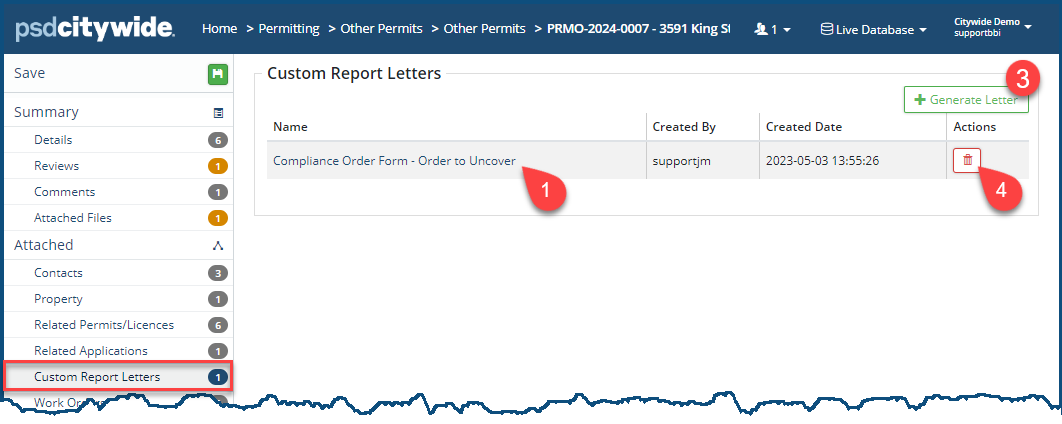
To view/print the Letter:
- Click on the Name ❶ of the letter to view its contents. The letter (e.g. the Building Permit letter) will appear on the screen:
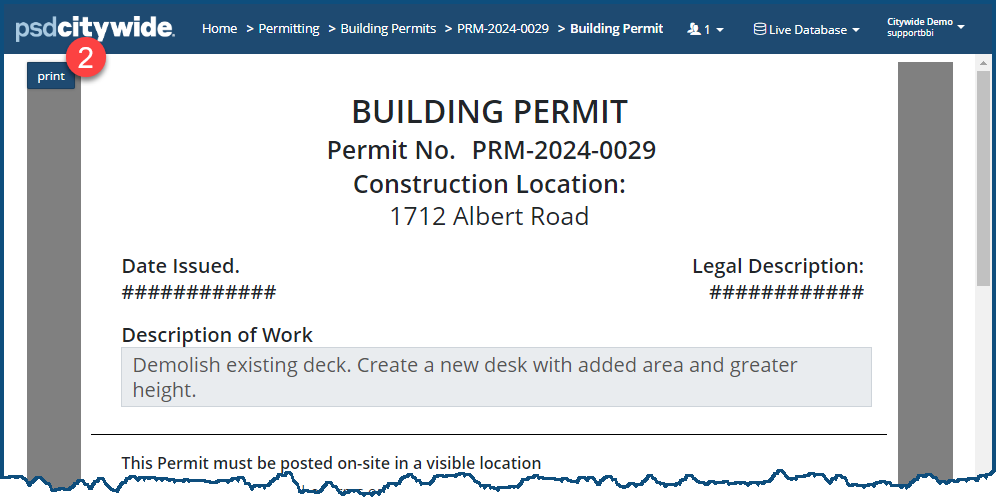
- Scroll to review the letter.
To print or email the letter:
- Click on Print ❷. The default destination is "Save as PDF," which allows you to save the letter in a PDF file format and then email it to the appropriate contact(s).
- Alternatively, you can print a hard copy version of the letter to any one of your pre-configured printers.
To Generate a new letter (on the basis of an existing template):
- Click + Generate Letter ❸. The Select Letter dialog box appears:
- Click on the desired letter template. The selected letter will appear, its fields and other data contents filled with the appropriate data.
To delete a letter, click on the Delete icon  ❹.
❹.
Work Orders
Work Orders displays all the work orders that are associated with the property.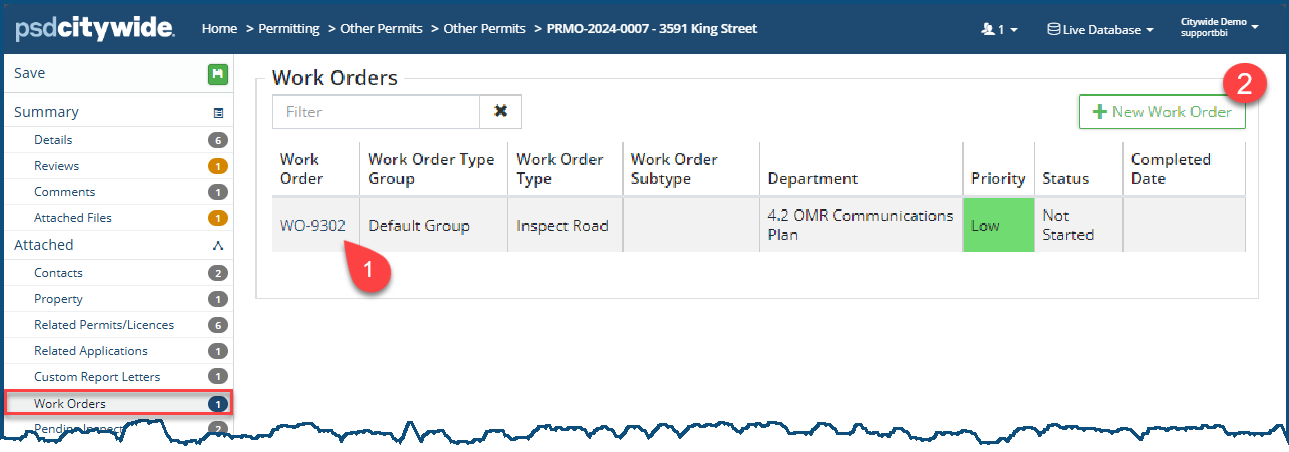
To view a work order:
- Click on the Work Order number ❶ in the Work Order column.
To create a new work order (if your account permissions allow it):
- Click on + New Work Order ❷. The New Work Order wizard will appear:
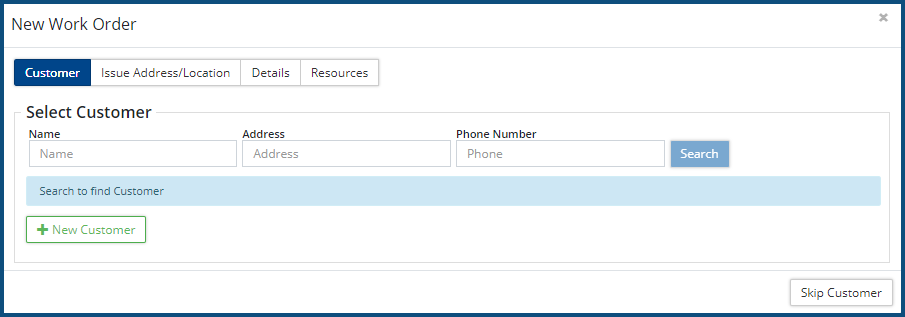
- Click here for instructions on completing the tabs in the Work Order wizard.
(Pending) Inspections
This item will be labelled "Pending Inspections" (as in this following screenshot) prior to permit approval. Once the permit has been approved and issued, the project can be scheduled and assigned for inspections. This item will then be labelled "Inspections."
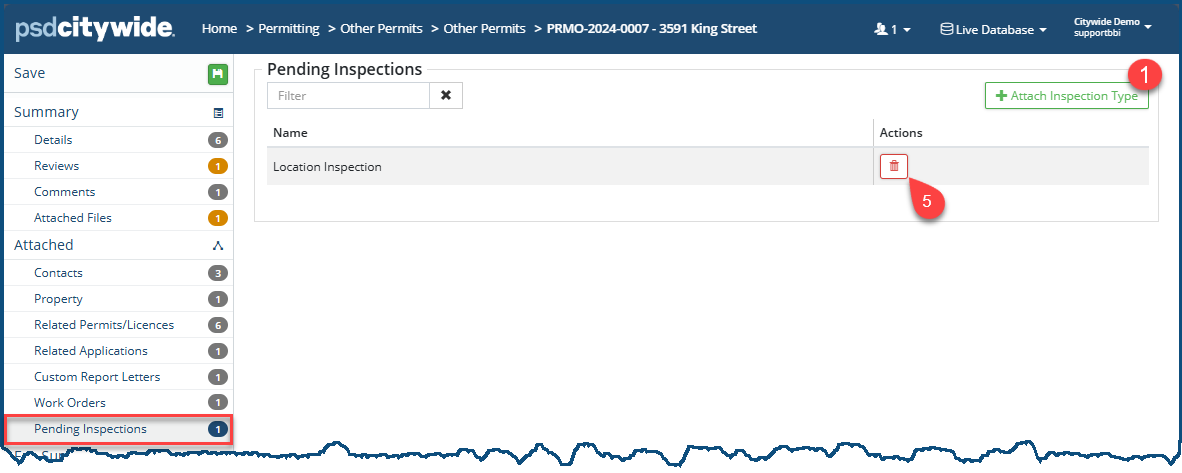
Pending Inspections list future inspections that are associated with this Permit type. You have the ability to add an additional inspection type (if needed), by clicking on + Attach Inspection Type ❶. Doing so will open the Select Inspection Type dialog box:
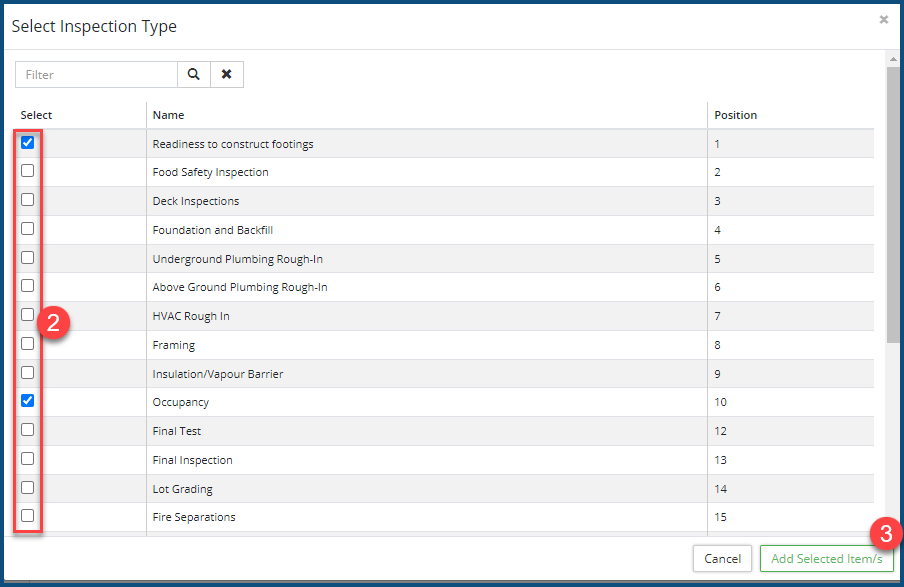
- Check ✅ ❷ the inspection type(s) to be added.
- Click Add Selected Item/s ❸.
Inspections
Inspections lists all slated inspections, both scheduled and unscheduled ones, entered both on the desktop or on the CW Mobile app. It allows for unscheduled inspections to be scheduled, for scheduled inspections to be re-scheduled, and for completed inspections to be documented. If applicable and enabled by the municipality, you will also see the requested date, preferred time and any comments submitted via the portal ❻.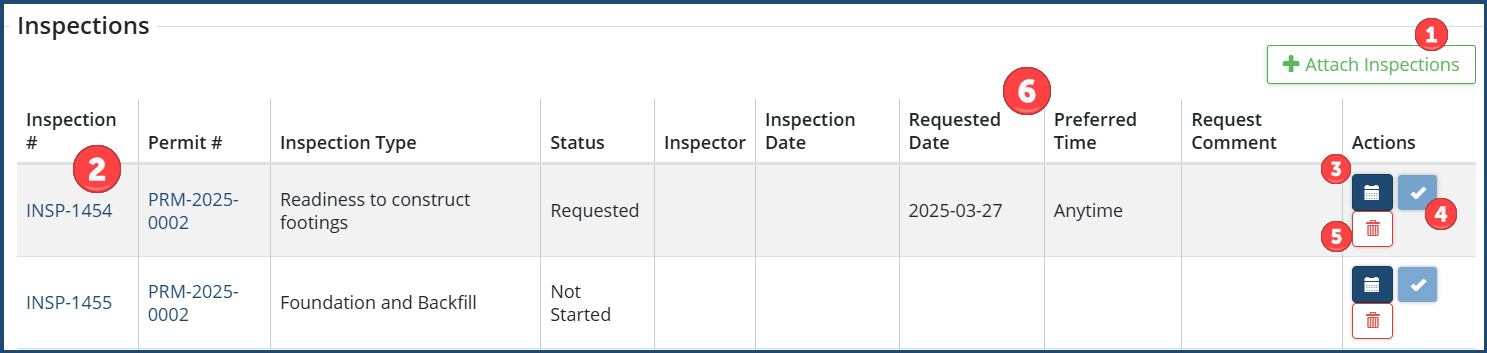 To attach an additional inspection to the inspection list:
- Click on + Attach Inspections ❶ select the additional inspection from the list, then click Add Selected Item
To view the Inspection record:
- Click on the Inspection number ❷ in the Inspection #column. The associated Inspection record appears. (See Inspections for details).
To schedule/re-schedule or cancel an inspection:
- Click on the calendar icon
 ❸ in the Actions column of the inspection. The Schedule Inspection dialog box appears:
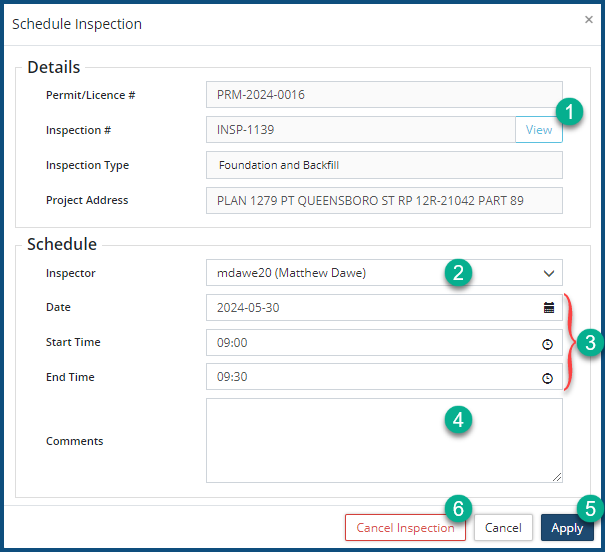
- Click View ❶ to open the Inspection record. (The fields in the Details section are informational and cannot be edited.)
- Select or re-assign an Inspector ❷.
- Set the Date, Start Time, and (anticipated) End Time ❸.
- Enter Comments ❹. (Comments can include any information that may be helpful to an inspector, who will be able to see them on the CW Mobile App).
- Click Apply ❺.
- Click Cancel Inspection ❻ to cancel the inspection. Inspection cancelation should not be confused with deletion. The inspection remains in the system; it is only vanquished from the schedule and its status returned to an unscheduled state.
To Complete an inspection:
- Click on the checkmark icon
 ❹. The Complete Inspection wizard appears, open on the Tasks tab:
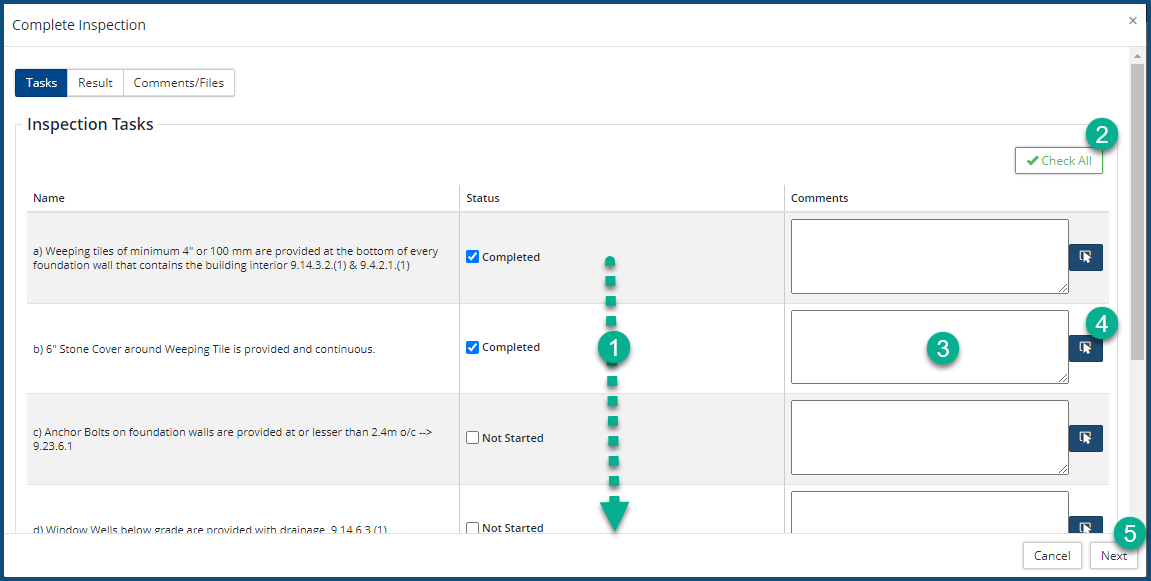
- Check ✅each of the completed tasks either individually ❶ or collectively ❷.
- Enter Comments ❸ and/or select Predefined Comments
 ❹ by clicking on the adjacent icon.
 - Click Next ❺. The contents of the Results tab appear:
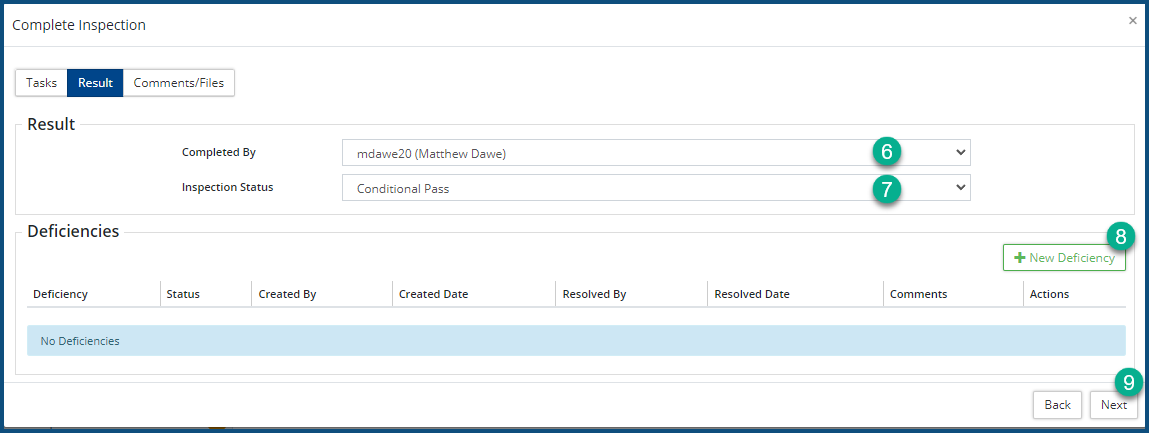
- Select the inspector(s) ❻ the inspection was Completed By.
- Select the Inspection Status ❼:
- Passed: indicated unqualified approval.
- Conditional Pass: indicated qualified or conditional approval, subject to correction of the Deficiencies added after clicking on + New Deficiency ❽.
- Failed: indicated unqualified disapproval on the basis of the Deficiencies added after clicking on + New Deficiency ❽.
- Click Next ❾. The contents of the Comments/Files tab appear:
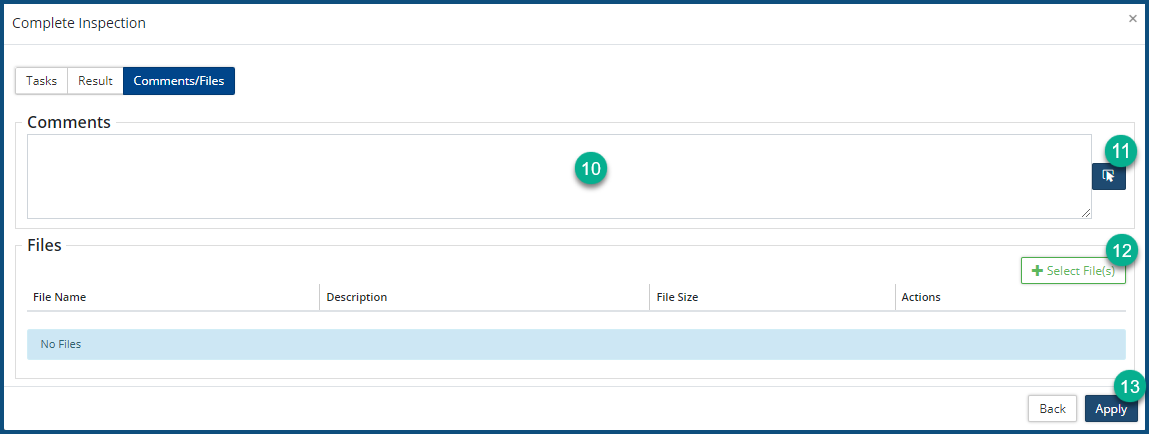
- Enter Comments ❿ and/or select Predefined Comments ⓫ by clicking on the adjacent icon.
- Click + Select File(s) ⓬ to add supporting information for the inspection results. These can be documents, videos, photos, etc.
- Click Apply ⓭.
To delete an inspection, click on the Delete icon ❺.
Fee Summary
The Fee Summary screen summarizes all fees, charges, payments and refunds associated with the current permit, and it provides you with the ability to issue receipts ❶, process online ❷ and direct payments ❸, and view ❹ and issue refunds ❺. All of fees, charges, and refunds are entered in the respective sections ❻ below Fee Summary.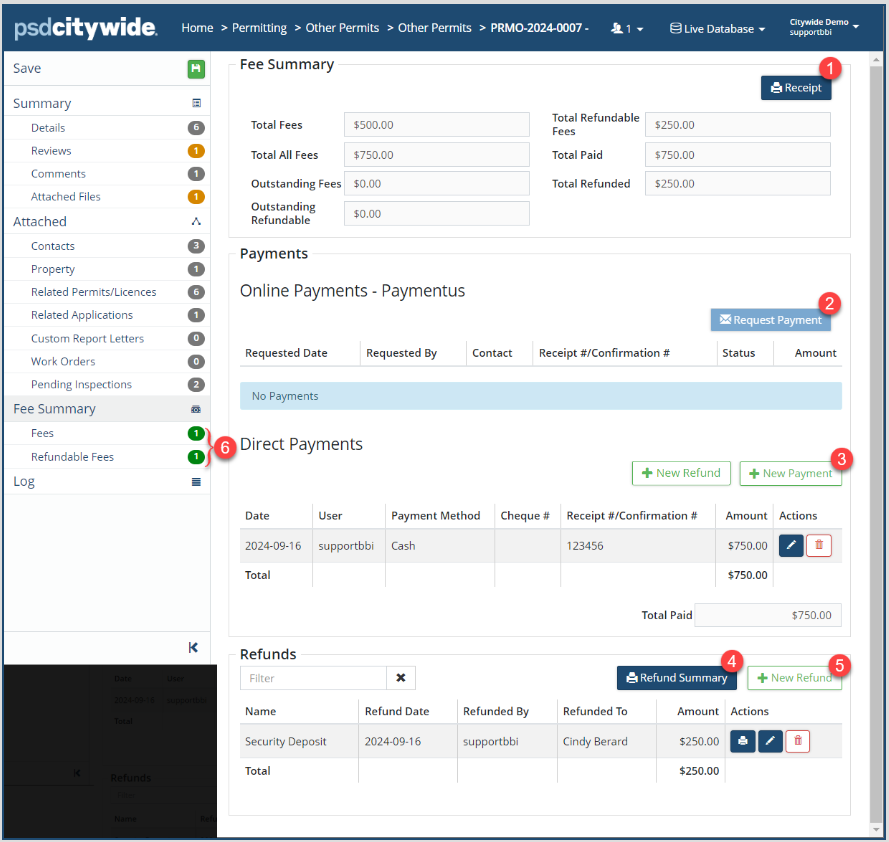
To generate a Receipt:
-
Click on Receipt ❶. The receipt appears on the screen:
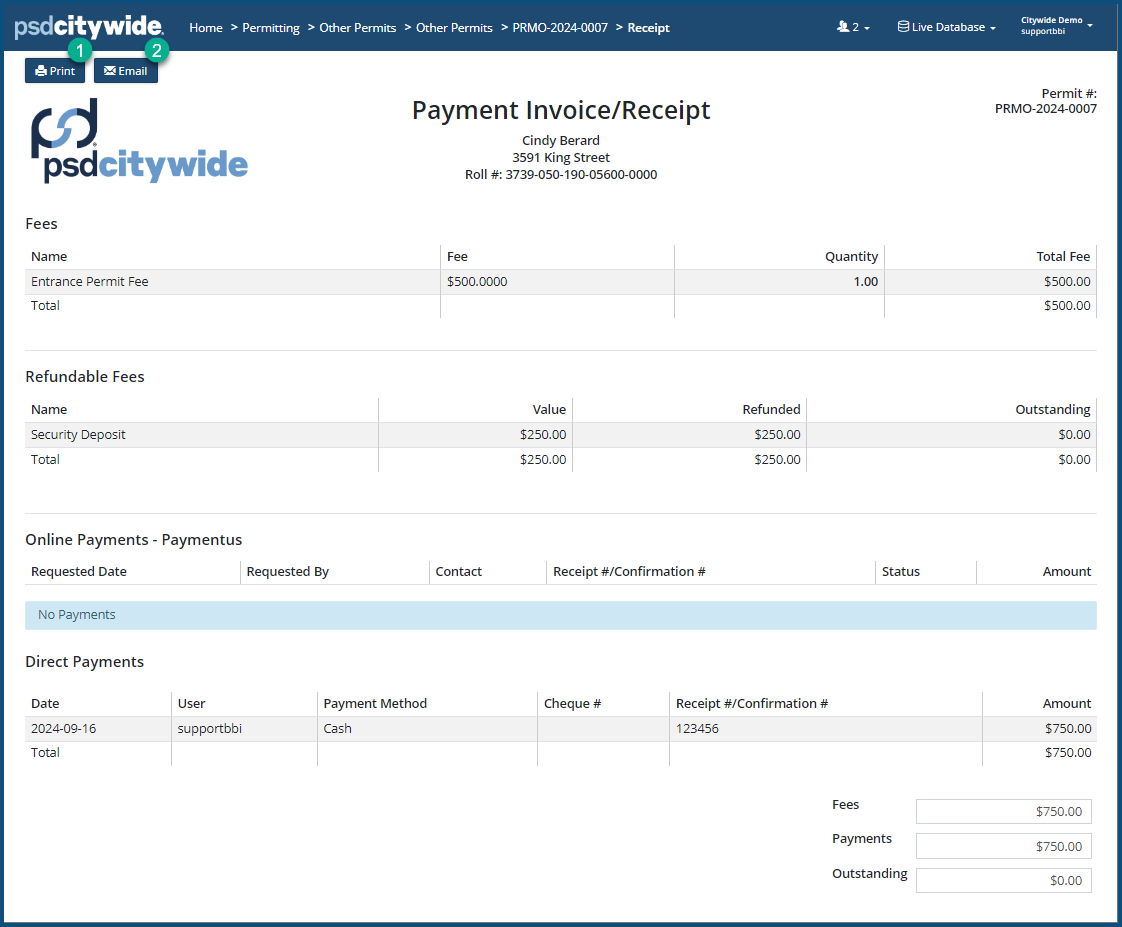
- Click Print ❶ or Email ❷ to process the receipt accordingly.
Payments
Payments can be processed either online (through Paymentus) or directly. Online payment processing must be set up and activated on your system by a Citywide implementation or support specialist before it can be used.
To initiate an Online payment:
- Click on Request Payment ❷. All the contacts associated with the current permit will appear on the Request Payment page:
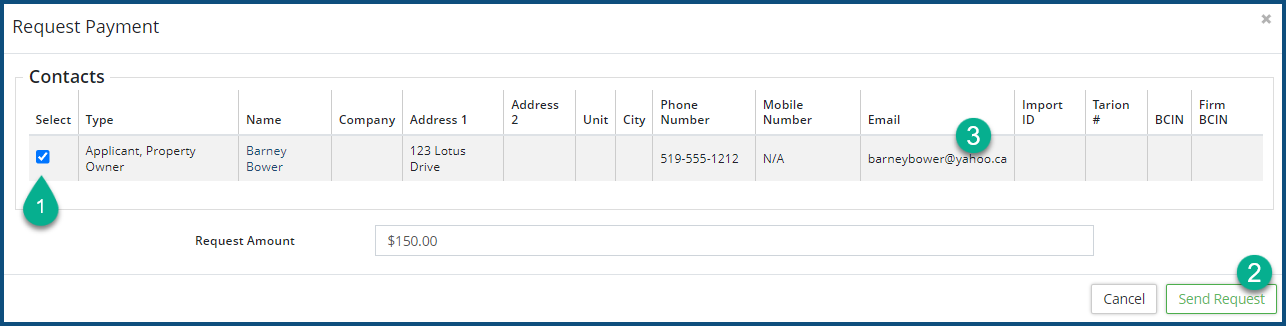
- Check the Applicant record ❶.
- Click Send Request ❷. The Payment Request will be sent to the email address ❸ in the checked record. Click here to see what happens after this . . .
-
Payment Requests can only be successfully sent to Canadian customers if they have provided CASL Approval CASL (which stands for Canadian Anti-span Legislation) is a Canada-wide law that stipulates that all electronic messages (i.e. email, texts) organizations send in connection with a “commercial activity” must have pre-approved by the prospective message receiver. (CASL Approval is set to Yes in the Customer record.) An attempt to send a Payment Request to a customer who has not provided approval will be blocked.
- Click on + New Payment ❸. The Add Payment dialog box appears, showing the full amount of unpaid fees:
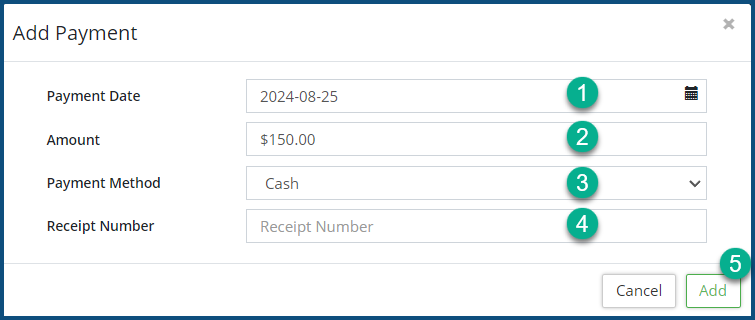
- Enter the Payment Date ❶ (or select it by clicking on the calendar icon).
- Bypass Amount ❷ to leave the full unpaid amount in this field, or enter a partial amount.
- Select the Payment Method ❸.
- Enter a Receipt Number ❹.
- Click Add ❺.
- Click + New Refund . The Add Refund dialog box appears:
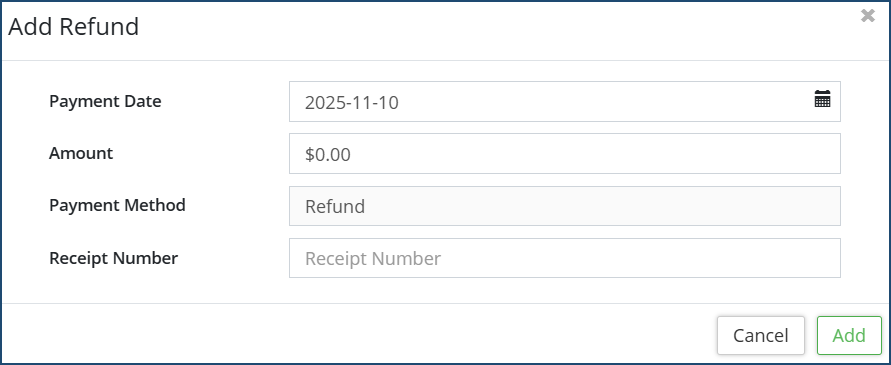
- Fill in the details of the Refund (Receipt Number is optional)
- Click Add
Fees
Fees is where 1) fees that are already linked with the Permit type are found, 2) additional Fees can be added, and/or 3) existing fees can be edited or deleted.
Here, for example, are fees associated with a the Entrance Permit: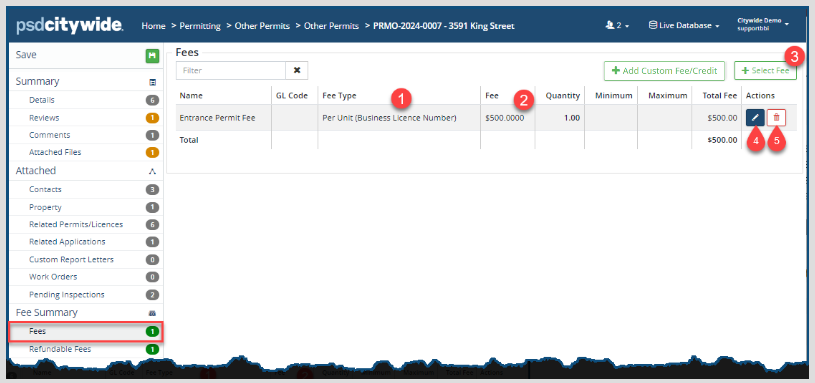
The Fee Type ❶ column describes the fee type, in this case a fixed fee. (Other Fee Types include fees per unit and calculated fees per area. See Fees for details.)
The Fee ❷ column describes the calculational logic of the fee, which, in this case is a straightforward flat fee.
To add an existing, pre-defined Fee:
- Click on + Select Fee ❸. The Select Fee dialog box appears:
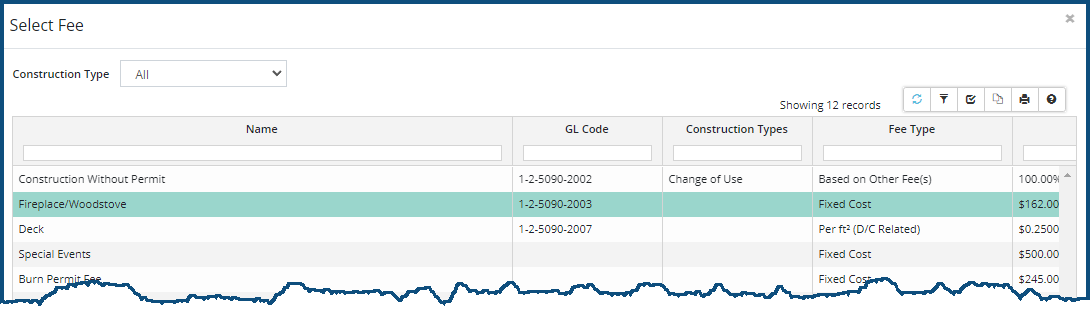
- Click on a fee.
- Repeat the above steps to add an additional fee. (Fees can only be added one at a time.)
Custom (non-existing, non-standardized Fees and Refunds can also be added to a building permit.
To add a Custom Fee or Credit:
- Click on + Add Custom Fee/Credit . The Add Custom Fee/Credit dialog box appears:
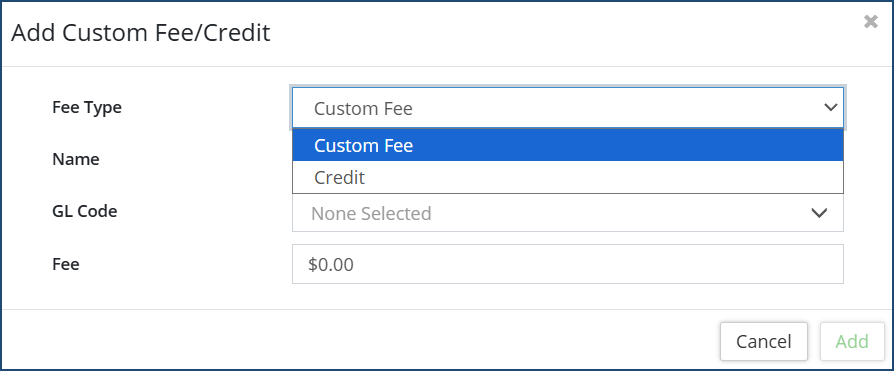
- For Fee Type, select either "Custom Fee" or "Credit"
- Provide a Name. Try to be as succinct as possible, since a non-standardized fee/refund is the only place in which its issuance is described.
- Select the GL Code. The GL account will be credited or debited accordingly. Make sure this information is accurate, in that it may be exported from CW into your accounting system.
- Enter the Fee/Credit amount.
- Click Add ❺.
To edit (overwrite) a Fee:
- Click on edit icon
 ❹. The Edit Fee dialog box appears:
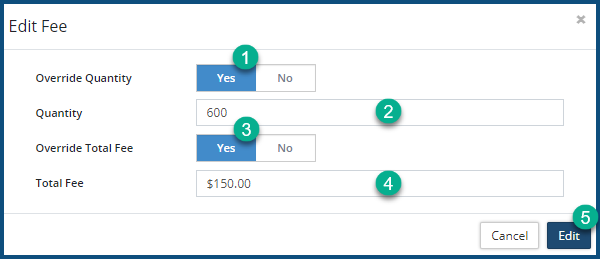
- Click Yes for Override Quantity ❶ to overwrite a quantity used to calculate the fee (e.g. sq./ft.), and then enter the new value ❷. If you do not override the Total Fee, the Total Fee will be recalculated by using the new quantity value.
- Click Yes for Override Total Fee ❸ to enter a new fee ❹. The new fee will overwrite the Total Fee, even if the quantity ❷ was changed.
- Click Edit ❺.
To remove a fee:
- Click on the delete icon
 ❺. The Remove Fee dialog box appears:
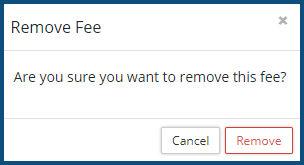
- Click Remove .
Refundable Fees
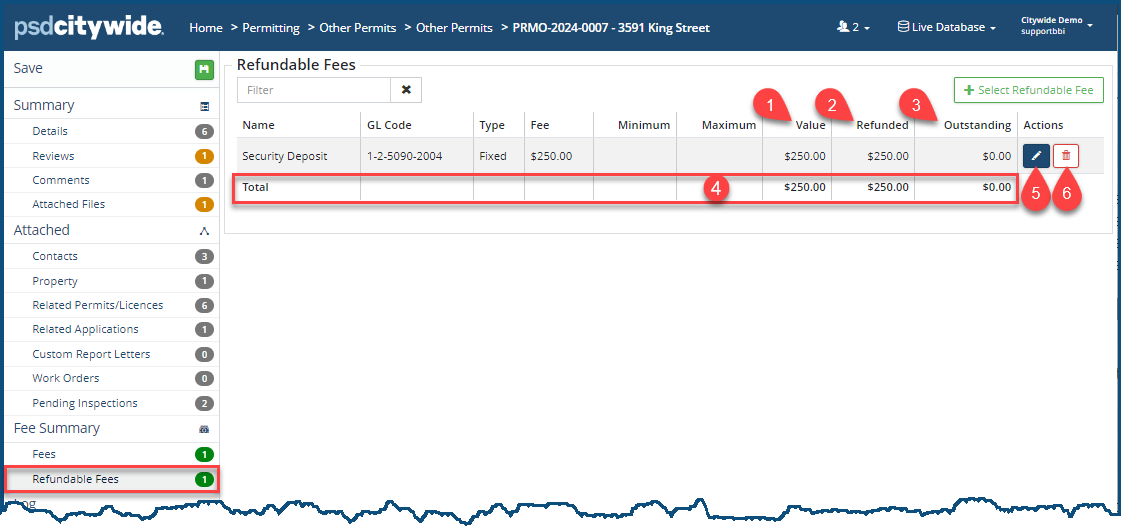
Refundable Fees can involve deposits, overcharges, and the like. All existing refundable fees will appear on this page, both those that have been fully or partially refunded and those that are slated to be refunded. The value of the refund ❶, the refunded amount ❷, and the outstanding amount ❸ appear in their respective columns, their totals appearing at the bottom of the list ❹:
To add a Refundable Fee:
- Click on + Select Refundable Fee ❺. The Select Refundable Fee dialog box appears:
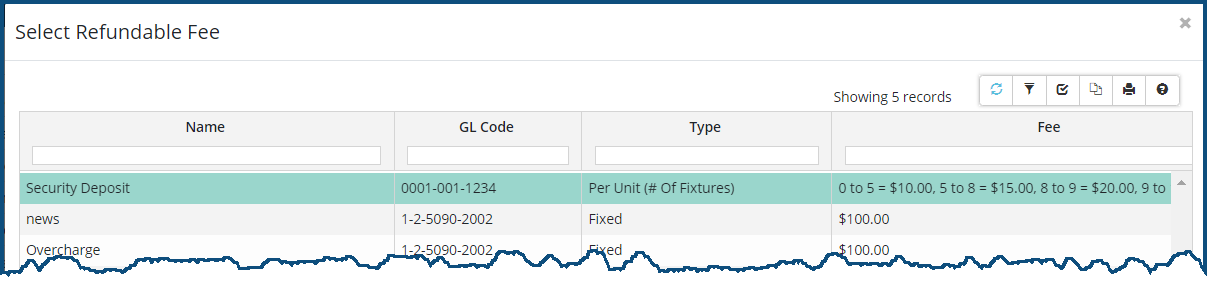
- Click on the refundable fee to be added.
- Repeat the above steps to add an refundable fee charge.
To edit (overwrite) a Refundable Fee:
- Click on edit icon ❺. The Edit Refundable Fee dialog box appears:
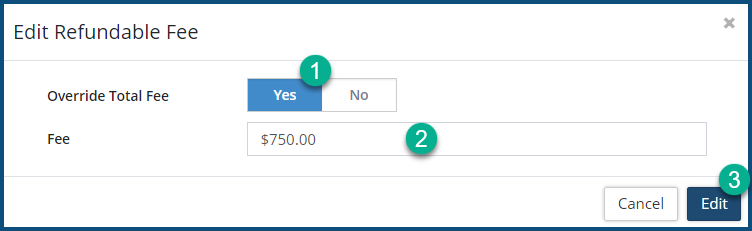
- Click Yes for Override Total Fee ❶ to overwrite the existing fee amount.
- Enter a new Fee amount ❷.
- Click Edit ❸.
To remove a Refundable Fee:
- Click on the delete icon ❻. The Remove Refundable Fee dialog box appears:
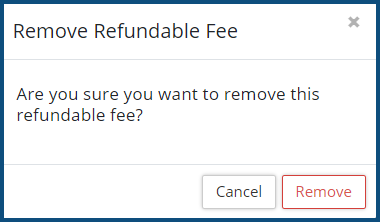
- Click Remove .
Log
The log displays all activity in the system that relates specifically to Building Permits. (Each of the other Permit sub-modules has its own log). Its events appear in reverse chronological order, displaying the user who initiated the event, as well as specific description of the event.
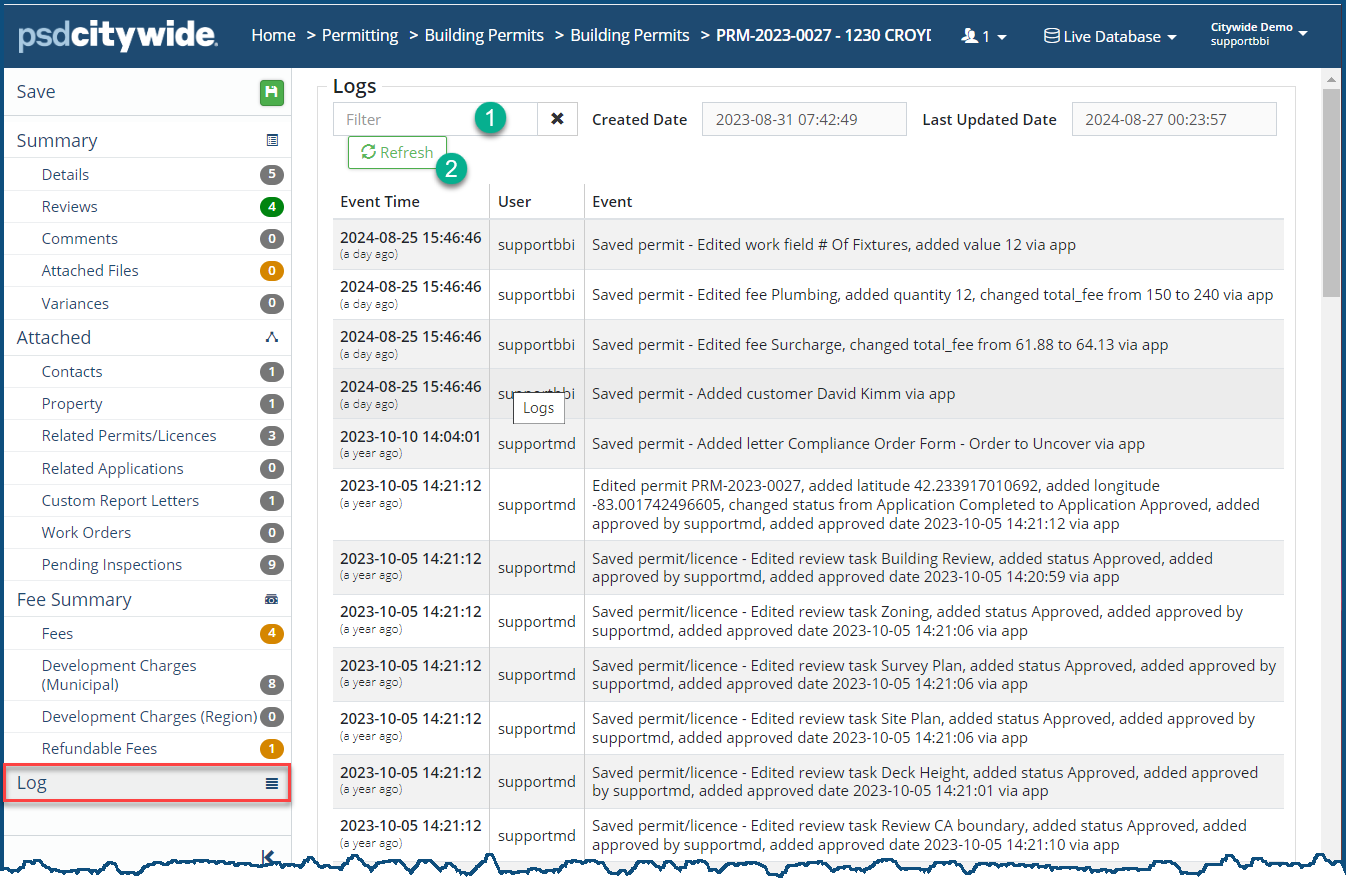
- Enter the text in the Filter box ❶ to filter the list down to the its matches.
- Click Refresh ❷ to see any entries that have been logged since this screen has been opened.


