Overview
Many Permit applications have a field in which the Inspection Type must be specified. This is the page in which you define the various Inspection Types for Other Permits. When a permit application is being created, either internally (by municipal staff) or externally by customers and other types of clients using the the PSD Citywide Portal). The PSD Citywide Portal is an online customer-facing application used to submit Permitting applications. See the PSD Citywide Portal User Guide for details). The Inspection types created here will appear in a drop-down list attached to the Inspection Type field within the application.
Inspection Types accessibility: Home 🢡 Permitting 🢡 Other Permits 🢡 Manage 🢡 Inspection Types
The Inspection Types Grid
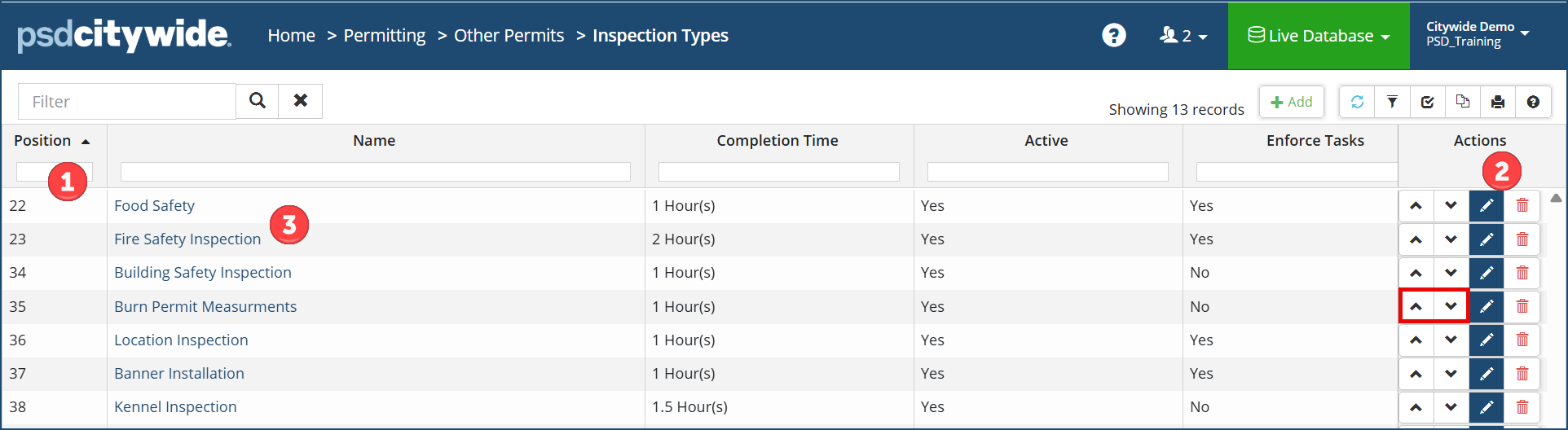
The Inspection Types grid is fairly simple, showing the key components of each inspection type. The Position ❶ field indicates the priority the inspection has over lower numbered inspections. The higher the position, the more commonly used inspection. The inspection's position can be moved up or down by clicking on the the up/down buttons in the Actions column. The components of the inspection can be edited by clicking the Edit icon  , and can be deleted by clicking the Delete icon
  ❷. Clicking the Inspection Name ❸ will open the Inspection record.
Add an Inspection Type
- Click +Add . The New Inspection Type dialog box appears:
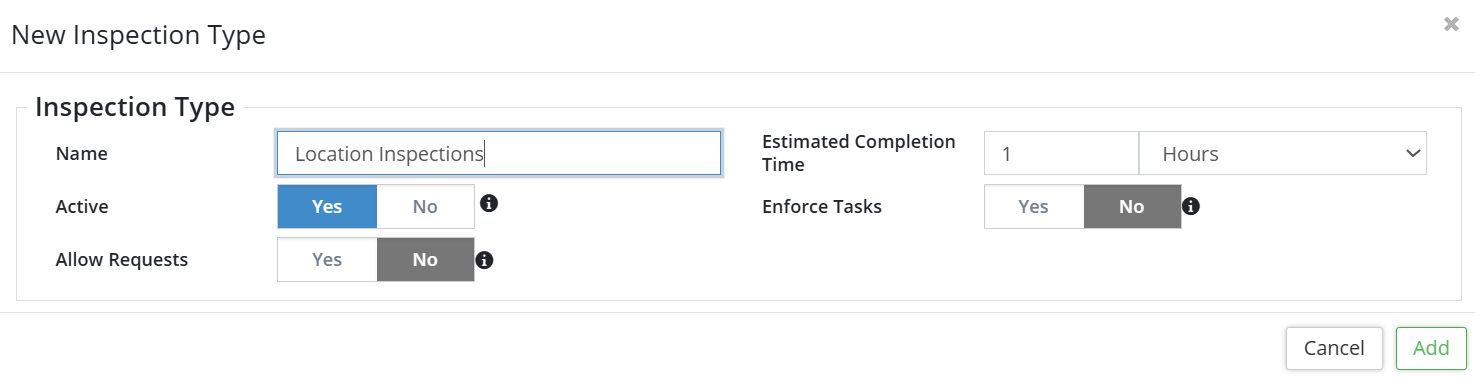
- Enter a Name for the Inspection Type.
- Ensure the Active flag is set to Yes. If set to No, the fee will not be available when creating new permits. “No” might be the setting for a new field to be used some time in the future, or it could be the setting for an existing field that is no longer used (but not deleted, so that data pertaining to it is retained in the system).
- Set the Estimated Completion Time (how long the inspection is expected to take) in hours or minutes.
- Select Yes if the Tasks associated with the inspection are to be Enforced; No if enforcement is not required. (See the discussion below on Inspection Tasks.)
- Allow Requests: Select Yes to enable inspection requests via the external Portal.
- Click Add .
- Click the Edit tool . The Edit Field dialog box will appear with the above fields.
- Make the required changes.
- Click on Edit.
- Click the Delete tool . When prompted, click Remove.
Set the Inspection Type Position
Various types of inspections are more common that others. Consequently, it makes sense to position that most common at the top of the list and the remained to follow accordingly. To reposition an Inspection Type:
- Click the row for the inspection type to be repositioned.
- Use the up/down arrows to move the selected inspection type either up or down the list. The Position number associated with it will change as it is moved.
View/Set the Inspection Type Tasks and Other Details
Clicking an Inspection Type Name will open the following Details screen:
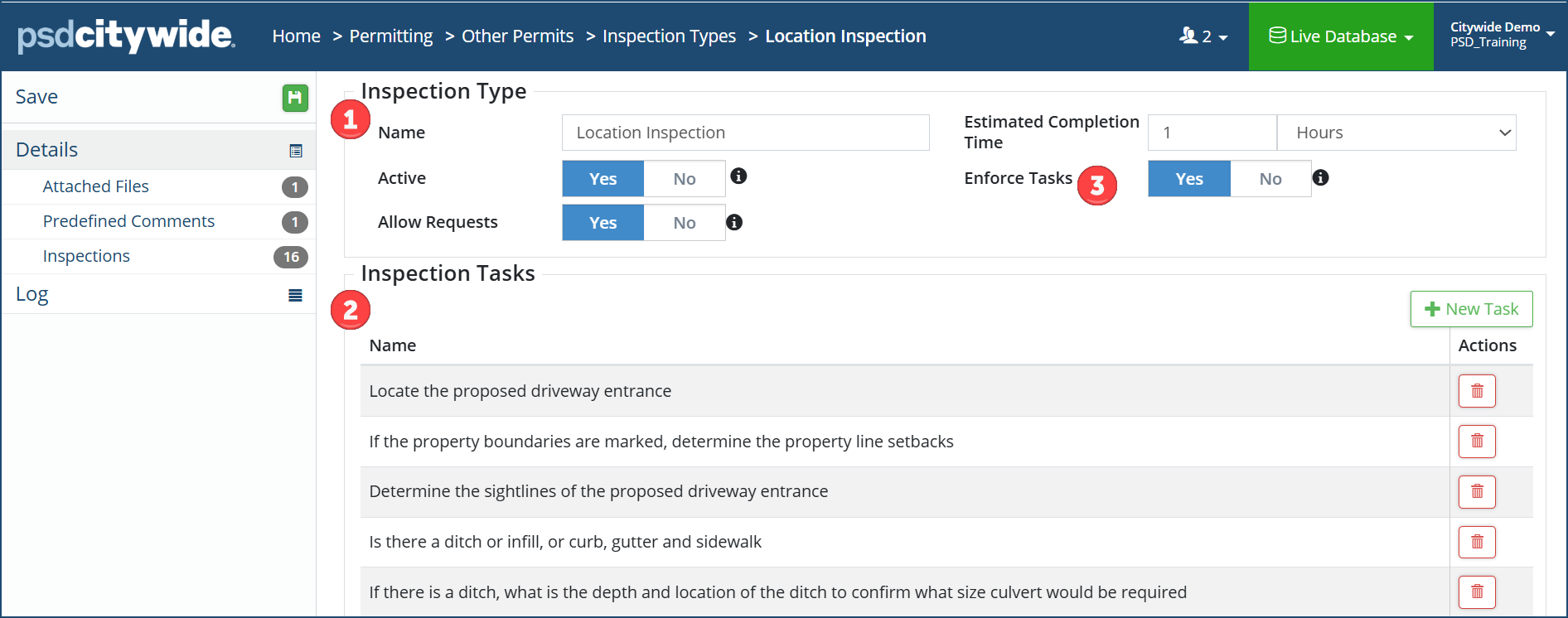
It includes the basic information already entered above pertaining to the Inspection Type ❶, as well as a list of Inspection Tasks ❷ associated with the Inspection Type. These are the tasks that can be Enforced ❸ (meaning an inspection must involve all of them) or not.
Add a New Task
- Click +New Task . The New Task dialog box appears:
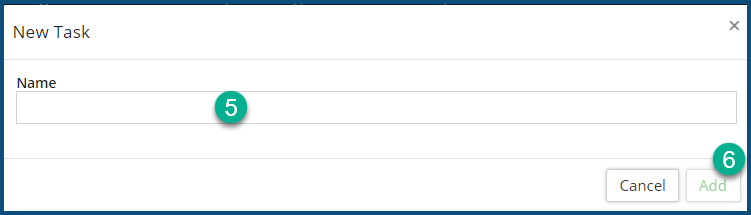
- Provide a Name ❺ for the Task.
- Click Add ❻.
Click the Delete icon to delete the task.
Adding Additional Inspection Information
Attaching Files
Numerous attachments can be added to an Inspection Type record. These could involve municipal bylaw information, procedural steps in performing an inspection, various technical data sheets, etc.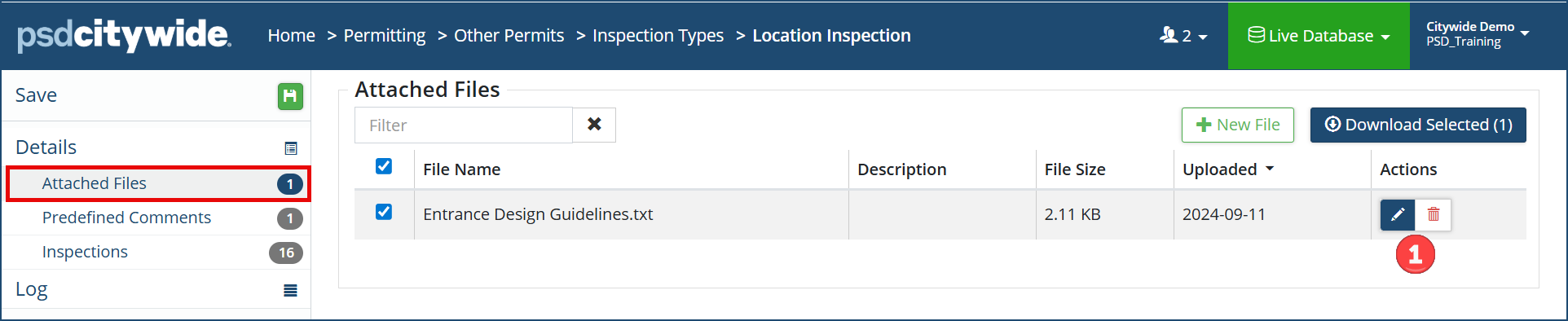
Add an Attachment
- Attached Files shows a list (if any) of attached files in connection with the inspection, any one of which can be edited or deleted by clicking on the corresponding icon ❶.
- Click +New File . The Add Files dialog box appears:
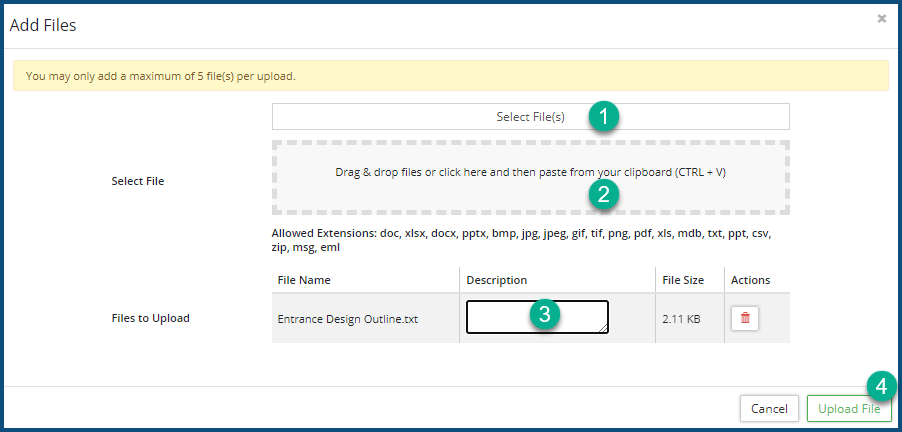
- Either Select File(s) ❶ or drag & drop the files(s) ❷ to be added. They will each appear in the Files to Upload list when added.
- Optionally, provide a Description for each added file ❸.
- Click Upload File ❹.
Predefined Comments
Predefined Comments can be added to an Inspection. They are intended as both time-saving elements and to create terminological consistency across all inspections.
Predefined Comments show a list (if any) of comments that can be recorded quickly in connection with an inspection (e.g., approval, conditional pass, or declining).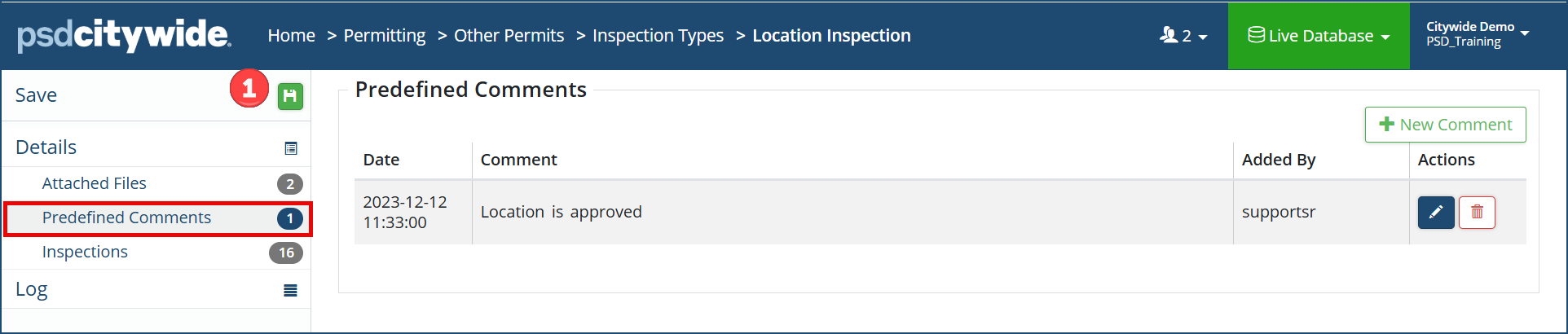
- Click +New Comment . The Add Comment dialog box appears:
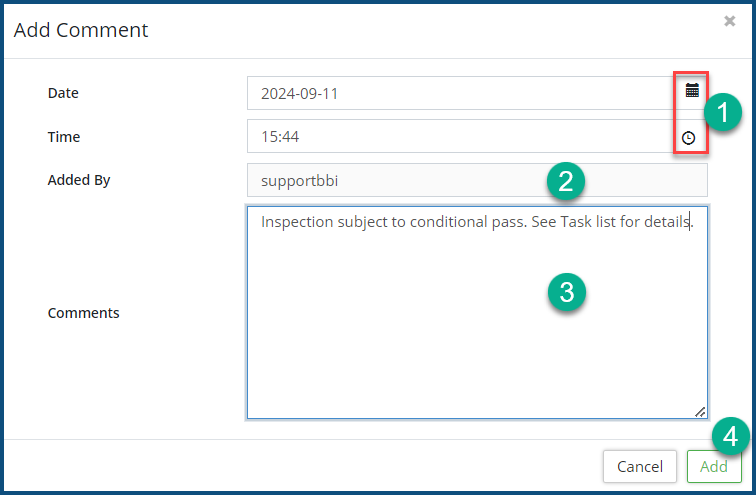
- The current Date and Time appear in their respective fields, but they can be changed by clicking on the icons within each of the fields ❶.
- The Added By ❷ field contains your Citywide login name. It cannot be changed; that is, you cannot attribute a comment you are writing to someone else.
- Enter Comments ❸.
- Click Add ❹.
- Click Save ❶.
Inspections
Inspections shows the number of inspections for the selected Inspection Type in the system, as well as the list of inspections corresponding to that number. The relevant details appear under each of the columns.
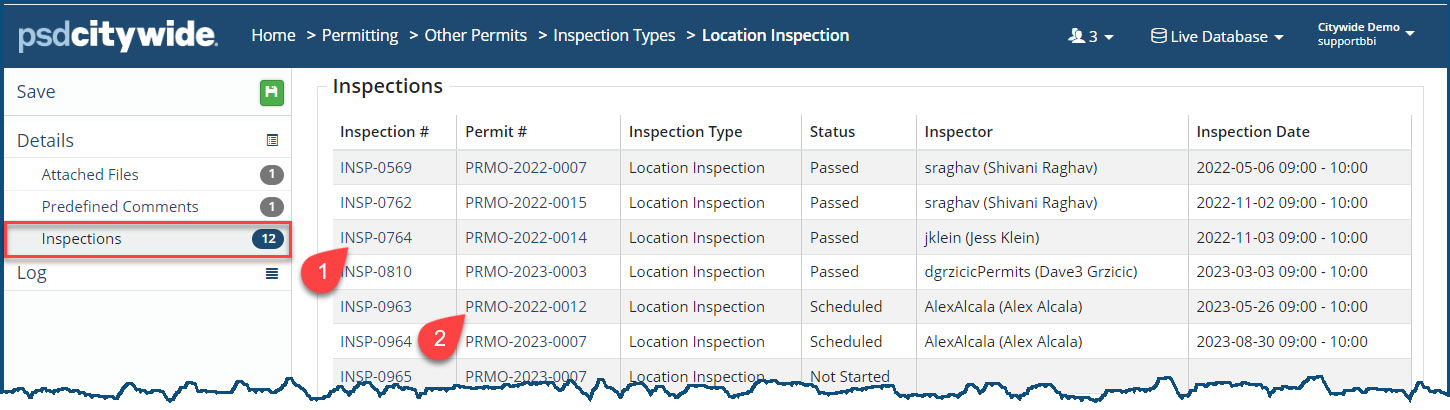
Clicking the Inspection # link ❷ will open the Inspection record.
Clicking the Permit # link ❸ will open the Permit record.
Log
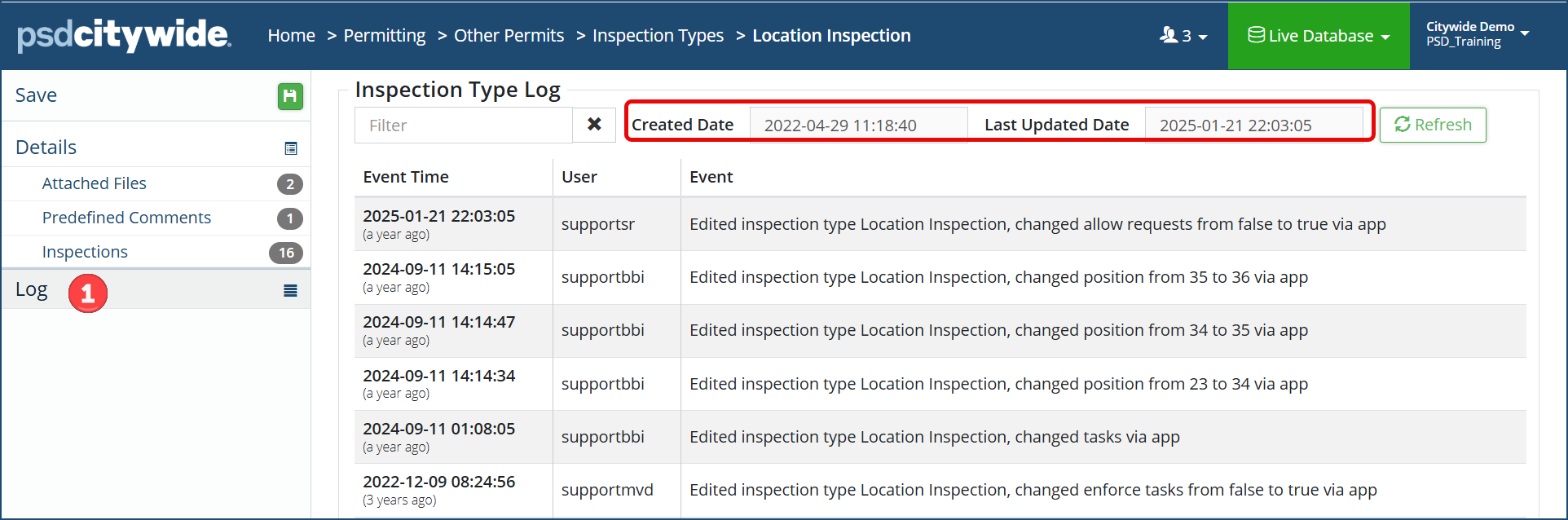
Clicking the Log ❶ option produces a log of all changes made to the Inspection Type spanning the date the Inspection Type was created to the Last Update.