Processes

Jan 08, 2026
Overview
Processes are setup here and can be added to Work Order Types. Each process has a name and a list of tasks to accomplish. When linking a process to Work Order Types, users can choose if these tasks are mandatory or optional.
Navigate to Home > Maintenance > Work Flow > Processes. 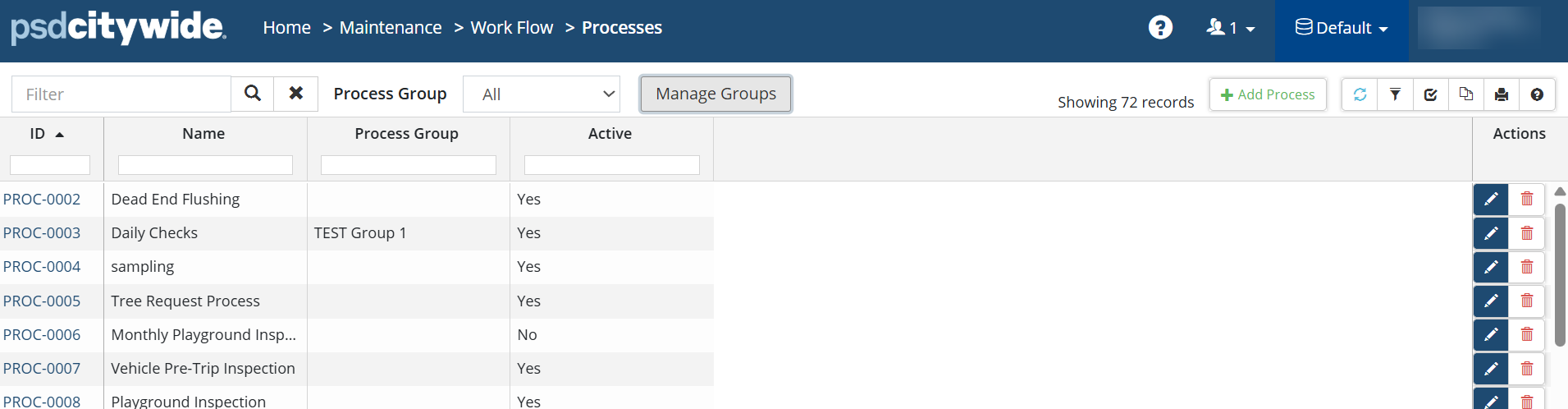
- To add a process, click +New Process.
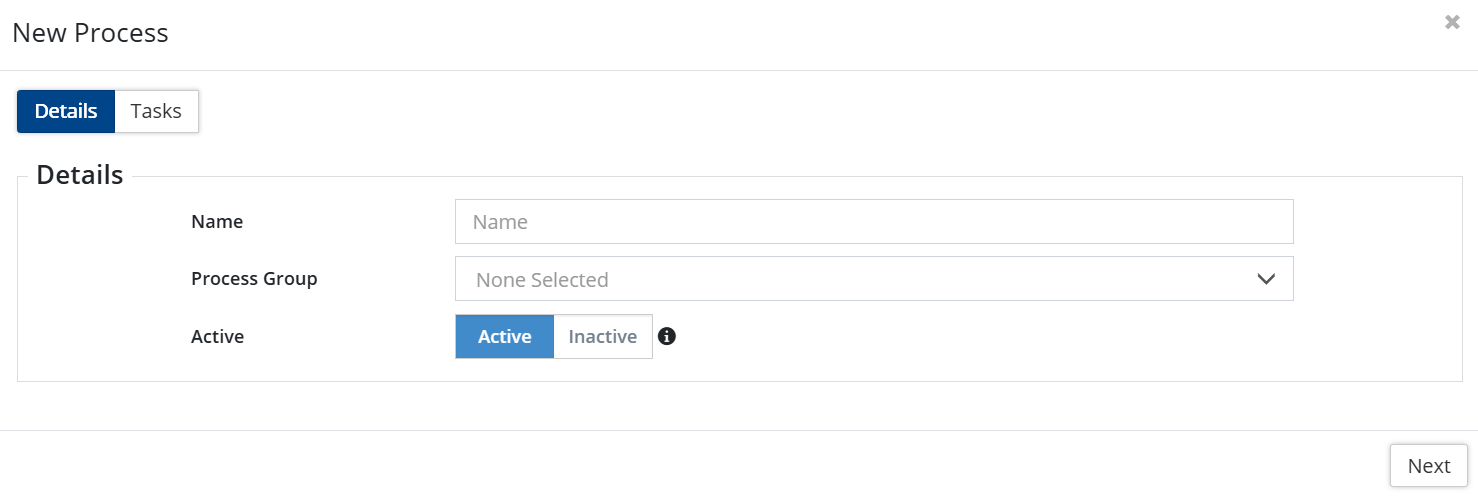
- Enter a Name and click Add. Creating a Task list is optional.
- To edit/delete a Process, click
 /
/ on the right.
 - To deactivate a Process, click to open the process. Toggle the Process Status flag to Inactive.

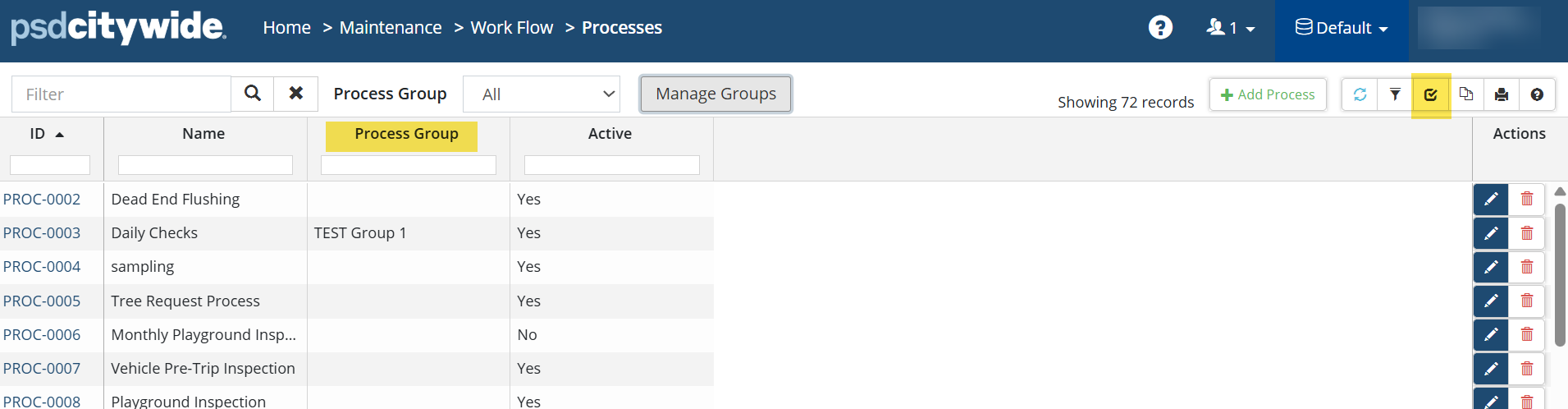
- You can group your processes in groups. When you click on Manage Groups, you can add a New Group. You can also use the Manage Groups window to edit and delete the list of groups.
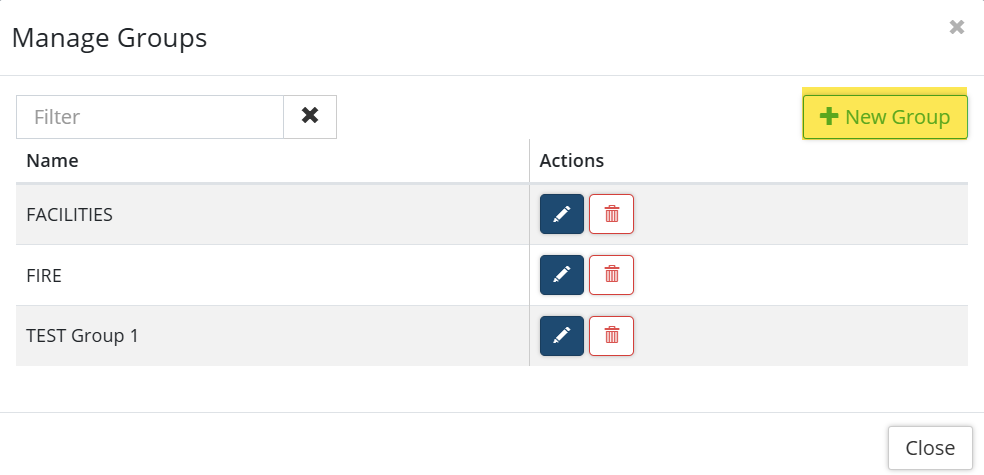
- When adding a new process, there is an option to add it to a group from the Process Group drop down.
- Use the Customize Columns button within the Processes Page to include the Process Group column.
Tasks
Tasks are steps within the Process used to accomplish the goal of the Work Order / Inspection.
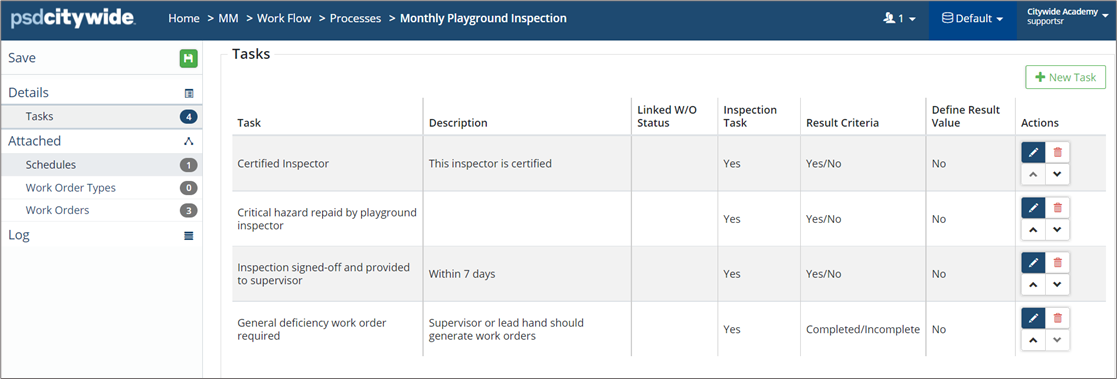
Add a new task, open a Process:
- Click +New Task.
- Complete the New Task wizard as needed. Click Add.
- To edit a task, click Edit
 .
. - To delete a task, click Delete
 .
.
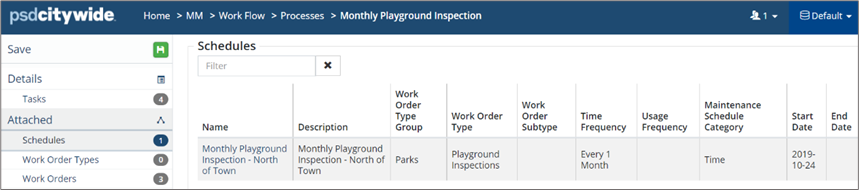
Processes can be attached to Maintenance Schedules such that when the scheduled work order will be created, the process will be pre-attached to the work order.