Overview
Email notifications can be set up to generate automatically. The Notifications section within Service Request Type and Work Order Type lists all notifications linked to each. Emails sent will include Work Order ID (link), Work Order Type, Status, Work Order Created Date, Address/Location, etc.

Email Notifications can be configured through Maintenance 🢡 Work Flow 🢡 Notifications.
-
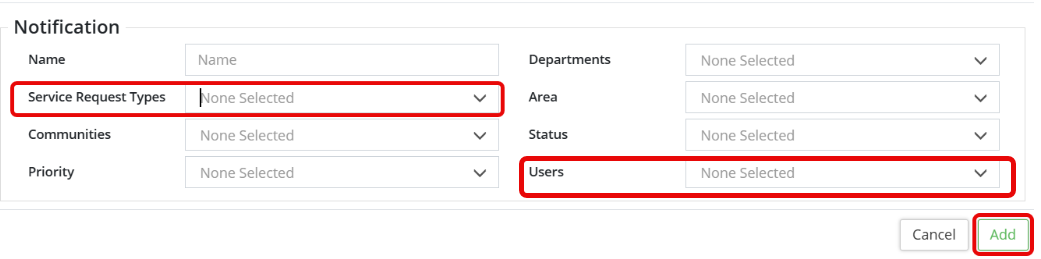
- To add a new service request notification, scroll down and click +Add Service Request Notification and complete all the Service Request Notification fields. Add the service request type to the existing selection in the Service Request Types field (be sure to Ctrl+click). Users drop down indicates the user(s) that will be notified. The Asset Primary Contact is also a User selection available when setting up Service Request and Work Order Notifications. Status and Priority determines which email notifications are sent out.
- Click Add.
- Follow the steps above using +Add Work Order Notification to set up New Work Order Notifications.
To edit an existing notification:
- Navigate to Maintenance 🢡 Work Flow 🢡 Notifications.
- Using the 'Filter' search functionality at the top left, locate the existing notification to edit.
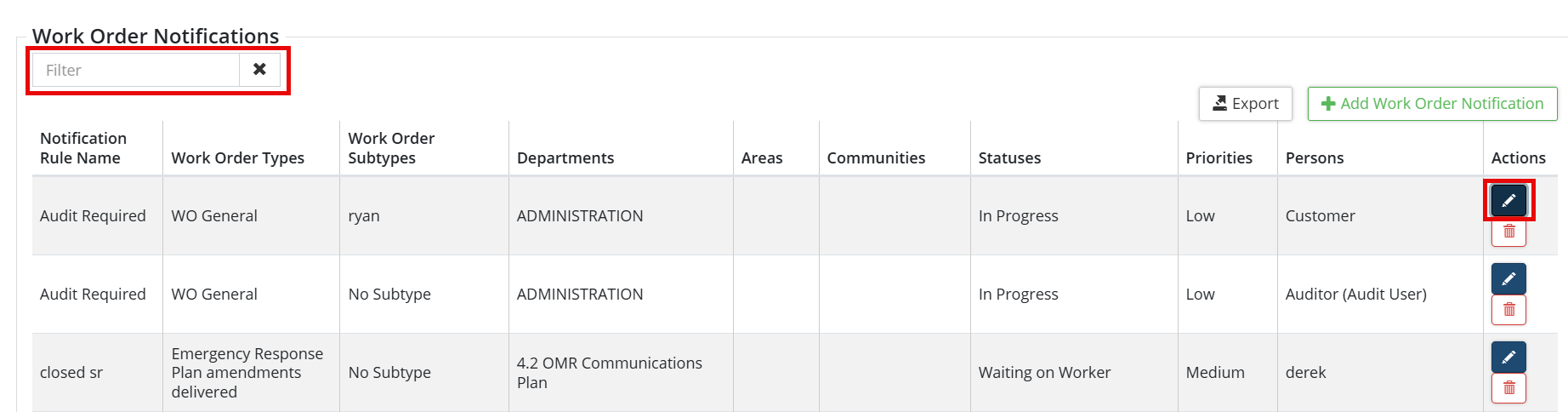
3. Click the  in the Actions column on the right of the desired notification.
4. Make your edits on the Edit Notification page.
5. Click Save.
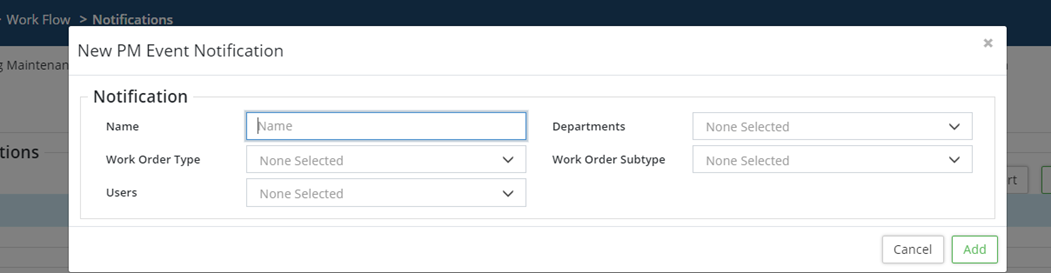
PM Event notifications must be set up to receive email alert notifications for an upcoming PM Event as per the schedule and needs to be approved into a WO. The notification email time and frequency are set up on the maintenance schedule itself.
- Navigate to Home 🢡 Maintenance 🢡 Work Flow 🢡 Notifications and scroll down the screen.

- Click +Add PM Notification to add a new notification and enter the required details.
Inspection Result Notifications
Inspection Result notifications are set up to receive email alert notifications for Inspection Results for Inspection Work Orders.
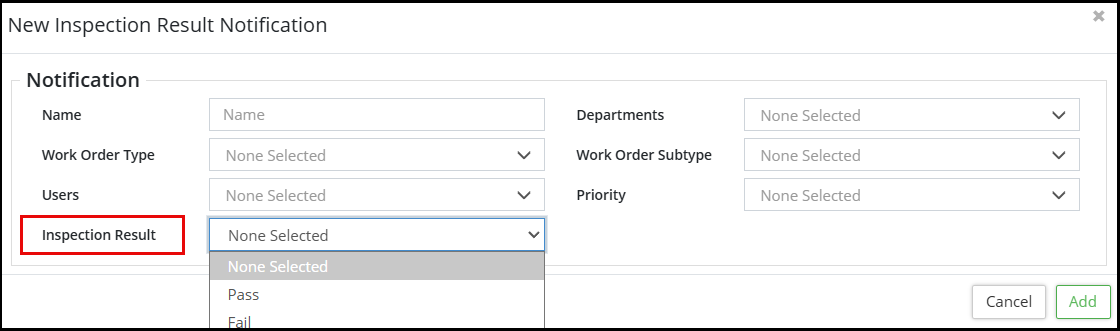
- +Add Inspection Result Notification and complete New Inspection Result Notification fields.
- Select Inspection Result drop down and select either Pass or Fail.