


Overview
Scheduled Maintenance Events are one of two types of scheduled events (the other is Preventative Maintenance Events). Both types of events are based on Maintenance Schedules. The sole difference between them (apart from the fact that each is appropriate for different types of tasks) is that Preventative Maintenance events must be approved before a work order is created for them, while work orders are scheduled automatically with Scheduled Maintenance events.
The Preventative Maintenance Events Grid
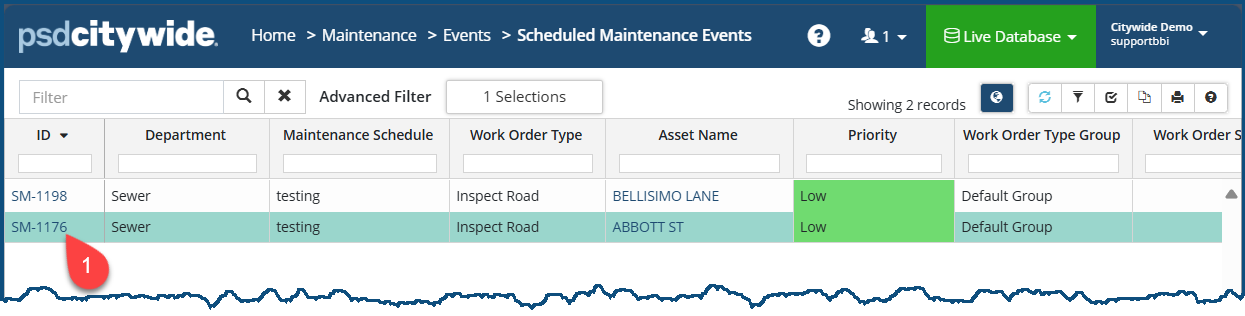
The following screenshot shows a Scheduled Events grid which displays a couple of scheduled maintenance events.
Viewing and Editing a Scheduled Maintenance Event
Details
To open and view/edit a Preventative Maintenance event:
- Click on the SM ID ❶ number for the event. The event record appears, defaulted on the Details screen:
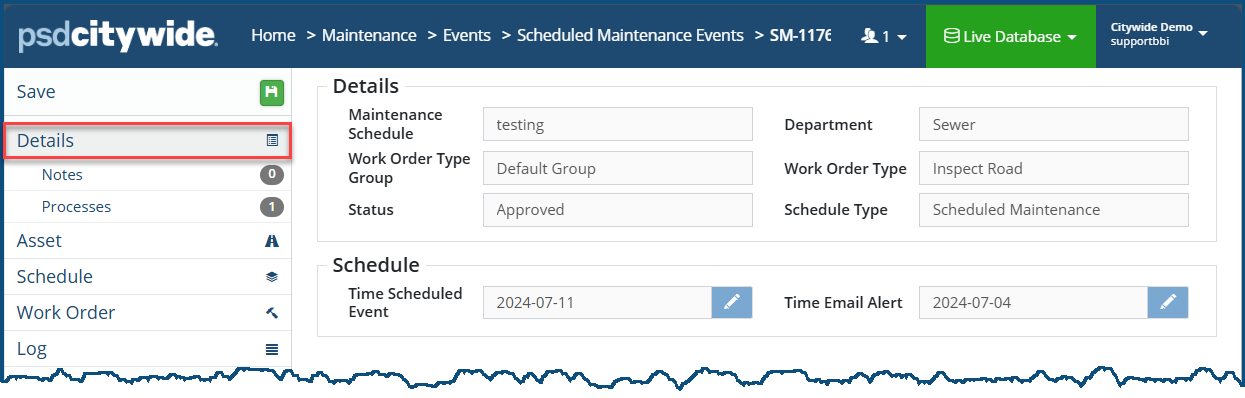
The screen shows basic, read-only information concerning the scheduled event.
Notes
Clicking on Notes will show any existing notes pertaining to the event and allow you to add additional notes, each of which will contain a Date stamp, the Note itself, the username of the person who added it (Added By), and the ability to edit or delete the note (Actions).
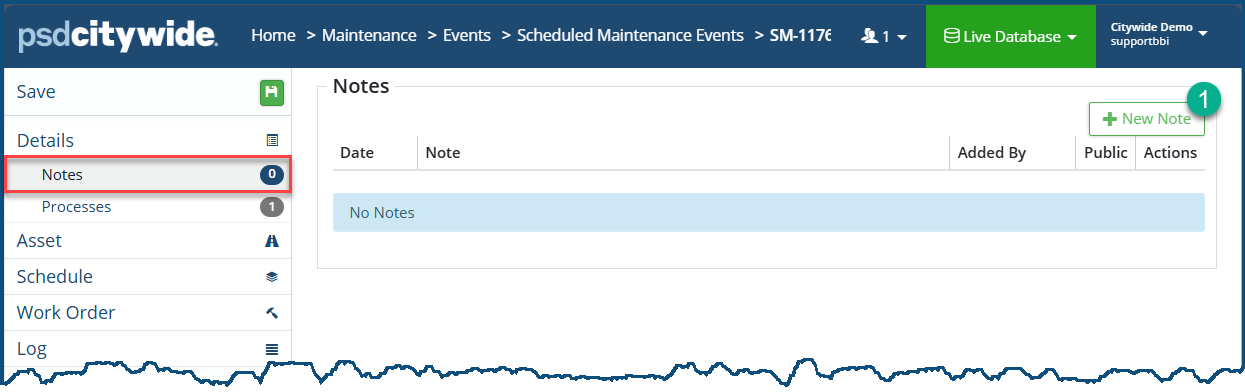
To add a Note:
- Click on +New Note ❶. The Add Note dialog box appears:
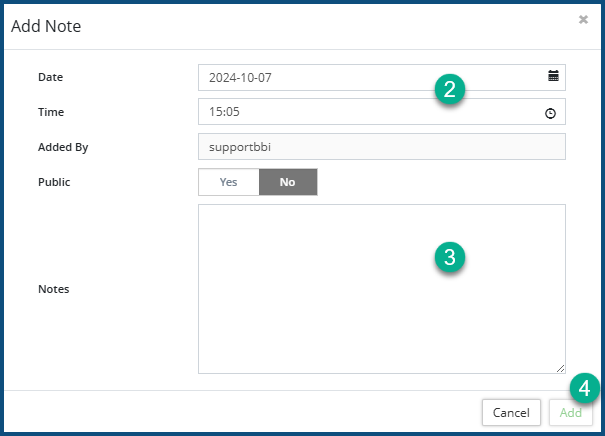
- Set the Date and Time ❷ if it is different from the current system date and time.
- Enter the Note ❸.
- Click Add ❹.
Processes
All the processes that are associated with this event are listed ❶ here, and additional processes can also be attached to the list. All the tasks associated with each process can also be viewed here.
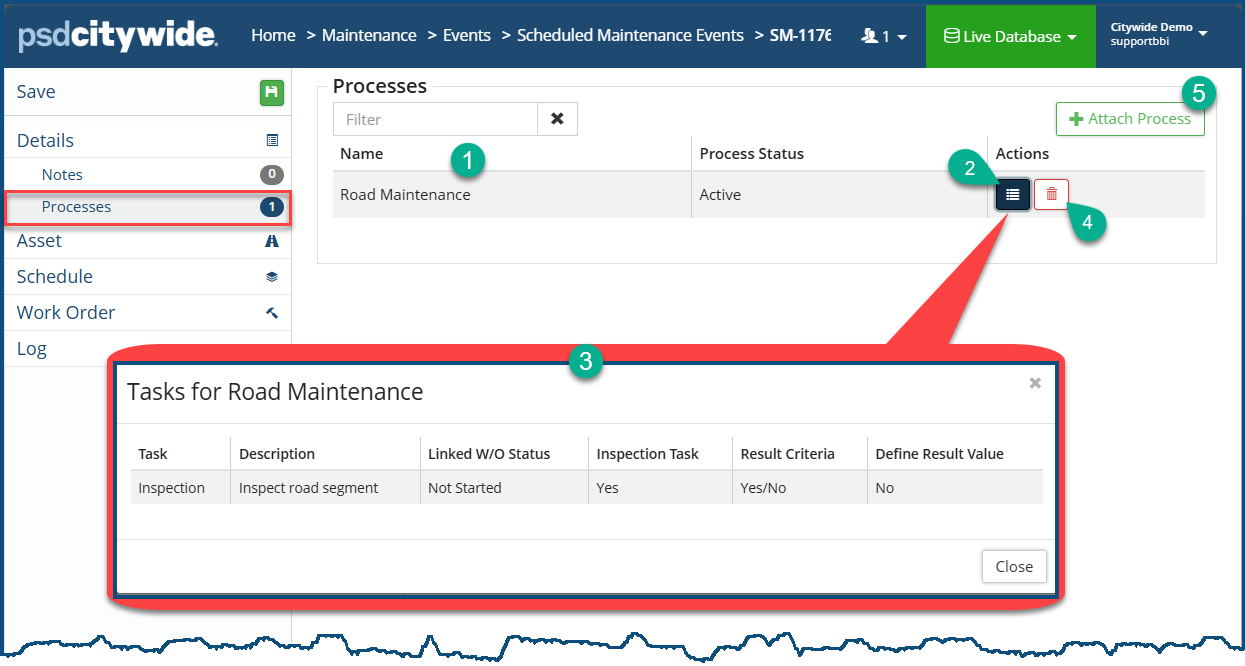
To View the tasks associated with a process:
- Click on the list icon
 ❷ associated with the process. The Tasks for {Process Name} ❸ dialog box appears.
 - The information in this list is informational. If tasks are missing or need to be deleted, this must be done in Home 🢡 Maintenance 🢡 Processes 🢡 Manager 🢡 Work Flow: Processes
To delete a process, Click he delete icon  ❹.
❹.
To Attach a Process:
- Click on + Attach Process ❺. The Select Process dialog box appears:
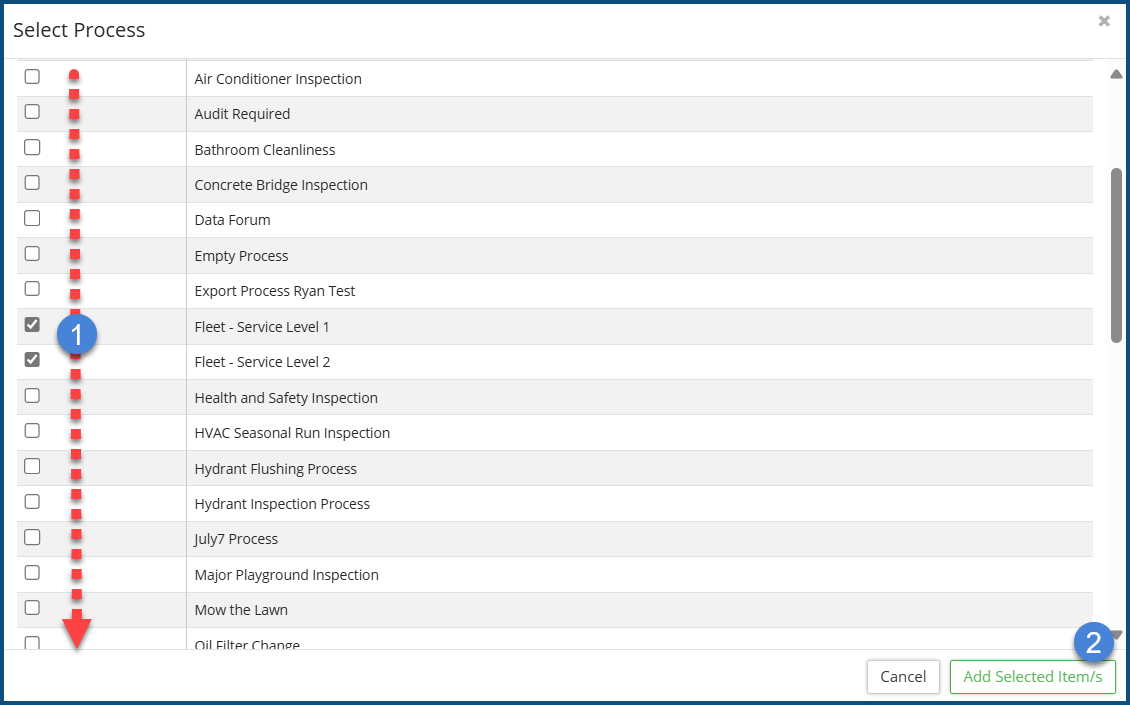
- Check ✅ ❶ the process(es) to be included.
- Click Add selected item/s ❷.
Asset
The Asset option displays basic information about the asset
.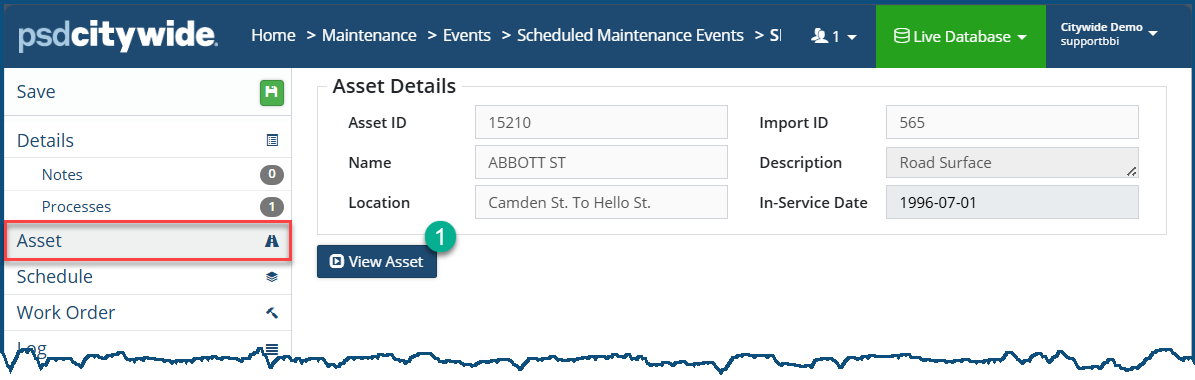
Click on View Asset ❶ to see locate the record for the asset in the Assets Module (Assets Inventory) where comprehensive information concerning all aspects of the asset can be seen.
Schedule
The Schedule option displays the current settings for the Event—those that have been set up in Maintenance Schedules. They appear in a read-only informational state.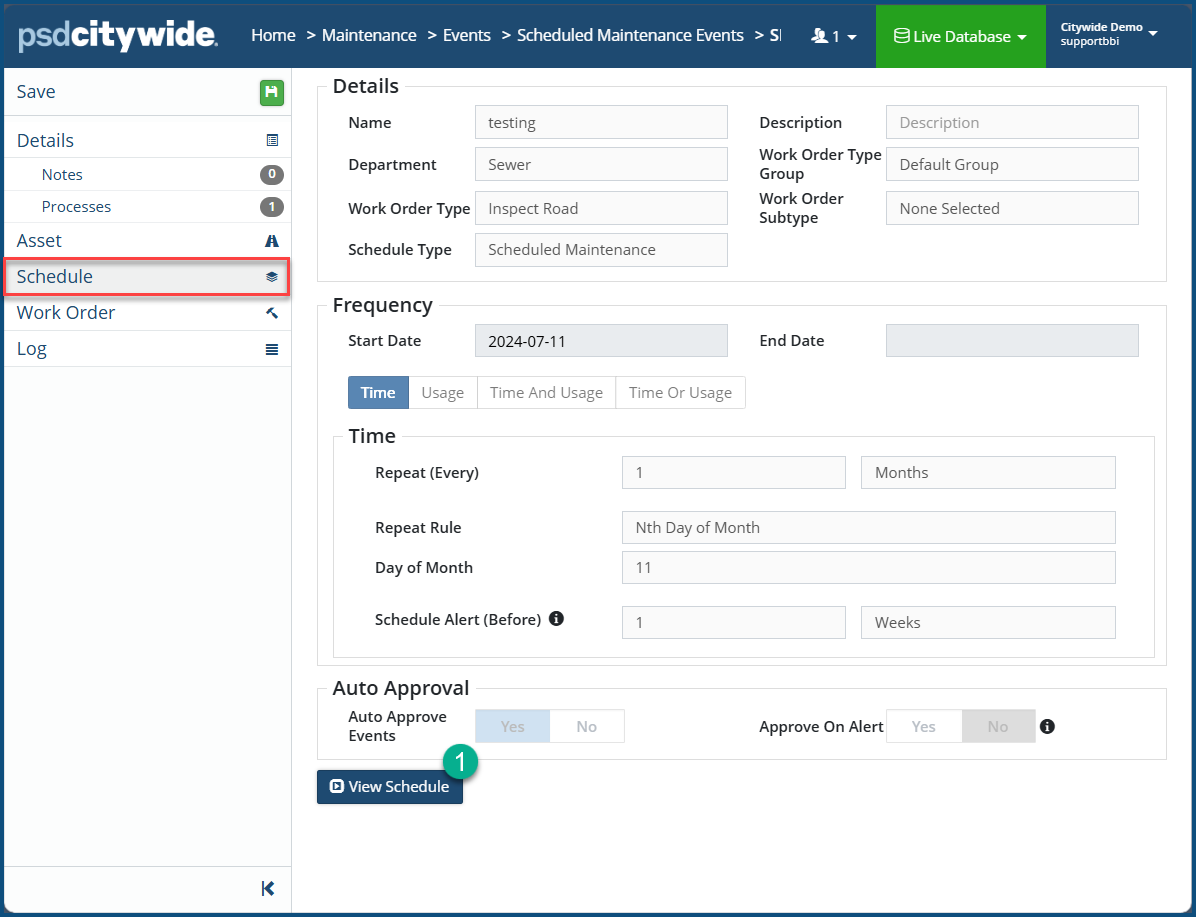
Click on View Schedule ❶ to make changes to the schedule.
Work Order
The Work Order option displays the Work Order Type settings for the Event. They appear in a read-only informational state.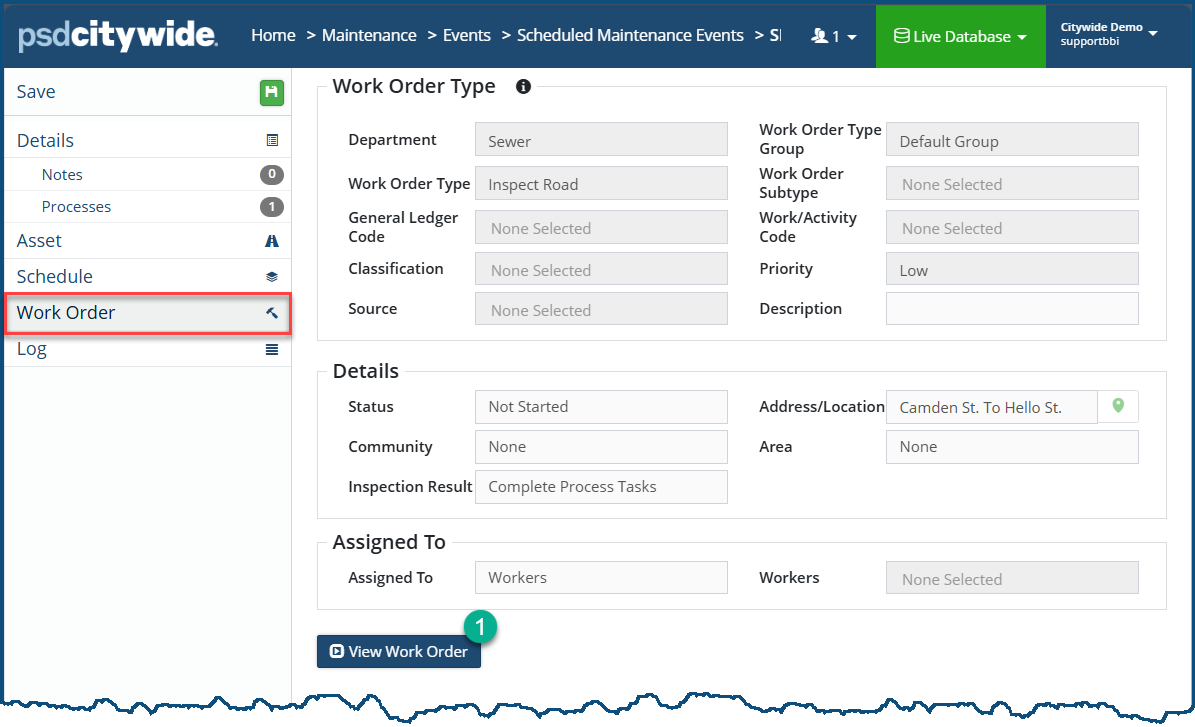
Click on View Work Order ❶ to make changes to the the work order.


