ARO Accretion Report

Feb 21, 2025
For a comprehensive overview or working with Asset Reports in general, see Working with Citywide Asset Reports: A Comprehensive Overview. For information on completing Asset Retirement Obligations (ARO) in Citywide, refer to the article Complete an ARO.
The Accretion Report summarizes the accretion expense, includes any ARO Cost Disposals as well as the total liability as of the reporting year for assets flagged as ARO Identified.
To generate an Accretion Report:
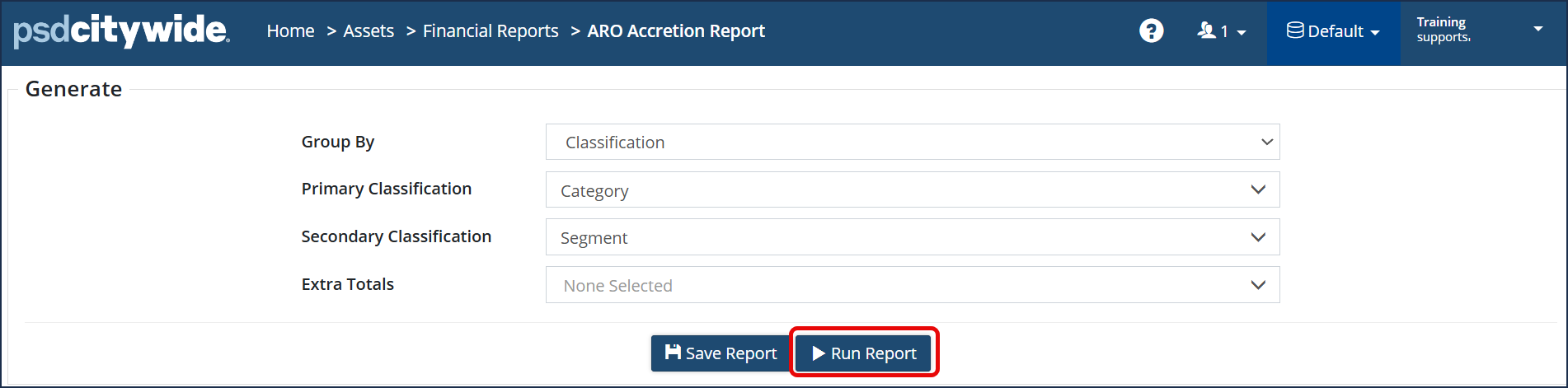
- Navigate to Home > Assets > Financial Reports > ARO Accretion Report
- Select your report filter drop downs: 'Classification(s) or Profile' and any 'Extra Totals'
- Click Run Report
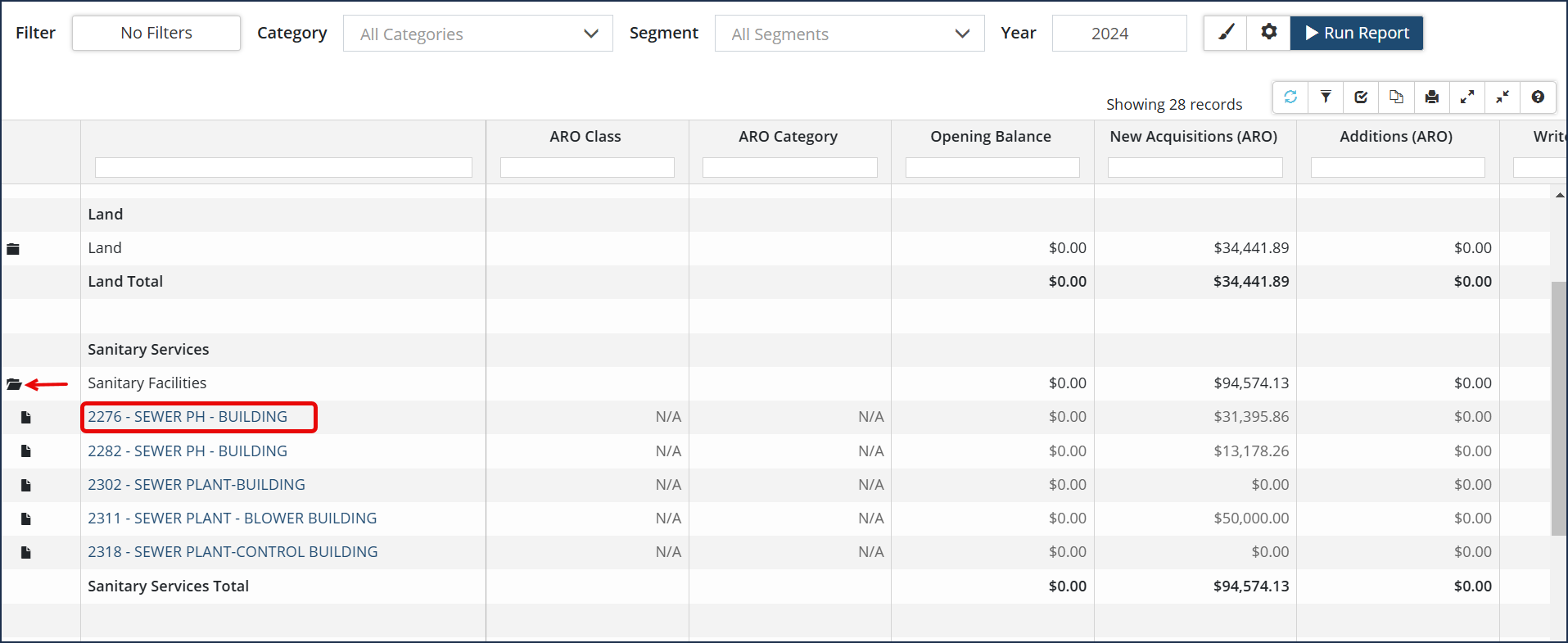
- On the next screen, select any additional filter criteria (ie. specific category/segments) and year

- Click Run Report. (Any assets with ARO Disposals will also be included in the report.)
- Once the report is generated, click the folder to expand the segment and drill down to the asset level.
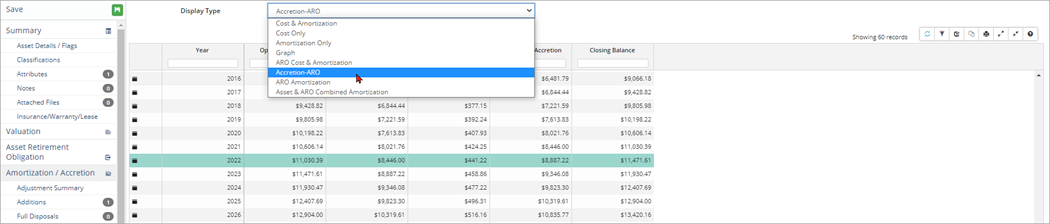
At the individual asset level, the Asset Retirement Obligation screen will show valuation details such as ARC Estimate, ARC at EUL, Initial ARO, Retirement Inflation Rate, and the Discount Rate. Click Amortization/Accretion to view accretion expense and asset liability information over the life of the asset.
Asset View: Asset Retirement Obligation screen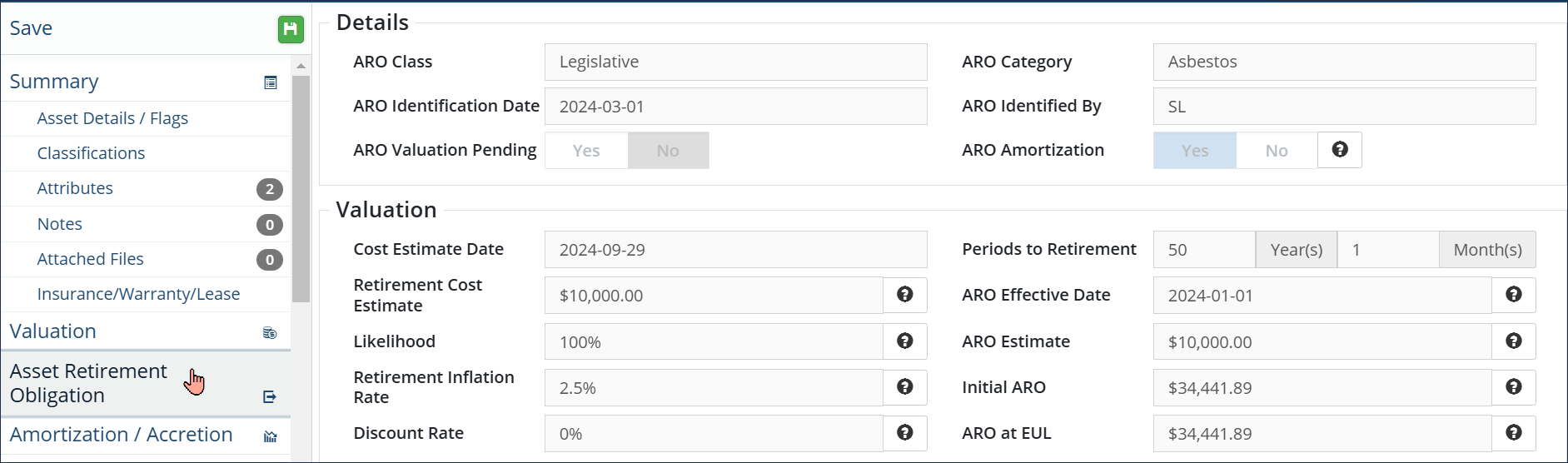
Asset View: Amortization/Accretion Screen set to display Accretion-ARO information including ARO Cost Disposals