


Citywide Permits is a mobile device app used for Inspectors to perform permit inspections. It is used with the Citywide Permitting module and related permit inspections (not to be confused with Citywide Maintenance inspections). You can view inspection details and tasks as well as upload images, add notes, deficiencies and the inspection result on-the-go.
- Check that you have the latest updates on your mobile device. Minimum versions: Android 11+ and iOS 15+
- Ensure the mobile device has access/connection to the cellular data network and/or wifi in the settings.
Citywide Permits mobile app is designed to work offline and store data locally if necessary. Once the mobile device is back online and connected to a cellular network or wifi, data needs to be manually synchronized to Citywide. Click the following link for step-by-step instructions on how to 'Sync data to the web platform'.
Downloading Citywide Permits mobile app
- Visit the Play store (Android) or App Store (iOS) on your mobile device
- Search for: Citywide Permits, then tap to get and/or install
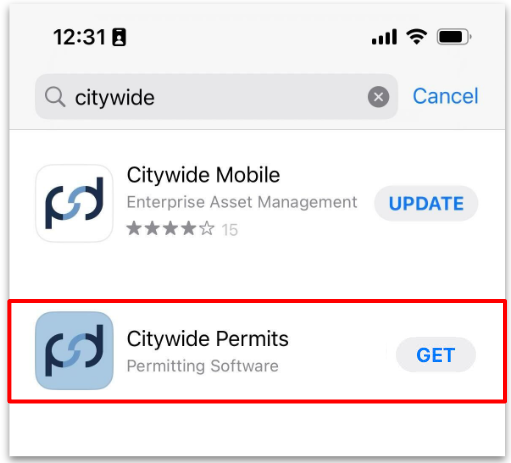
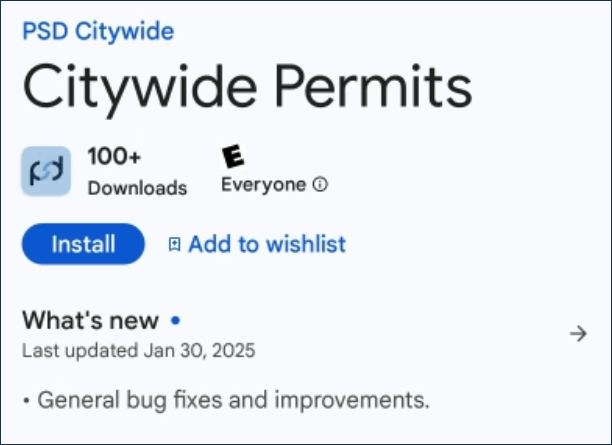
Once the app is downloaded, ensure that you enable location services and cellular data in the app settings to use the live map.
Your administrator must first add you as a user, then assign as an inspector in the Citywide web platform with the appropriate permissions. Your administrator will provide your username and password login credentials.
If you are already a Citywide web user with inspector permissions, you can log into the Permits mobile app with the same user credentials.
- Tap the Citywide Permits app icon
- Enter your database name (provided by your administrator)
- Tap Continue
- Enter your username and password (Note: SSO authentication does not require a password)
- Tap Continue
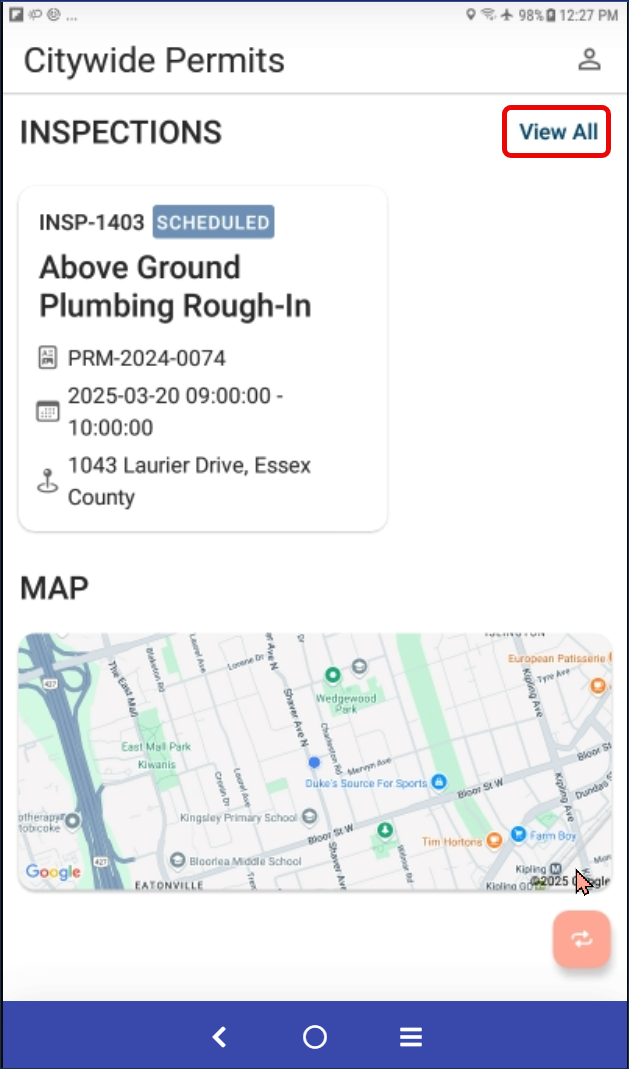
The app will synchronize and fetch data from Citywide. The main menu page will only show the inspections that are assigned to you and by default show inspections for the current day. The live map will show your current location. To view all inspections, click View All.
Using the quick filters at the top, you can view inspections for only Yesterday, Today or Tomorrow. You can also use the Search icon to filter and search specific inspection details.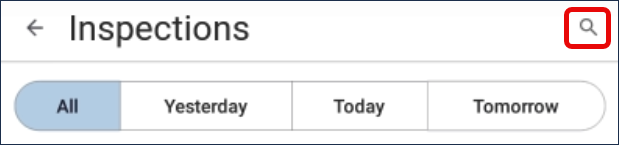
- Tap any inspection on the list to view the details.
- To view the inspection location on the live map, click the location icon
 .
. - Tap Add to complete any Notes or include images/attachments.
- Tap Save at the top of the screen. (This will save any details/notes or attachments you included in the inspection before completing the inspection result.)
- Tap Inspection Result.
- Select your result option: Conditional Pass, Passed, Failed or Cancel.
- If desired, type any comments to include with the inspection result.
- Tap Save.
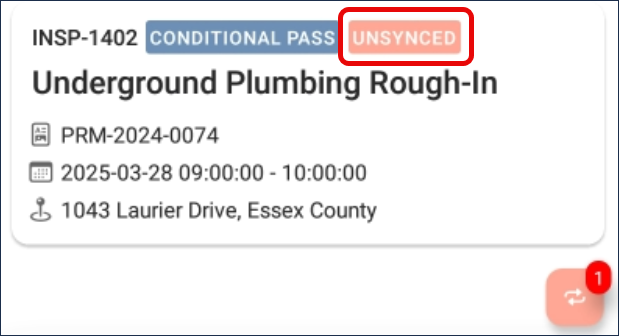
- Any inspection with saved details must be updated to Citywide Permitting. It will indicate in the mobile app as ‘Unsynced’.
- When connected to the cellular network or wifi, tap the synchronize icon
 at the bottom of the screen to submit and update data to Citywide Permitting.
To email a copy of the inspection report to the applicant or other email address(es):
- Tap Inspection Report .
- Select from the list of Contacts for the permit or tap Add Email to enter an email address.
- Type in the email address, then tap Add.
- Tap Submit .


