


Overview
The Municipal Property Assessment Corporation (MPAC) integration is for clients in Ontario to submit building permit information directly to MPAC from the Citywide software. By default, Citywide has a built-in report formatted specifically for upload to MPAC, however this article covers the details of the automated integration that can be configured in your Citywide database to send permit data to MPAC easily and efficiently. Please contact your Project Implementation Lead or Account Manager for further details to have this integration set up.
Once the integration has been set up in the database, you can enable the permit data details and required documents for submission to MPAC with the steps below.
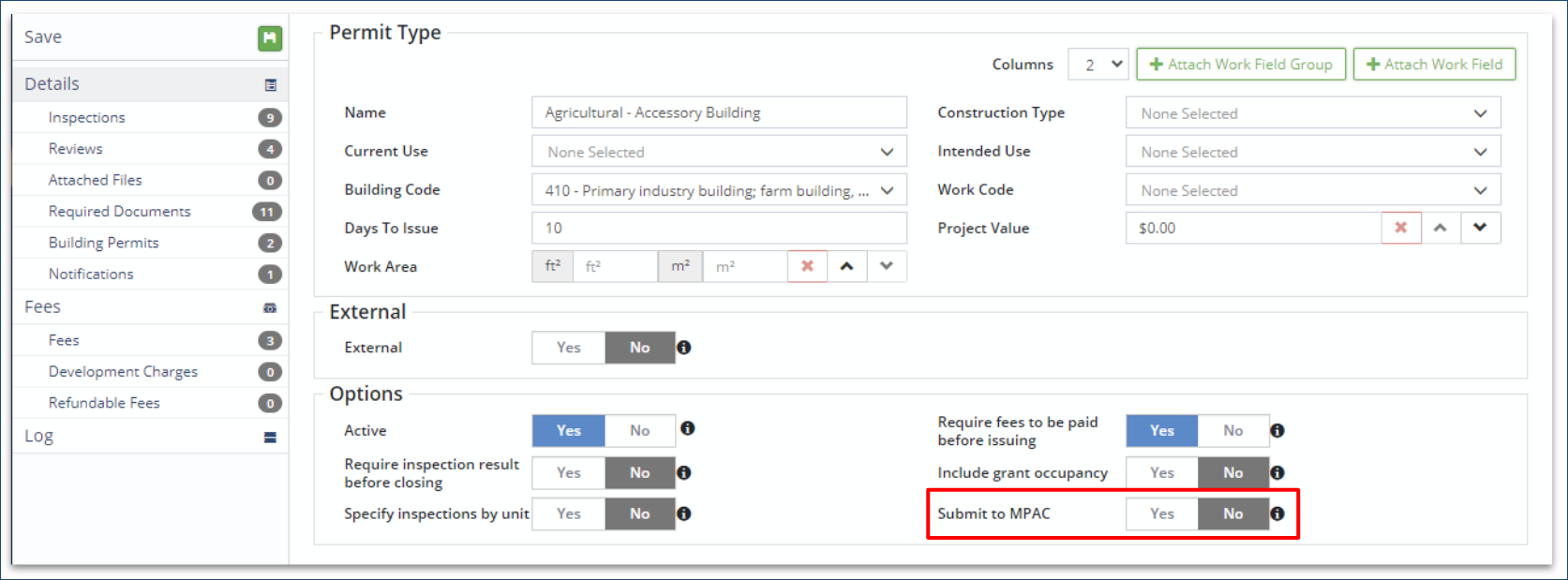
To enable specific permit types for submission to MPAC:
- Navigate to Permitting > Building Permits > Permit Types
- Select a permit type from the list
- In the Details page, set the ‘Submit to MPAC’ toggle to Yes
- Repeat steps 1 to 3 for each permit type that requires submission to MPAC
- Click Save
To configure MPAC reporting and Document types:
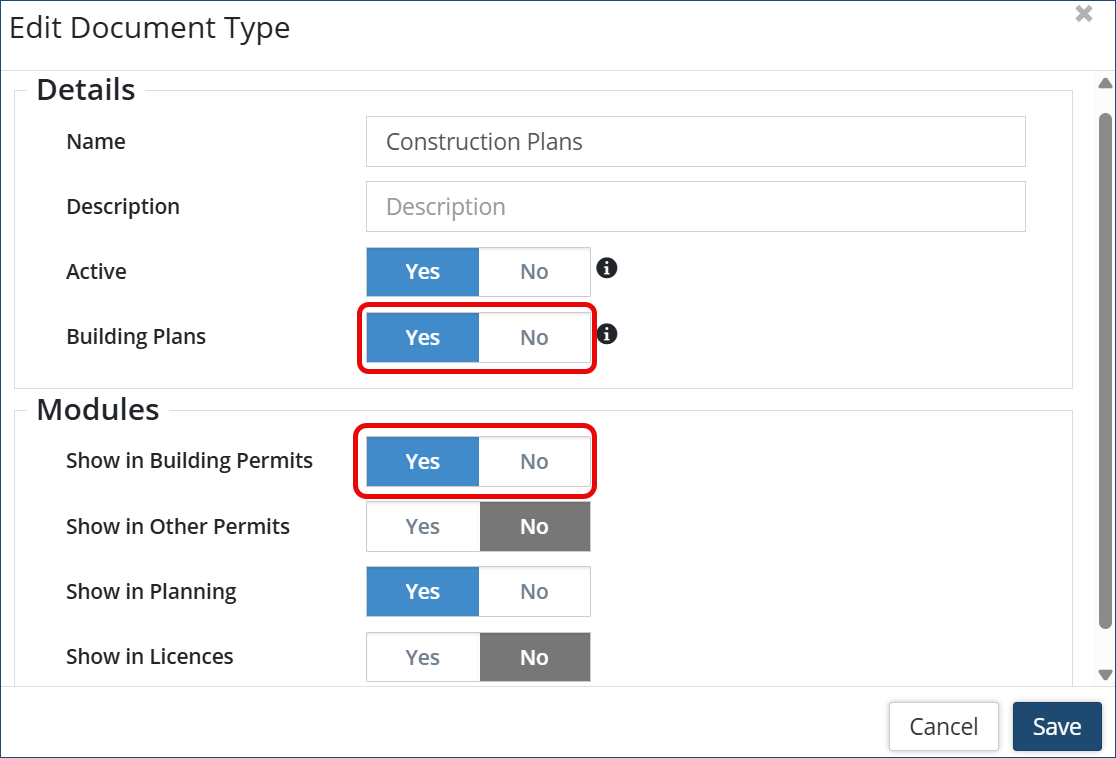
- Navigate to Permitting > Document Types
- Select a document type from the list
- In the Details page, set the document type to be sent to MPAC to ‘Show in Building Permits’ and ‘Building Plans’ toggle to Yes
- Repeat steps 1 to 3 for each document type that requires submission to MPAC
- Click Save
To view MPAC Details in a permit application
- From the Building Permits grid, click a permit ID#
- On the left side panel, click the MPAC details

- ‘Waiting to be issued’ status will be shown at the various Application stages within Citywide.
- ‘Pending Upload’ status will be shown once a permit has been issued in Citywide.
- 'Stop Pending Upload' ❶ button can be used to stop the permit details from being submitted to MPAC via the integration.
-
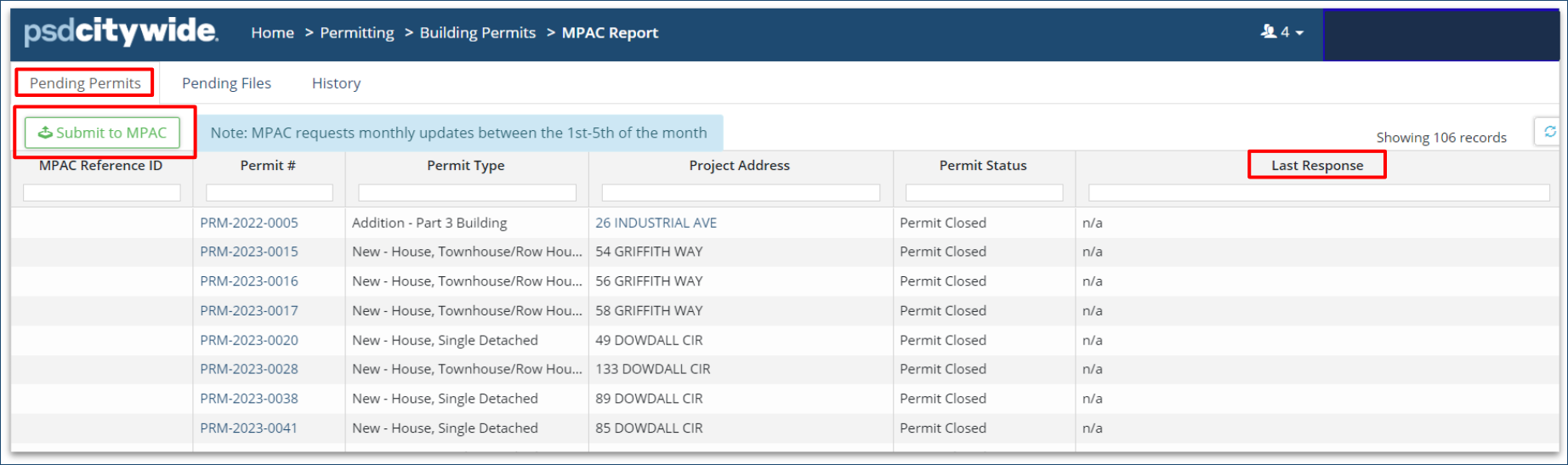
Navigate to Permitting > Building Permits > Reports > MPAC
-
Permits that have changed status within Citywide (issued, closed, cancelled or granted occupancy) will display in pending permits, and will be submitted when Submit to MPAC is clicked. After successful submission, they will be removed from the ‘Pending Permits’ tab.
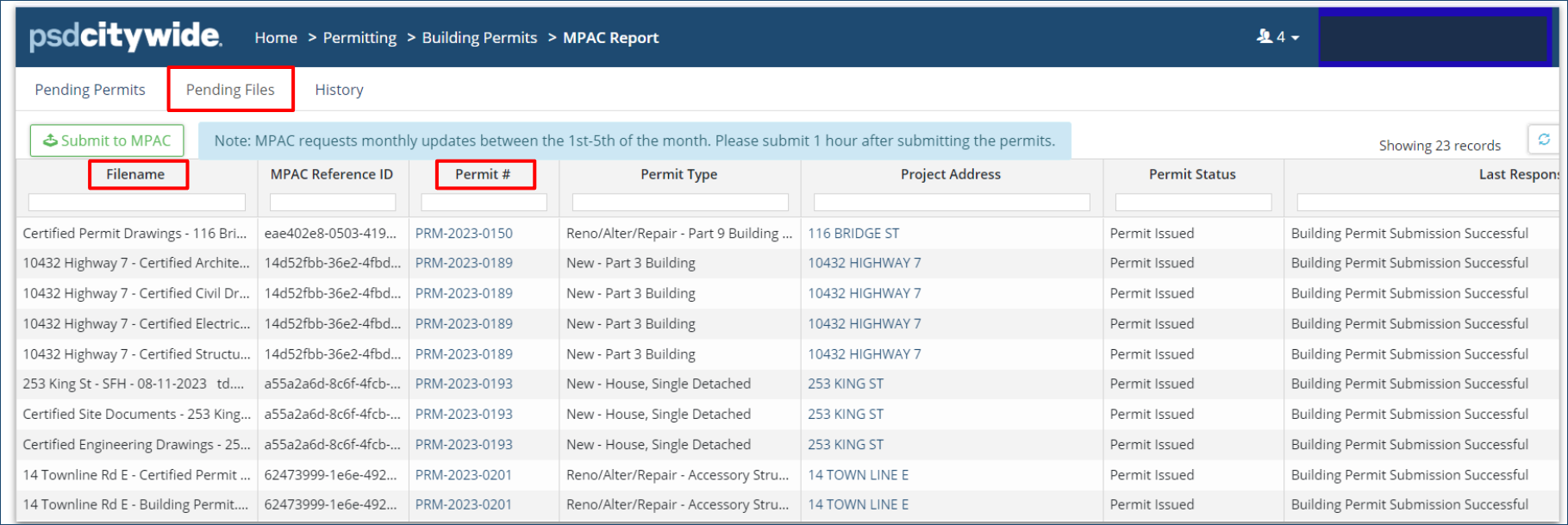
- Documents to be submitted will appear under Pending Files
-
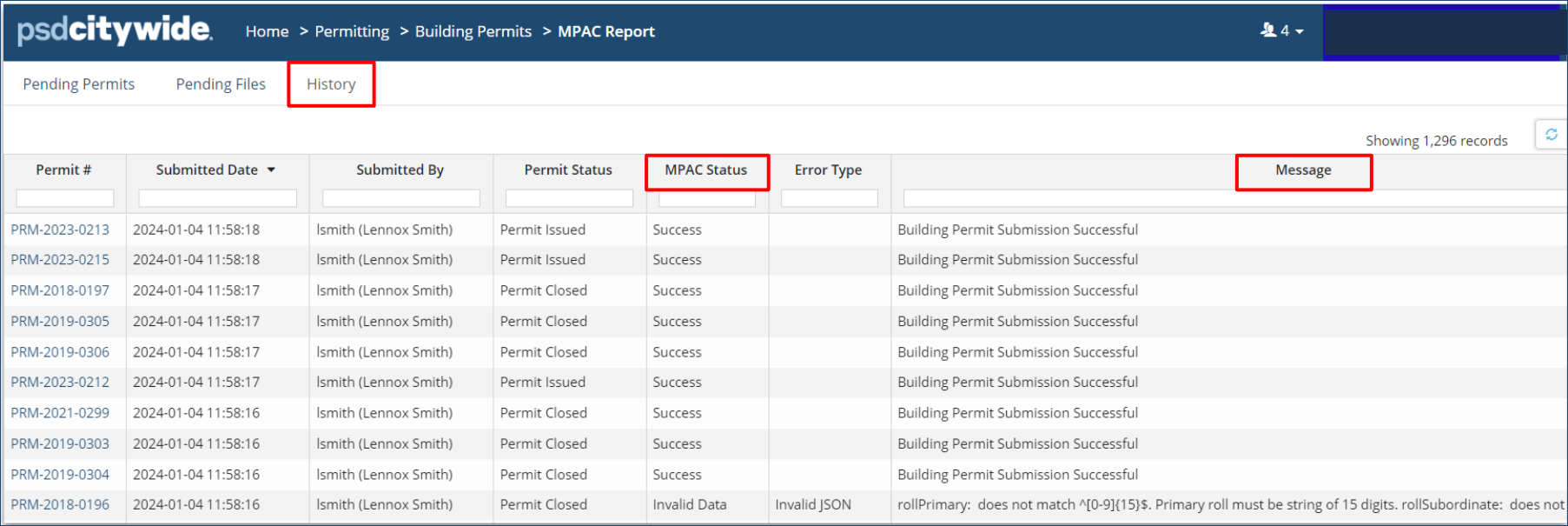
All submission attempts will be recorded in the History tab.
-
Submission status will be shown under MPAC Status
Transmit Attached Files (Document Types)
Attached files and documents will be included in an MPAC submission if the configuration steps for Document types above has been completed.
- From the Building Permits grid, click a permit ID#
- On the left side panel, click Attached Files
- Once the files are transmitted to MPAC, the Attachment Type in the permit is set to 'Final' for each document.

- Click MPAC - the submission status will be shown under MPAC logs, and an MPAC Reference ID will be generated after a successful transmission.
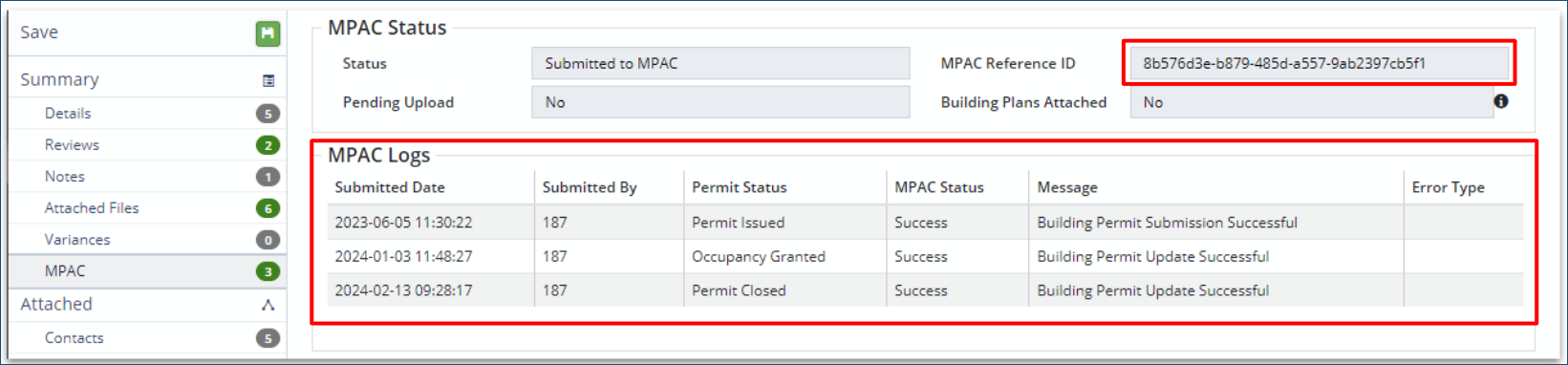
- Click MPAC - the submission status will be shown under MPAC logs, and an MPAC Reference ID will be generated after a successful transmission.
Mandatory fields required in the Permit Application
|
Assessment Roll Number |
15 digits with no spaces |
|
Municipal Civic Address |
Must be valid |
|
Legal Description |
Must be present |
|
Permit Number |
System will generate unique permit number per application |
|
Permit Issue Date |
System will generate in yyyy/mm/dd hh:mm:ss format |
|
Project Value |
Must be present and not blank |
|
Work Code |
Must be selected from drop-down |
|
Building Code |
Must be selected from drop-down |
|
statsCanBuildingCode: Must be one of: 100, 110, |
Value must be selected from drop-down |
|
rollPrimary: does not match ^[0-9]{15}$. Primary roll must be string of 15 digits |
Property Number must be 15 digits, no spaces |
|
rollSubordinate: rent does not match ^[0-9]{4}$. Subordinate roll must be string of 4 digits. |
Property Number must be 15 digits, no spaces |
|
rollPrimary: ROLL 2731000023 does not match |
Property Number must be 15 digits, no spaces |
|
streetNumber: streetNumber must be between 1 and 10 characters in length |
Value must be valid |
|
unitIdentifier: unitIdentifier 27,28,29,30 length is > than max length value of 10 |
Value must be valid, cannot have a list |
|
Duplicate record exists for countyMun/permitNumber combination. Please resubmit a PUT with the mpacReferenceId |
Duplicate permit |
|
n/a |
Recently issued and waiting to be uploaded |


