


Overview
Planning applications are subject to reviews, each of which consists of a set of tasks that have been associated with the Review. This page consists essentially of a checklist of all the Planning tasks in the system, each of which can be advanced through the review process.
The Tasks Grid
Since all the Planning review tasks appear in the list of tasks here, the list can be very long, and the area you wish to focus on can be scattered throughout the list. Sorting and filtering options can be very helpful in setting up an optimal and orderly structure most suitable to the task as hand. Also available are the grid customization tools at the top right above the grid to sort, filter and customize the grid as desired.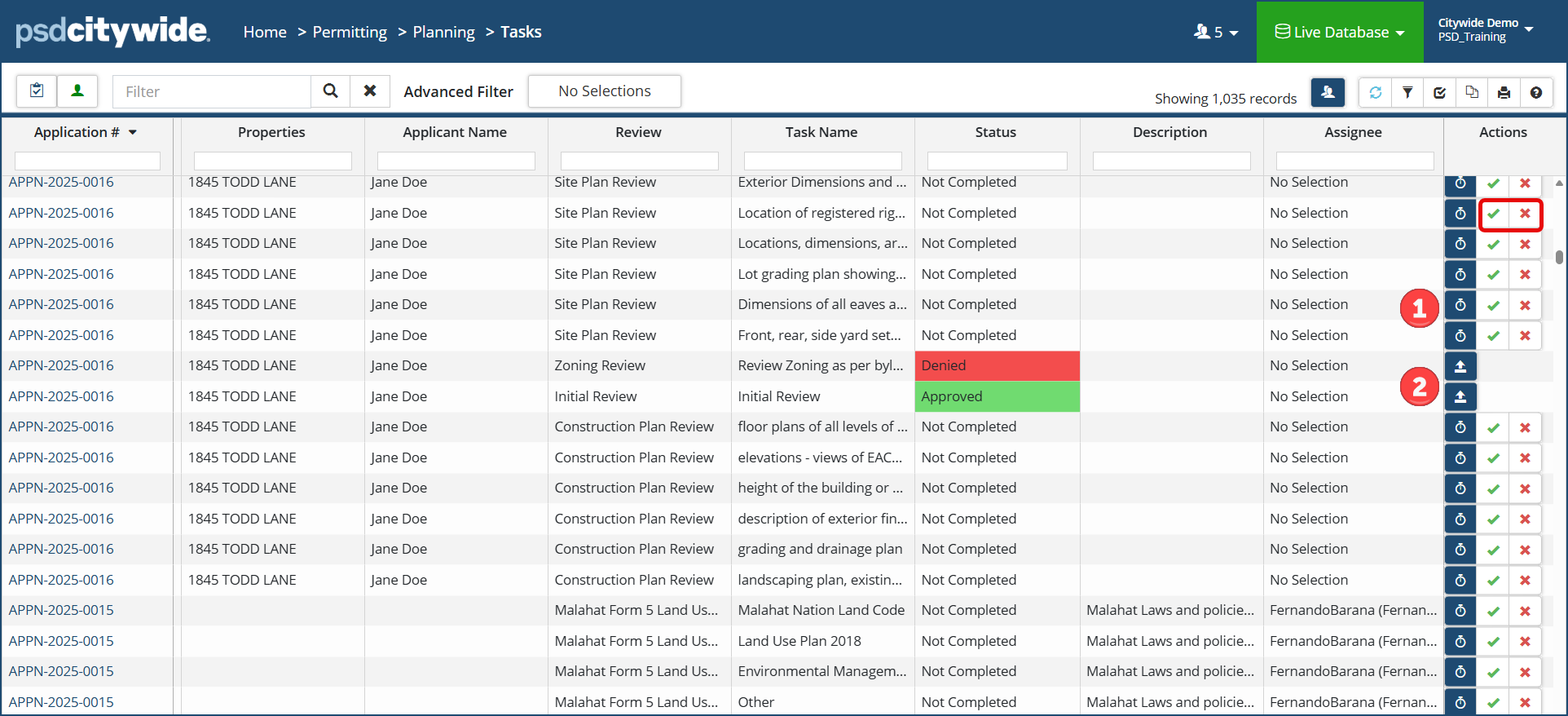
Viewing and Updating Tasks
A tasks can have one of four statuses with a corresponding set of Action icons:
| Status | Action Icons |
| Not Completed | It can be started  , completed ✅, or denied , completed ✅, or denied  . . |
| In Progress | It can be completed ✅, or denied . |
| Approved | It can be re-opened  . . |
| Denied | It can be re-opened  . . |
To Start a Not Completed task:
- Click on the stopwatch icon
 ❶. The Start Review Task dialog box appears:
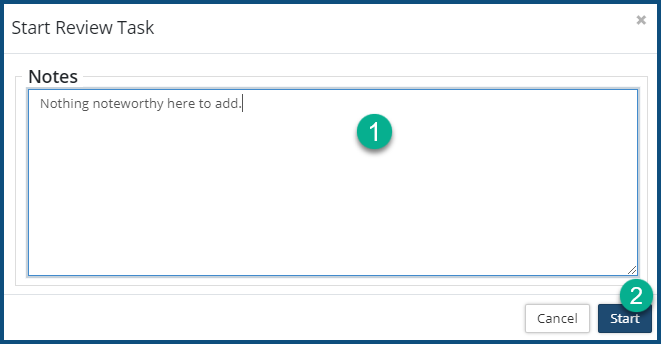
- Enter Notes ❶ (if required or helpful).
- Click Start ❷. The task is now marked In Progress.
To Approve (Complete) a task:
- Click on the checkmark icon ✅. The Approve Review Task dialog box appears:
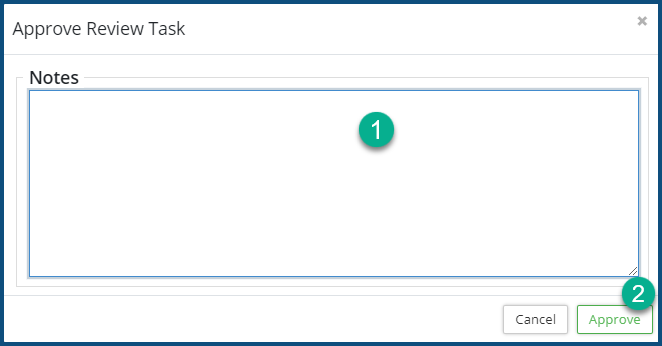
- Enter Notes ❶ (if required or helpful).
- Click Approve ❷. The task is now marked Approved.
To Deny a task:
- Click on the Deny icon
 . The Deny Review Task dialog box appears:
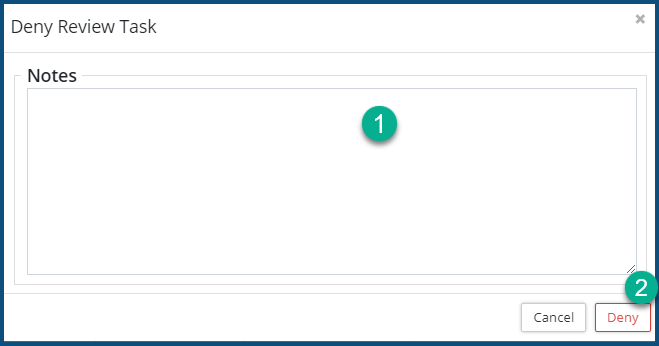
- Enter Notes ❶ (if required or helpful).
- Click Deny ❷. The task is now marked Denied.
To Reopen a task:
- Click on the Reopen icon
 ❷. The Reopen Review Task dialog box appears:
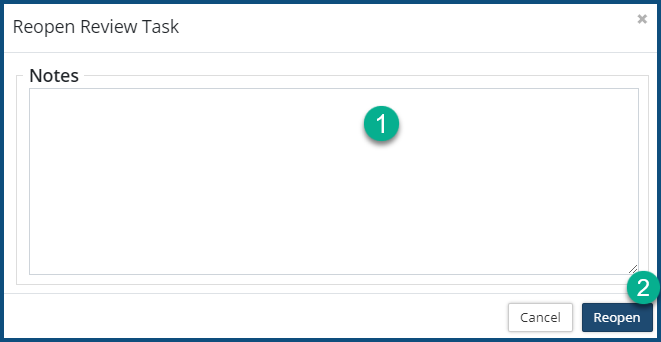
- Enter Notes ❶ (if required or helpful).
- Click Reopen ❷. The task is now marked "Not Completed."


