


Overview
A planning application goes through several reviews by different departments and agencies. In this section, all the Reviews can be defined which will then be available for attaching to application types. Reviews may constitute a checklist of mandatory action items (tasks) associated with various planning applications, each of which must be checked ✅ before the application is approved. Each task can be assigned to an individual staff member who will be responsible for reviewing and approving it. Assignees can view assigned tasks in the Tasks grid.
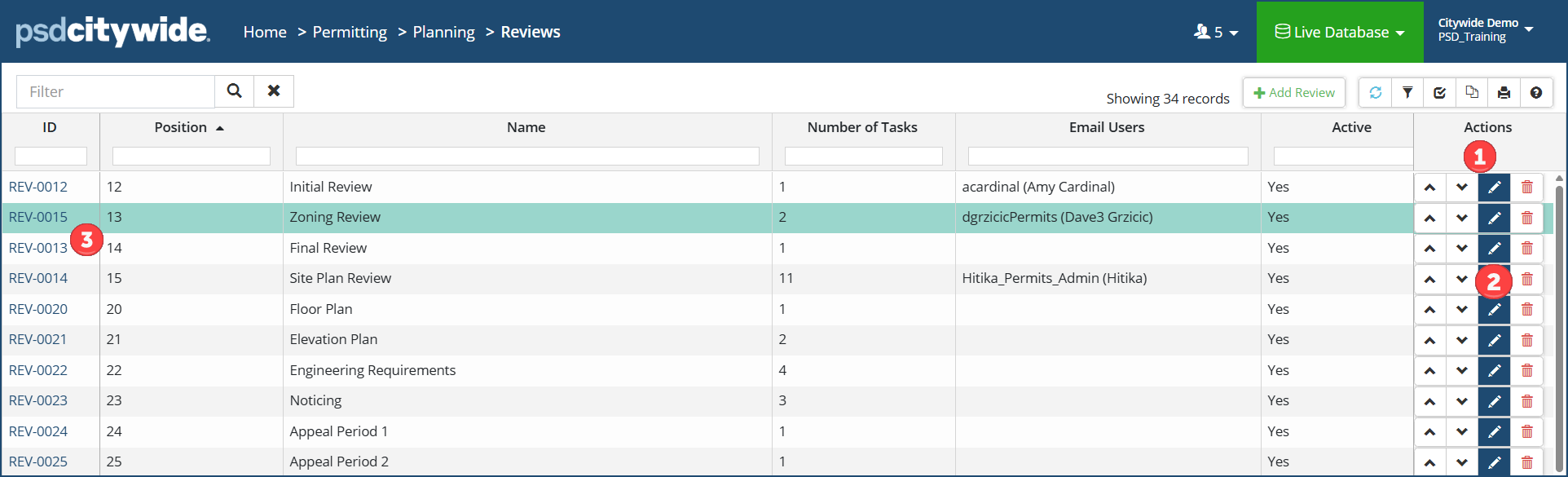
Navigate to Home > Permitting > Planning (Manage Section) > Reviews:
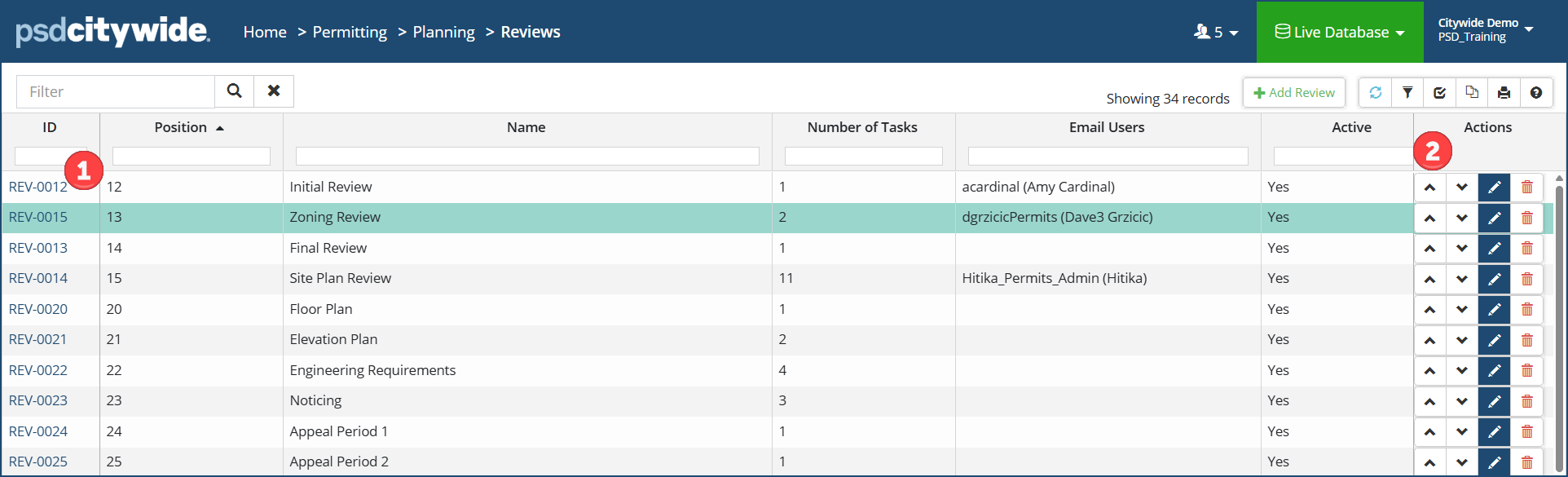
The ID ❶column contains the auto-generated Review ID, each of which is a link to the detailed Review record. The order of the Reviews can be changed using the up / down arrows ❷ under Actions to suit the flow of the approval process for individual application types. All Review records can be positioned in this manner, placing the most commonly used Reviews nearer to the top of the list.
- Click on +Add Review . The New Review dialog box appears, with the Details tabs pre-selected:
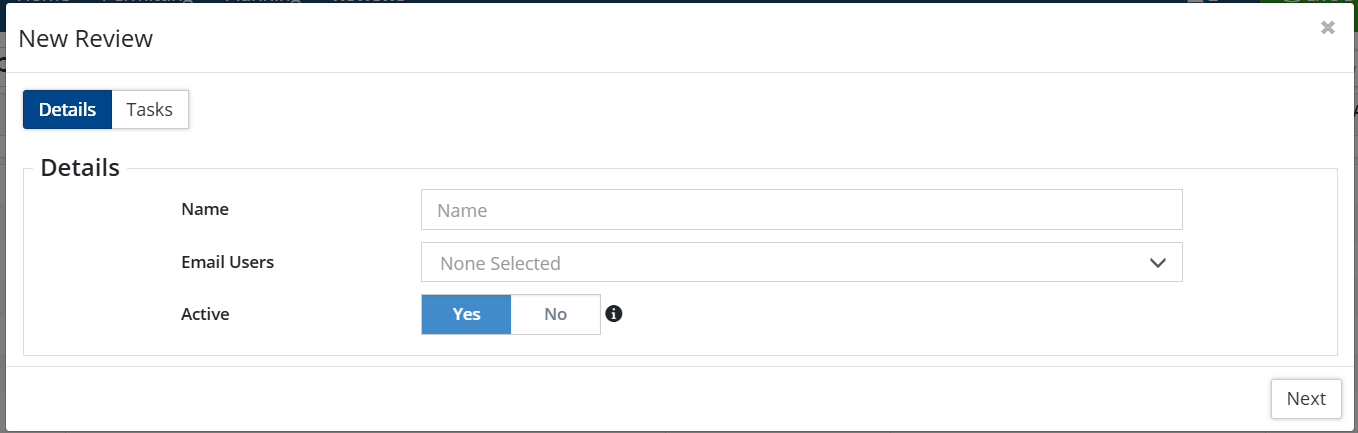
- Enter a Name.
- Select the user/email address of the individual who will be responsible for overseeing this Review.
-
Ensure the Active flag ❹ is set to Yes. If set to No, the Review will not be available in the system. “No” might be the setting for a new Review to be used some time in the future, or it could be the setting for an existing Review that is no longer used (but not deleted, so that data pertaining to it is retained in the system).
-
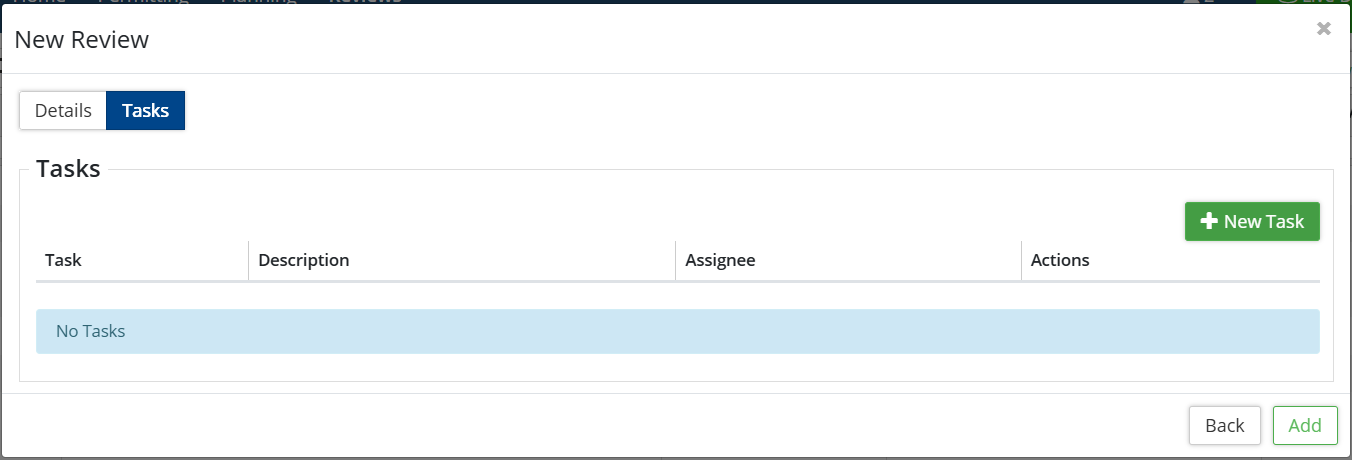
Click Next. The Tasks tab is now selected, where the actionable tasks associated with the Review are to be added:
-
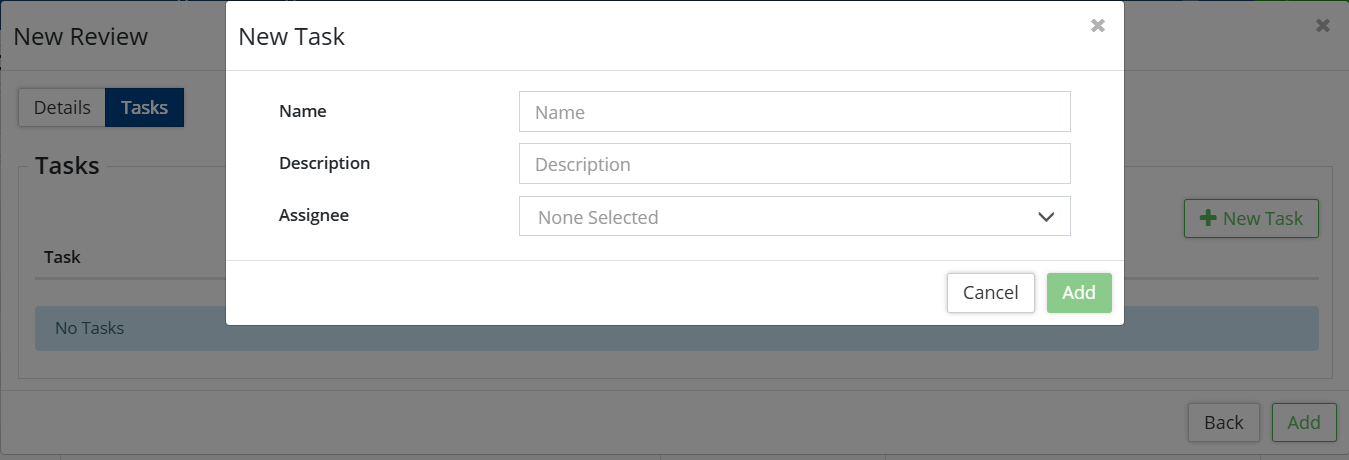
Click on +New Task . The New Task dialog box appears:
-
Enter a Name and (optionally) a Description for the Task.
-
Select an Assignee (Name/Email address) of the individual assigned to this task. This is optional.
-
Click Add.
-
Repeat Steps 6 - 9 to add a more tasks.
-
Click on Add when all the tasks for the Review have been added.
Editing, Deleting, and Viewing/Modifying a Review
 Quick Edit of a Review
- Click on the Edit tool
 ❶. The Edit Review dialog box will appears: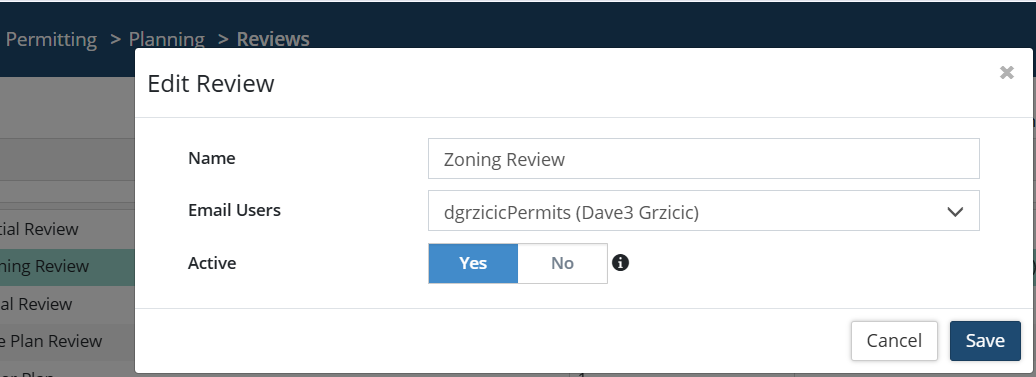
- Make the required changes.
- Click Save.
Delete a Review
- Click on the Delete tool
 ❷. When prompted, click on Remove.
View/Modify a Review
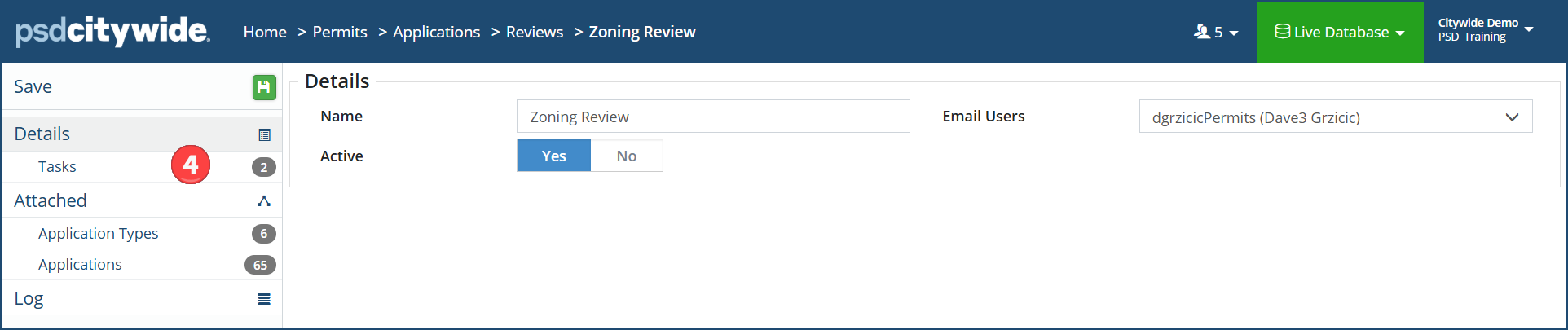
- Click on the ID link for the Review you wish to View/Modify. The following screen appears, with an affiliate panel on the left and the corresponding data on the right. The Details option displays the name of the Review and the user to be notified for this review:
Any of these fields can be edited as required.- Click on Tasks ❹ to see all the tasks associated with the Review. The number next to it shows the number of tasks (2):
- You can add a + New Task ❺.
- Edit an existing task, delete it, or reposition it using the up/down arrows ❻.

- Edit an existing task, delete it, or reposition it using the up/down arrows ❻.
- Click on Application Types to see all the Permit types that this review applies to.
- Click on Applications to see a list of all the planning applications that involve this type or review and their current status:
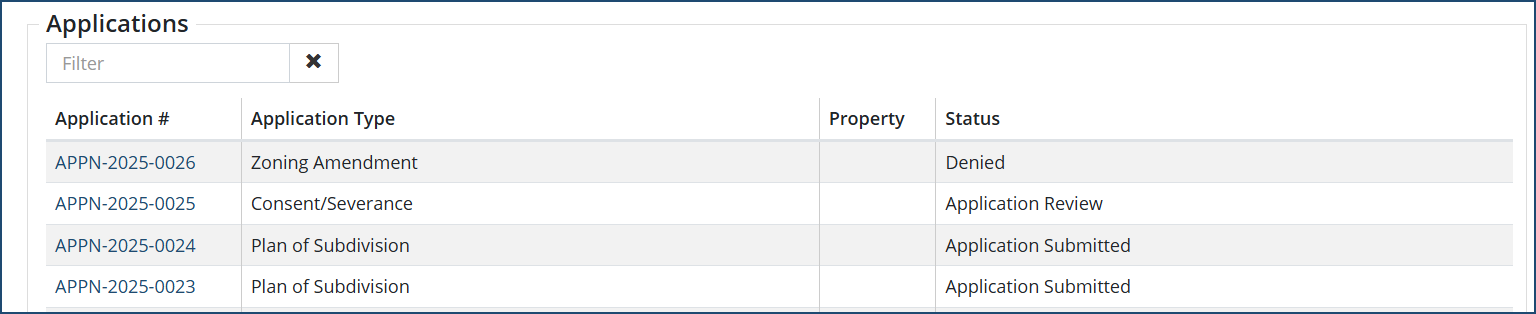
- Clicking on the Application # will open up the corresponding planning application.
- Click Log to view a log of all the changes made for this review.
- Click Save to save changes made for all the above options.


