


Overview
Work Fields are application attributes used to capture important data fields that are usually present on the paper Planning Application Form used by municipalities. These fields are in many cases used to calculate planning application fees (e.g., when the fee is a factor of the project value, the work area of a building, or the location type/details).
Navigate to: Home 🢡 Permitting 🢡 Planning 🢡 Work Fields
Add a Work Field
- Click + Add ❶ on the Work Fields grid.
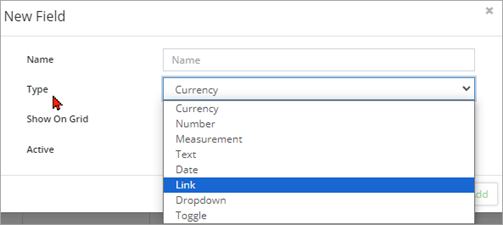
- Enter a Name for the field and select the field Type (i.e., number, text, link to an external file, dropdown list of options, etc.)
- If creating a Dropdown type work field, click +New Option and enter a value in the Option field. Repeat this process until all dropdown options have been added.
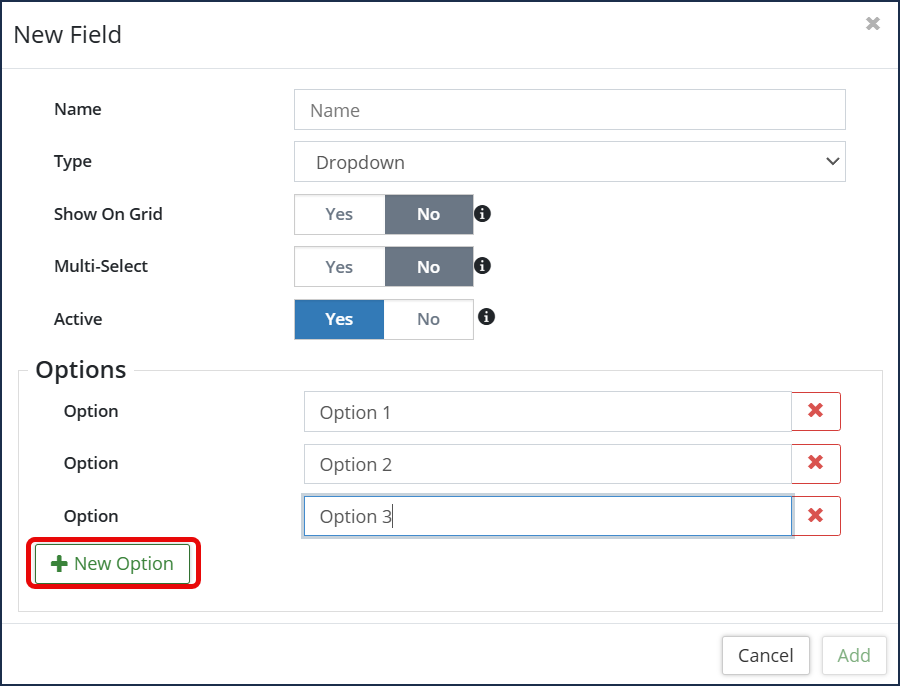
- If creating a Dropdown type work field, click +New Option and enter a value in the Option field. Repeat this process until all dropdown options have been added.
- Set Show On Grid to Yes if the field is to be displayed by default on the grid.
- Multi-Select to Yes allows the user to select multiple options when selecting from the dropdown list.
- Ensure the Active flag is set to Yes. If set to No, the work field will not be available when creating new permits. “No” might be the setting for a new field to be used some time in the future, or it could be the setting for an existing field that is no longer used (but not deleted, so that data pertaining to it is retained in the system).
- Click Add .
- Click on the Edit tool
 . The Edit Field dialog box will appear with the above fields.
 - Make the required changes.
- Click on Edit.
- Click on the Delete tool
 . When prompted, click on Remove.
Work Field Groups Described
Work field groups are essentially “toolboxes” into which work fields will be placed when applications are being created or modified. Just as electrical tools (wire strippers, voltmeters, etc.) pertain to an electrical project, and plumbing tools (pipe wrenches, drain augers, etc.) pertain to plumbing projects, so, too, different sets of fields apply to different Application types. The particular group of fields in each case will vary according to their relevance and usefulness in defining the Application type. In the example below, all the fields concerned with property details relating to the application are grouped within the Property Information ❷ section.
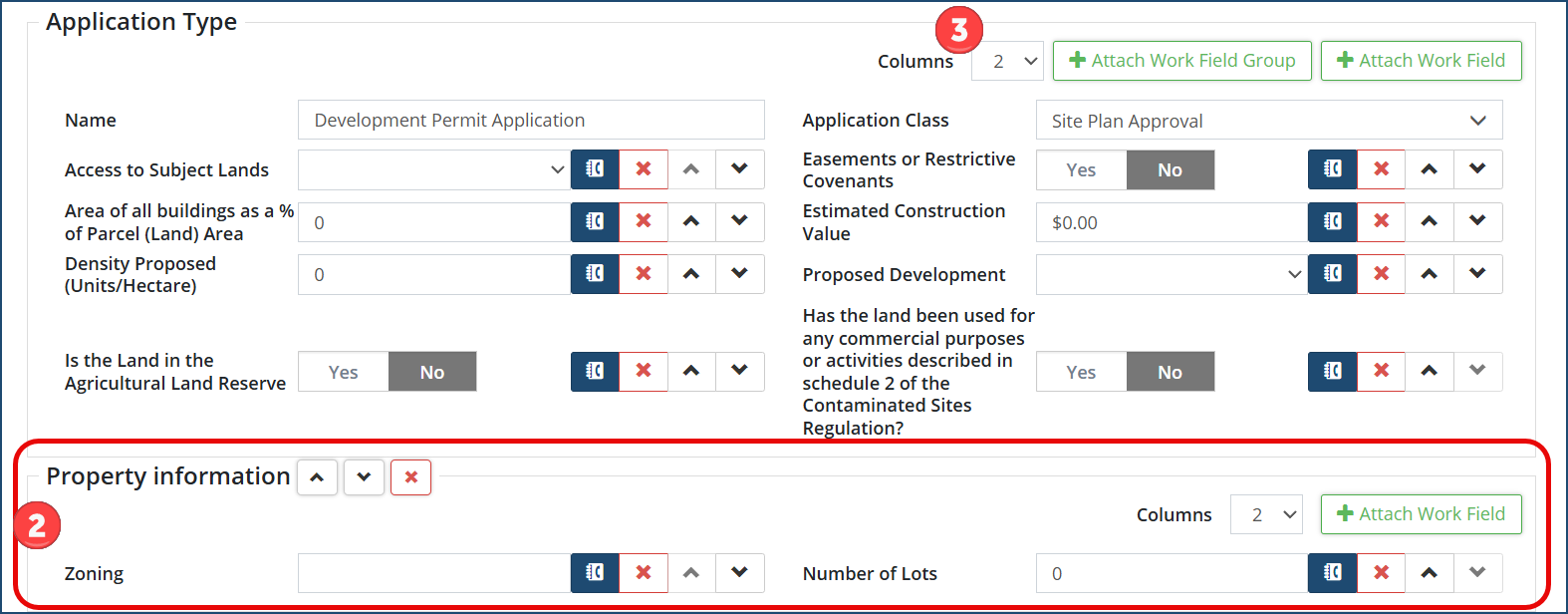
Any number of additional work field groups or work fields could be added to this application type, spanning anywhere between one and four columns ❸. Work field groups can and will have different fields associated with them as they appear under different Application Types.
Add a Work Field Group
To create a Work Field Group:
- Click on Manage Groups ❶. The Manage Groups dialog box ❷ will appear:
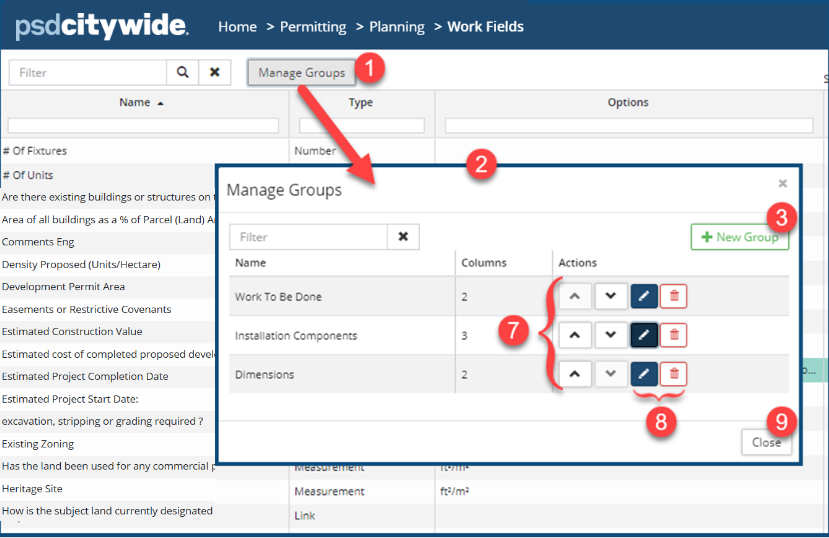
- Chick on + New Group ❸. The New Group dialog box will appear:
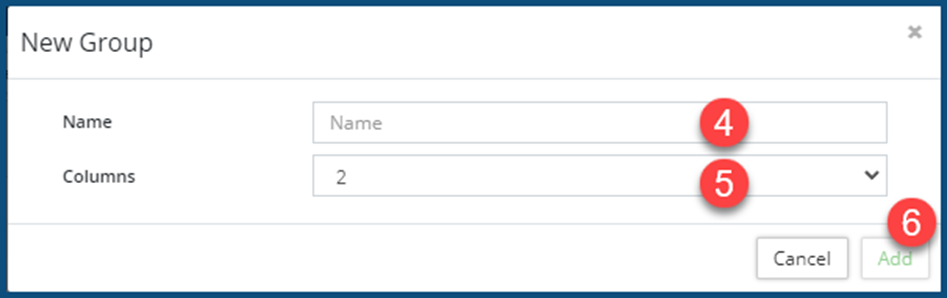
- Enter a Name ❹ for the work field group and the number of columns ❺ (1-4) that the to-be-added fields will occupy. (The columns setting can be changed later, if necessary.)
- Click Add ❻.
- Set the order in which the work groups will appear by clicking on the up/down arrows ❼ in the row you wish to move. (In the above example, “Dimensions” appears above “Work to be Done.” You may also choose to Edit or Delete a group, as well ❽.
- Click Close ❾.
For information on how to add fields to a work field group, see Planning Application Types. It is there that the fields associated with a particular application type are chosen.


