


Purpose
To copy any data from one dataset to another, use the Rollover function.
Starting Point
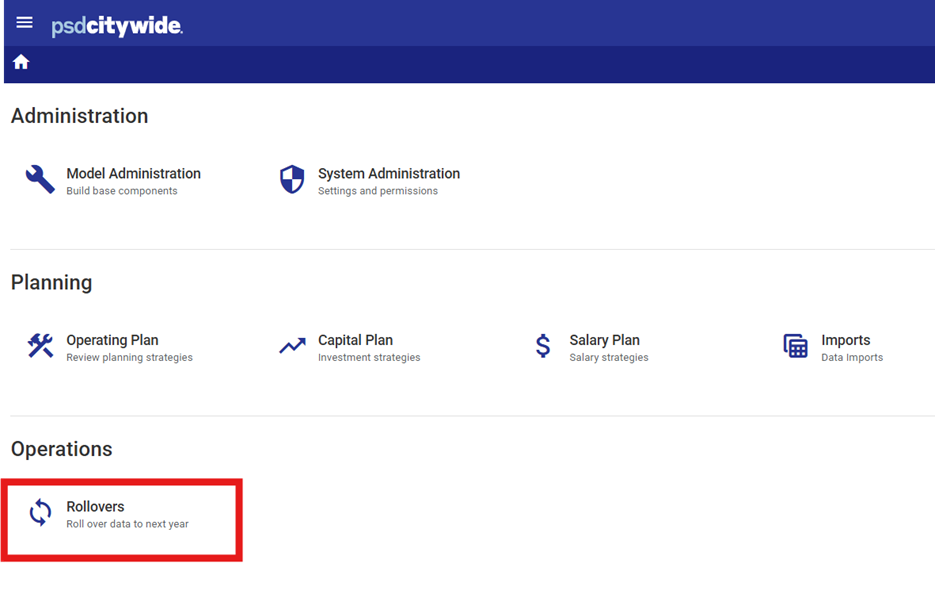
- Starting from your home page, select the "Rollovers" icon at the bottom of the page:
Rollover ID Options
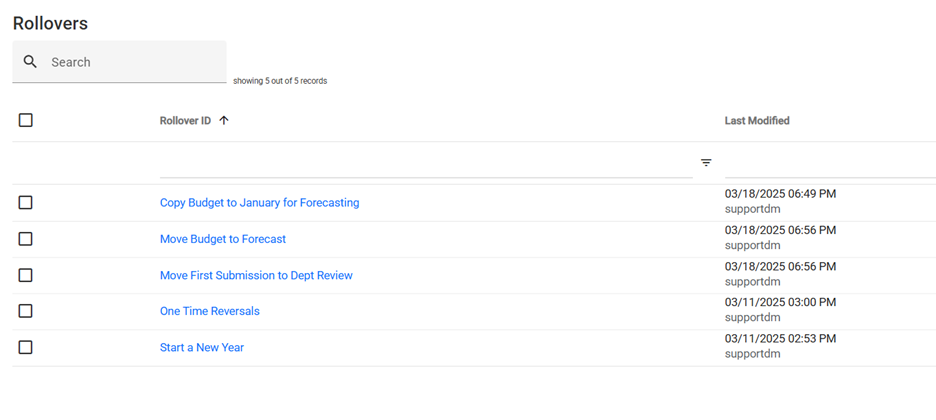
- You will be presented with a list of saved Rollover ID options (as set up in the Template database). You can use an existing Rollover ID, edit one, create a new one, or copy an existing Rollover to a new one.
Example
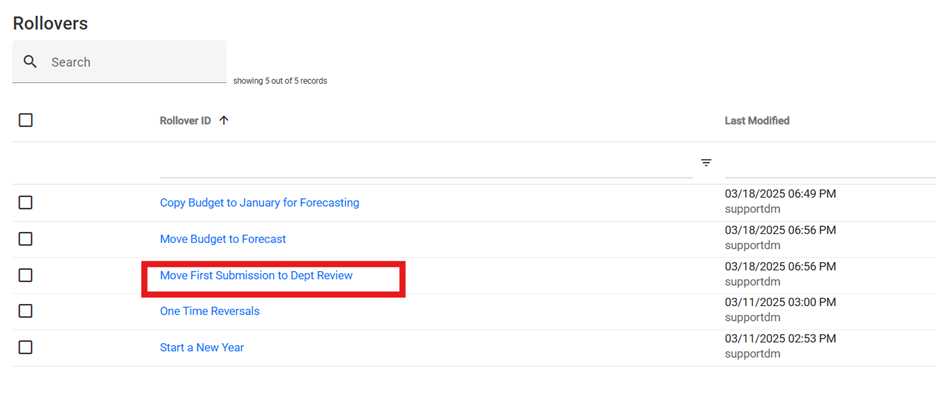
- For example, there is one called "Move First Submission to Dept Review". This is set to move all budget data from the 1. First Submission data set to the 2. Department Review data set.
Settings
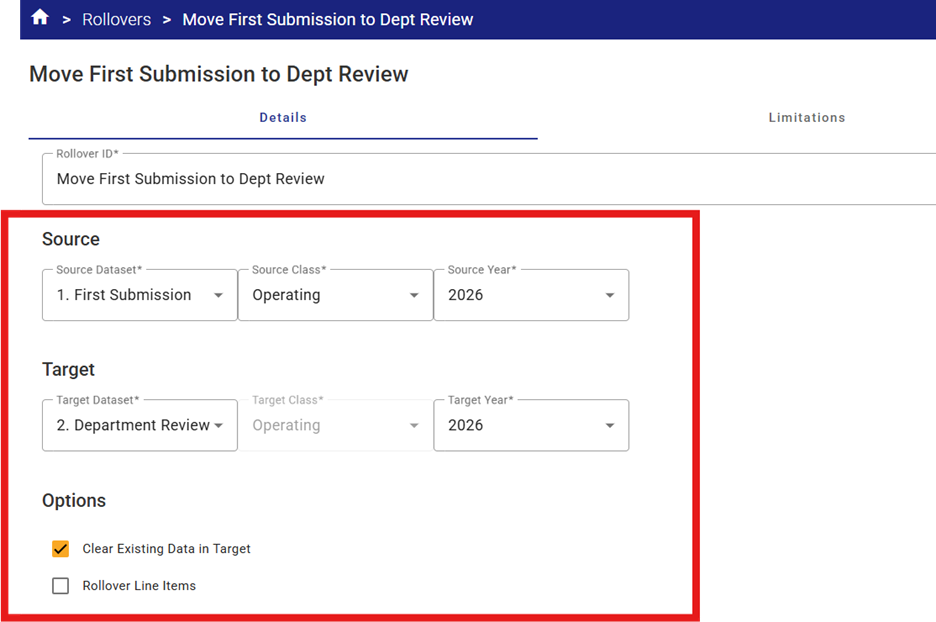
- Check the Rollover settings:
- The source and target (set at 1. First Sub. And 2. Dept. Review in the template
- The source and target years (set at 2025 in the template)
- The source and targe Class (Operating or Capital)
- Option – Clear Existing Data in Target > flagged by default (removing the flag may cause data errors as older data could be left in the database if not changed through the rollover. However, if there is data that must remain in the dataset (i.e. you are only updating a specific cost centre for example, then this flag can be turned off)
- Option – Rollover line items > if the client is budgeting at the line item, turn this flag on.
Rollover Limitations
- Add any limitations (none by default).
Column Targets
- Check that the column-function setup is correct on the column tab (what you want is for each of your budget-related columns to be "moved" from the source (First Submission) to the target (Dept. Review), and for all other columns to be ignored.
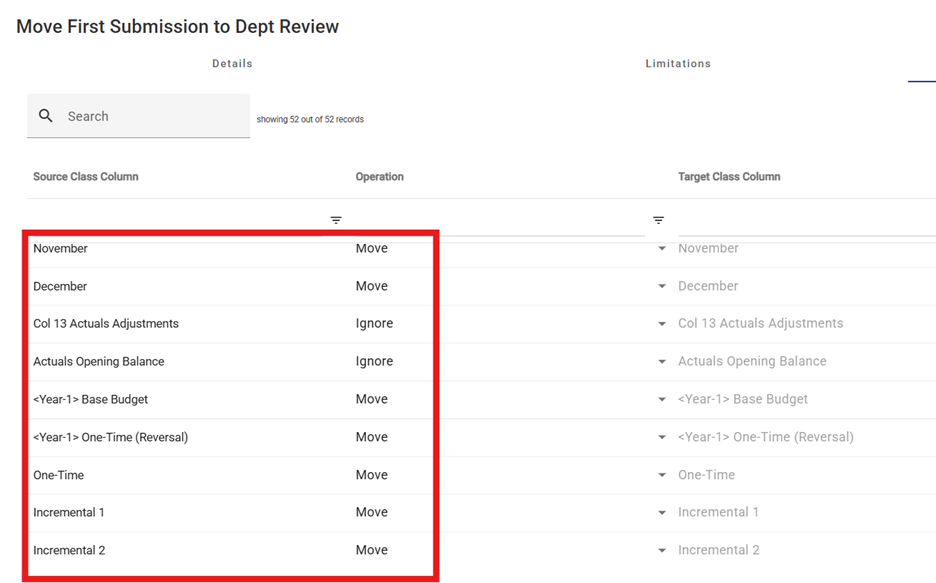
Rollover Columns - Functional Options
|
Move |
Copies the Source column dataset to the Target column dataset (same column) |
|
Replace |
Copies data from the Source column dataset to another column in the Target dataset. If Replace is selected, the user is prompted to select the new Target column) |
|
Ignore |
Any data in the Source column dataset is ignored. No action is taken for that column in the Target dataset. |
|
Merge |
Combines (adds together) data from two or more numeric data columns in the Source dataset into a single column in the Target dataset (commonly used for merging all budget-related columns from the prior year approved dataset into a single “Base Budget” column in the Target database. |
Execute
- When you are satisfied, select "Execute" to run the Rollover.
Tips
Tip: When you are satisfied that the Rollover was executed properly, go back to Home > System Administration and add a new Data Set lock for the Source dataset (i.e. 2026 Dept Submission data set in this example) to prevent any accidental edits


