


Overview
The Route Patrol feature in the Citywide Mobile App allows patrollers to record and manage patrol activities in the field. While completing a patrol, patrollers can:
- Record travelled routes
- Identify and mark deficiencies
- Update road and weather conditions
- Enter attributes
- Create work orders (WO) and service requests (SR)
Accessing Route Patrol
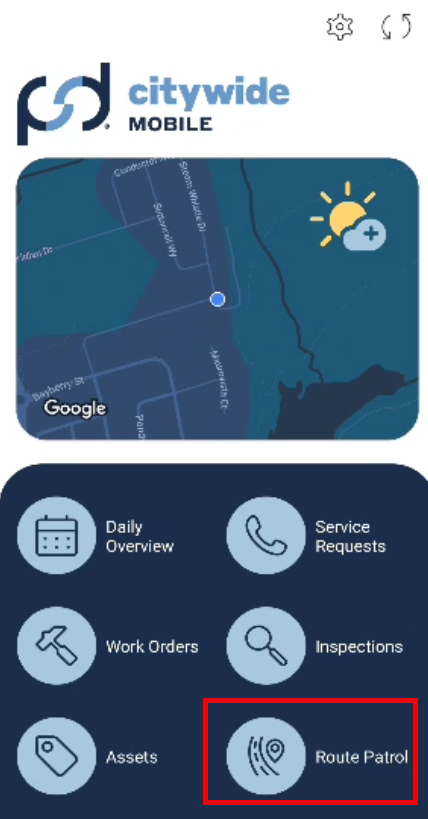
From the Citywide Mobile App home screen, select the Route Patrol icon located in the main menu.
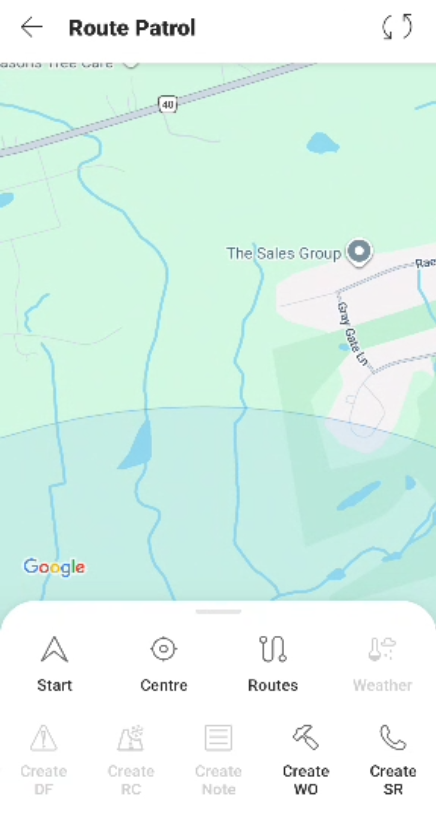
The Route Patrol screen displays:
- A map view
- A bottom action panel with patrol options
Route Patrol Options
- Start – Create and begin a new patrol.
- Center – Return the map to the patroller’s current location (if the map has been panned elsewhere).
- Routes – View and load a list of previously saved routes to continue a patrol.
- Create WO – Create a work order.
- Create SR – Create a service request.
Note: Additional options appear in grey and become active once a patrol has started.
Creating a Route Patrol
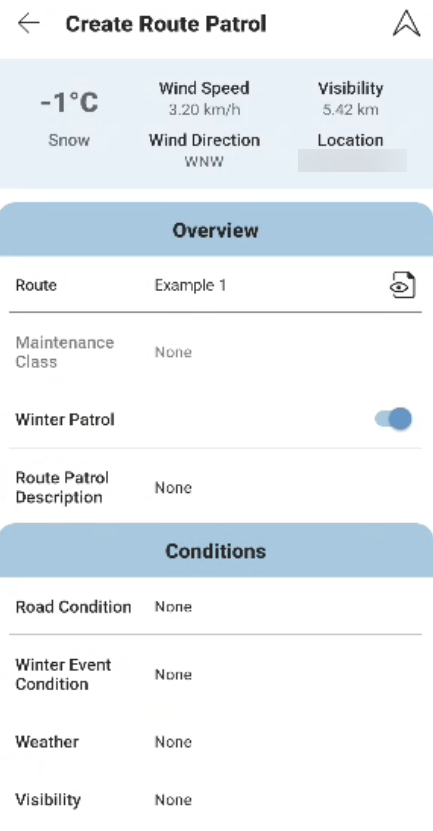
Select Start to open the Create Route Patrol screen.
Weather Information
Current weather conditions are automatically displayed and will be logged as part of the patrol record.
Overview Section
In this section, the patroller will:
- Select a Route
- View the Route Preview
- Review the Maintenance Class
- Enter or review Route Patrol Description details
- Enable the Winter Patrol toggle if applicable
Conditions Section
Update:
- Road conditions
- Weather conditions (if needed prior to starting)
Once configured, begin the patrol.
During a Route Patrol
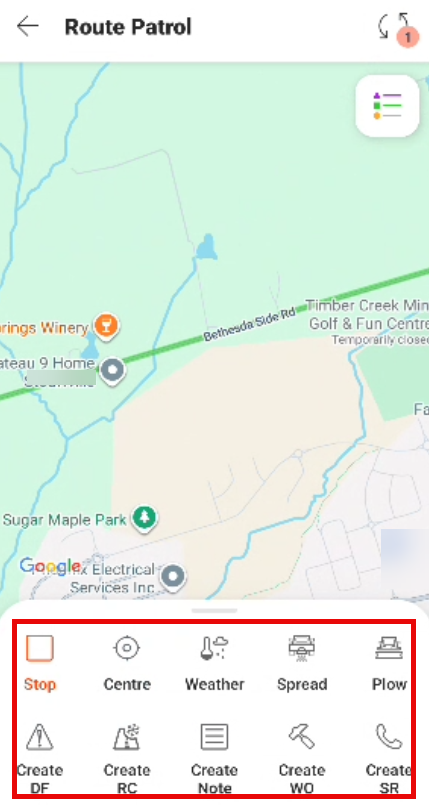
While a patrol is active, the following options are available:
- Stop – Stop and save the patrol.
- Center – Return the map to the current location.
- Weather – Update weather conditions if they change during the patrol.
- Spread/Plow – Access winter patrol spreading and plowing options.
- Create DF – Record deficiencies.
- Create RC – Update road conditions.
- Create Note – Add notes related to the patrol.
- Create WO – Create a work order.
- Create SR – Create a service request.
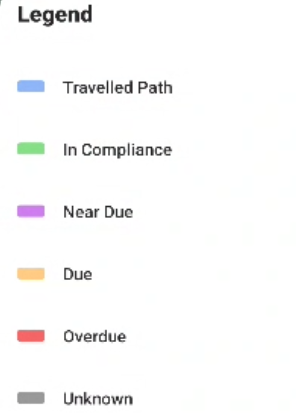
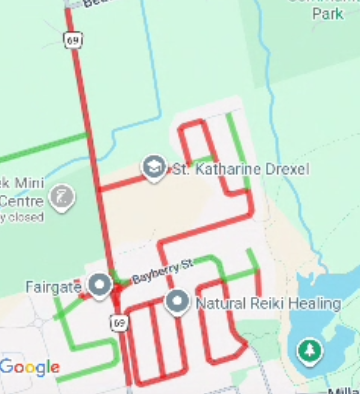
Route Patrol Legend
The Route Patrol legend identifies the status of the travelled route on the map. It indicates:
- Travelled path
- In compliance
- Near Due
- Due
- Overdue
- Unknown
Saving a Route Patrol
When the patrol is complete:
- Select Stop.
- Choose to Save or Discard the patrol.
- Use the Sync/Save button to update and synchronize the patrol data with the database.
Important: Always sync after saving to ensure patrol data is successfully recorded in the database.


