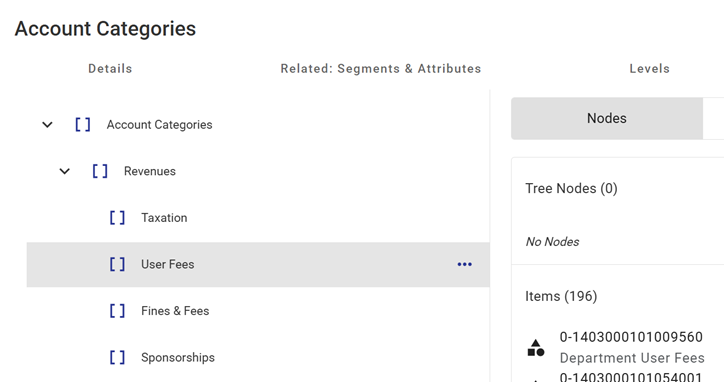
A Tree is a hierarchical structure used to group and roll up Segment Items.
Trees support both reporting and data selection by organizing Items into logical parent–child relationships.
In most implementations, Trees are used to represent organizational hierarchies.
However, Trees can model any hierarchical structure required by the organization, such as:
- Departments
- Programs
- Funds
- Projects
- Custom reporting groupings
Tree Structure
When a Tree is created, two nodes are automatically generated:
1. Top (Root) Node
- This node takes the name of the Tree.
- All other nodes are built beneath it.
- This is the highest level in the hierarchy.
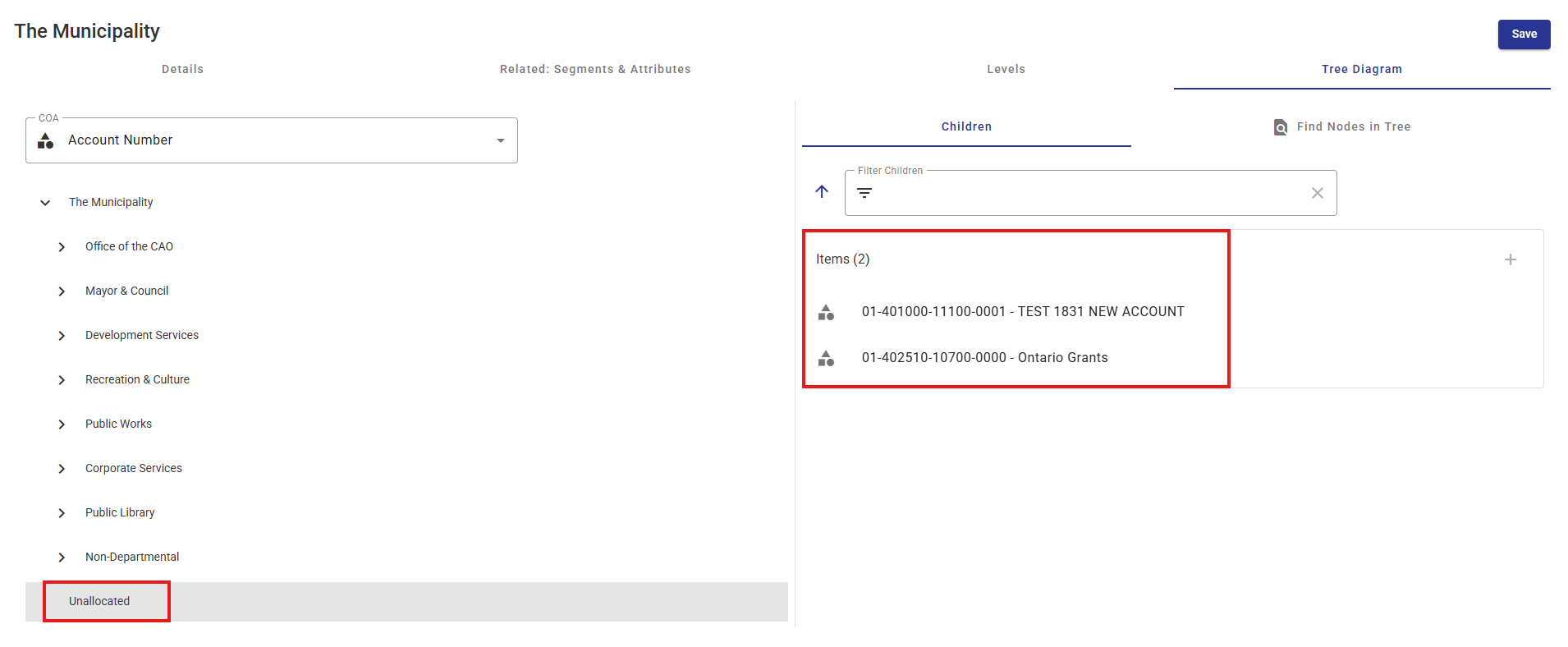
2. Unallocated Node
- This node serves as the default parent for any Items that have not yet been assigned elsewhere in the Tree.
- It ensures that all Items exist somewhere within the hierarchy, even if not yet fully allocated.
All tree nodes can be renamed, moved, or deleted.
Tree Options
| Option | Function |
Default Status |
| Track Node Changes |
If this attribute is selected, every change made to a node, for example a description change or a change to the parent node, is tracked in a background table. Note that there is currently no standard report within CWBC which displays this audit trail, however the data may be accessed with a third-party reporting tool. |
Toggled off |
| Notes are Year Specific |
Each node may have an explanatory text note attached to it. This checkbox determines whether a unique note for each year may be maintained for the node, or whether the note is common across all years. |
Toggled off |
| Notes are Data Set Specific |
This checkbox determines whether a unique note for each data set may be maintained for tree node, or whether a note for a node is common across all data sets. |
Toggled off |
| Period Rollup | Trees may also be used to roll up Class Columns. For example, if Class Columns are defined as reporting months (Jan, Feb, Mar etc.) we might define a tree to roll up months into quarters, quarters in semi-annual periods and semi-annual periods into a full year. If the tree is to be used as a period rollup, that needs to be indicated here, so the tree can be made available when defining Class Column in Model Administration. |
Account Groups-Toggled off
Budget Rollup-Toggled on
Calendar Rollup-Toggled on
Organization-Toggled off |
Tree Levels
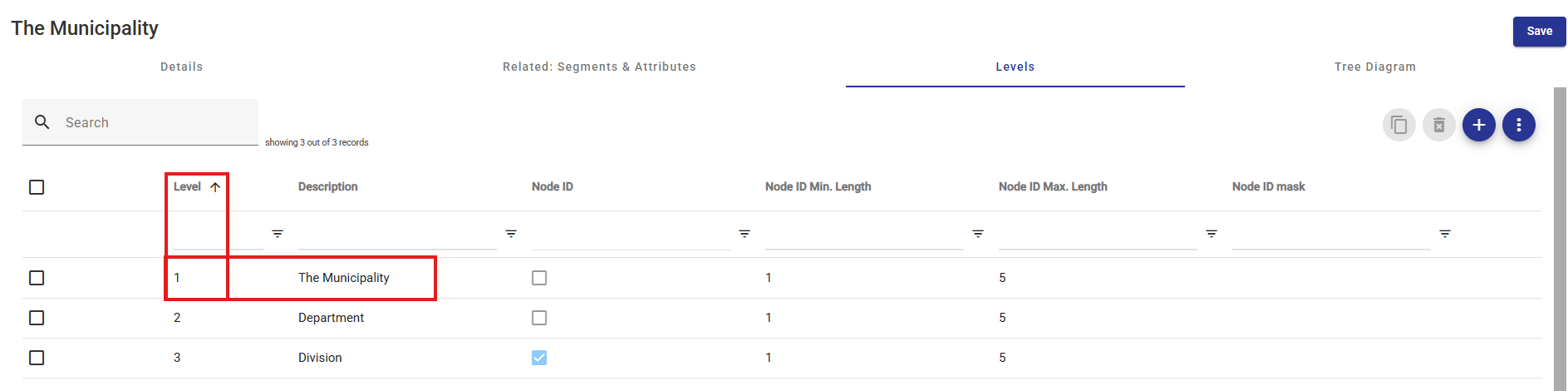
Tree levels are organized from top to bottom, with the top level pre-defined and protected—it cannot be edited or deleted.
Defining additional levels is useful when all nodes on a given level share a common meaning. For example:
In an Organization Tree, the second level might represent Operating Divisions, the third level Departments, and so on.
Each node on a level can be assigned a Node ID that follows a consistent, predefined convention.
If a Tree is intended for use in a Standard Report, defining additional levels is required to ensure proper grouping and reporting.
If Limitations will be imposed within the report definition on levels, then a Node ID must be defined for the level.
|
Option |
Function |
|
Level Description |
A meaningful name for the level e.g. Division, Department etc. |
|
Node ID? |
Whether the node identifier contains a node ID along with the node description. For example, for a level representing Departments, each department may be identified by a unique id as well as a description. E.g. 0101 Finance, 0234 IT, 0235 Human Resources etc. |
|
Node ID Min Length |
If there is a Node ID for the nodes on the level, the minimum number of characters in the Node ID. |
|
Node ID Max Length |
If there is a Node ID for the nodes on the level, the maximum number of characters in the Node ID. |
|
Node ID Mask |
A mask may be imposed on the Node ID. |
Tree Diagrams
A Tree Diagram is a graphical representation of a Tree.
It allows users to:
- Create, modify, and delete nodes
- Adjust hierarchical relationships for reporting purposes
Structure
The Tree diagram consists of:
- Nodes – represented in the interface as [ ]
- Segment Items – each Segment Item can be assigned to only one node or child node
Layout
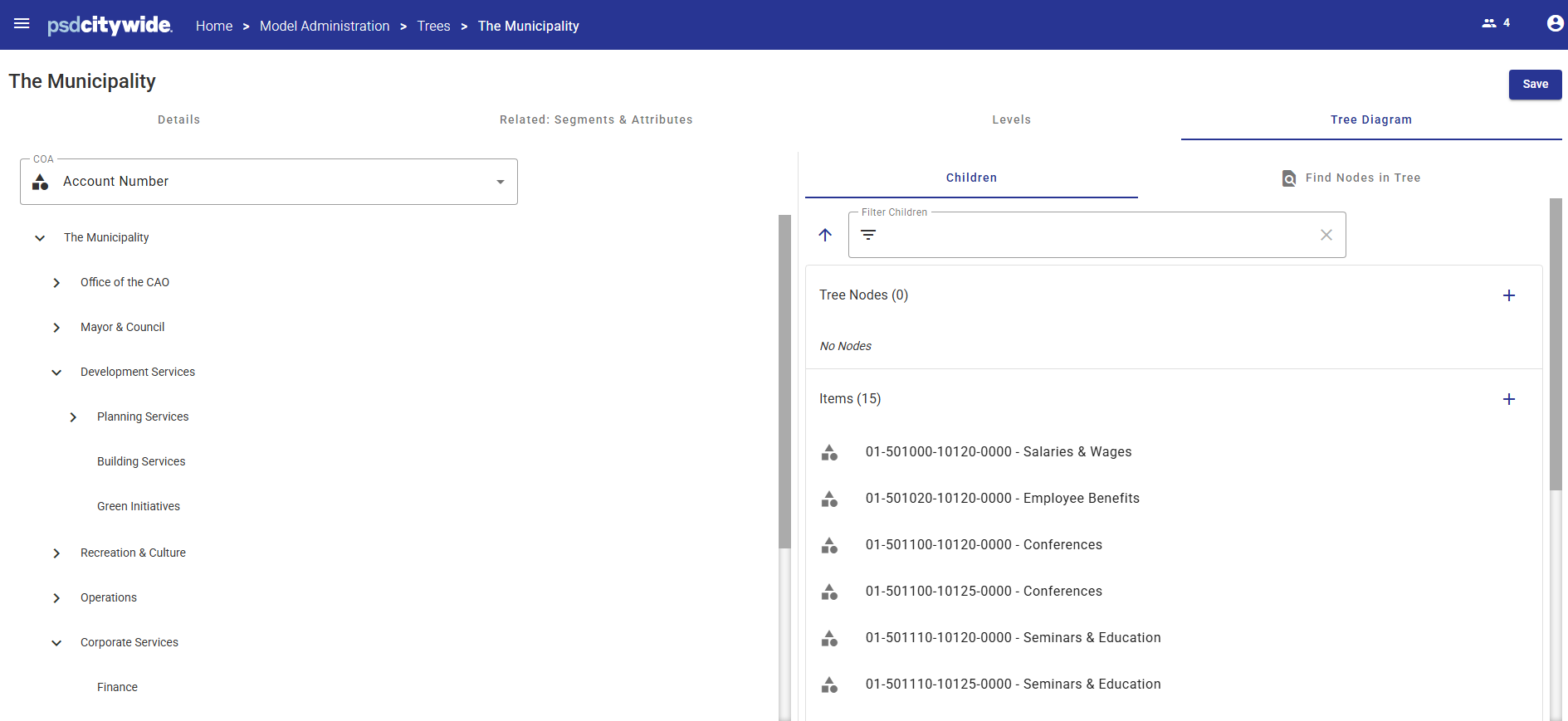
- Left Pane: displays all nodes in the Tree, including Unallocated Items
- Right Pane: displays child nodes and any Segment Items associated with the selected node
A node can contain:
- Other child nodes
- Items (COA Class Key or Attribute Items) as children
This structure provides a clear visual hierarchy, making it easy to manage relationships and understand reporting roll-ups.
Tree Diagram – Split-Pane View
The Tree Diagram is displayed in a split-pane layout, similar in concept to Windows File Explorer:
- Left Pane: Nodes, which function like folders
- Right Pane: Allocated and unallocated Segment Items, similar to files
When a node is selected in the left pane, its child nodes and associated Segment Items appear in the right pane.
Segment Items
A Tree can roll up one or more sets of Key Segment Items.
To select the Key Segment, use the drop-down list in the Tree Diagram pane.
If a default Segment is defined for the Tree, it will be pre-selected.
All Segment Items initially appear under the Unallocated Node, which is system-generated and displayed in the right pane.
Users can drag and drop items from the Unallocated Node to their appropriate parent nodes.
The process for reassigning parent nodes to Segment Items is described in detail later.
Searching Nodes and Items
To locate a specific node or Item in large Trees:
- Click in the Search box on the toolbar.
- Enter a partial search string.
The Tree will display all matches based on the search criteria, making it easy to find the desired item quickly.
Configured Trees
System-Configured Trees include:
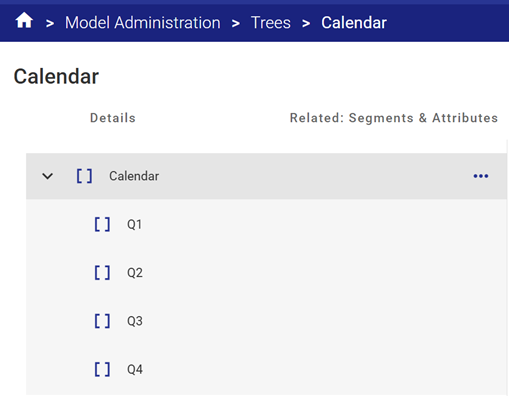
Calendar Tree
This is used to link the Class Columns to the Year and Quarter to the organization's desired roll ups as defined in the tree diagram.
This Tree is mainly used to assist with Forecasting and Variance analysis views and reports.
No changes are typically required to this Tree.
Budget Rollup Tree
The Budget Rollup Tree is used to support budget reporting in the system.
This Tree defines how various budget-related Class Columns (such as Base Budget, One-Time, Incremental, etc.) are combined and rolled up in Views and Reports.
By defining these relationships in the Tree, the system can automatically calculate budget totals without requiring users to manually add multiple columns or create calculated fields.
As a result, users can easily view summarized budget information—such as requested, approved, or post-approval budget totals—as a single rolled-up column at the desired reporting level.
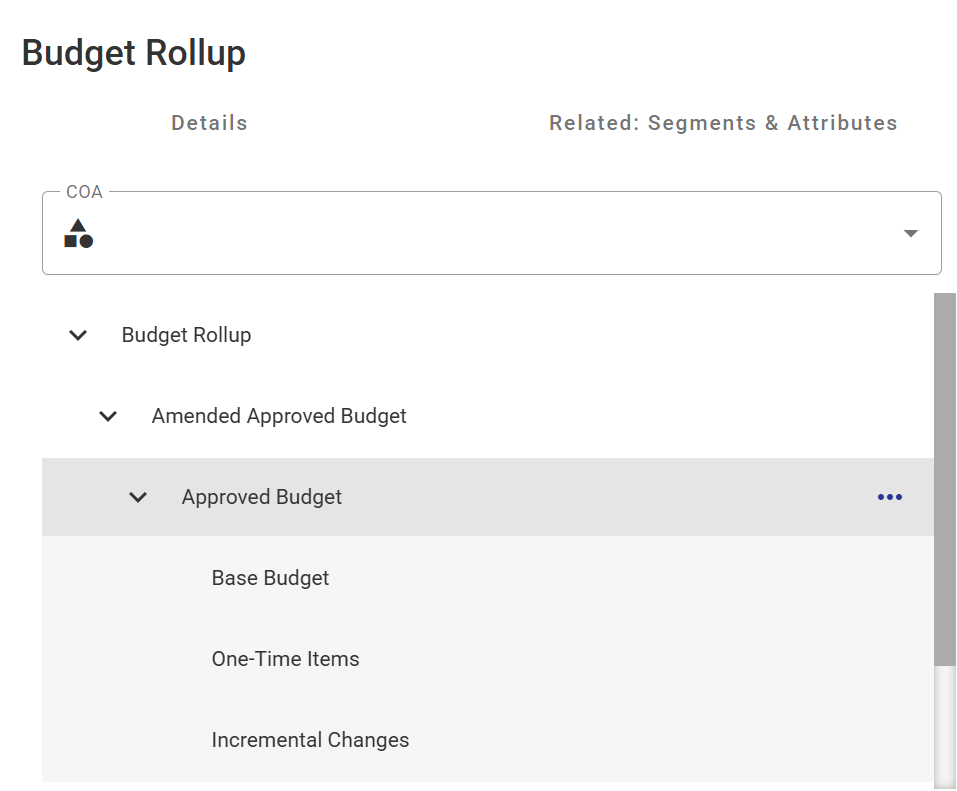
In the CWBC database, the Budget Rollup Tree is preconfigured to include all Incremental Budget columns, organized at the appropriate roll-up levels.
Changes to this configuration are typically only required if:
-
New budget columns are added or existing columns are removed, or
-
The System Administrator needs to modify how the budget columns roll-up for reporting purposes.
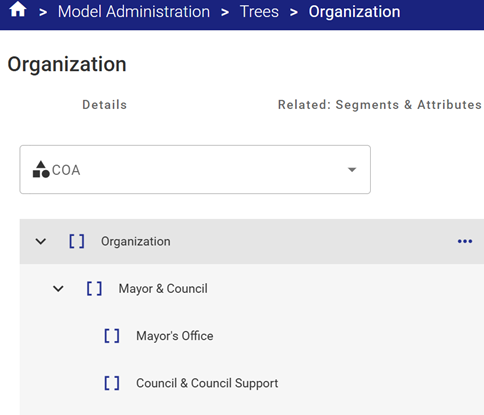
Organization Tree
This Tree is used for reporting by the organizational structure, beyond simply the segment components (i.e. Funds, Departments, Divisions, etc.).
This tree is completely configurable and does not need to strictly conform to the Chart of Accounts structure.
Account Categories Tree
This Tree is used for grouping and summarizing revenues and expenses into categories and subcategories for reporting purposes.
This tree is also configurable and does not need to strictly conform to the Chart of Accounts structure.