The Chart of Accounts (COA), also referred to as the COA Class Key, is the core identifier used by CWBC to uniquely identify each record stored in system's data tables.
The COA allows the system uniquely identify, connect, retrieve and securely access data.
The COA is a composite primary account key, meaning it is made up of multiple reporting segments which combine together to uniquely identify a record.
In CWBC the reporting segments that comprise the COA are referred to as Key Segments. Typical Key Segments may include:
- Fund
- Object
- Cost Centre / Business Unit
- Activity / Program
- Capital Project
Together, these Key Segments form a full general ledger account string or COA Class Key.
This flexible mapping capability ensures that the COA structure in CWBC aligns with the General Ledger account structure in the organization’s Enterprise Resource Planning system (ERP)system and allows for straightforward integration between the ERP and CWBC.
The COA Class Key will be configured by your PSD Advisor during the implementation process and will not typically change unless there are major changes to your organization's ERP.
Note: Not all Key Segments may be required for a COA Class Key. For example, a Key Segment may be created for a Capital Project number, which is required for the Capital COA Class Key, but not for the Operating COA Class Key. As a result, the Capital and Operating COA Class Keys may not be the same length or configuration.
COA Details
The properties of the COA Class Key are configured on the Details tab.
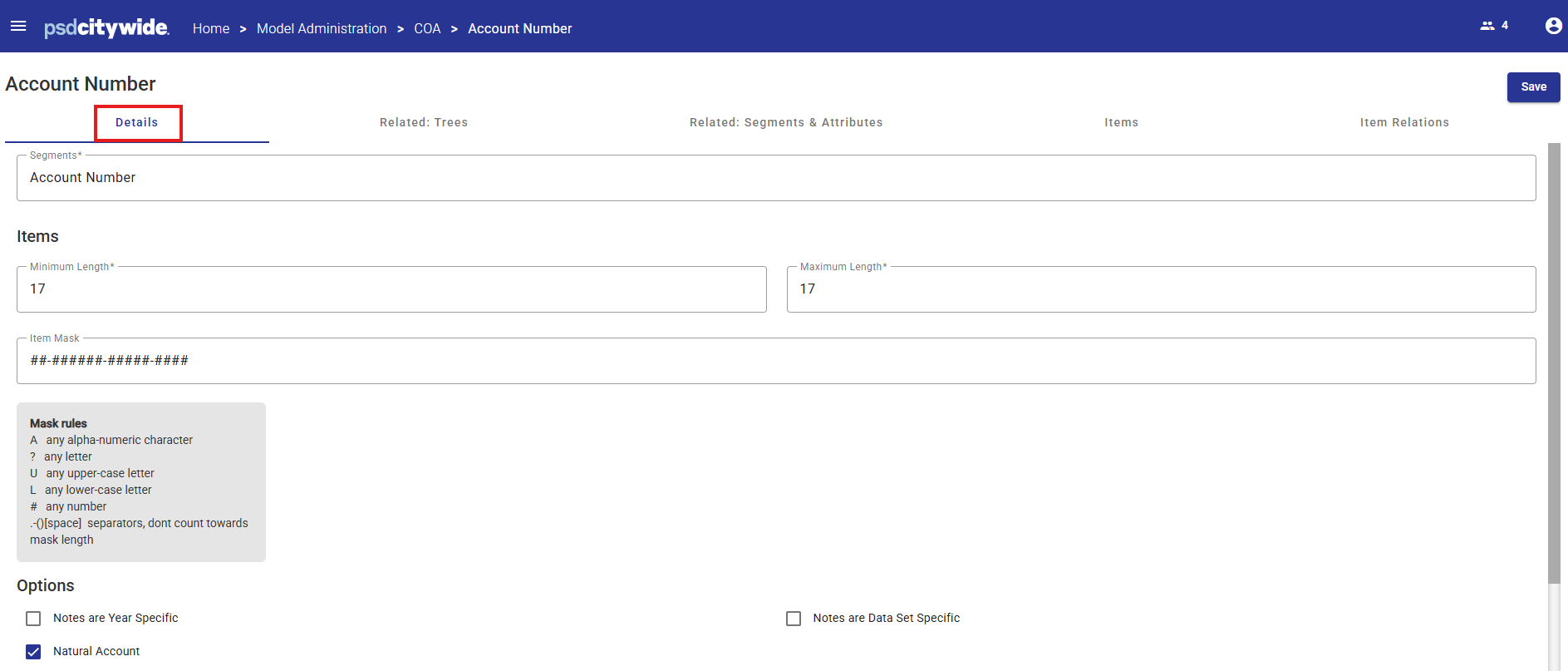
Each COA property is described below.
| Attribute | Description |
|---|---|
|
Segment Name |
For Operating Plan the COA Segment Name is Account Number For Capital Plan the COA Segment Name is Capital Account Number
The Segment Names should never be changed. |
| Item Minimum Length |
The minimum number of characters that each COA Class Key Item must contain. The minimum is 1. Typically the minimum and maximum are set to the same length to establish a static field length. |
| Item Minimum Length |
The maximum number of characters that each COA Class Key Item must contain. This maximum is 40. Typically the minimum and maximum are set to the same length to establish a static field length. |
| Item Mask |
A mask may be imposed on a COA Class Key Item, to automatically insert and display separators, and to impose rules as to what type of character is allowable for each position of the element item value.
For example if a mask is #-##-##, and a value of 12345 is entered, the value will be displayed as 1-23-45.
In addition only numeric values with a length of 5 numbers would be valid. The valid characters that can be used to construct a mask and their meanings are listed in the panel just below the mask field.
Literals / separators can be the following characters:
|
| Natural Account |
This indicates whether the Key Segment has a Natural Account Type, as is usually understood in accounting systems. The Natural Account Type property is useful in grouping, filtering and data display operations, and is commonly used in reporting and throughout the various Budgeting modules.
Usually segments such as the COA Class Key Items and Object Codes would be defined as Natural Account types whereas segments such as Fund, Organization or Department would not.
The COA Class Key is defined as having Natural Account Types, therefore, each COA Class Key Item needs to be identified as being either an Asset, Liability, Equity, Revenue, Expense or Statistical when the system is configured. |
|
Notes are Year specific
|
A COA Class Key Item may have an explanatory text note attached to it. This property setting defines whether a unique note for each year may be maintained for an Item, or whether the note is common across all Years.
This checkbox will enable/disable the Year/Dataset selection for a COA Class Key Item Note on the Items tab. |
| Notes are Dataset specific |
A COA Class Key Item may have an explanatory text note attached to it. This property setting defines whether a unique explanatory text note for each Dataset may be maintained for an Item, or whether it is common across all Datasets.
This checkbox will enable/disable the Year/Dataset selection for a COA Class Key Item Note on the Items tab. |
Related: Trees
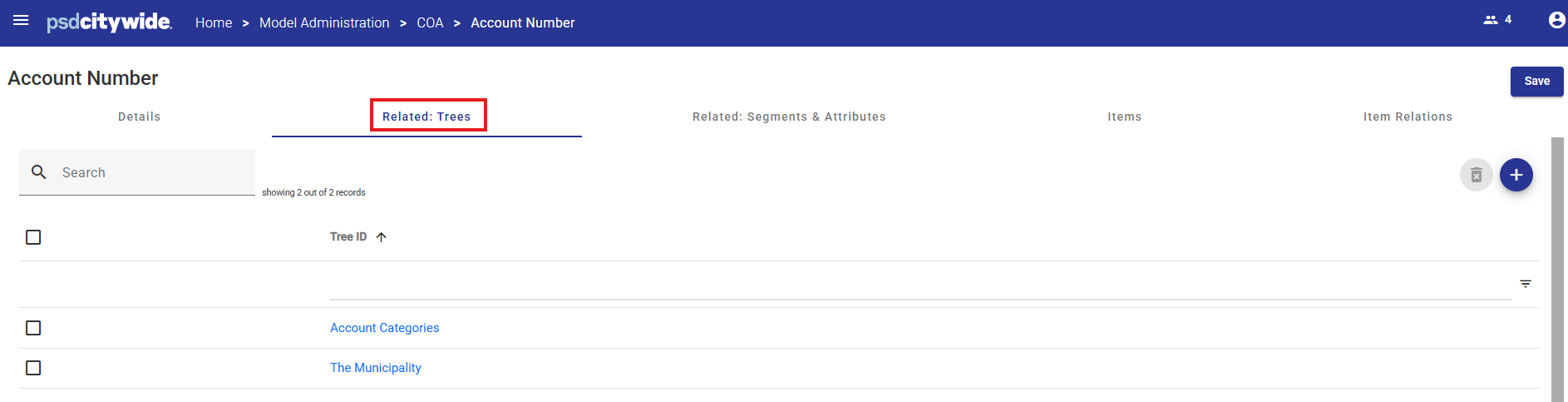
Trees are used to model hierarchical relationships. Multiple Trees can be defined for different reporting purposes (e.g. by Organization and by Account Category in the illustration below.)
By relating the COA Class Key to various Trees, each COA Class Key Item can be rolled up and reported in a variety of ways.
A COA Class Key can be related to all or some of the available Trees.
Related Segments & Attributes
The COA Class Key Items list contains a list of accounts representing the full general ledger account string for each account in the organization's general ledger (e.g. Fund.Object.CostCentre.Activity which might be represented as an item such as 01.501020.10100.4595)
Separate Key Segments for Fund, Object, Cost Centre and Activity would be created in the Attributes area (see Related Article below), and each Key Segment would contain a list of values (e.g. Fund would contain a list of all funds, Cost Centre would contain a list of all cost centres etc.). These four Key Segments would then be related to the COA Segment to facilitate reporting.
Items
The COA Class Key contains a list of items representing all the accounts to be used by the system for budgeting and planning purposes.
There is no limit to the number of COA Items that can be created within CWBC.
Each Item has properties, such as a numeric Item ID, an Item Description and a Natural Account Type.
COA Items can also be flagged as Disabled, which removes the items from Views and data selection lists. Data related to disabled items will continue to be displayed in comparative reports.
COA Items should mirror those found in the source system, such as an organization's ERP.
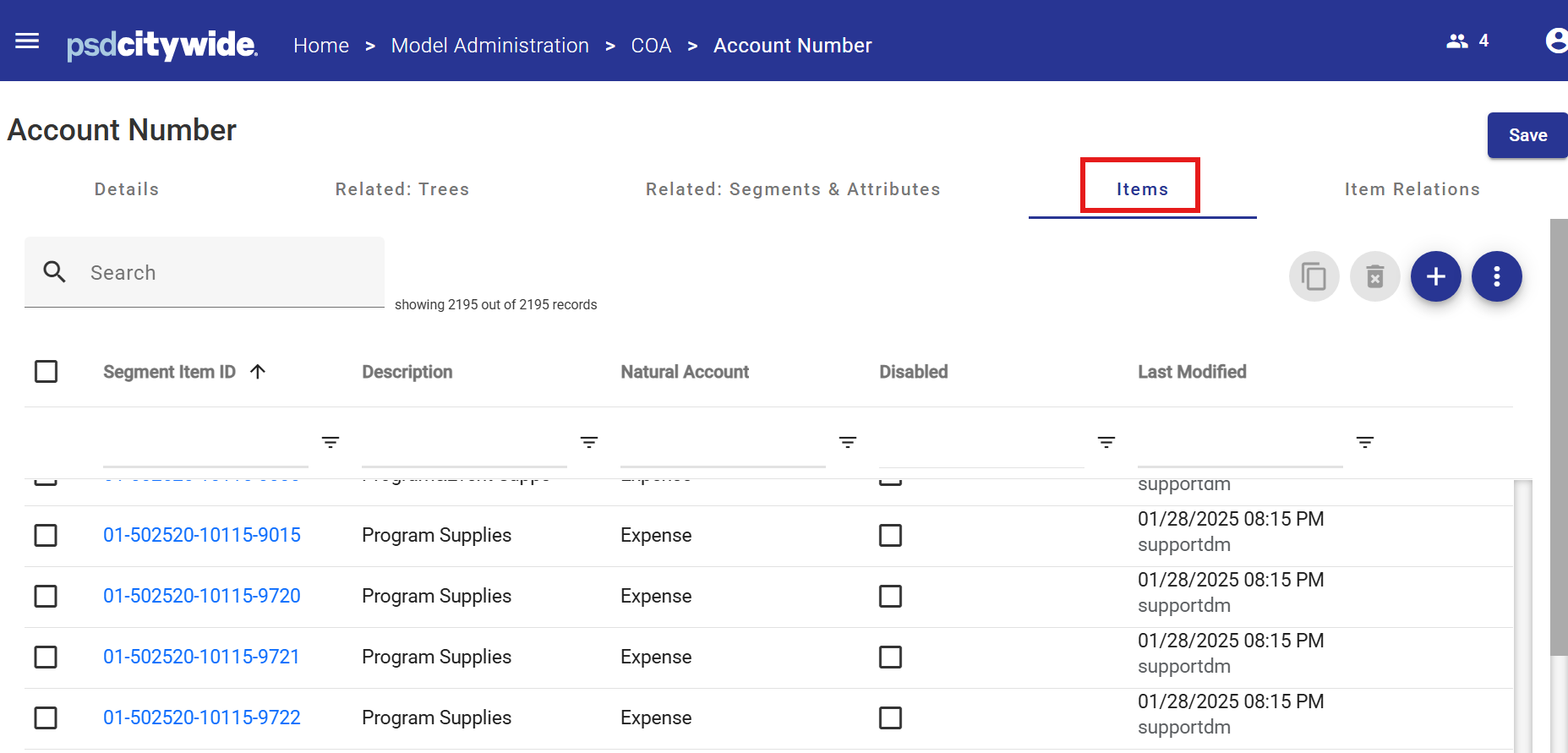
The Items list can either be maintained manually, imported from an Excel file, or added on the fly in the Operating Plan and Capital Plan modules following mapping rules configured in the Key Segment Mapping tool.
Item Relations
Each COA Class Key item, is then related to Key Segments (e.g. Fund, Cost Centre, Object and Activity) to facilitate reporting and data selection by related Key Segments and Attributes.
For example:
| COA Class Key Item | Related Segment | Related Segment Item |
|---|---|---|
| 01.10100.501020.4595 | Fund | 01 |
| 01.10100.501020.4595 | Object | 501020 |
| 01.10100.501020.4595 | Cost Centre | 10100 |
| 01.10100.501020.4595 | Activity | 4595 |
COA Class Key / Key Segment Mapping
The COA Class Key is configured using the Key Segment Mapping tool in CWBC.
In the Model Administration > Classes > Class > Key Segment area, the COA Class Key Segment related to the the Class selected (Operating Class in the example below) will be displayed.
Open the Segment Mapping tool for the COA Class Key (Account Number in the example below), with the  icon .
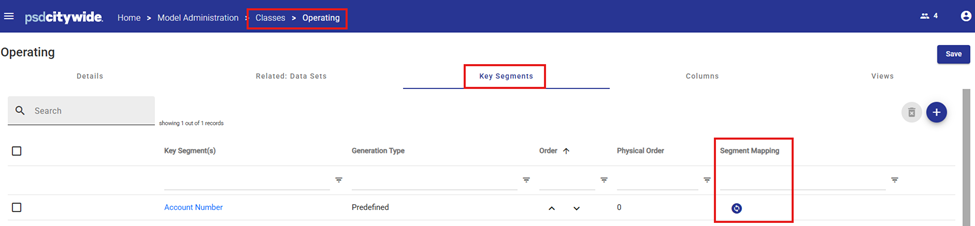
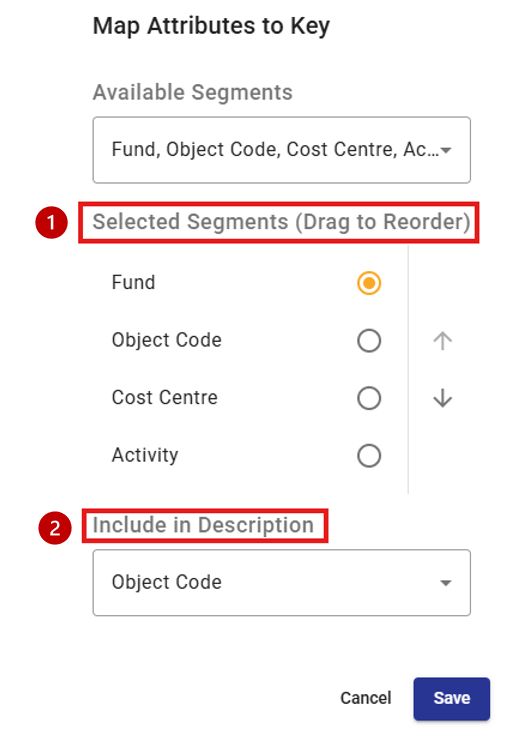
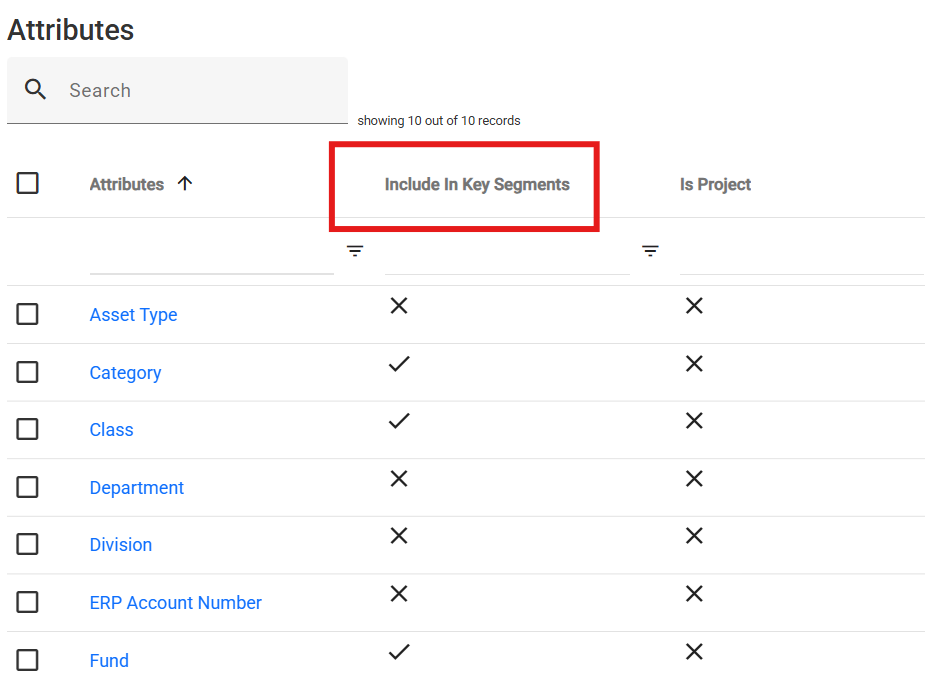
All Attributes that are flagged “Include in Key Segments” in the Attributes area appear in the Available Segments list.
Segments must be arranged in the same order used in the organization’s ERP system.
This order can be adjusted using the up and down arrows in the Selected Segments area  .
.
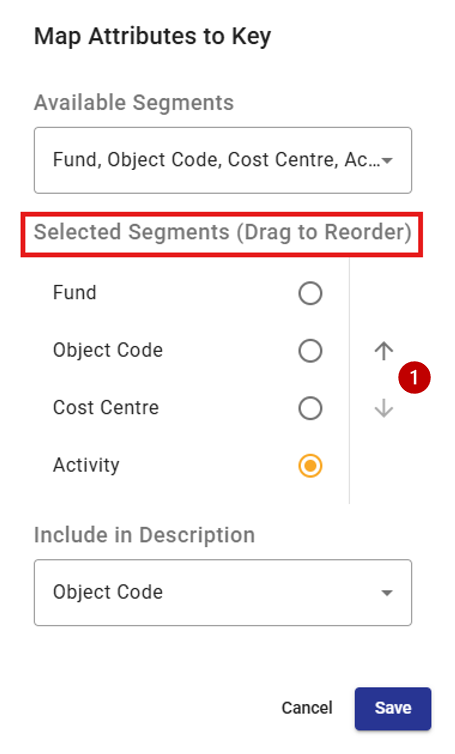
Typically, this configuration is completed during implementation by a PSD Advisor, and changes are rarely required after the initial setup.
COA Class Key Descriptions
Each COA Class Key Item includes a description, which is usually constructed from the description(s) of one or more of its related Key Segments.
To define the COA Class Key Item description, select one or more Key Segment descriptions from the drop-down list  . These selected determine how the combined COA Class Key Item description will appear for any system-generated Items.