Working with Benefits

Last updated: Aug 19, 2026
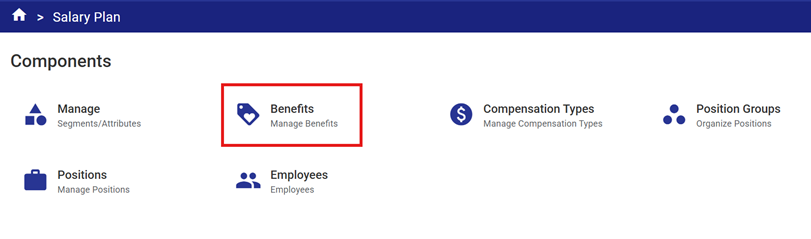
- Open the Benefits Component of Salary Plan
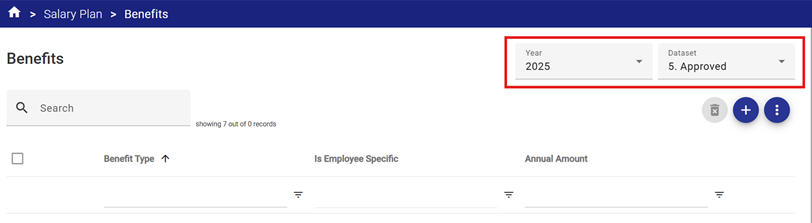
- Select the Year and Data Set to be used for initial configuration. During implementation, this will typically be a prior year Approved version which can be reconciled, then rolled forward.
- Create each required employee Benefit Type. Users may choose to apply a simple overall provision for benefit costs (e.g. 25% Employee Benefits) or configure each benefit individually (e.g.CPP, EHT and Group Benefits etc.) to achieve a more accurate budget result.
The Benefit Type fields include:
- Benefit Type – Unique benefit name
- Employee Specific – If the benefit is employee specific (i.e. not applicable to all employees in a position with a specific compensation type) select the checkbox
- Min/Max Values - The minimum and maximum annual amount that could be paid out for the benefit. If there is no maximum, enter $9999999. If a flat amount is set, then this field is not available.
- Flat - A set amount of benefit to be paid out each year. This will be entered as an Annual Amount. Selecting this option does not allow amounts to be entered under the Min/Max Amount.
- Year – the fiscal year for which the benefit applies
- Dataset ID – the data set for which the benefit applies
- Benefit Tiers - Each benefit can have up to five compensation tiers:
- Tier Percentage - The percentage of benefit to be applied up to the associated Compensation Maximum in the tier.
- Tier Maximum – The dollar value of the compensation cut-off for each tier. For the highest tier (including a single tier that has no maximum), the Compensation Maximum can be set at $9,999,999 to include all amounts.
- Assign the related account segment item for posting to Operating Plan. Each benefit can only use a single Segment Item. For example, Object Code = 501020 Employee Benefits which is in the example below.
- Click the
 icon to add a new related item.
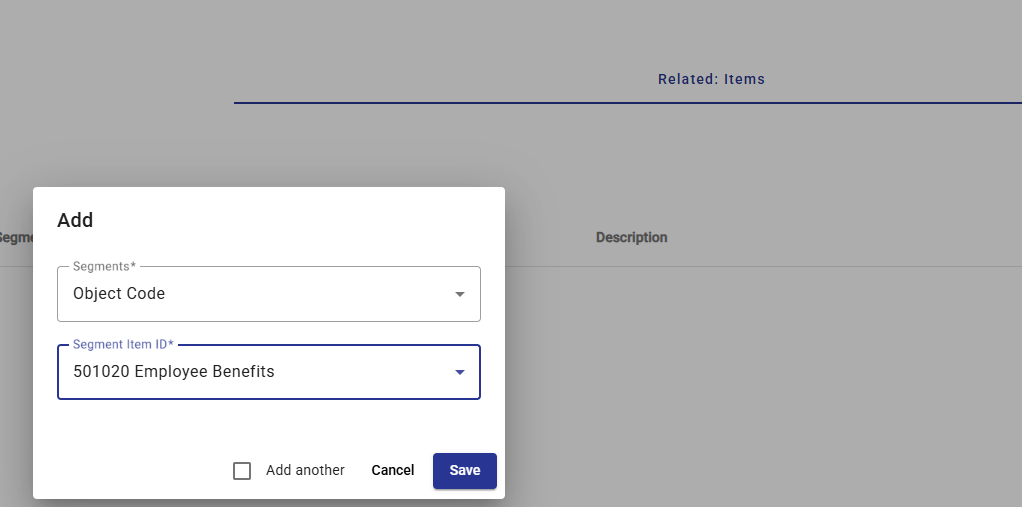
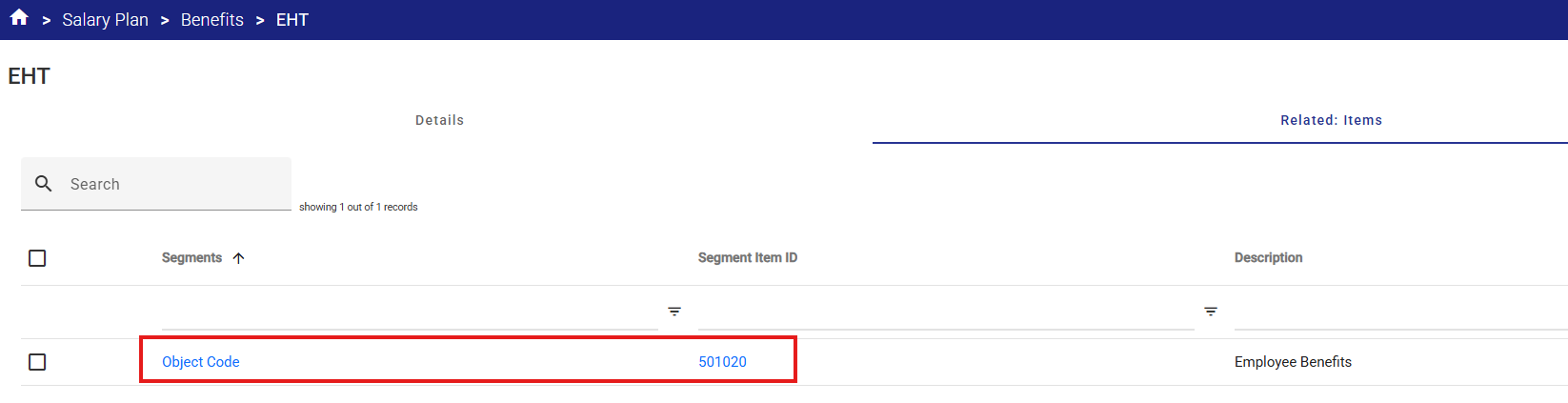
- Select the Segment and the Segment Item ID from the drop-down menu.
- Save your work.
Example 1 – A Tiered Benefit with no Maximum
- Select the
 icon to add a new Benefit Type.
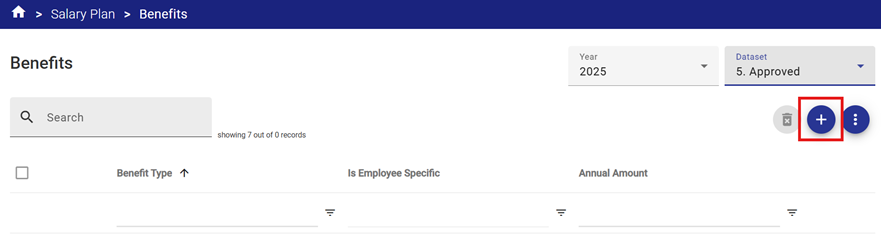
- Complete the Benefit Type details. In the example below a specific benefit type called Employer Health Tax (EHT) will be applied at a rate of 1.95% to all compensation (no effective maximum since the maximum is set at $999999).
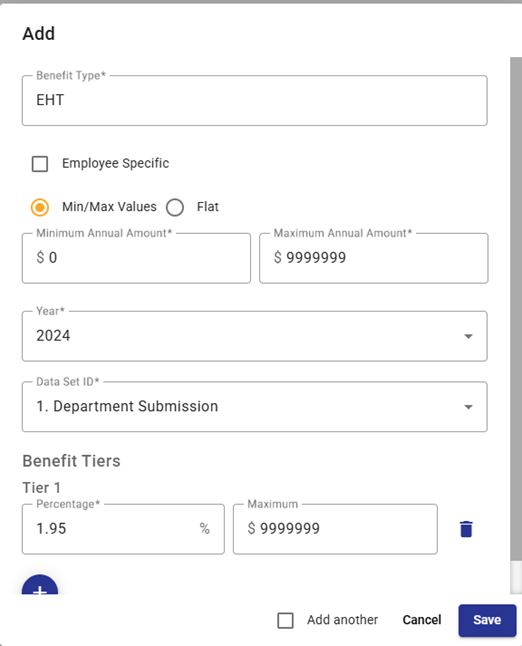
To use a general percentage for benefits of 25% on annual compensation for example, then this same set up could be used with the Tier 1 Percentage changed to 25%.
Example 2 – A Multi-Tiered Benefit with Maximums
- Select the
 icon to add a new Benefit Type.
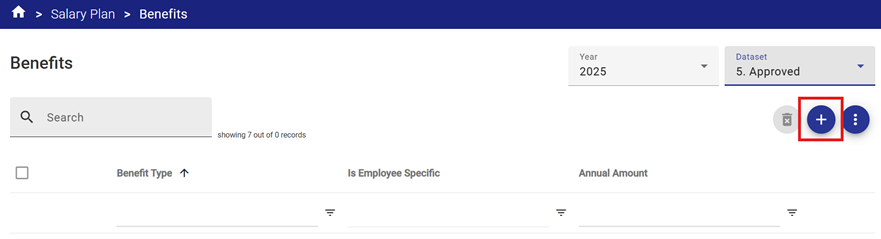
- Complete the Benefit Type details.
In the example below the Canadian Pension Plan (CPP) benefit type is calculated at different rates for each tier of position/step compensation up to a combined maximum benefit cost of $4,430.10 for all tiers combined:
- Tier 1 - a rate of 0% to the first $3,5000
 of compensation (since the first $3,500 of employee earnings is exempt from CPP).
 - Tier 2 – a rate of 5.95% on compensation between $3,500.01 and $71,300

- Tier 3 – a rate of 4% on compensation between $71,300.01 and $81,200

- Tier 1 - a rate of 0% to the first $3,5000
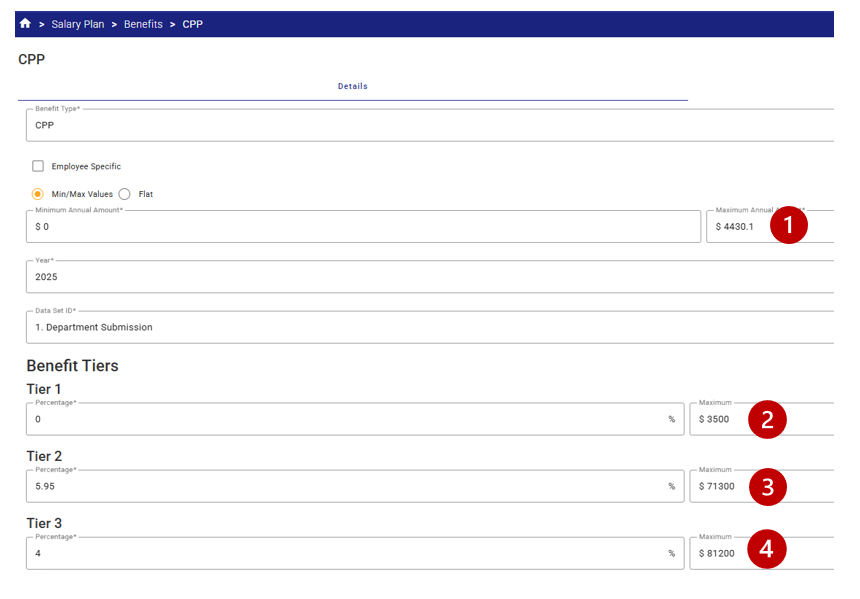
If an employee had total compensation of $100,000, the benefit would be calculated as:
$3,500 x 0% = $0
($71,300 - $3,500 = $67,800) x 5.95% = $4,034.10
($81,200 – $71,300 = $9,900) x 4% = $396
TOTAL = $4,430.10
Note that this is also the maximum entered by the user – so even if an error was made in the tiers, the system would not apply a benefit of more than the maximum specified of $4,430.10  .
.
Example 3 – A Flat Rate, Employee Level Benefit
- Select the
 icon to add a new Benefit Type.
- Complete the Benefit Type details.
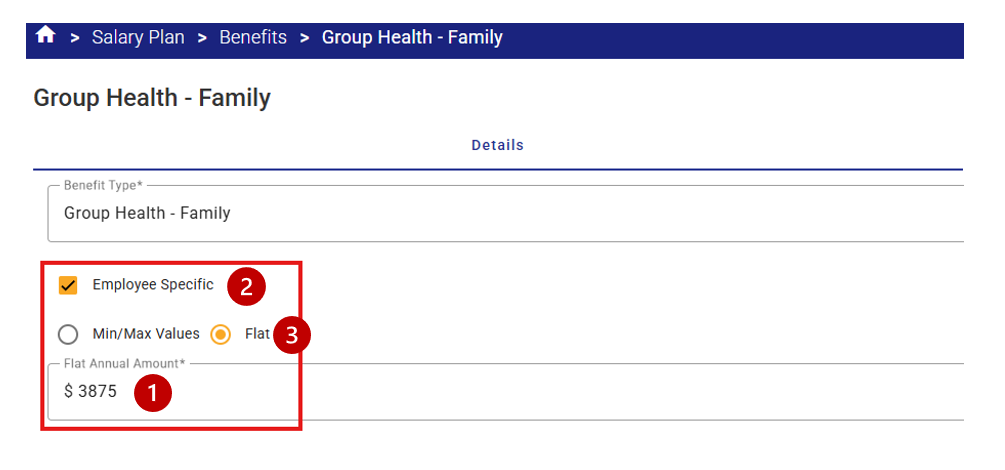
In the example below a Group Health – Family benefit type is required that is based on a flat annual amount of $3,875.00 .
.
The Employee Specific checkbox is selected, so the benefit will only be applied to employee compensation and benefits calculations where specifically added to the Employee record by the SP Administrator (see Employee set up for further information).
The Flat radio button is selected and the annual amount is input in the amount field.