The Salary Plan Module includes standard reports:
- Salary Plan Reports
- Compensation Summaries
- Position Compensation Summaries
Salary Plan Reports
The standard Salary Plan Reports are the most comprehensive and detailed reports available in the module.
Salary Plan Reports can be saved and edited for future reuse.
The main function is that this report is to display all the budgeted dollars for a given Dataset and Year combination.
Each row in this report is a Position Group Step with budgeted Salary Plan dollars.
The following information is provided for each row:
- Step Name and Effective Dates of the Step
- Cost Allocation which shows all Segments of the Operating COA Class Key and the Class Column that will receive the amount
- Position and Employee (or Vacant)
- Total Benefits and Total Compensation
This report provides the best representation of what the SP to OP Sync operation will post.
Users can select:
- Report Name
- Detailed (all Compensation and Benefit items) or Summary (total Compensation and total Benefits) columns added to view
- Comparative Data Set and Year
- Primary Grouping - compensation and benefits will have automatic totals at this level
- Secondary Grouping - compensation and benefits will have automatic total also at this level
- Filters
- Positions
- Segments - parts of the Operating COA Class Key that can be posted to
- Split Segments
- Split Types - Operating Class Column that can be posted to
- Position Classifications
- Position Statuses
- Position Groups
- Position Steps
- Employees
- Dates
- Employee Start Date
- Employee End Date
- Position Step Start Date
- Position Step End Date
Report Tools
Salary Plan Reports have several tools available in a toolset located on the right-hand side/top the screen. These are available after running the report.

- Refresh – refreshes the data included in the report (if SP data is being modified but other users concurrently)
- Customize Columns – enables the user to select the columns to be included in the report. The user can also make the report column selection a default for all Salary Plan Reports by selecting Save Default.
- Toggle Groups –enables the user to collapse and expand the report groups
- Export – enables the user to download the report in Excel, CSV or PDF formats
Report Filters
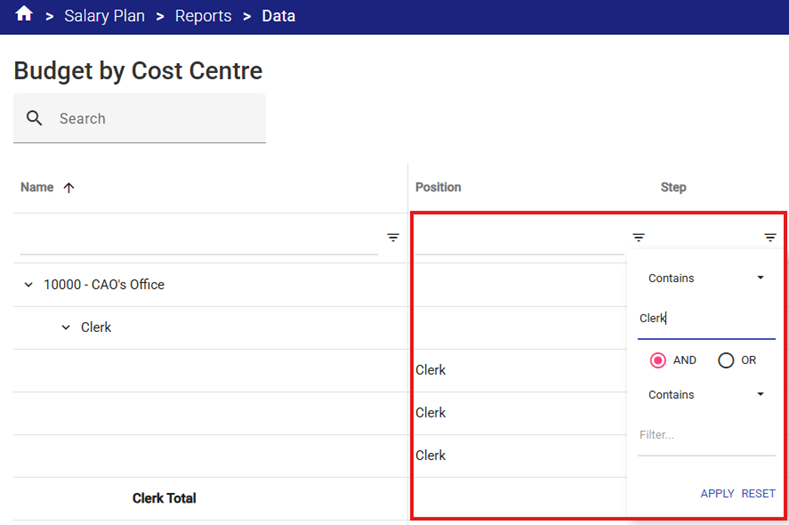
Once a report is run, report filters are available to limit the report data and facilitate targeted analysis and review.
Filter options include:
- Contains
- Does not contain
- Equals
- Does not equal
- Beings with
- Ends with
- Blank
- Not blank
AND & OR options are also available to further customize these filters.
Compensation Summaries
Compensation Summaries provide a snapshot of total Employee compensation and total benefits related to a Dataset and Year.
The Employee Compensation Summary will display budget amounts by Compensation Type and Benefit Type for all employees - which can be helpful for troubleshooting configuration.
The same report tools and filters used in Salary Plan Reports are available in the Compensation Summary.
Individual Employee Compensation Summary
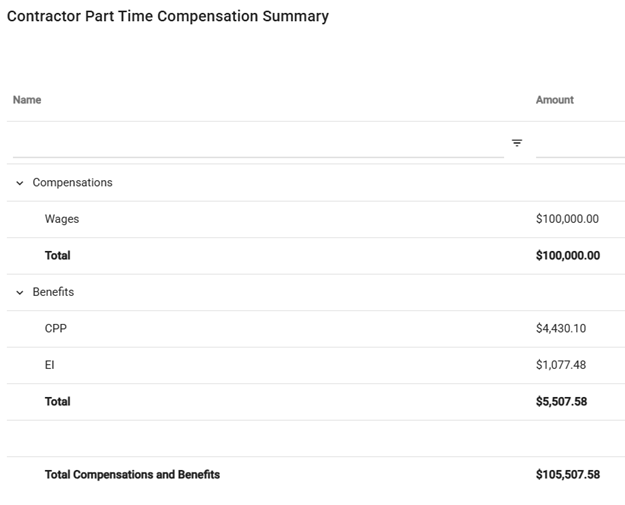
This feature of the report will show totals by the individual compensation and benefits types
An Individual Employee Compensation Summary can be generated by:
- Selecting the checkbox next to an Employee
- Clicking on the report icon
 to generate the report.

Position Compensation Summaries
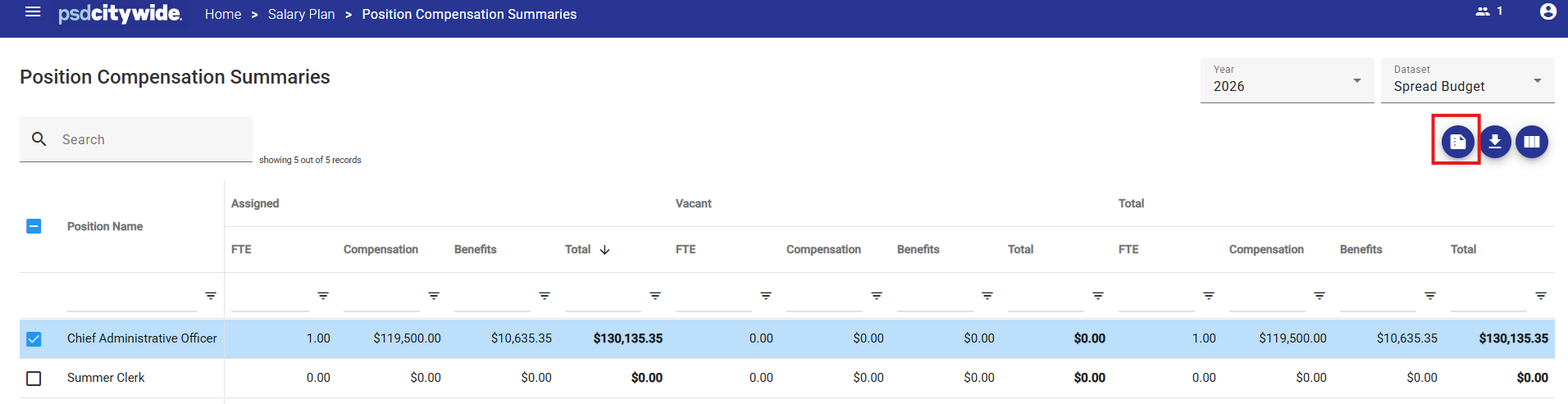
Position Compensation Summaries provide a snapshot of total position FTE, position compensation and position benefits related to a Dataset and Year.
The Position Compensation Summary will display budget by FTE. The different types of FTE’s:
- Assigned – An Employee has been linked to this Position.
- Vacant – No employee is linked, this can be a pooled position or one that will be filled in the coming budget year. A Vacant FTE can be configured on the Position level.
- Total – Assigned FTE plus Vacant FTE.
The same report tools and filters used in Salary Plan Reports are available in the Compensation Summary.
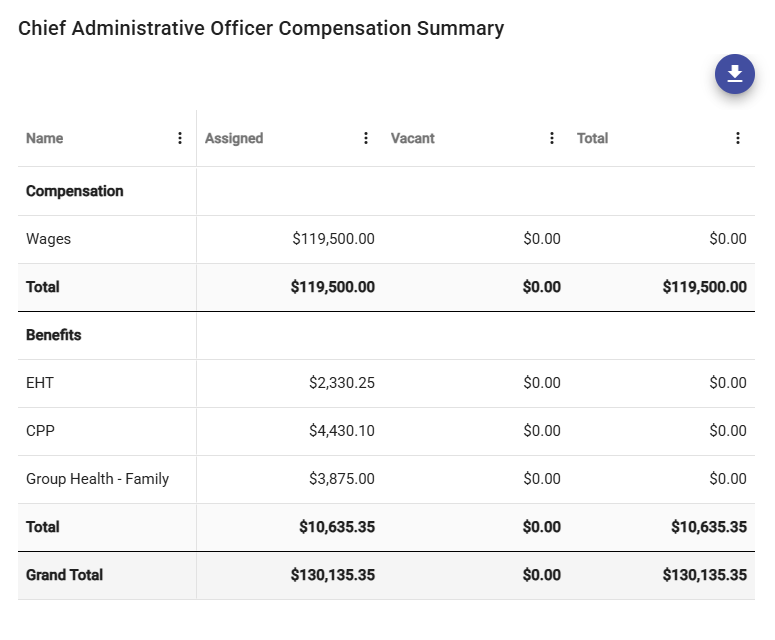
Individual Position Compensation Summary
This feature of the report will show totals by the individual compensation and benefit types.
An Individual Position Compensation Summary can be generated by:
- Selecting the checkbox next to a Position.
- Clicking on the report icon to generate the report.
Position Compensation Summaries provide a snapshot of total position FTE, position compensation and position benefits related to a Dataset and Year.
The Position Compensation Summary will display budget by FTE. The different types of FTE’s:
- Assigned – An Employee has been linked to this Position.
- Vacant – No employee is linked, this can be a pooled position or one that will be filled in the coming budget year. A Vacant FTE can be configured on the Position level.
- Total – Assigned FTE plus Vacant FTE.
The same report tools and filters used in Salary Plan Reports are available in the Compensation Summary.
Individual Position Compensation Summary
This feature of the report will show totals by the individual compensation and benefit types.
An Individual Position Compensation Summary can be generated by:
- Selecting the checkbox next to a Position.
- Clicking on the report icon
 to generate the report.