


Creating New Positions
- Open the Positions Component of Salary Plan
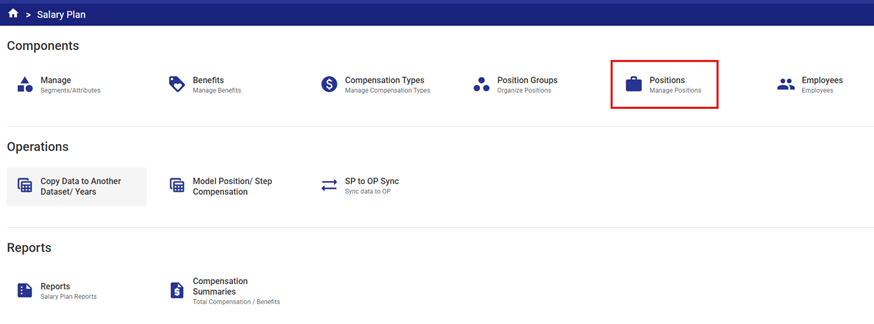
- Select the Year and Dataset.

- Create each required Position in your organization's salary and staffing structure.
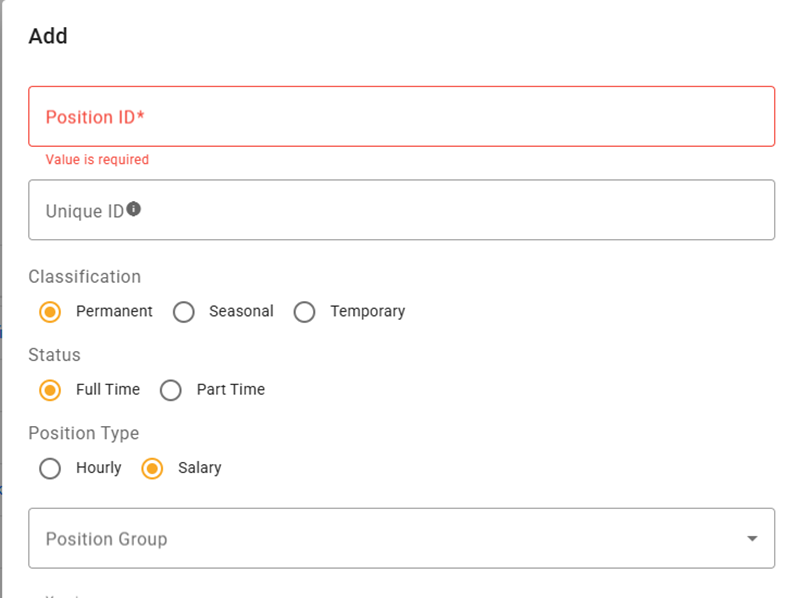
The Position fields include:
- Position ID – the Position name. This value is allowed to repeat.
- Unique ID – any alphanumeric combination that identifies the Position (this assists with comparative reporting)
- Position Group - drop-down list of available Position Groups
- It is always recommended to use a Position Group to let you take advantage of the shared characteristics like salary structure, benefit and standard annual hours.
- Classification – options are Permanent, Seasonal or Temporary (these attributes are used for report groupings)
- Status - options are Full time or Part time (these attributes are used for report groupings)
- Position Type – Hourly or Salary (related to Position Group settings - define how compensation amounts are input, either as hourly rates or annualized amounts)
- Note – a rich text field that can be used for recording notes about a Position (particularly helpful to reflect new positions or changed titles / reorganizations.)
- Select the
 button to add a new Position.

Complete all fields.
Save your work.
Note: The Unique ID field must be a unique alphanumeric combination for each Position.
Attempting to use a repeated ID will generate the following message and prevent the user from completing the Save:

2. Segment Mapping (Salary Plan > Mapping) is used by the system to create a "home" department code for a Position. This information will be used by the system to perform the Sync operation during SP to OP Sync. Here is an example of the configuration:
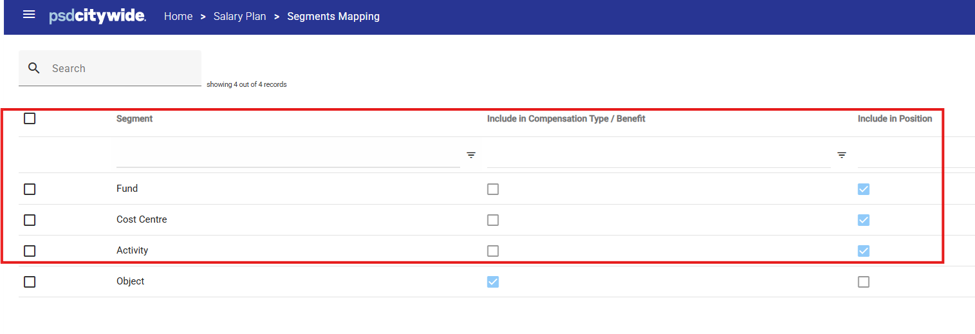
Each Position must assist in building the Segment Mapping by providing the Segments that are identified as "Include in Position." This will assist in building the COA Class Key for the Operating Class when a posting operation is run.
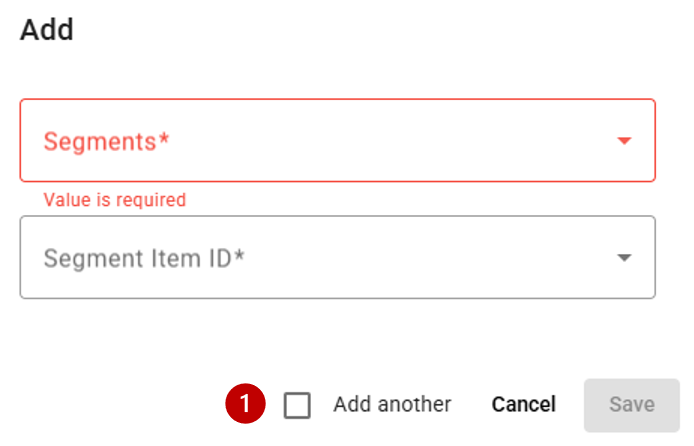
a) On the Related:Items tab select the  icon to create Segment Mapping for the new position.

The system will display a drop-down list of all mapped Segments from the initial set up in Model Administration as shown above.
b) Complete mapping of all required Segments for this Position.
Note - these allocations can be changed for each employee linked to the Position through the Cost Allocation function in Employees
Tip: Select the Add another  checkbox to continue allocating segments within the initial dialogue box.
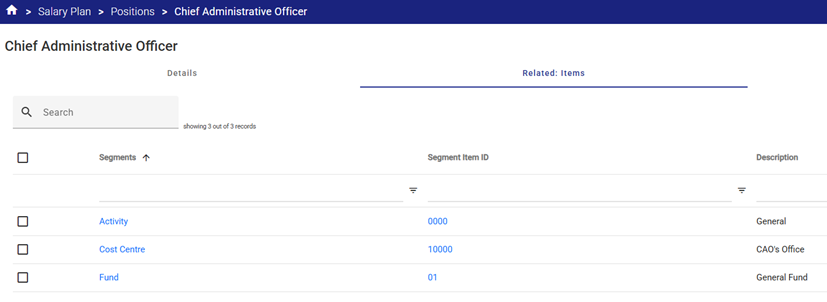
An example of completed Segment Mapping (as displayed in the Related: Items area):
Vacant Positions
Within a Position is the Vacants tab. This is where an organization can budget for positions that do not have a linked employee. Examples of this include:
- Representing a Pooled Position
- A Position is currently vacant but will be filled in this budgeting cycle
- Building a headcount-based budget so no employees will used
NOTE – the Steps tabs will be system-populated once Cost Allocation are configured on a linked Employees or on the Position as Vacants.


