


Employees are permanent in the Salary Plan they are not Year or Dataset specific. Employees can be marked inactive but cannot be deleted.
Ways to use Employees:
-
Create an Employee in Citywide Budgeting for every single person that is in your payroll. Termination Dates can be used and Employee can be made inactive when required.
-
Some organizations may not want to set up specific employees for the purpose of Salary Planning. An organization can simply give employees a name related to the position > e.g. Employee ID: SP1 | First Name: Senior | Last Name: Planner 1
-
You can avoid using employee data all together if you utilize Vacant Cost Allocation directly on the Position.
Create an Employee
Open the Employees Component of Salary Plan
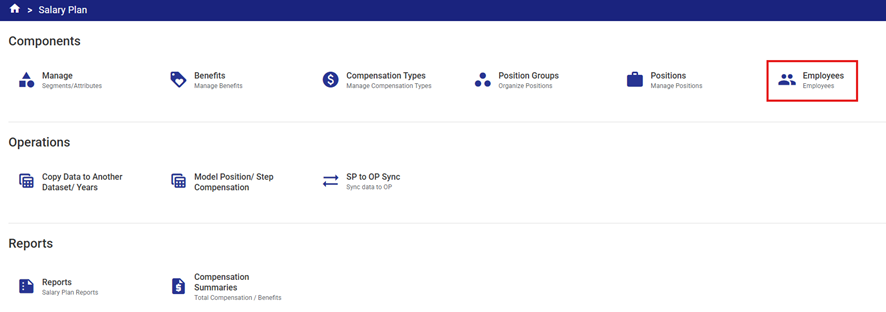
Create each required Employee as determined through the Needs Analysis.
Employee fields are listed below. Mandatory fields are marked with an *
- Employee ID* – an employee identifier (it maybe be an employee number or an alphanumeric ID created for Salary Plan only).
- First Name* – the employee’s first name
- Last Name* – the employee’s last name
- Hire Date* - the employee’s hire date or first day to be budgeted (calendar selection)
- Termination Date - the employee’s termination date if applicable (calendar selection) – can be left blank for active employees
- Active - the checkbox is checked by default when a new Employee is added but can unchecked for terminated employees
- FTE* - the number of Full Time Equivalents (FTE) the employee represents. FTE is calculated as hours budgeted divided by the standard hours for the Position Group
- Does not need to be a whole number (i.e. can be 0.5 for example for a part time employee).
- The FTE can also be greater than 1 if budgeting for pooled hours for a position (e.g. for a pool of 10 summer students who each work part time, the FTE would be entered as 5.0.)
- # Physical Employees* - the number of physical employees this Employee represents. Typically, this will be 1.0.
- When budgeting pooled positions, such as summer students in the example above, this would be entered as 10 so that all tiered benefit calculations are applied correctly.
- E.g. when calculating the CPP benefit cost, the system will apply the Tier1 $0 - $3,500 compensation exemption (0% rate) 10 times before moving on to apply Tier 2 rates.
- Note – a rich text field that can be used for recording notes about an employee (particularly helpful to document changes over time (name changes, position changes etc.)
Click the  button to add a new Employee.

Complete all fields. These can be updated after initial configuration if required.
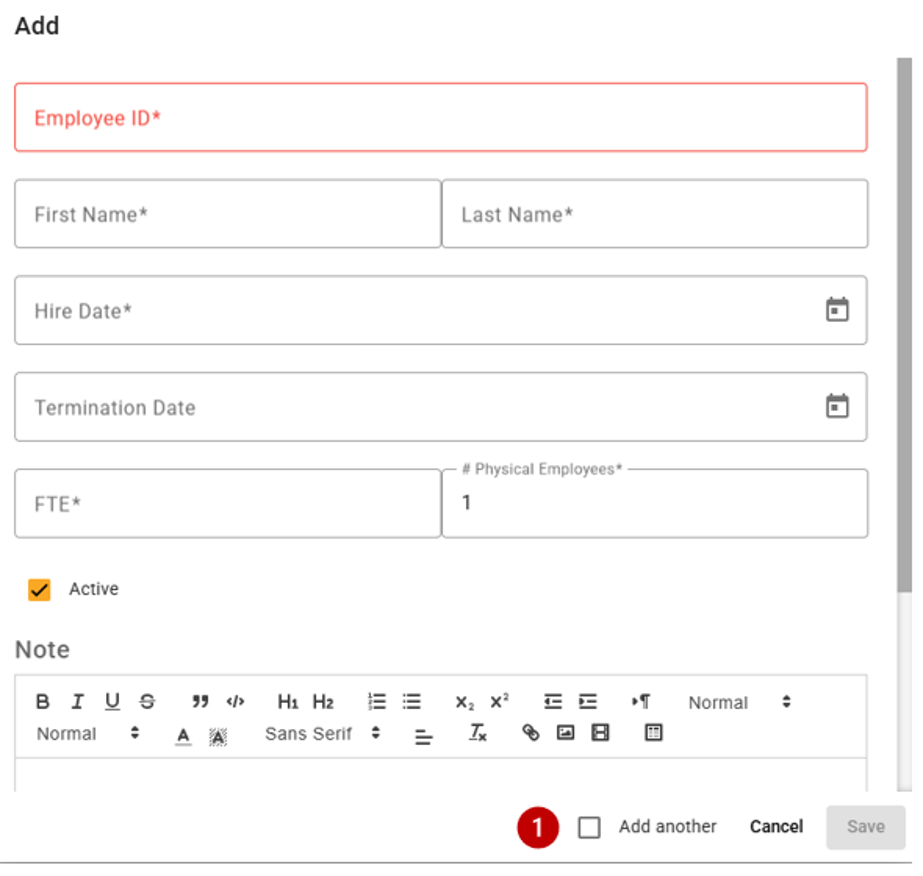
Tip: Select the Add another  checkbox to continue allocating segments within the initial dialogue box.
Save your work
Employee Position Step
Link the Employee to their Position and Step(s).
Go to the Related: Position Steps tab.
Click the  button to link the Employee to a Position / Step(s).
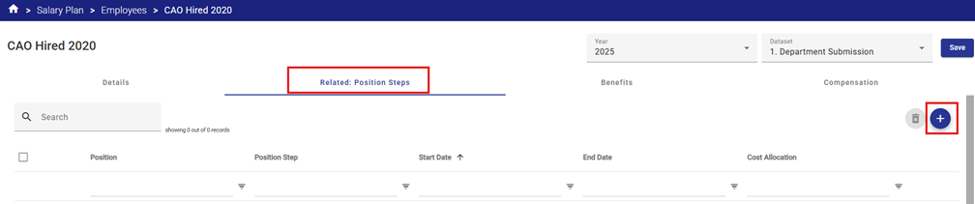
The system will display a drop-down list of all available Positions and Steps that were created in the Position Group / Position configuration process.
If the position or step required is not in the list go back and set it up, then return to Employee to create the linkages.
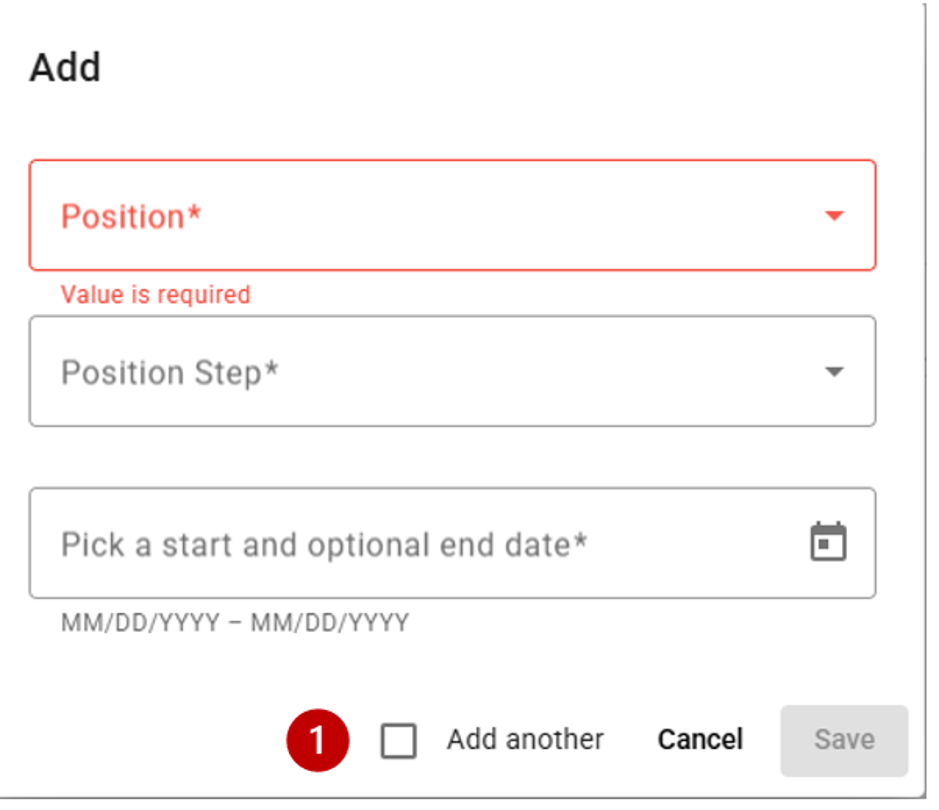
Tip: Select the Add another  checkbox to continue linking Position/Steps to the Employee from the initial dialogue box.
-
The Step Start date is a required field. For a new employee it would typically match the Employee’s Hire Date.
-
Throughout their employment, the employee may progress to other steps (if part of the compensation grid) or positions.
-
The Step Start and End dates allow for these progressions to be set up and maintained from year to year through the Copy functionality.
-
The system will reference these dates when performing compensation calculations for each fiscal period.
-
A Step End date is optional.
Cost Allocations
Update Cost Allocations (Splits) if required.
Cost Allocations define how compensation and benefits will be distributed to the various Key Segments for reporting and for SP to OP Sync operation.
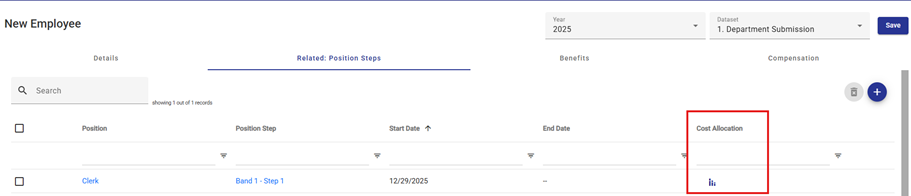
For each Position and Position Step combination on the Employee a Coast Allocation can be configured.
Position Step Split
For the Position and Position Step combination define how to distribute the compensation and benefits of an Employee across Segments.
Each Cost Allocation can be split into one or many Position Step Splits.
By default, the Position Step Split will be allocated to the Segments mapped to the Position in the initial Position configuration (it will be greyed out).
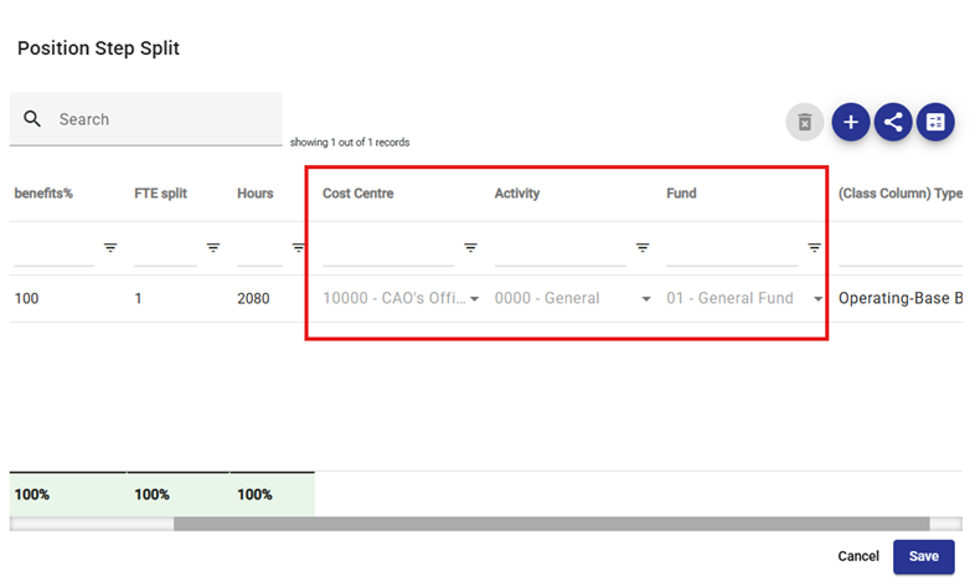
However, you may need to distribute the compensation and benefits of an Employee across multiple Segments to properly allocate the cost of delivering each program or service (i.e. for an employee who is a shared resource across various funds, departments, activities, business units or cost centres).
In this case, additional Position Step Splits can be added to the Cost Allocation.
Click the  button to update the Cost Allocation for the selected Position / Step.
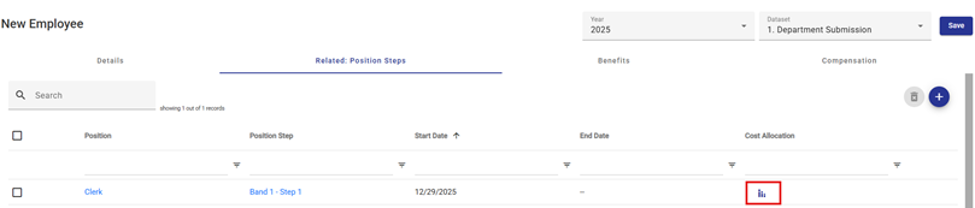
This will open a Position Step Split dialogue box.
The initial Position Step Split will be 100% allocated to the default Key Segments associated with the related Position.
Click the  button to add a new Position Step Split.
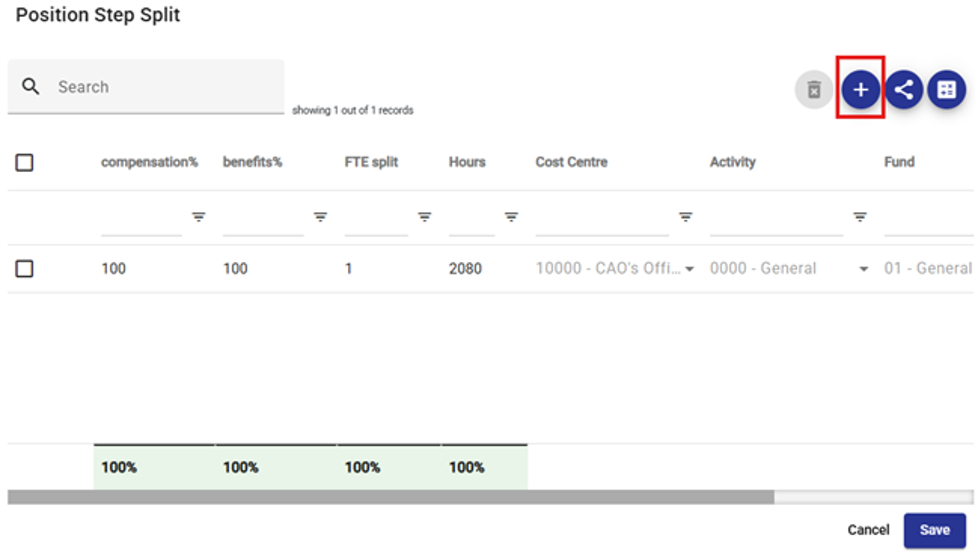
The system will automatically split the hours evenly between the two lines.
Compensation %, Hours, or FTE Splits can be adjusted as required to reflect the desired allocation.
Note 1 : The system requires that all fields (all Segment columns and the Class Column Type) are completed and that the allocations equal 100%  . Save will not be enabled if these conditions are not met (the Save icon will be greyed out).
Note 2: The benefit allocation is intentionally configured to provide the option to enter a different percentage allocation for benefits if required
(i.e. it will not automatically update with changes to compensation %s if it has been overridden)  . Certain organizations require that all benefits are allocated to the home business unit and only compensation may be split across business units.
Note 3: If an Employee has been configured with an FTE the number of hours will reflect here. The standard hours for the Position Group will be multiplied by the FTE number this total can then be allocated in the Hours column. The FTE Splits column total also need to equal to the Employee FTE.
Cost Allocation Tools
There are two additional cost allocation tools available from the toolbar: Propagate and Balance Split.
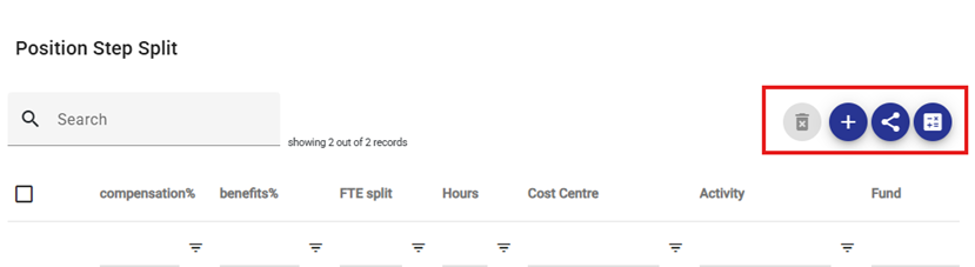
- Propagate
 – This tool can be used to propagate or copy a balanced multi-Position Step Split Cost Allocation to all other Position/Steps Cost Allocations for that Employee/Position. This is an efficient way to update Cost Allocation where an employee is progressing through Position Steps over multiple years.
 - Balance Splits
 – This tool can be used to assist with balancing Position Step Splits when multiple have been added to the Cost Allocation. If a user updates either the Compensation %, Hours, or FTE Splits for any of the rows leaving the Position Step Split table unbalanced, the user can select the Balance Splits icon, and the system will adjust the first line such that the table is rebalanced. They system always adjusts the top line (default for the Position/Step) when this tool is used.
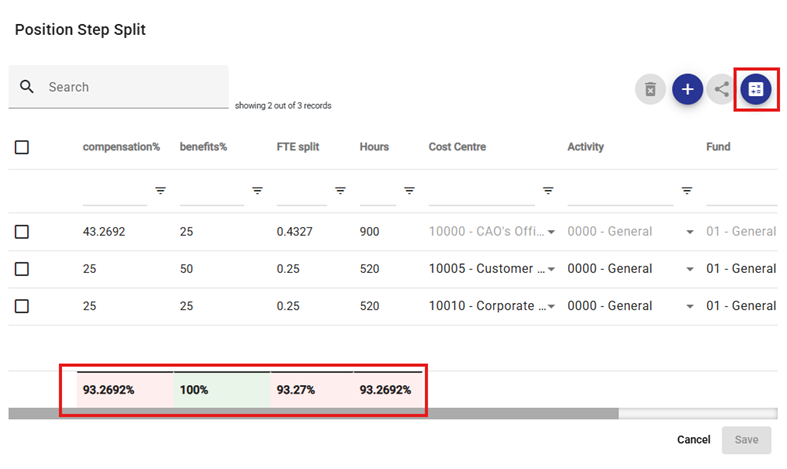
Employee Specific Benefits
Add Employee Specific Benefits.
Go to the Benefits tab and click the  button to add an Employee level benefit (if required).
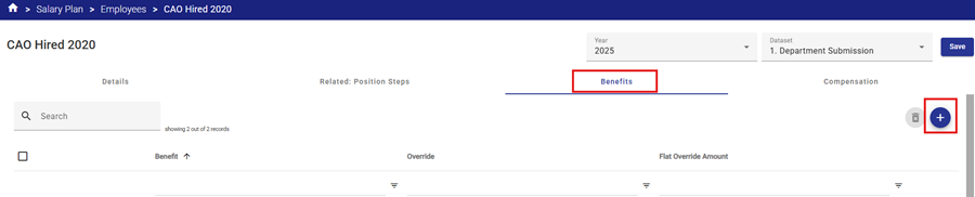
The system will display a drop-down list of all available Employee level benefits created during the Benefits configuration process.
If the required benefit is not in the list go back and set it up, then return to Employees to create the linkage.
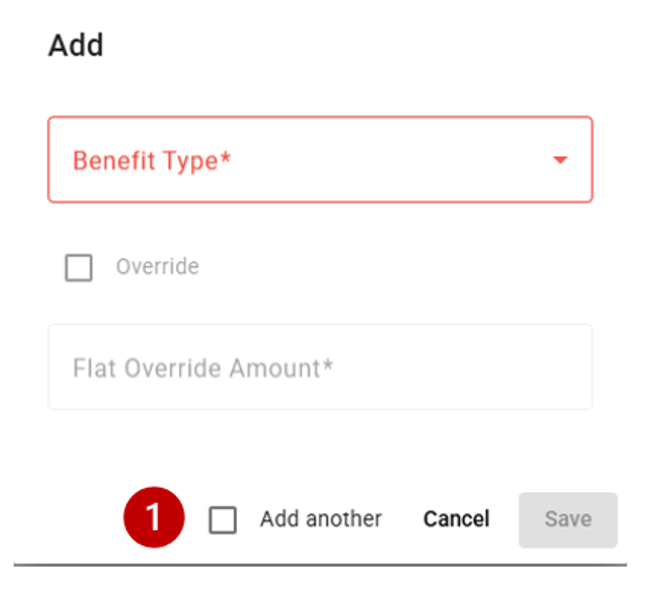
Tip: Select the Add another  checkbox to continue linking Position/Steps to the Employee from the initial dialogue box.
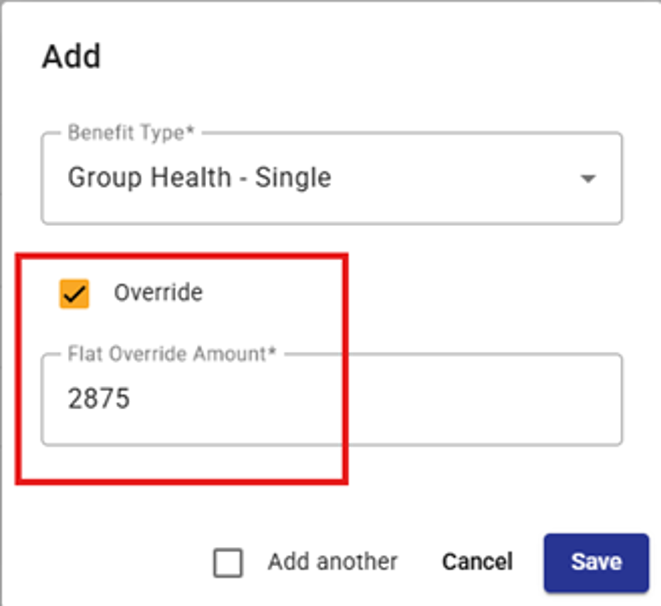
Overriding the Default Benefit Amount - The system will use the Benefit Amount set up in Benefits by default.
If this needs to be overridden, select the Override checkbox and enter the override amount in the Amount box.
Employee Specific Compensation
Add any additional Employee Specific Compensation.
The system will automatically calculate and apply the Compensation associated with the Position / Step selected earlier.
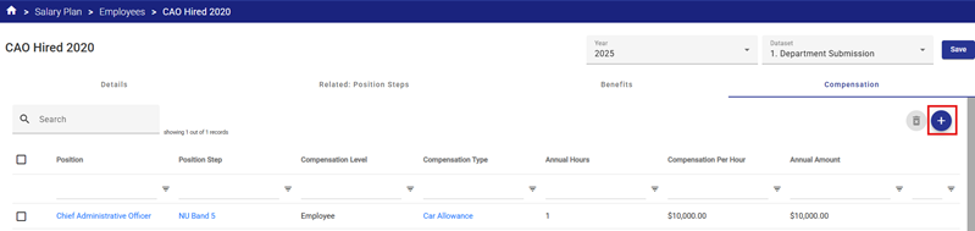
However, certain employees may be entitled to additional Employee-specific compensation such as Overtime, Allowances, Honorariums or Shift Premiums beyond that provided in the Position/Step compensation. Employee-specific compensation is set up on the Compensation tab.
Go to the Compensation tab and click the  button to add Employee-specific Compensation (if required).
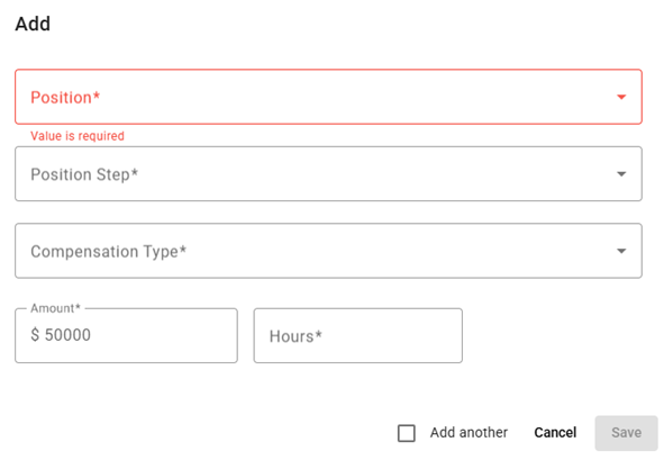
The system will display a drop-down list of all available Positions and Steps related to this Employee on the Related: Position Steps tab.
Select the Position and Step that this additional compensation relates to.
Select the Employee-level Compensation type from the drop-down list.
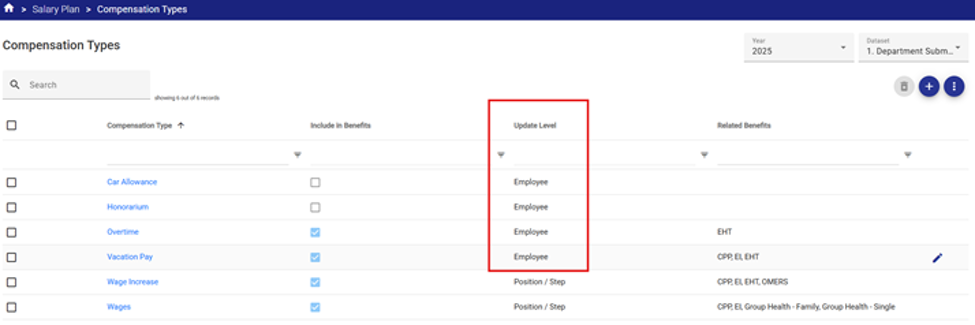
If the required Compensation Type is not available, go back to Compensation Types and add it, or ensure that it has an update level of “Employee”.
Enter the amount and number of hours.
A lump sum can be entered in the Amount field with the number of hours equal to 1.
Hourly compensation can be entered as an hourly rate and number of hours eligible for the additional compensation (e.g. a shift premium of $0.50 / hour for 200 hours.


