Maintenance GIS: Adding Road Segments to a Route

Last updated: Jun 17, 2026
Overview
This guide explains how to add one or more road segments to an existing route in Maintenance GIS.
Open Maintenance GIS
- Navigate to Home>Maintenance>GIS.
- The Maintenance GIS map will open.
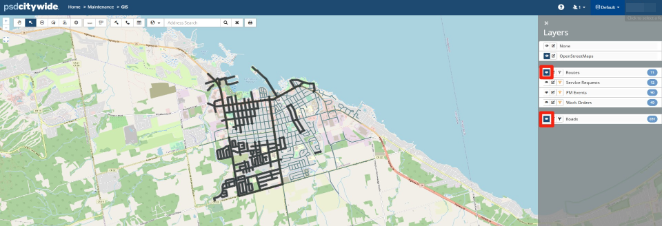
- Open the Layers menu on the right side of the screen.
- Turn on Routes and your organization's Roads layer (these layers must be visible before you can edit route assignments).
- From the toolbar in the upper left corner, click the Select tool.
- On the map, select the route you want to modify.
Note: if a road segment belongs to multiple routes, the attribute table at the bottom of the screen may display multiple route records. Deselect any routes that are not relevant before proceeding.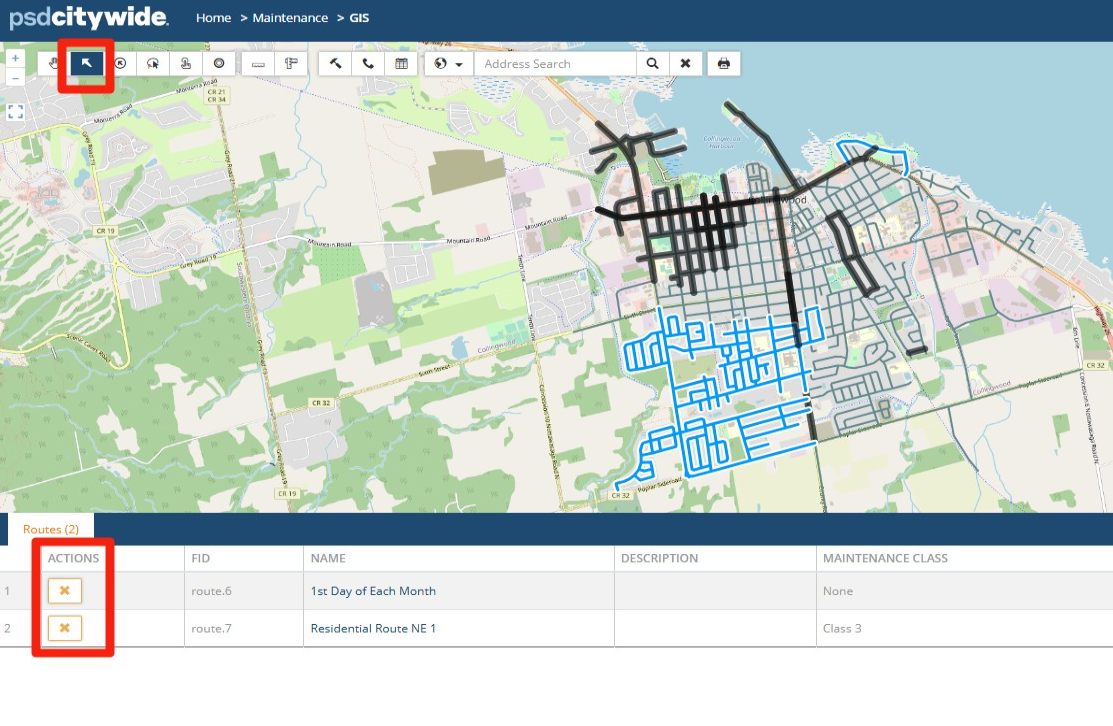
- Press and hold the Shift key on your keyboard.
- While holding Shift, click each road segment you want to add to the selected route.
The selected road segments will be highlighted on the map.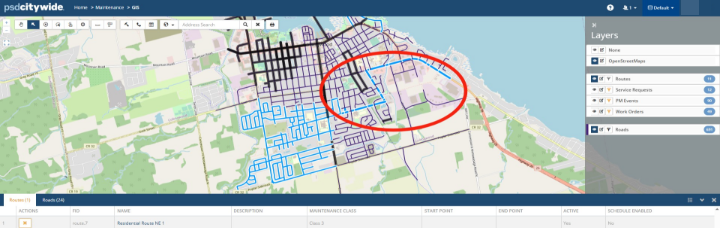
Assign the Segments to a Route
- In the Attribute Table at the bottom of the screen, click the Context Menu (top-right corner of the table).
- Select Routes.
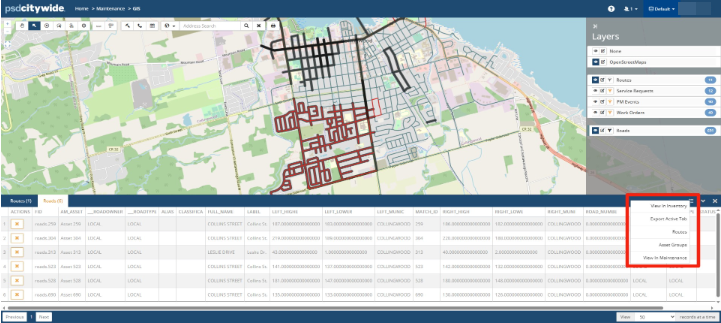
- You can then choose an existing route from the dropdown list or select New Route to create a new route.
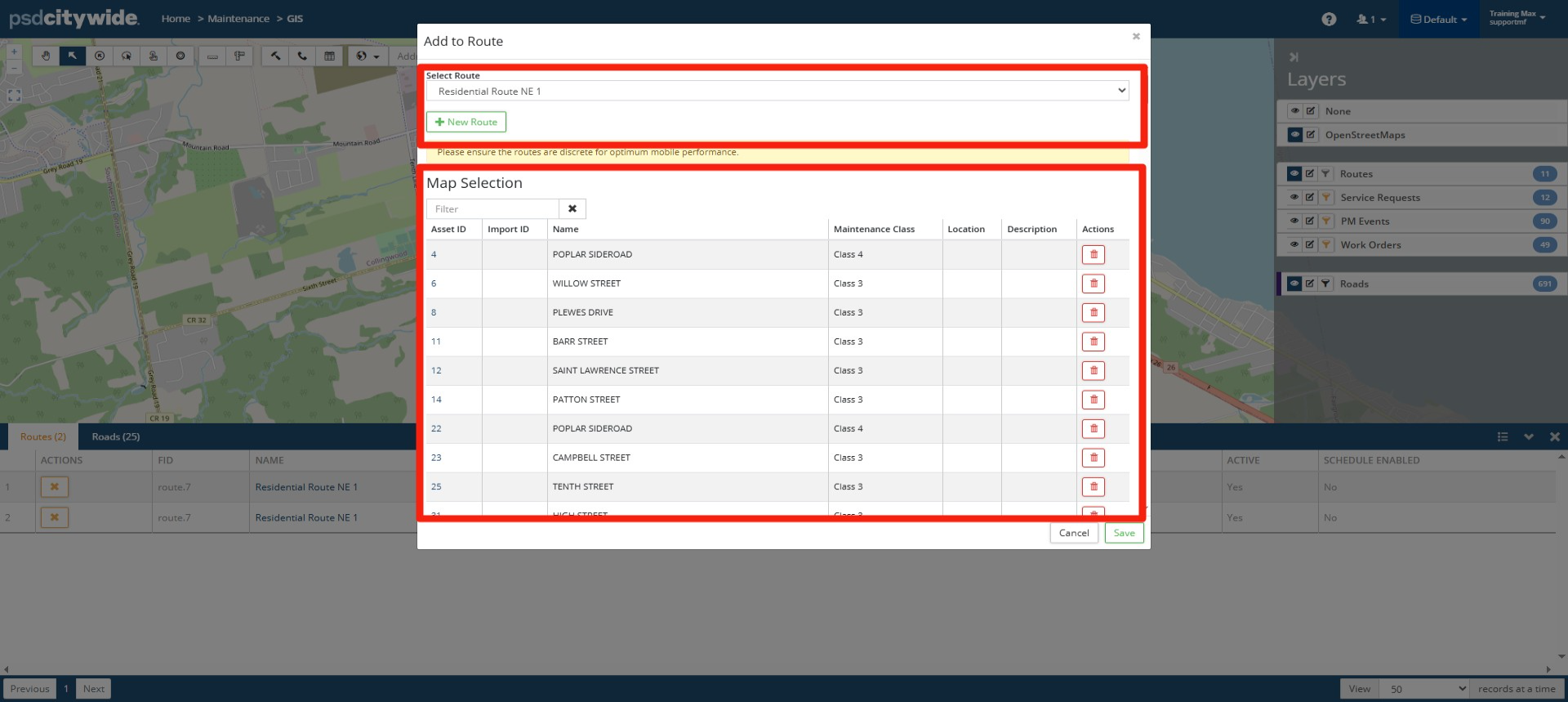
Save your Changes. Click Save, refresh your page, and select the Route to see the changes reflected.