


Based on how the Custom Report is configured, an end user may not have to enter any inputs (Static) or the end user will have to make selections (Runtime.)
An end user can run a report from two locations:
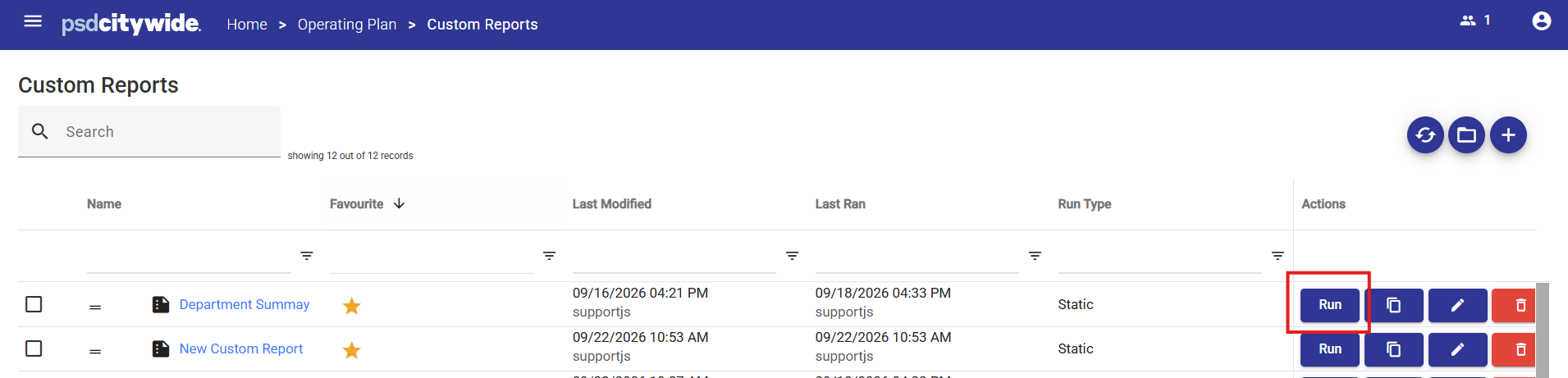
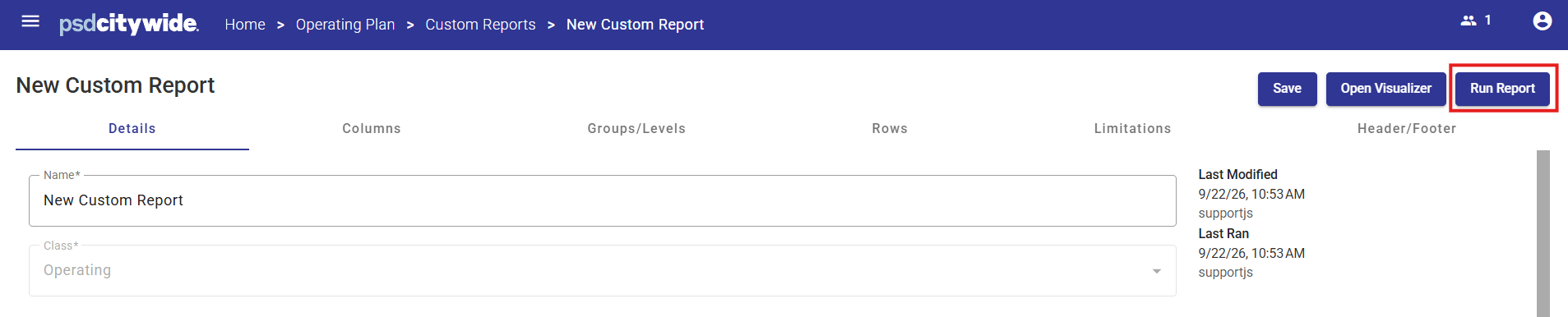
- From the Custom Report screen using the Run button
- Within a Custom Report from any tab using the Run Report button
Runtime Options
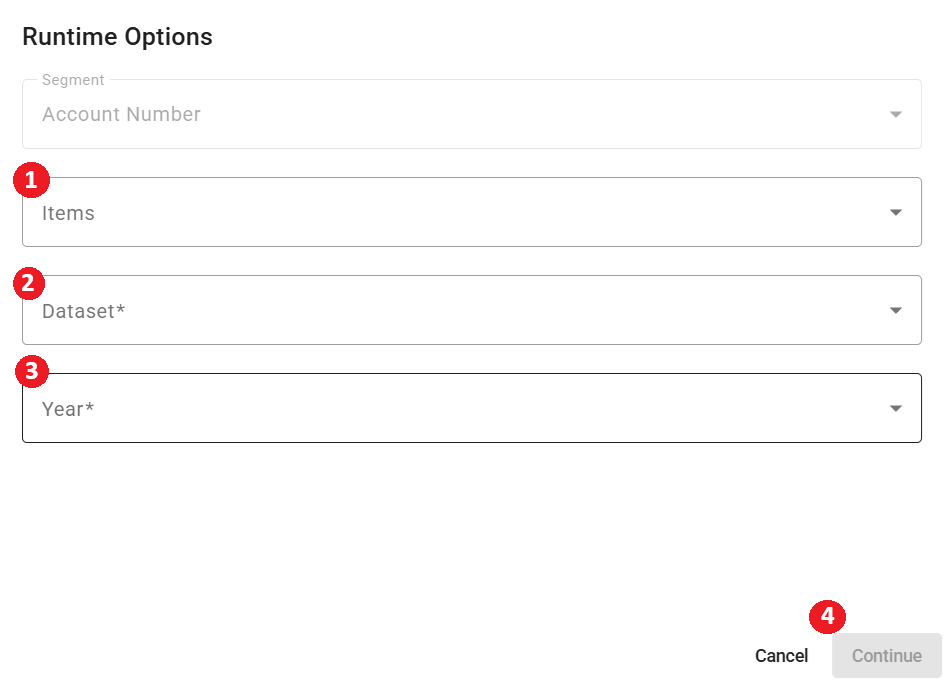
After pressing Run Report on a Custom Report that has been configured with Runtime selections the end user will be presented with this dialogue:
Important Areas
- Items - will always be a dropdown list list to control the data that show up after the Custom Report runs.
- Dataset - the Dataset that will be used to create the Customer Report.
- Year - the Year that will be used to create the Customer Report.
- Continue - once all required fields are completed you can press this button to run the Custom Report.
Page Mode
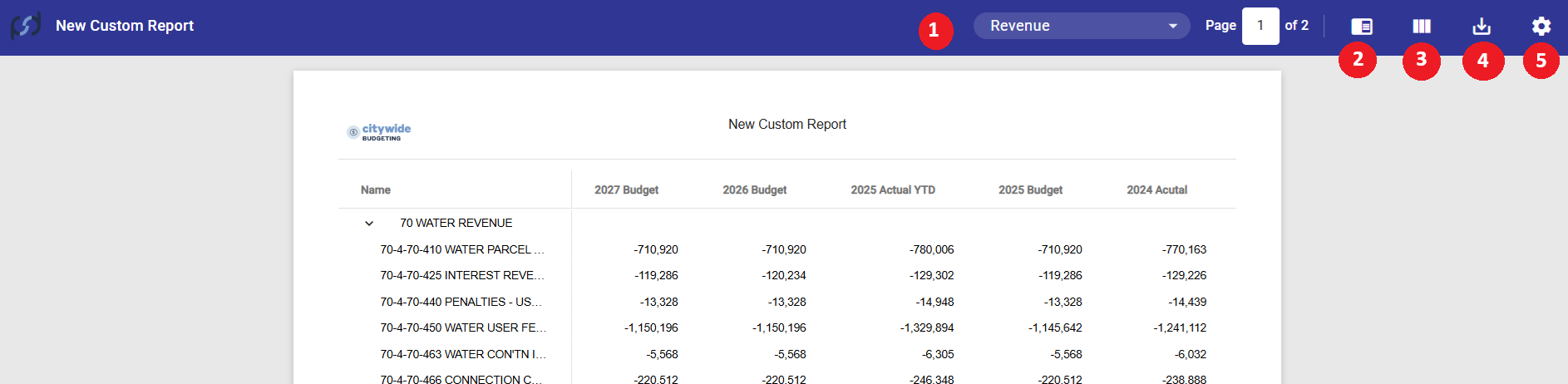
This is the default mode that a Custom Report will initiate in after pressing Run Report. The Page Mode is a representation of what a printed (PDF) version of this Custom Report will look like.
Important Areas
- Page Selection - shows the current Page Selection. An end user can click into this box to change the Page Selection that is displaying.
- Switch to Read Mode - change to Read Mode.
- Customize Columns - allow an end user to toggle columns that are displaying. Changing this will not permanently impact the Custom Report; it is only for this instance of running the report.
- Export - download this Custom Report as a PDF, Excel or CSV file.
- Page Setup - change the Page Setup including size and margin. Changing this will not permanently impact the Custom Report; it is only for this instance of running the report.
Read Mode
You will need to use the button Switch to Read Mode to access the Read Mode. The Page Mode is best formatted for presentation in your browser.
The Page Mode is an excellent tool to use during a presentation from your browser
- This mode does not try to accommodate for page breaks - so columns do not need to be reduced in size
- You can use larger fonts when sharing the screen
- Use the interactive expand button at each of the Groups/Levels to see details below this level, or collapse the Group/Level back up to present a total in a single summarized row.

Important Areas
- Page Selection - shows the current Page Selection. An end user can click into this box to change the Page Selection that is displaying.
- Switch to Page Mode - change to Page Mode.
- Customize Columns - allows an end user to toggle columns that are displaying. Changing this will not permanently impact the Custom Report; it is only for this instance of running the report.
- Export - download this Custom Report as a PDF, Excel or CSV file.
Exporting Options
After pressing the Export button, you will get the following dialogue:
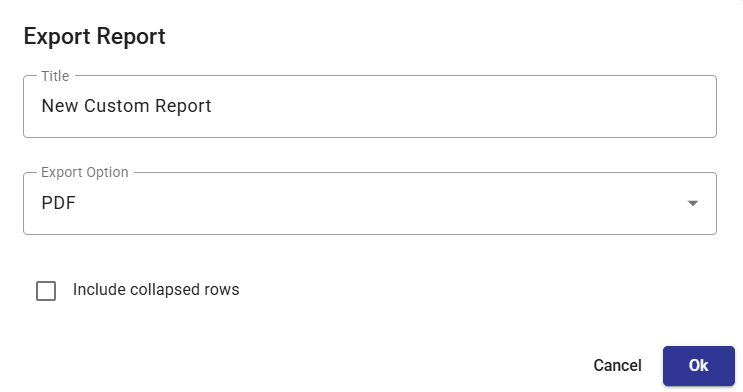
Include Collapsed Rows - will force the export to generate with all collapsed rows instead of how the Page Mode was setup. This means your PDF will have more rows of data than the Page Mode.
Export to PDF
The Page Mode provides an accurate preview of what the PDF is going to look like. Before using this button the following things should be considered:
- From Page Mode
- If a column is being cut off on the Page Mode, it will be cut off on the PDF.
- This export will maintain the state of collapse or expand on the Groups/Levels that have been clicked in Page Mode.
- This is a chance to resize the columns or hide them
- All Page Selections will be included in the PDF
Export to Excel
When exporting to Excel.
- Values are pasted into the spreadsheet, there are no calculations.
- All Page Selection will be included in the Spreadsheet. Each Page Selection will be added as a new sheet in the export.
Export to CSV
When exporting to CSV the following are included:
- Page Selection
- Column Headings
- Column Values


