

Custom Reports - Design - Groups/Levels

Last updated: Oct 13, 2026
In a Custom Report
- Each row in the report is represented by a COA Class Key.
- Columns are then added to the Custom Report which brings in financial amounts.
- Without further changes to the report would look like this:
| Name | 2025 Budget | 2025 Actuals |
| 250-2000 | $2000.00 | $1245.22 |
| 250-3000 | $8000.00 | $6541.12 |
| 250-4000 | $450.00 | $111.00 |
|
300-2000 |
$51.00 | $22.00 |
Groups/Levels
Are used to add logical rollups to the Custom Report, allowing the Custom Report to generate subtotals that are meaningful for our end users. Each Group/Level will be a visual total and it will also become a clickable level to expand or collapse the data within it. The example below creates a Group/Level for the Department number added to the earlier table.
| Name | 2025 Budget | 2025 Actuals | |
| 250 - Mayor Office | |||
| 250-2000 | $2000.00 | $1245.22 | |
| 250-3000 | $8000.00 | $6541.12 | |
| 250-4000 | $450.00 | $111.00 | |
| 300 - Financial Services | |||
|
300-2000 |
$51.00 | $22.00 | |
Groups/Levels Tab
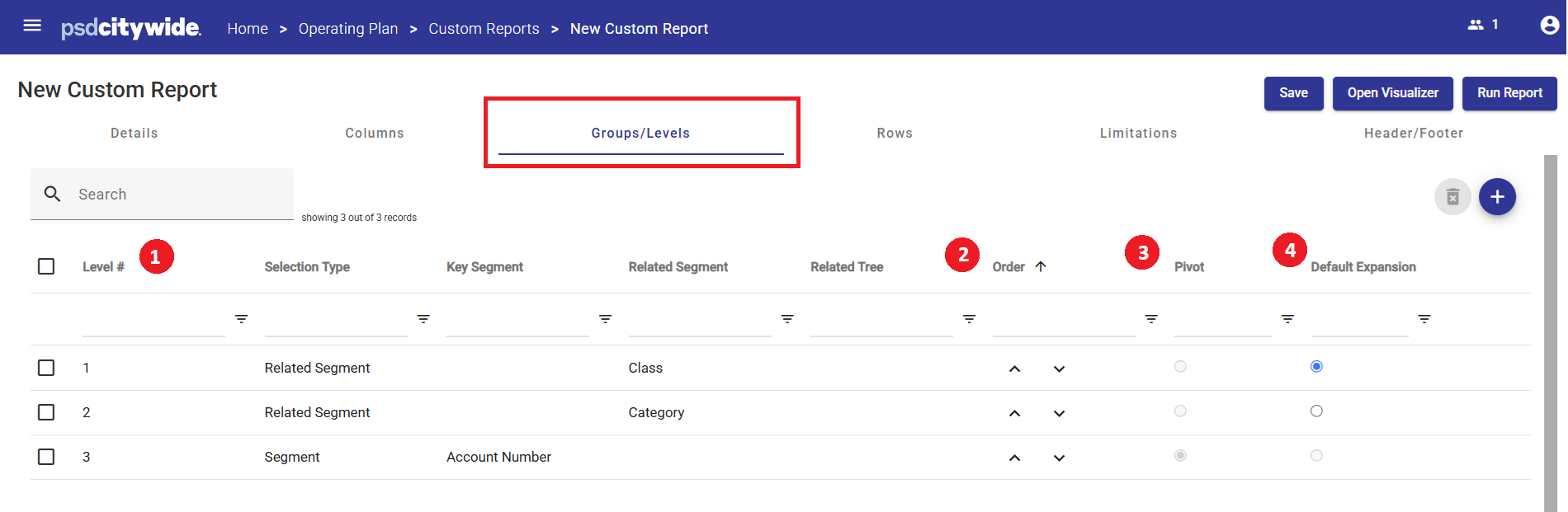
Important Areas
- Level # - the higher this number is, the lower it will appear in the Custom Report.
- Order - use the arrow icons to move the Group/Level around.
- Pivot - Only available for the Segment Level. The Custom Report can use Rows to create further groupings. This is the same function as on Views.
- Default Expansion - When the Custom Report generates, it only expand one level. In the example above, Level 3 is expanded so it will display all items on Level 2.
Groups/Levels Options
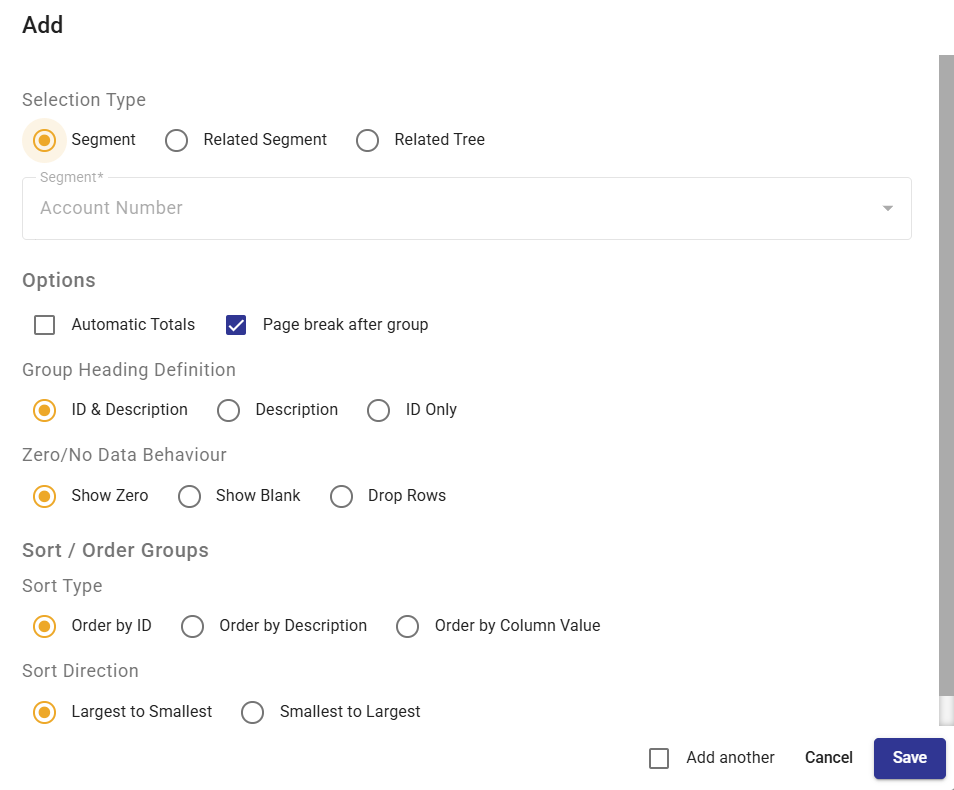
| Area | Term | Definition |
| Selection Type | ||
| Segment | This level will be added for you by default. | |
| Related Segment | A Key Segment from the COA Class Key. | |
| Related Tree | A Level on a COA Class Key related Tree. | |
| Option | ||
| Automatic Totals |
Add a generated Total line at the bottom of this Group/Level. By default if you have an expandable level, it will include a Total. |
|
| Page Break After Group | Within a Page Selection, create an additional page break after the Custom Report displays an Item. | |
| Group Heading Definition | Control whether the heading for this Group/Level has the ID, Description, or both. | |
| Zero/No Data Behaviour | Control what occurs for this Group/Level when there is an Item where all the columns are zero or no data is returned. The row can display each column as $0, or it can display a blank space, or it can be dropped from the Custom Report. | |
| Sort/Order Groups | ||
| Sort Type | For the items returned in the Group/Level, sort the way they are presented. If you select Order by Column Value you can select a Column for the Custom Report. | |
| Sort Direction | Based on the Sort Type from earlier, choose which direction should it sort in. |
Rules for using Group/Levels:
- Custom Report must always include the Segment level
- Pivot is always enabled on the Segment level
- Segment level must always be the lowest level, which means the Level # is the highest.
Add a new Groups/Levels
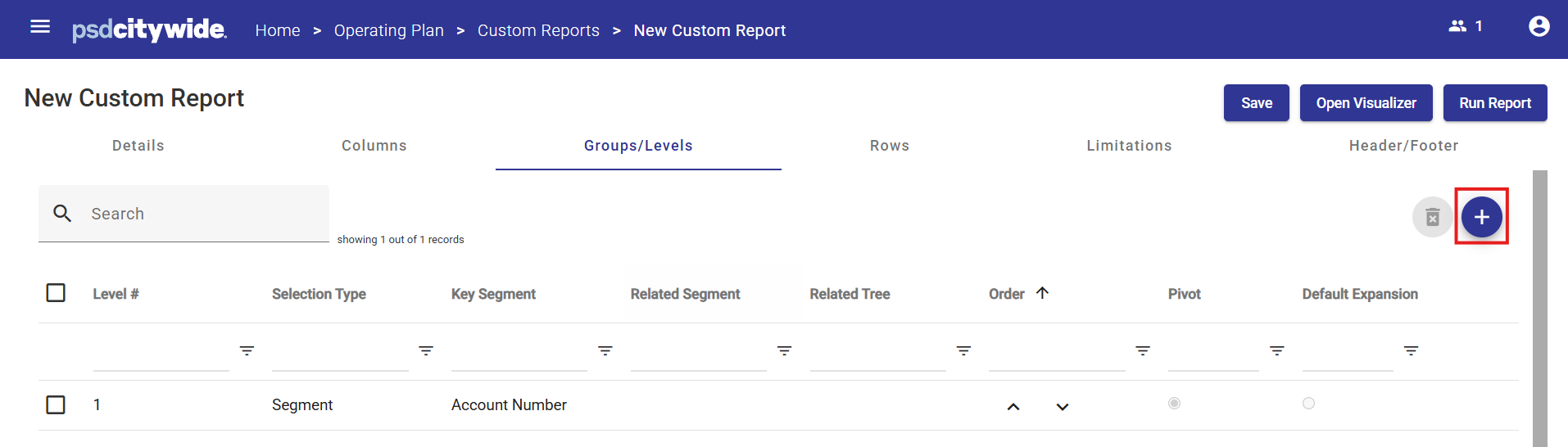
- From the Groups/Levels tab press the Add icon.
- The Add dialogue will now appear
- Once you have completed the required fields, press Save.
- You can use the arrow buttons in the Order Column to move the new Group/Level up

Delete Groups/Levels
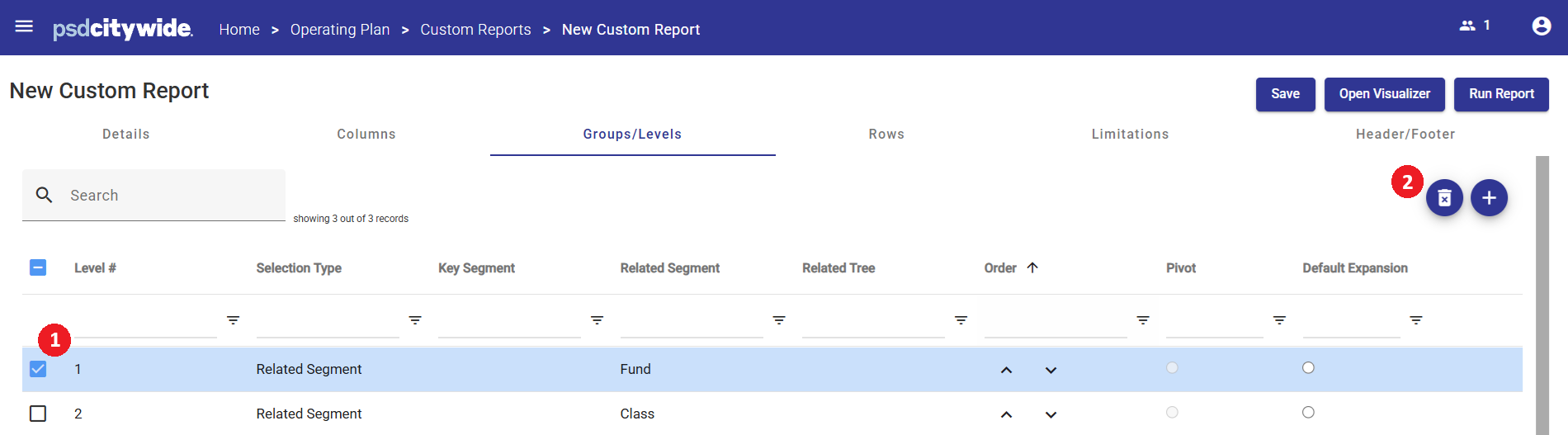
- Select the Group/Level first using the checkbox
- Press the Delete icon and press OK.
Related Articles: Custom Reports - Design
Related Articles: Working with Views and Worksheets


