Spaces can be associated with work orders to provide a clear connection between work orders in Maintenance and the Space where the work is taking place. A work order can be associated directly with a Space, with or without an asset. This allows Maintenance users to view work order activity from the Space and helps to identify the site, building, floor, room, or other configured Space levels associated with the work. To configure Space levels, see our Levels (Spaces) article.
Viewing Work Orders from a Space:
- Open the Spaces grid.
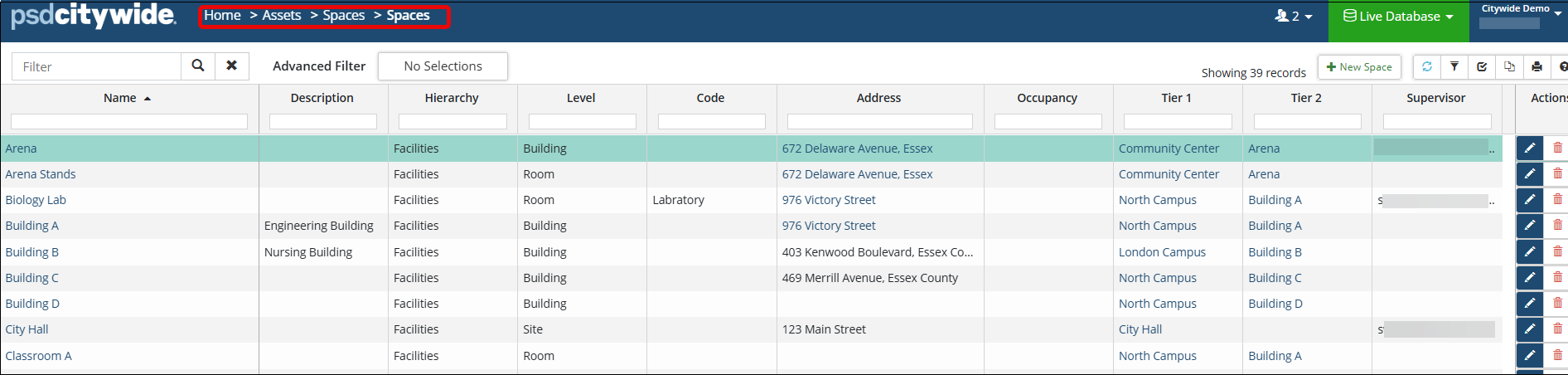
- Select the Space you want to view.
- Navigate to the Maintenance section on the left hand panel.
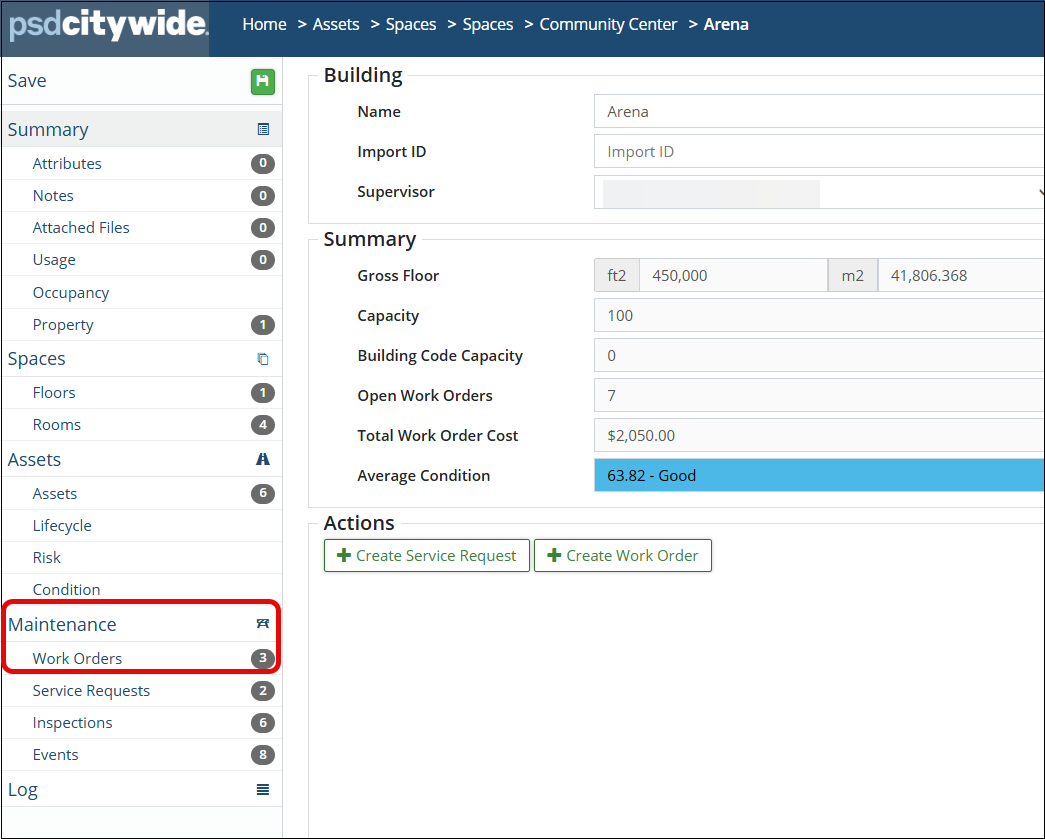
- Select Work Orders.
The Work Orders section provides a summary of the work orders associated with the selected space. Depending on how your space hierarchy is configured, work orders may be associated with different levels. For example, a work order could be associated with:
- An entire facility (for example an arena)
- A specific building
- A floor
- A room
- Another configured Space level
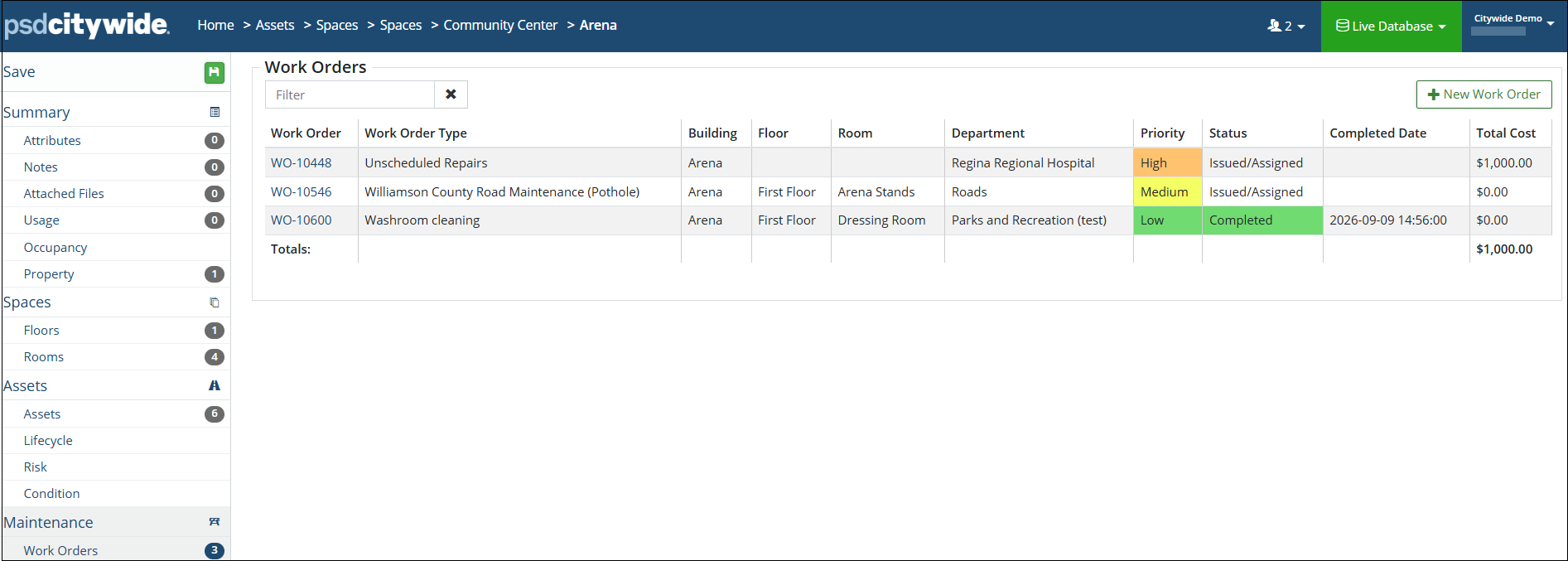
A work order associated with a higher level Space does not necessarily contain information about the lower level Space(s) beneath it. For example, a work order for an arena may be associated with the arena level only. When viewing its Space information, the arena details are displayed but does not include/identify specific room details. A different work order for washroom cleaning in a dressing room within the arena can be associated only with the dressing room.
When viewing the work order's Space information, the hierarchy can display the site, building, floor, and room associated with the work.
Viewing Space Information from a Work Order:
You can also view the Space associated with an individual work order. From the Work Order record:
- Open the work order.
- Locate the Space information.
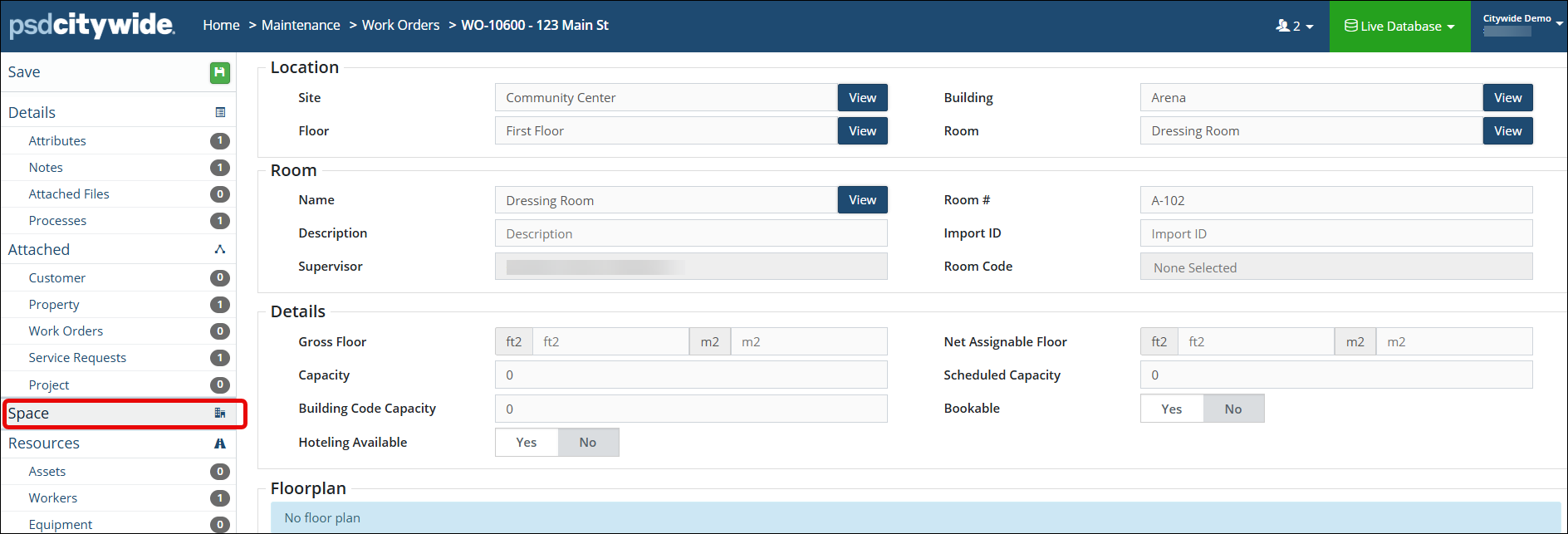
The Space information displays the hierarchy configured for your organization. Depending on the configuration, this may include levels such as:
Facilities: Site 🢡 Building 🢡 Floor 🢡 Room
Parks: Site 🢡 Playground 🢡 Washroom Building 🢡 Trail
The labels and number of levels can vary by organization and by type of facility.
Space details can also be viewed or hidden in the work order summary according to work order summary report settings. In the Maintenance 🢡 Preferences section, the option to include or omit Space details can be found in the work order summary report settings. 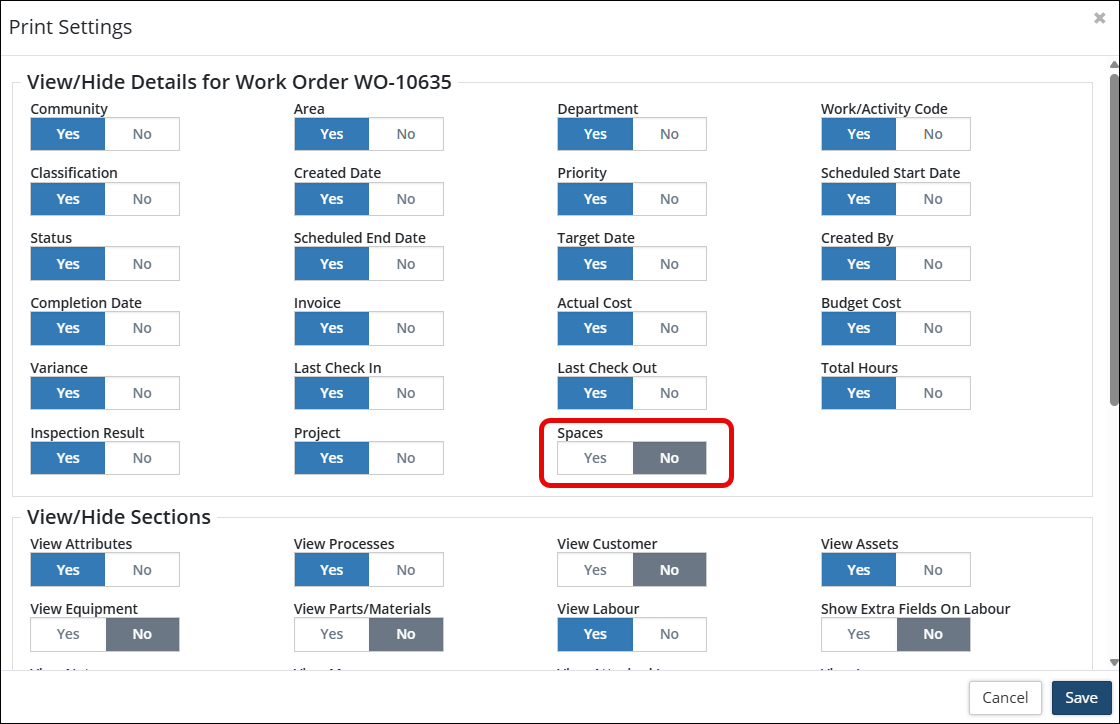
Selecting Spaces in Maintenance Work Orders:
Work orders with a Space can also be created from the work order grid: The work order grid also provides an indicator showing which work orders are associated with a Space, making it easier to identify Space-related work orders. 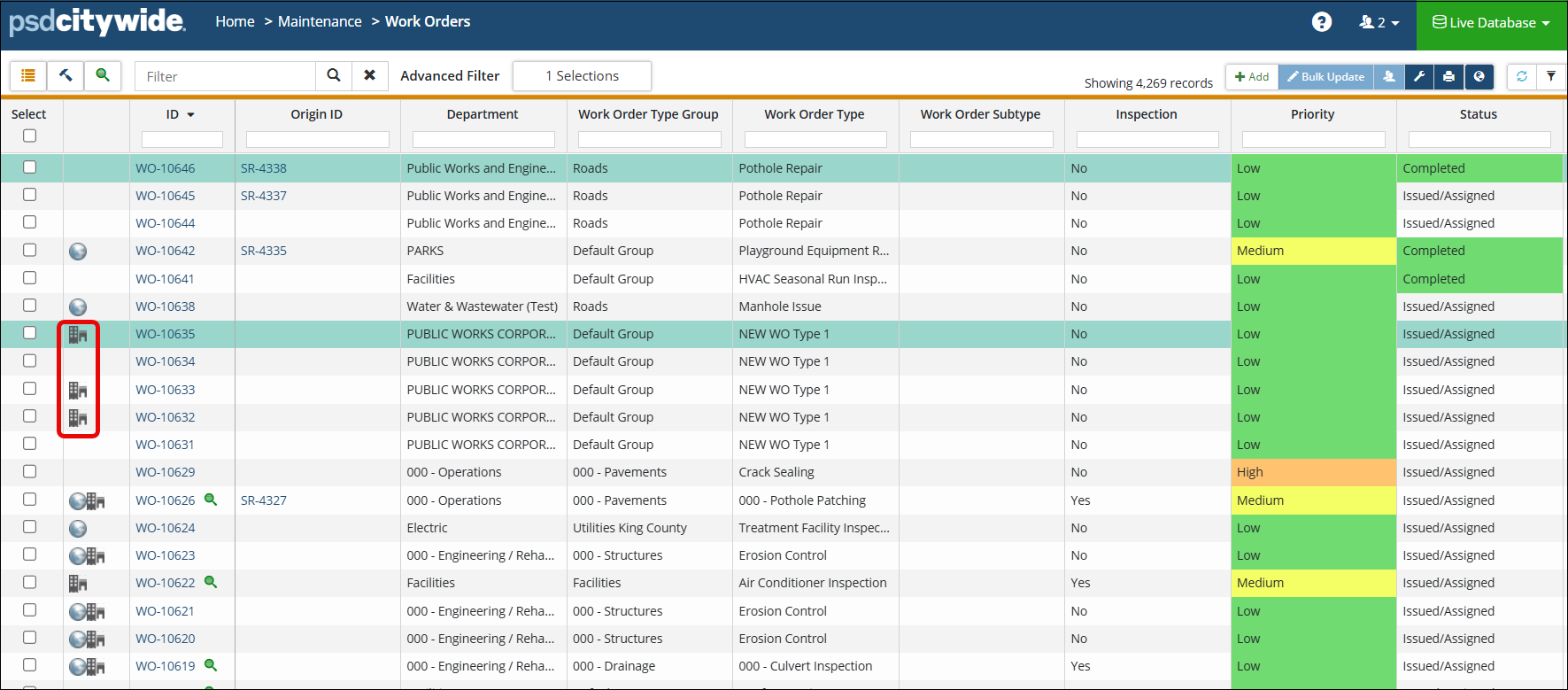 When creating a work order from the grid:
- Select Add.
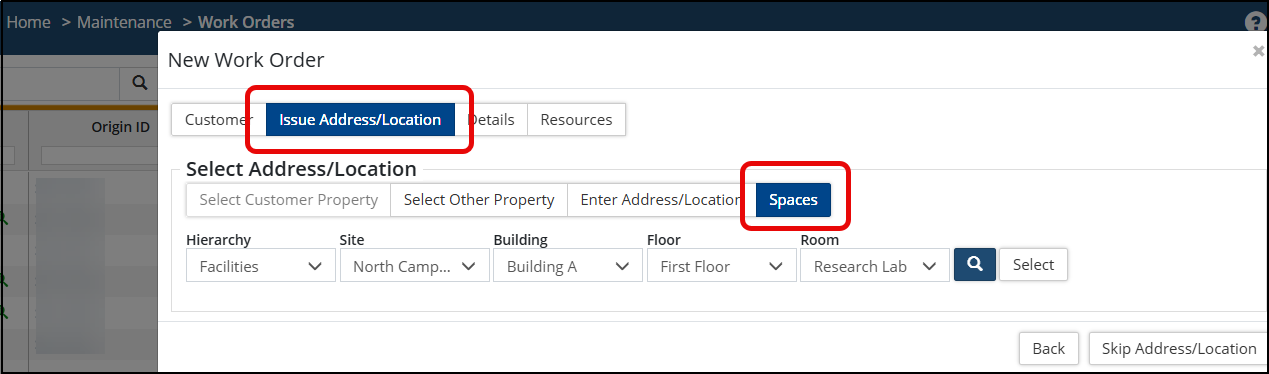
- Open the Issue Address/Location section.
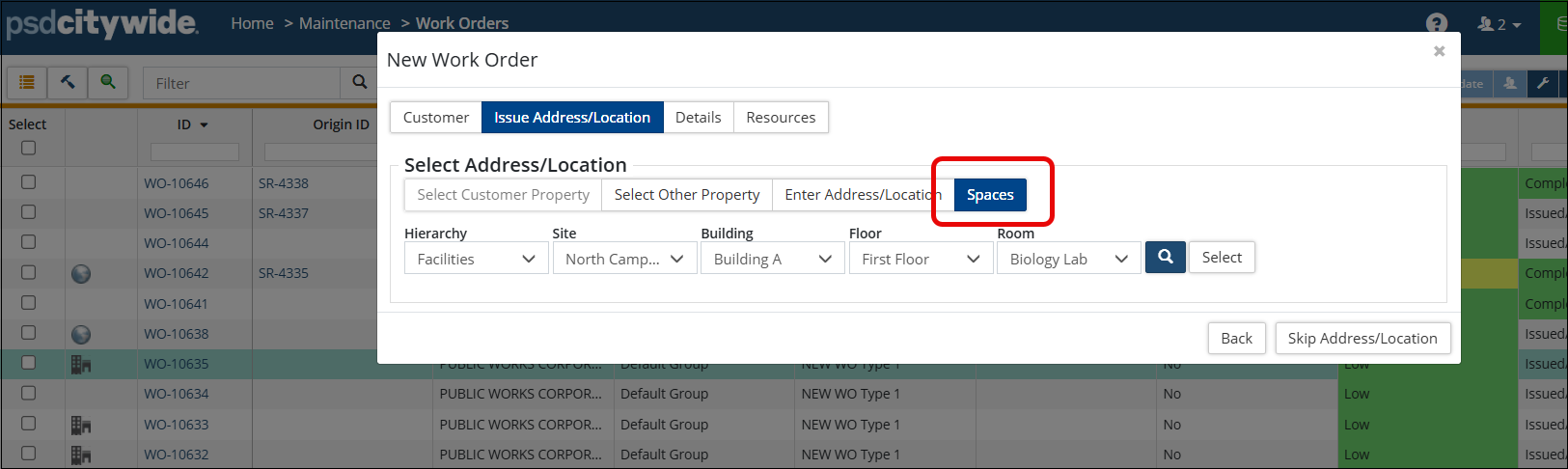
- Select the Space tab.
- Navigate through the configured Space hierarchy using the dropdowns.
- Select the appropriate Space. For example, you might navigate through Facilities 🢡Site 🢡 Building 🢡 Floor 🢡 Room until you reach the Space where the work is required.
- Complete the remaining work order information.
- Click Add in the Resources section to submit the work order.
Creating Work Order with Spaces:
Work Orders can also be created including a Space from the Issue Address/Location tab in the New Work Order wizard. When a user is creating a new work order, the Space tab is located within the Select Address/Location section. Depending on the Space hierarchy/configuration, users can locate a specific Space within the wizard.
1) Click +Add from the Work Orders page.
2) Within the New Work Order wizard, the Issue Address/Location section will include the Spaces tab where users can tie a Space with the work order.