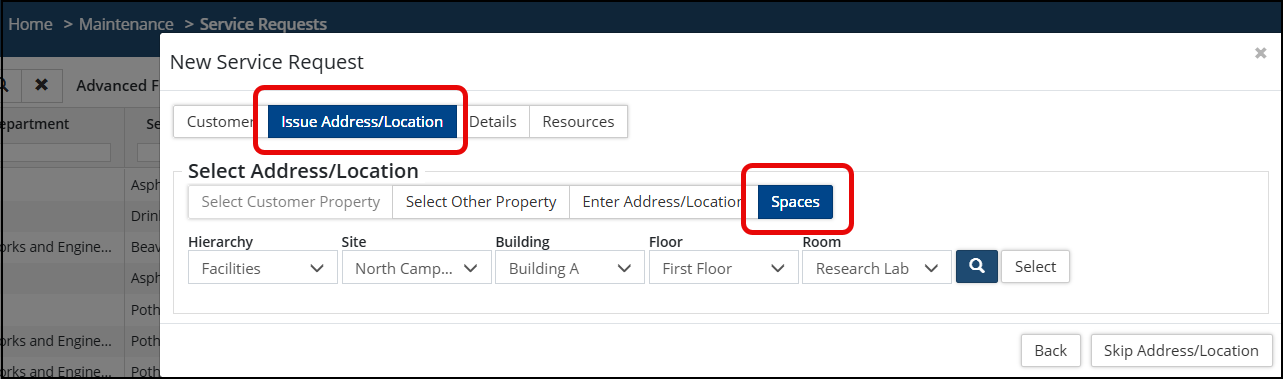
Service Requests can be associated with Spaces so that requests can be connected to the physical location where an issue/inquiry has been reported. This allows users to view service requests from a Space and provides users with Space information that can help them understand where a request originated.
Viewing Service Requests from a Space:
- Open the Spaces grid.
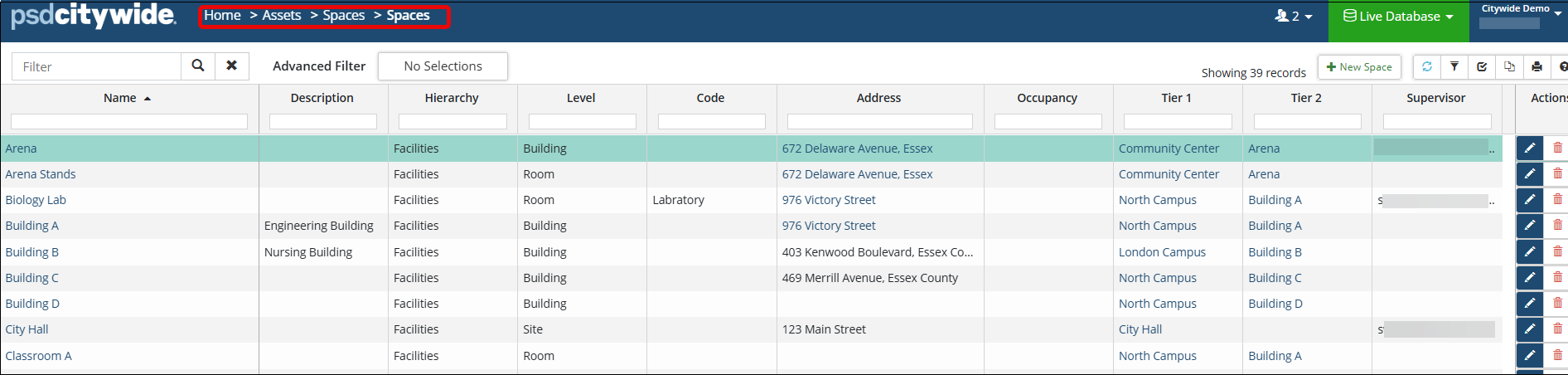
- Select the Space.
- Navigate to the Maintenance section on the left hand panel.
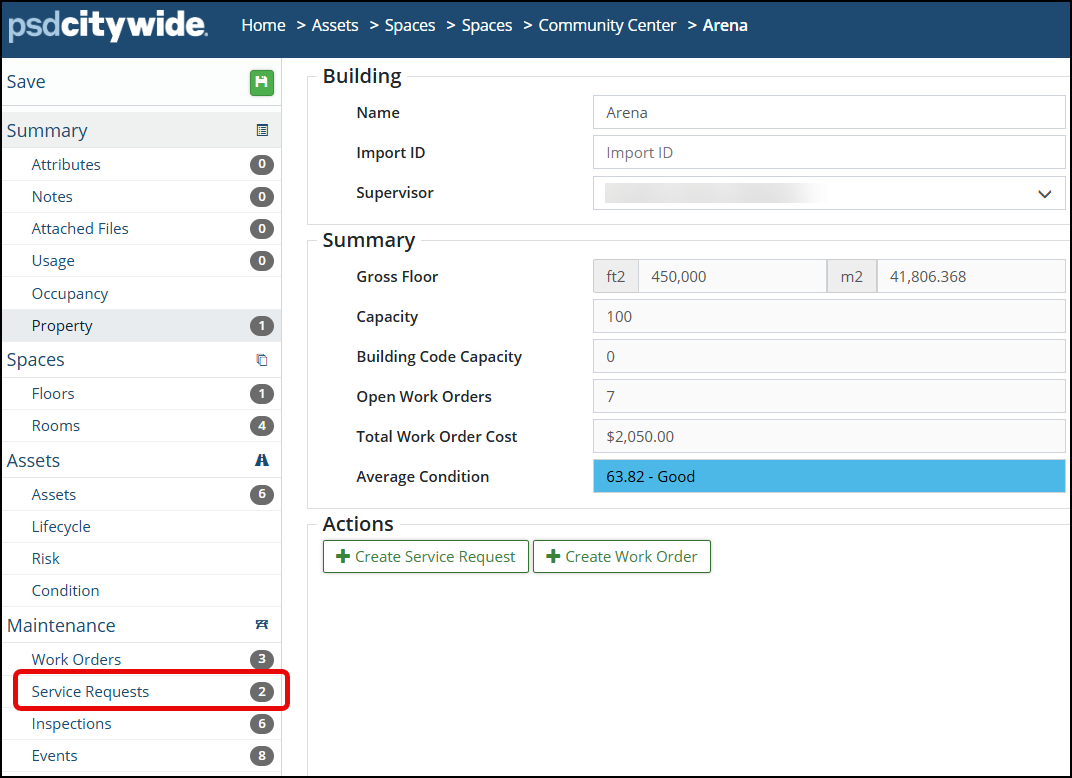
- Select Service Requests.
The Service Requests section displays the requests associated with the selected Space. As with work orders, service requests can be associated with different levels of the configured Space hierarchy.
Space Hierarchy in Service Requests:
The level of detail displayed for a service request depends on the level of the Space that was associated with the request. For example, a service request associated with an Arena may show only the Arena as the relevant space. 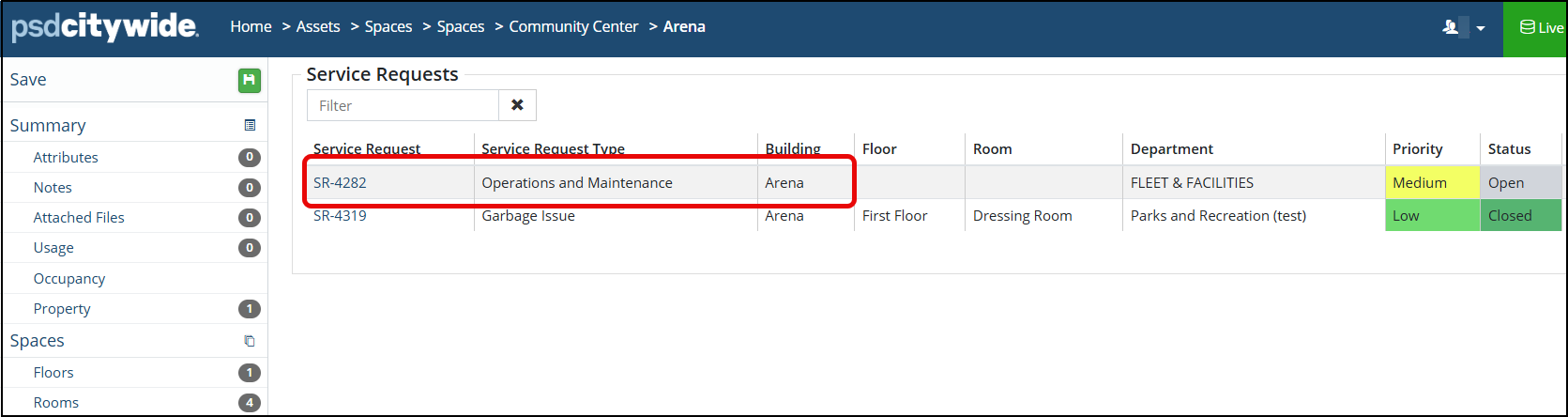
A service request for a garbage issue in a specific dressing room may contain a more detailed hierarchy, such as Site 🢡 Building 🢡 Floor 🢡 Room. This allows users to identify the exact location associated with the request when the request has been tied to a lower level Space.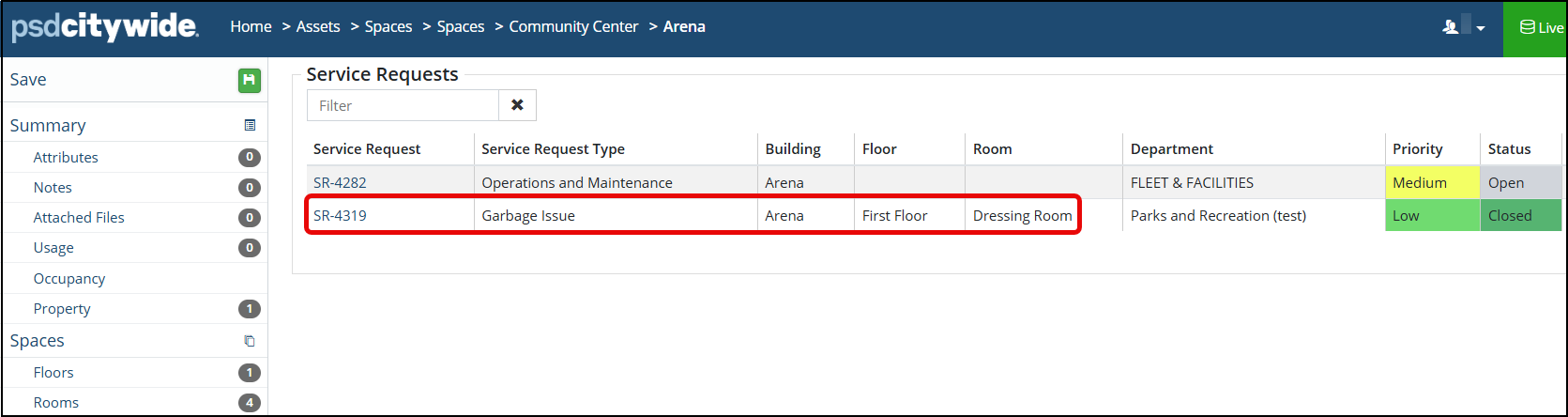
Viewing the Space from a Service Request:
Users can open the Space associated within a service request to see its complete Space information. From the service request record:
- Open the service request.
- Locate the associated Space.
- Select the View option for a Space level.
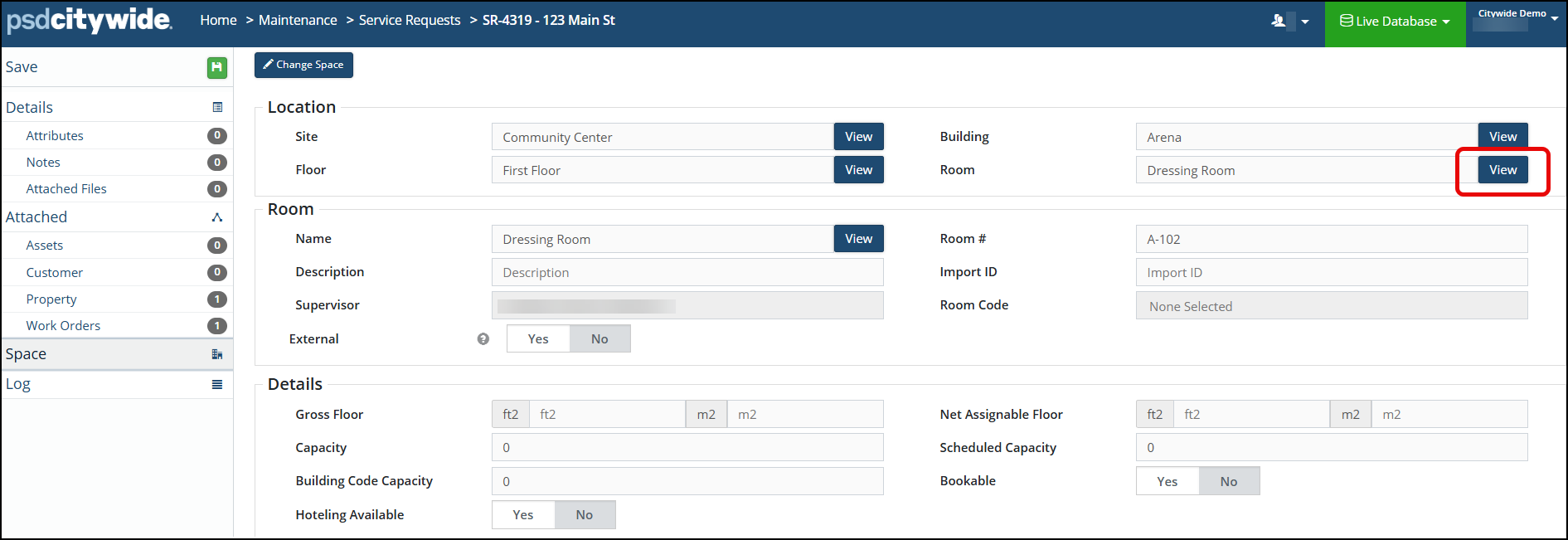
- Review the Space.
Creating Service Request from Spaces:
Service Requests can also be created from Spaces. When a user is working from a Space record, the available Maintenance options include creating a Service Request or Work Order. This provides an alternative workflow for users who prefer to start with the location.
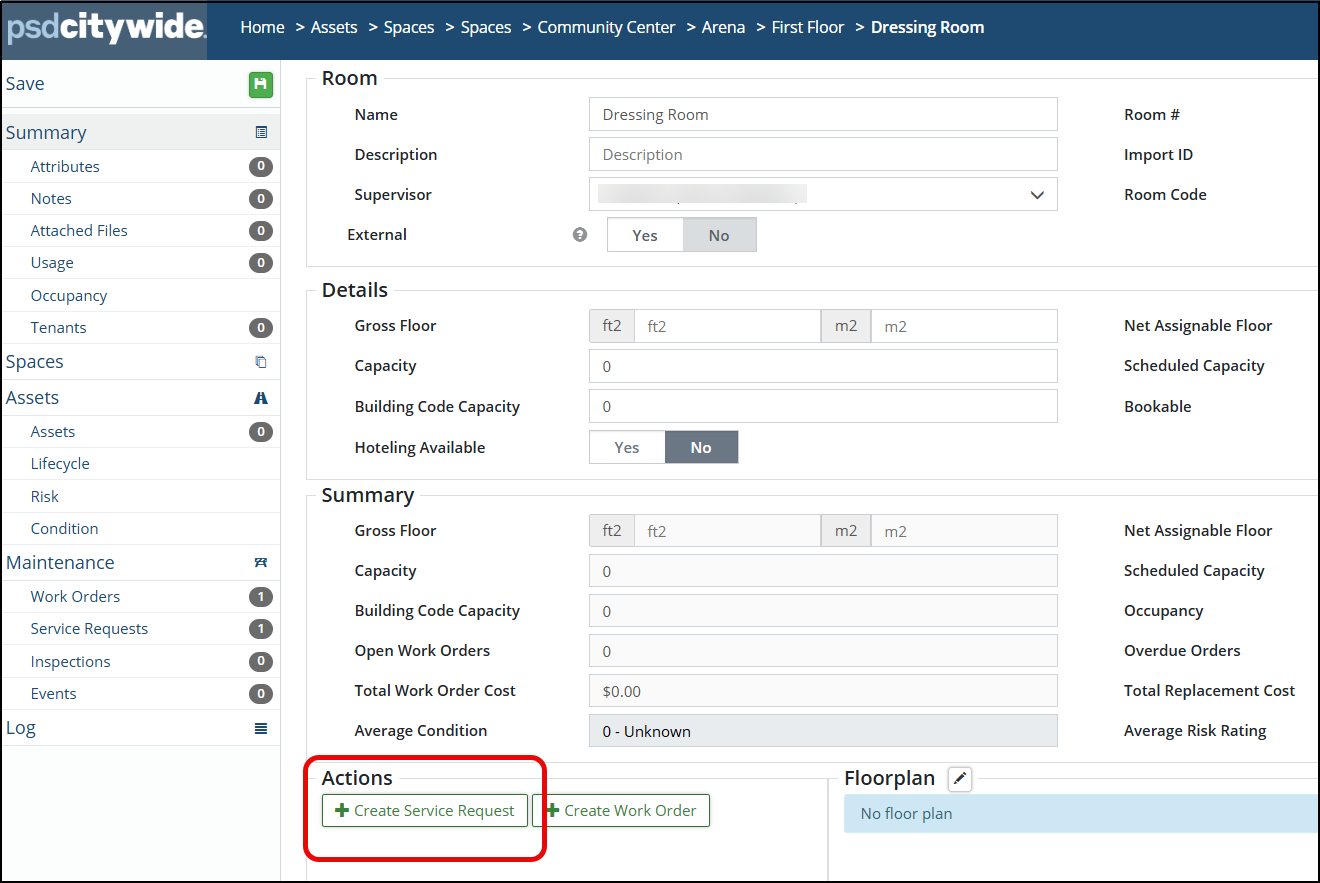
1) Click Create Service Request.
2)The Service Request wizard will automatically include the Space within the Issue Address/Location section. 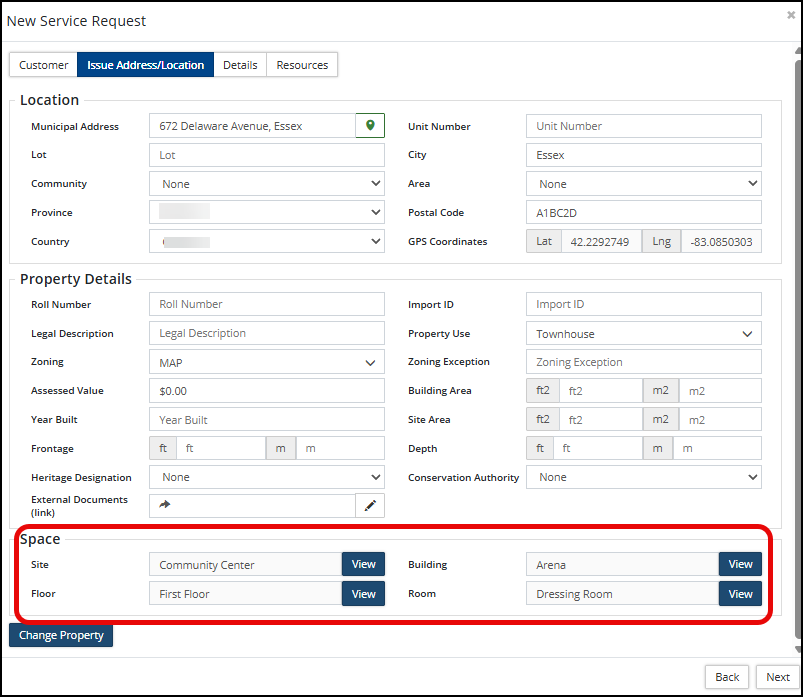
3) Complete the remaining service request information.
4) Click Add in the Resources section to submit the service request.
Creating Service Request with Spaces:
Service Requests can also be created including a Space from the Issue Address/Location tab in the New Service Request wizard. When a user is creating a new service request, the Space tab is located within the Select Address/Location section. Depending on the Space hierarchy/configuration, users can locate a specific Space within the wizard.
1) Click +Add from the Service Requests page.
2) Within the New Service Request wizard, the Issue Address/Location section will include the Spaces tab where users can tie a Space with the request.