


Overview
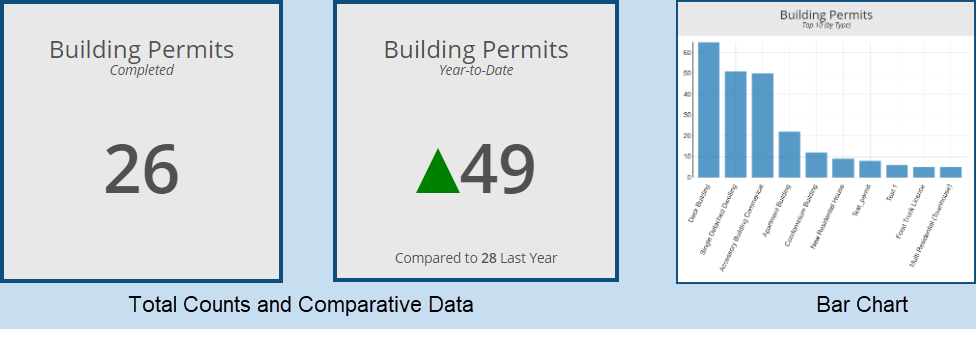
The Building Permits Dashboard provides information on the status of building permits across a number of metrics. It appears in tiles (some of which display total counts - e.g. the total number of Completed Building Permits, and other which display comparative information - e.g. Building Permits YTD vs. last year) and in charts (e.g. Top Ten Building Permits by Permit Type):
Viewing Data Details
Clicking on any one of the tiles will produce the Building Permits grid filtered down to the status reported in the tile. For example, clicking on the above Building Permits Completed tile opens the following screen:
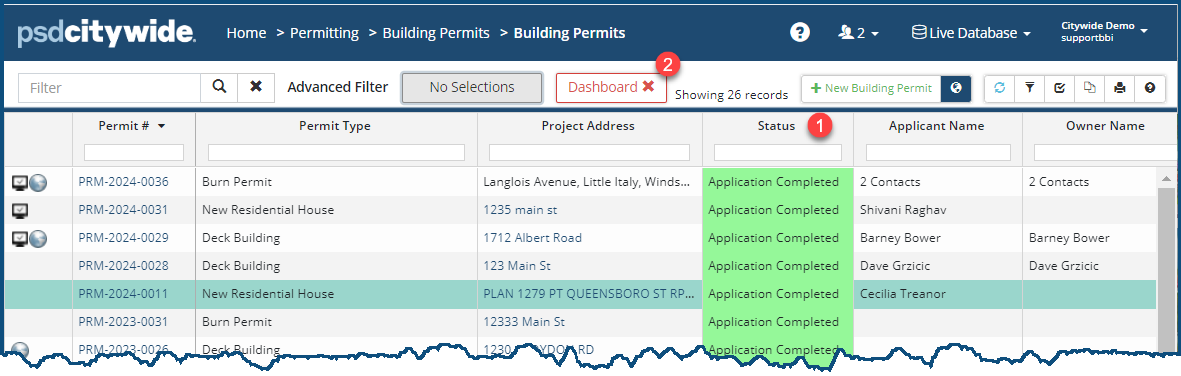
The Status column ❶ displays the permits' status, and the grid as a whole shows that it is filtered on the basis of the Dashboard X ❷, showing 26 records.
Dashboard Options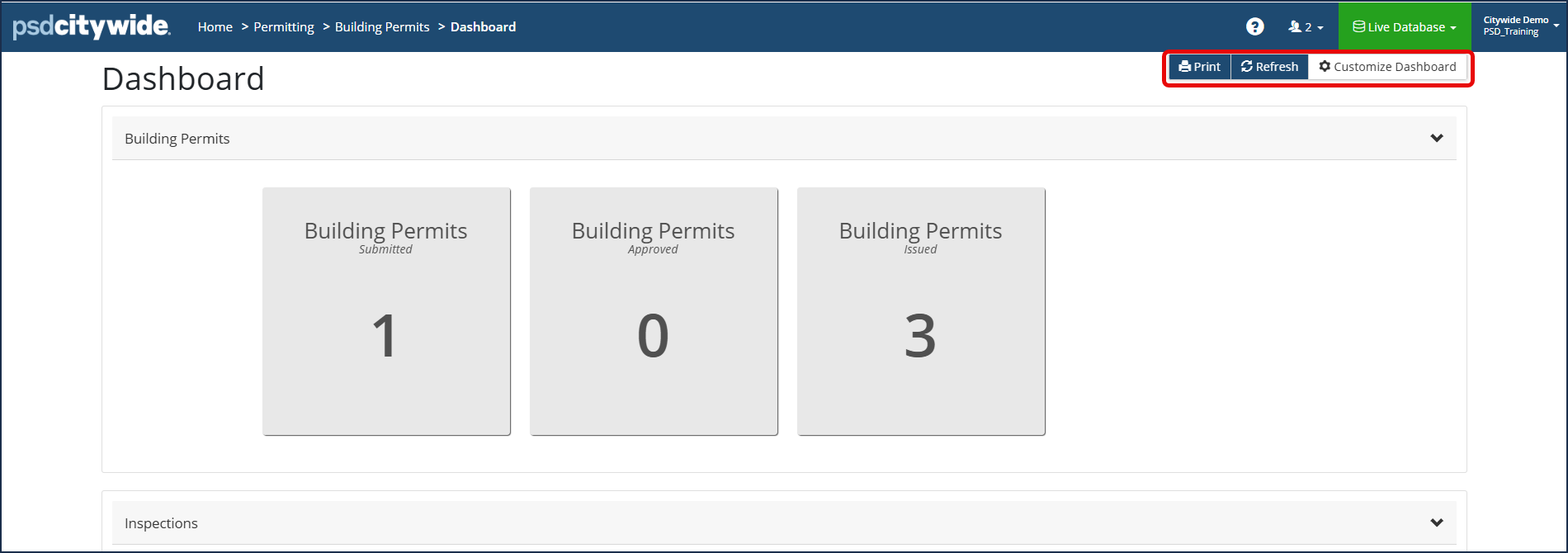
- Customize Dashboard - allows you to select the fields and parameters that will be used to generate the Dashboard data.
-
Refresh - used to refresh data that may be outdated. Since Dashboard data is not automatically updated, any changes made in the background (e.g. the status of unapproved permits being approved) would only appear in a refreshed dashboard.
-
Print - used to print the current dashboard to a PDF file.
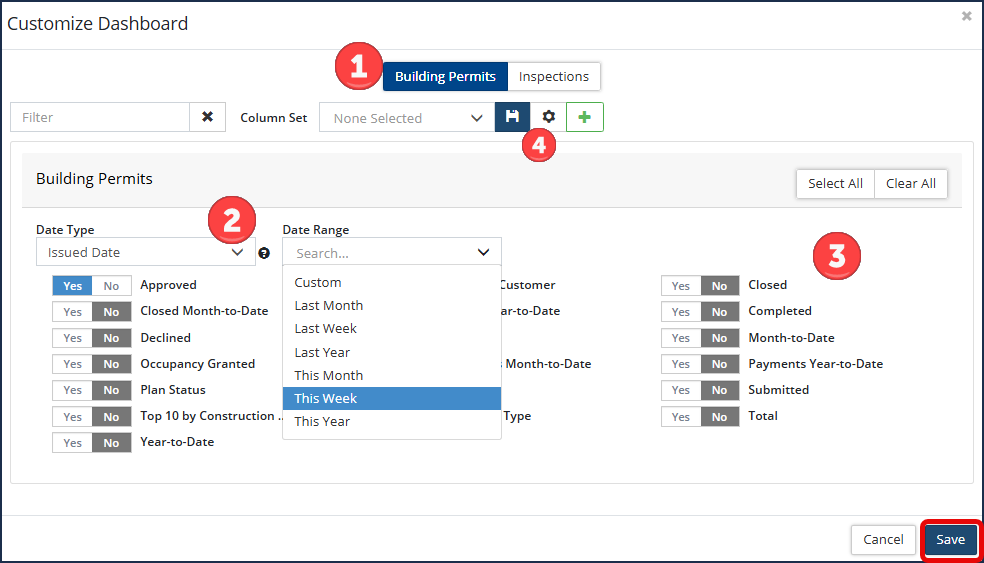
- Click Customize Dashboard
- Select which category of dashboard fields to create ❶.
- Select the Date Type and desired Date Range for the dashboard data ❷.
- Set the desired parameters to Yes ❸ .
- Repeat steps 1. to 3. for the Inspections category of the dashboard.
- Click Save.
- If desired, users can save and make default their dashboard in the Column Set ❹option. Any saved column set dashboards can then be used by other users. Click here for more information on column sets.


