


Overview
All Permit applications have a field in which the Permit Type must be specified. This is the page in which you define the various Other Permit types. When an other permit application is being created, either internally (by municipal or regional staff) or externally (by customers and other types of clients using the PSDCitywide PortalThe PSDCitywide Portal is an online customer-facing application used to submit Permitting applications. See the PSDCitywide Portal User's Guide for details.), the permit types created here will appear in a drop-down list attached to the Permit Type field.
Permit Types can be quite complex and varied, depending on the specifications, requirements and variability mandated by codes and bylaws within jurisdictions. Consequently, the Permit Types you create here can not only include all the required data, but each permit type's data can be segmented and organized into a flowing and logical structure in which related fields can be grouped together.
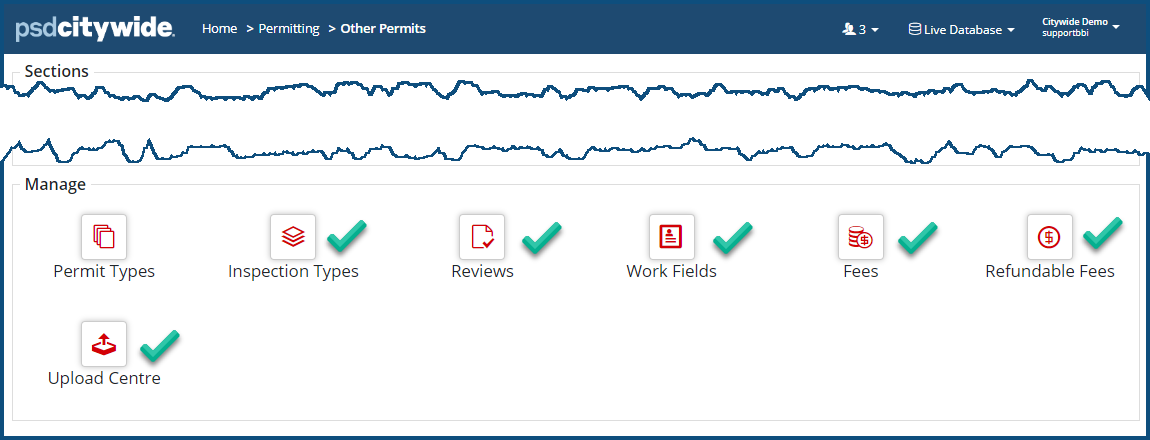
Setting up OtherPermit Types should be done after a number of other options (e.g., Work Fields, Construction Types, Inspection Types, Notifications, etc.) in the system are set up. This is because Building Permit Types can be pre-populated with options from those affiliated fields. In fact, it is a good idea to fully set up all the other options in the Building Permit 🢡 Manage section before setting up Building Permit Types:
This is the Other Permit Types screen, which lists all the existing Other Permit Types by Name ❶ in the first column, along with a pre-configuredSee Grid Customization for instructions on configuring your grid. set of columns and column properties in the remaining columns:
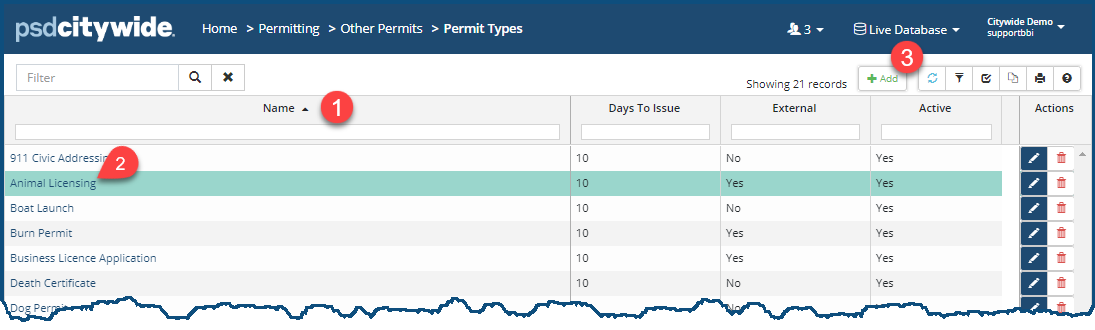
Clicking on any one of the links in the first column ❷ will open up a screen in which the corresponding permit type can be fully edited and reconfigured, and all the actual Other Permits and other associated data can be accessed (which is discussed below).
- Click on +Add ❸. The New Permit Type dialog box appears:
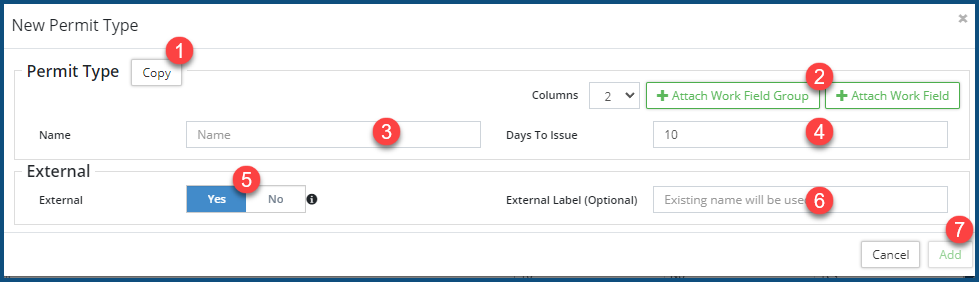
- If there is an existing Permit Type that has data that substantially overlaps with the data in the Permit Type you wish to create here, then you can click on Copy ❶ to select and copy the contents of that existing Permit Type template. The fields on the screen will fill in with the data from that source template, and your dialog box may expand to include the Work Fields and Work Field Groups ❷ that belong to that template (Work Fields and Work Field Groups are discussed below). You can then edit the fields in your new template as required.
- Give your new Permit Type a Name ❸.
- Days to Issue ❹: the number of days after which the Permit Application has been approved that the Permit itself should/must be issued. ("Should" is a policy matter; "must be" is a statutory matter.)
- External ❺: Select Yes if you wish to have this permit type appear in external systems, including the Citywide Portal; No if you do not wish to have it appear in an external system. Selecting Yes provides you with the option of setting an external label ❻ for this permit type (one, for example, that might resonate and be more familiar to the public at large than the Name assigned to it here); otherwise, the Name assigned to it here will appear externally as well.
- Click Add ❼.
- Click on the Edit tool
 ❶.
❶.

The Edit Permit Type dialog box (which contains all the same fields as the above New Permit Type dialog box) will appear. - Make the required changes.
- Click on Edit.
- Click on the Delete tool
 ❷. When prompted, click Remove.
Full Permit Type Access (Further Setup and Status)
Clicking on a Permit Type ❶ link in the first column of the Permit Types screen will open a new screen ❷ in which: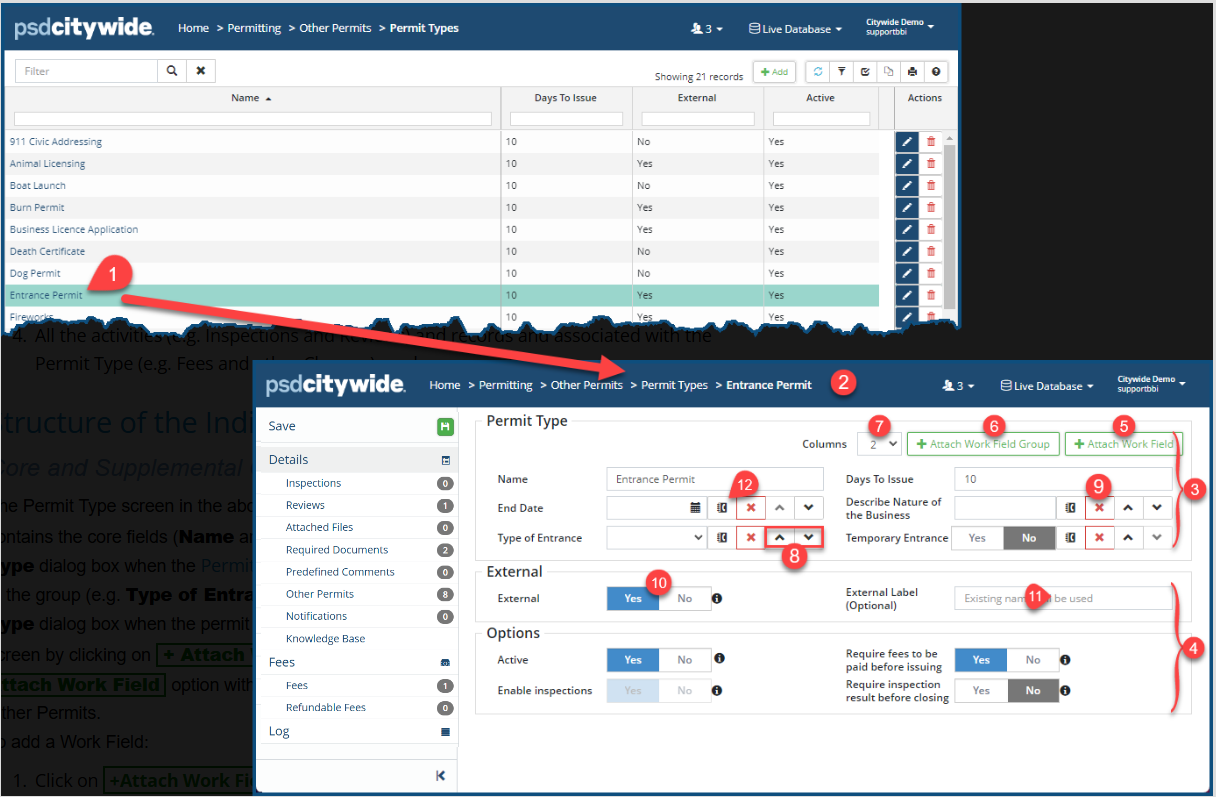
- All the fields can be edited
- New fields added
- Various configuration setting refined
- All the activities (e.g. Inspections and Reviews) and records and associated with the Permit Type (e.g. Fees and other Charges) can be accessed.
Structure of the Individual Building Permit Type
Core and Supplemental Groupings
The Permit Type screen in the above example is divided into groupings ❸ & ❹. The top group contains the core fields (Name and Days to Issue) already seen above in the New Permit Type dialog box when the Permit Type was being added, but there are also some additional fields in the group (e.g. Type of Entrance). Those fields may have been added in the New Permit Type dialog box when the permit type was being created, or they could have been added on this screen by clicking on + Attach Work Field ❺. Any division on the screen that has the + Attach Work Field option within it can be used to add any of the Permit Work Fields defined for Other Permits.
To add a Work Field:
- Click on +Attach Work Field ❺. The Select Work Field dialogue box appears:
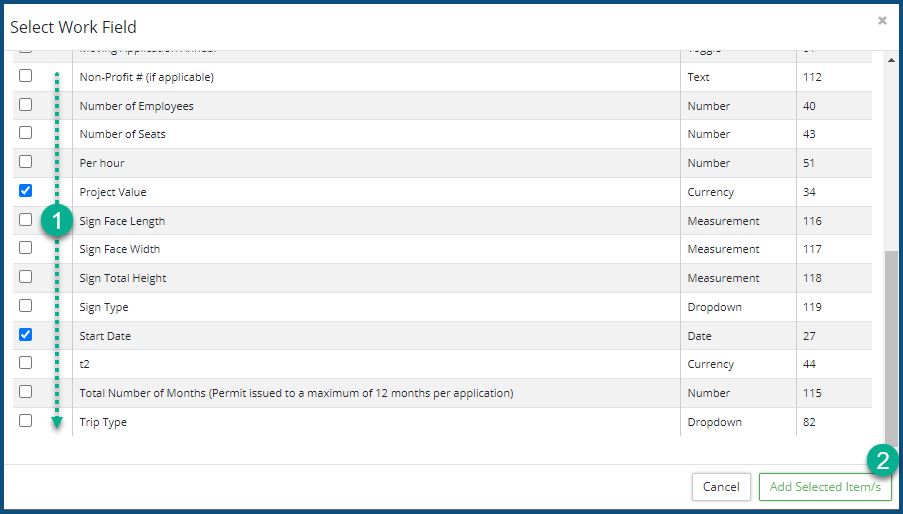
- Check ✅ the fields to be added ❶.
- Click Add Selected Item/s ❷.
In addition to the default "External" and "Options" ❹ groups, supplementary groups with their own unique set of selected fields can be added to this permit type. They can be added by clicking on +Attach Work Field Group ❻.
The fields in each of the groups can be set to appear in one-to-four columns by selecting from the Columns ❼ pull-down, and the position of the fields within each group can can be arranged with the up/down arrows ❽ next to each field.
External Settings
Deletions: Individual fields as well as supplemental groupings can be deleted by clicking on the X ❾ next to them.
External Availability and Labels: This Permit (like all the others) may appear on external systems, such as the Citywide Portal, or it may not, depending whether you click Yes ❿ on the External option. You also have the option of providing an External Label ⓫, which is the field label that will appear only in the external application.
The presence and label can also be set for Individual fields that have the notebook icon  ⓬ next to them.
Some fields (depending on the types of data associated with them) will produce a dialogue box like this one when you click on the notebook icon :
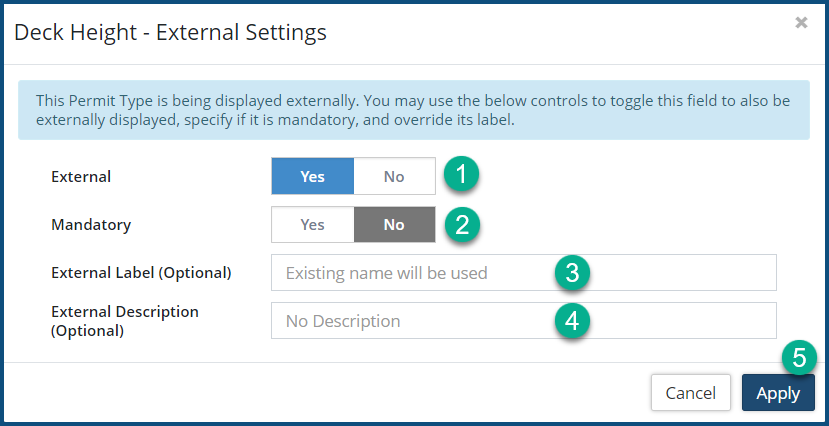
- External ❶: Select Yes if you would like this field to appear on external systems, such as Citywide Portal; No, if not.
- Mandatory ❷: Select Yes if this is a field that must be selected or entered; No, if not.
- External Label ❸: Enter a label which will replace the default Citywide label for this field on external systems. Otherwise, the existing (default Citywide) field name will be used.
- External Description ❹: Provide the text that will appear in the tooltip for this field.
- Click Apply ❺.
Options Group
All Permits have the Options group, and all the options involve Yes/No toggles:

Active
- Yes: the Permit is accessible in the system.
- No: the Permit is unavailable in the system.
Enable inspections
- Yes: Inspections can be linked to the permit.
- No: Inspections cannot be linked to the permit.
Require inspection result before closing
- Yes: All inspections must be completed before the permit can be closed.
- No: Inspections need not be completed before closing the permit.
Require fees to be paid before issuing
- Yes: All fees must be paid before the permit is issued.
- No: All fees need not be paid before the permit is issued.
Affiliate Panel Options
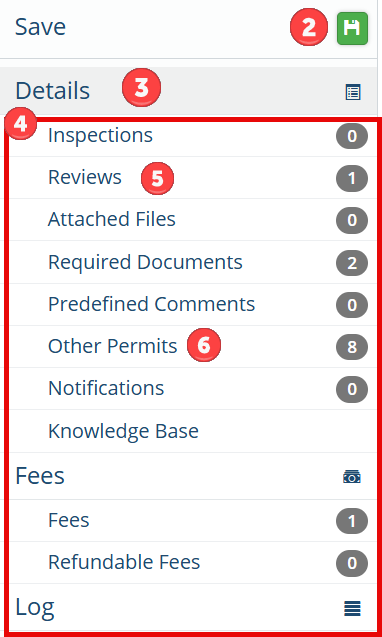
The panel on the left side of the screen consists of related, affiliate options. The actual permits that are based on the Permit Type are accessible here, as well as collateral documents and procedures, including Inspections, Reviews, Notifications, and various financials.
 |
|
Inspections
The Inspections that you will be selecting for any of the building permits you define will be drawn from the Inspection Types list. You cannot add new inspection types here on the fly; they must already exist, having been created in Inspection Types. If an inspection type is missing, creating it in Inspection Types and then return to this screen and attach it.
Attach an Inspection Type
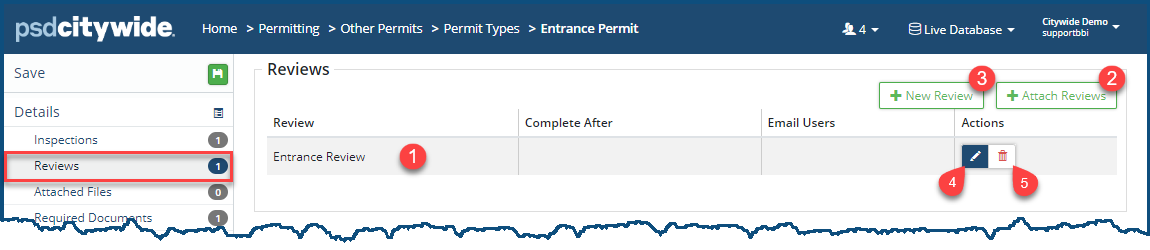
- Click on Inspections in the Affiliate Panel. Inspections appears in the right panel, displaying the current (if any) inspections associated with this permit type ❶:
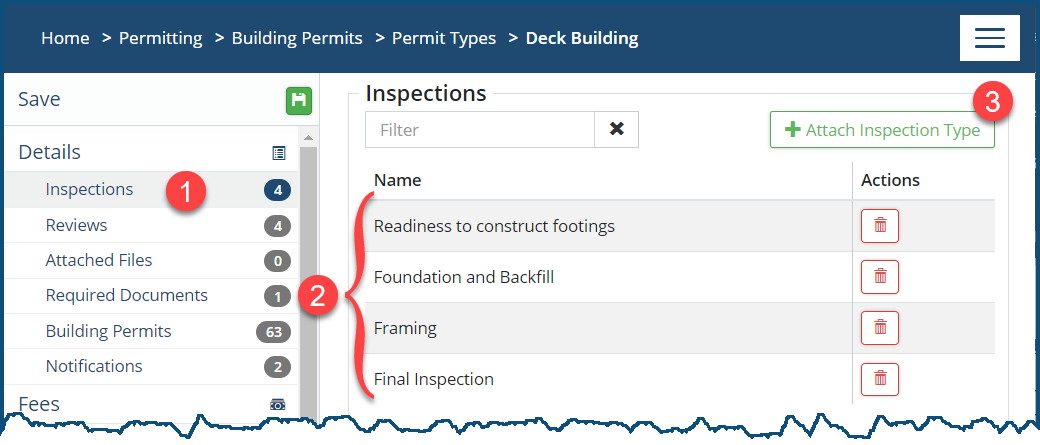
- Click +Attach Inspection Type ❷. The Select Inspection Type dialog box appears:
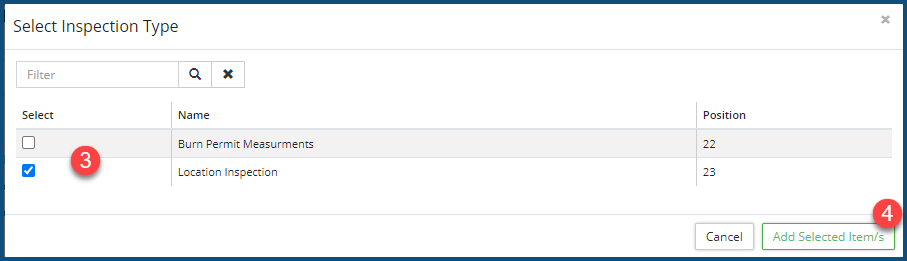
- Check ✅ ❸ all inspection types in the list that apply to the currently permit type.
- Click Add Selected Item/s ❹. The order in the resultant Inspection list will automatically follow the Position order of the checked items.
Reviews
Existing Reviews ❶ for this permit type appear here. You can attach additional existing Reviews ❷ and/or add New Review Types ❸ on the fly (if your account permissions allow it), if necessary. See Reviews on instructions pertaining to adding a New Review type ❸.
Attach a Review
- Click + Attach Reviews ❶. The Select Reviews dialog box appears:
- Check ✅ ❷ the review(s) to be added to this permit type from the list.
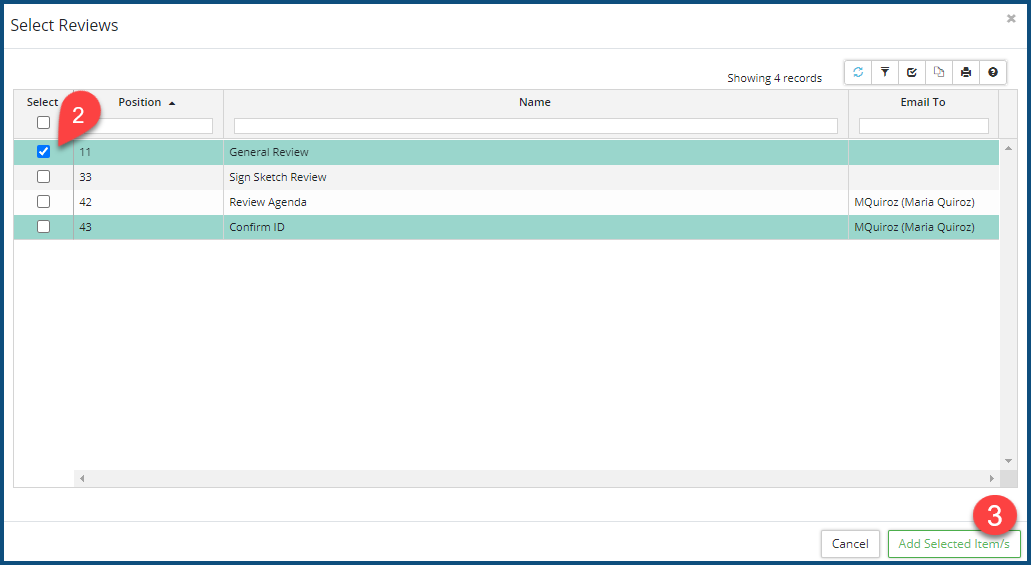
- Click Add Selected Item/s ❸. The order in the resultant Reviews list will automatically follow the Position order of the checked items.
Attached Files
Attached Files comprise adjunct documents, drawings, worksheets, or any other type of file that provides informational, instructional, or in some other manner helpful information or resources pertaining to the current permit type.
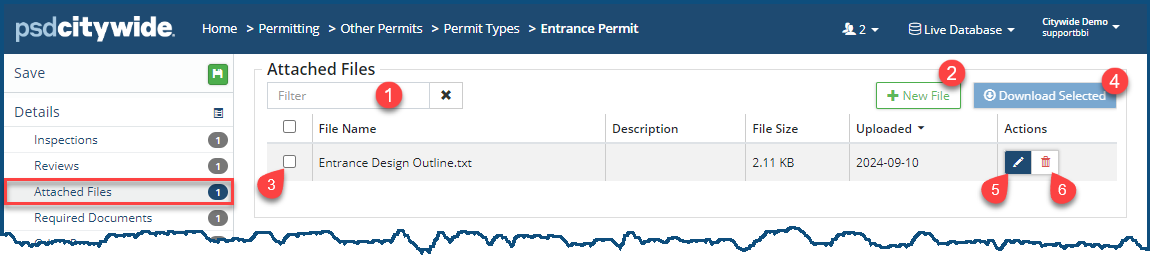
Attached Files appears in the right panel, displaying the current (if any) attachments associated with this permit type ❶:
Add an Attachment
- Click on + New File ❷.The Add Files dialog box appears:
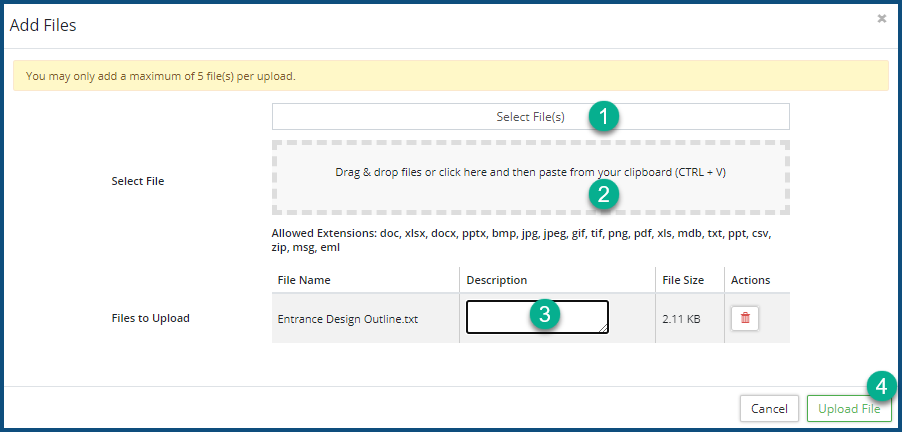
- Click on Select File(s) ❶ to select one or more files using your system File Manager, or Drag & Drop ❷ the file(s) you would like to attach to this permit.
- Provide a succinct Description ❸ for each of the added files.
- Click Upload File ❹.
Download an Attached File
Attached files can be downloaded. This may be required periodically to review their contents, to see if they are up to date, or whether they need to be updated, modified, and then re-added here.
- Check✅ ❸ the file(s) you wish to download.
- Click on Download Selected ❹. Your system File Manager will open, providing you with the opportunity to select the location where you would like the file(s) to be downloaded.
To edit a note, click on the Edit icon  ❺.
❺.
To delete a note, click on the Delete icon  ❻.
❻.
Required Documents
Required Documents are all the various documents (e.g. applications, building plans, etc.) that must accompany individual permit for the permit to be issued.
- Click Required Documents. The document list appears in the right panel, displaying the current list (if any) of the required documents associated with this permit type ❶:
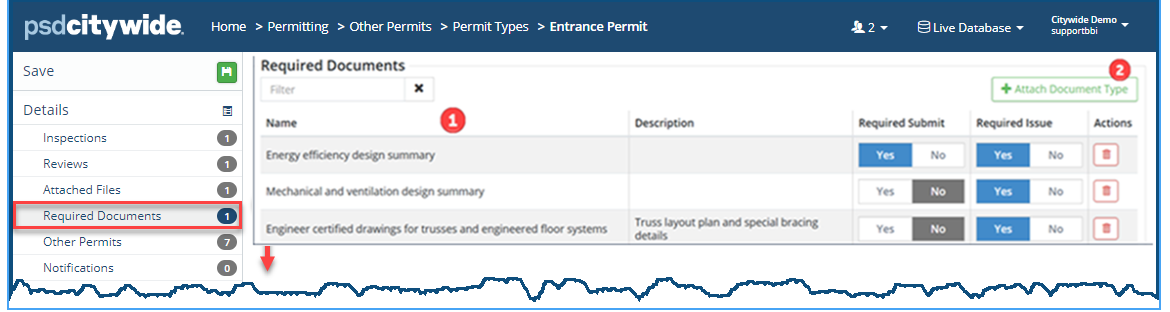
- Click + Attach Document Type ❷. The Select Document Type dialog box appears:
- Check ✅ ❶ all document types in the list that apply to the current permit type.
- Click Add Selected Item/s ❷. The order in the resultant Inspection list will automatically follow the Position order of the checked items.
Required Documents for Application Submission option
Once your required document types are selected, you can set which required documents are needed when the application is first submitted vs. the required documents provided anytime before the permit is issued.
- On each required document type, select the toggle to Yes or No for the Required Submit or Required Issue document options.
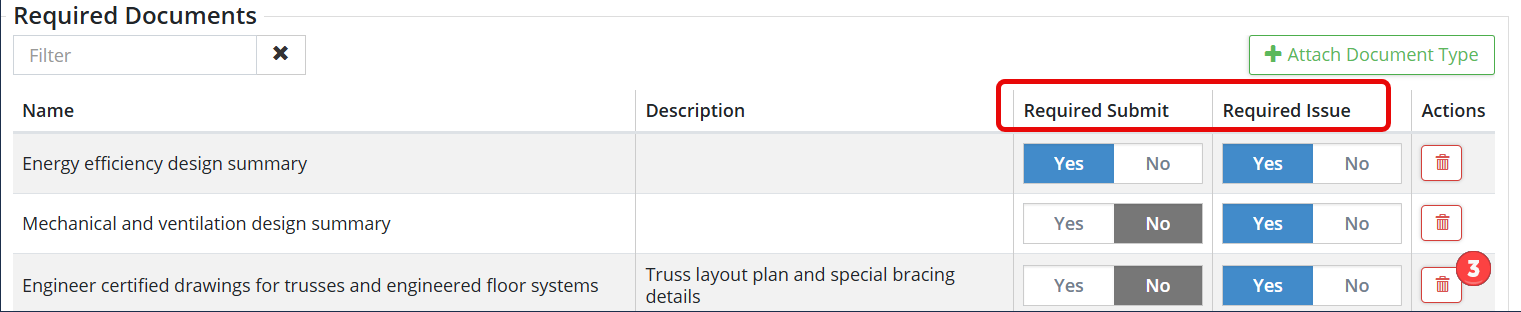
To remove a required document from the list, click on the Delete icon ❸. The document will be removed from this permit type (not deleted from the document types list).
For efficiency, you can set up a list of predefined comments for users to add to an application based on the application type. This saves time for the user as they will not have to manually type standard-like comments into the application.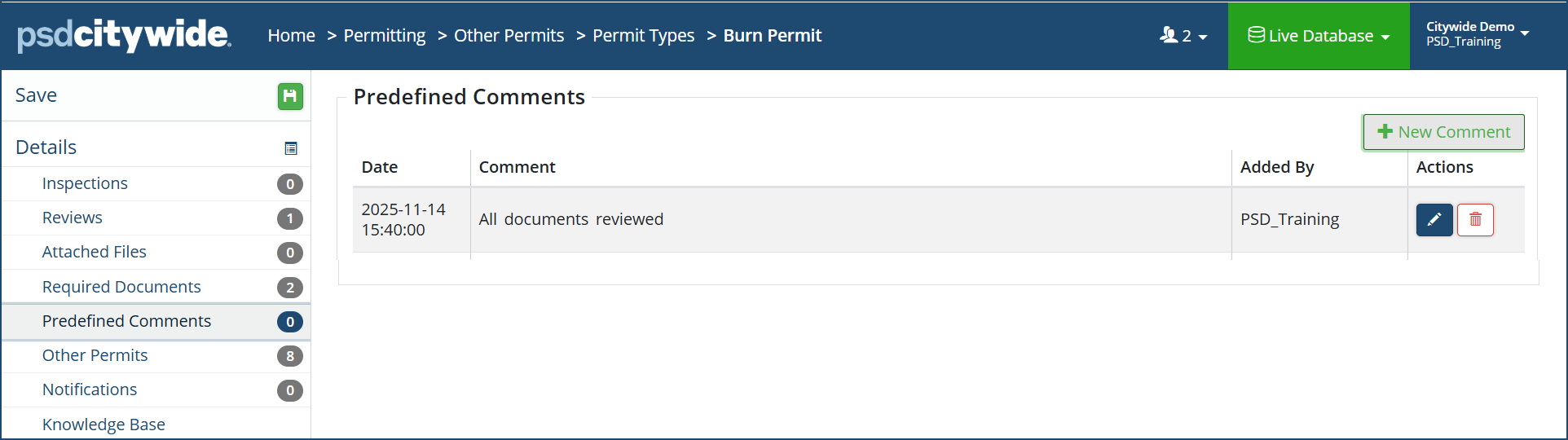
To create a Predefined Comment entry:
- Click +New Comment. Enter a Comment.
- Click Add.
- Repeat steps 1. and 2. for each predefined comment.
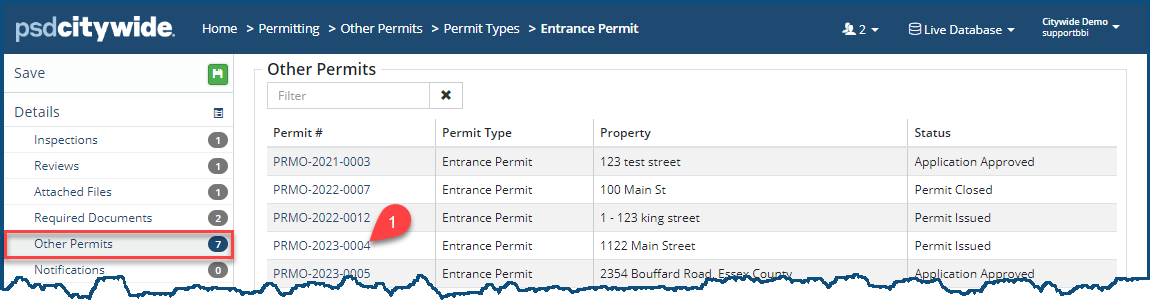
Other Permits shows a list of all the Other Permits that are based on the current permit type. Click on the Permit number ❶ will open the corresponding permit.
Notifications
The notification(s) associated with the permit will appear in this list. There is nothing to be done directly on this page; it is only informational. The permits that each notification comprises is defined on the Notifications setup screen. The notification that appears here will be one in which this permit type has been associated with it. By
- Notifications appears in the right panel, displaying the current list (if any) of the notifications associated with this permit type ❶:
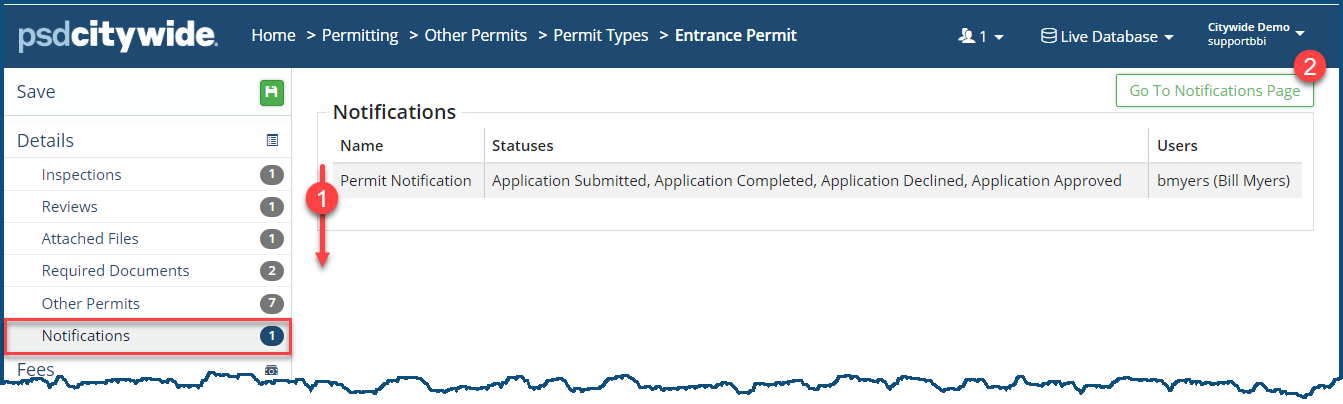
- Click Go To Notifications Page ❷ to choose the notification set that this permit type will be part of. You can also change the statuses associated with it there ❷.
Knowledge Base
The Knowledge Base screen is used to include important information, instruction, or standard questions for staff to use when creating individual applications based on the specific Permit, Licence or Application Type.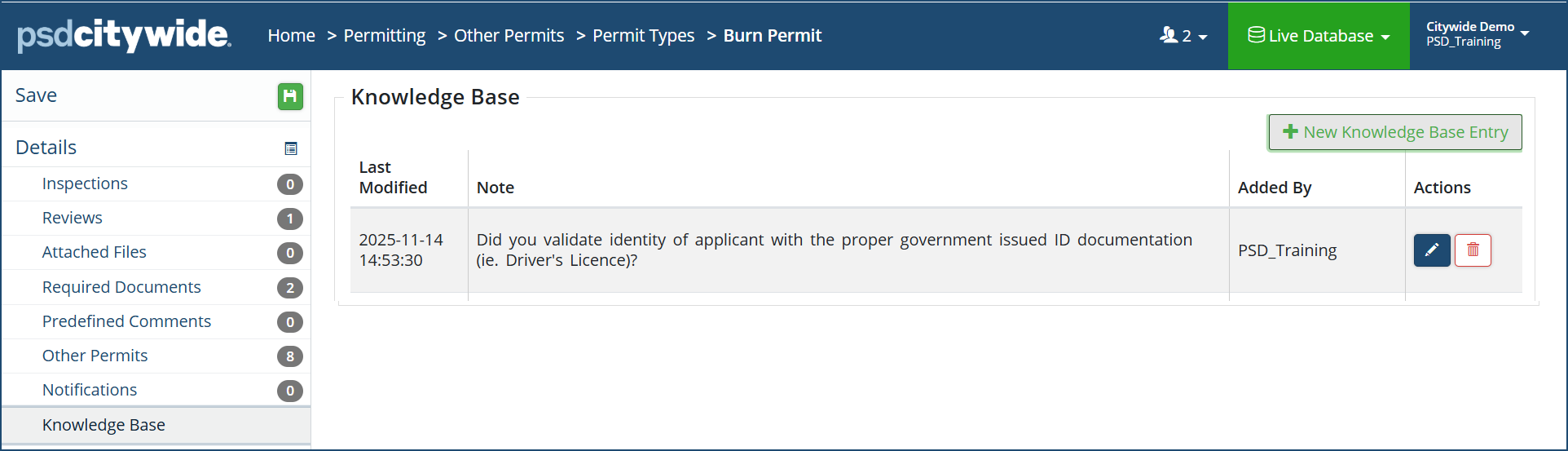
To create a Knowledge Base entry:
- Click +New Knowledge Base Entry. Enter a Note.
- Click Save.
- Repeat steps 1. and 2. for each note.
Fees
The fee(s) associated with the permit will appear in this list, provided they have first been created in Fees. They can only be added here; they cannot be created here.
- Fees appears in the right panel, displaying the current list (if any) of the notifications associated with this permit type ❶:
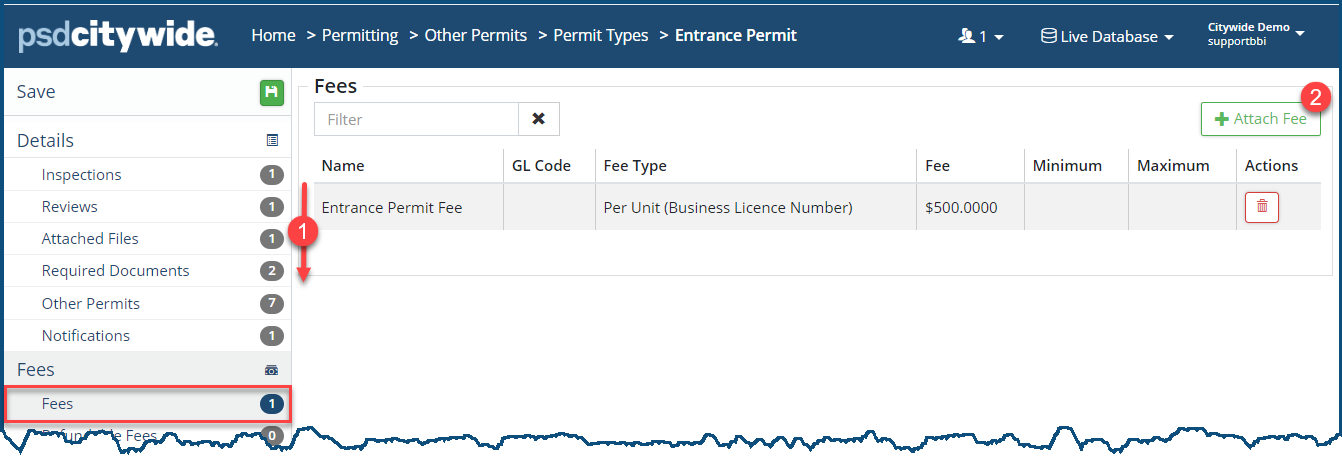
- To attach an additional fee, click on + Attach Fee ❸. The Select Fee dialog box appears:
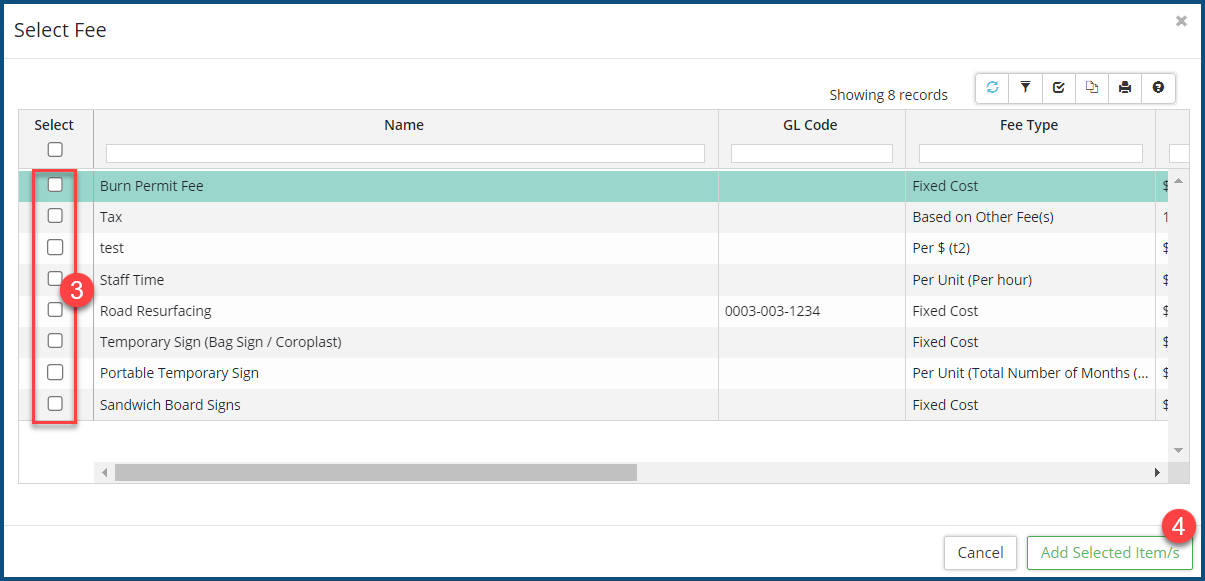
- Check ✅ ❸ the fees to be added.
- Click Add Selected Item/s ❹.
Refundable Fees
There are instances in which particular types of fees may be refunded in connection with an individual permit type. This is the place where you set up the applicable types of refunds that have been created and defined in Refundable Fees.
- Refundable Fees appears in the right panel, displaying the current list (if any) of the notifications associated with this permit type ❶:
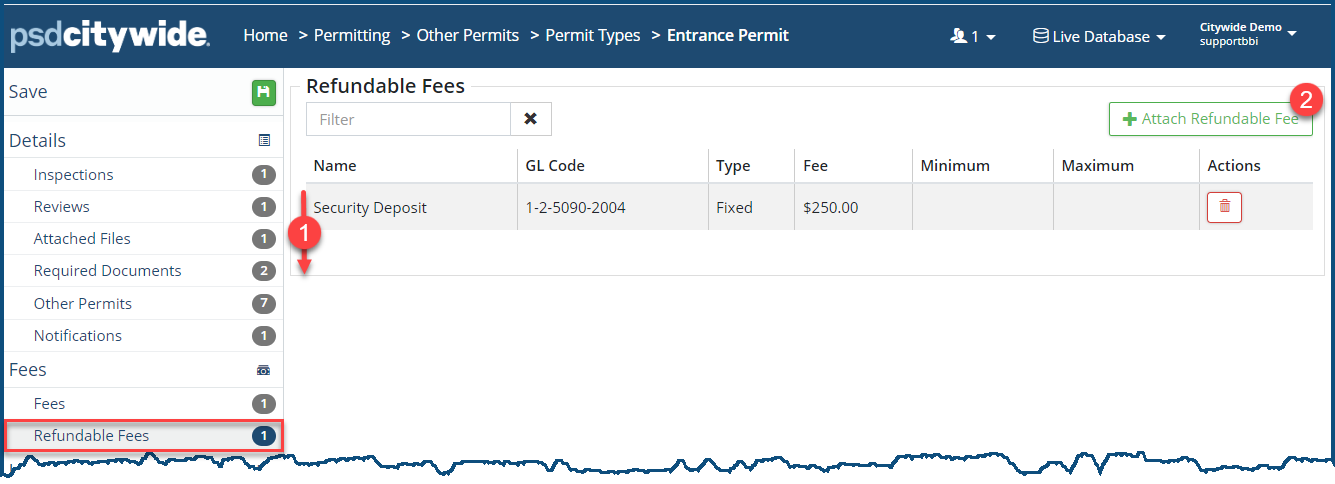
- To attach an additional refundable fee, click on + Attach Refundable Fee ❷. The Select Refundable Fee dialog box appears:
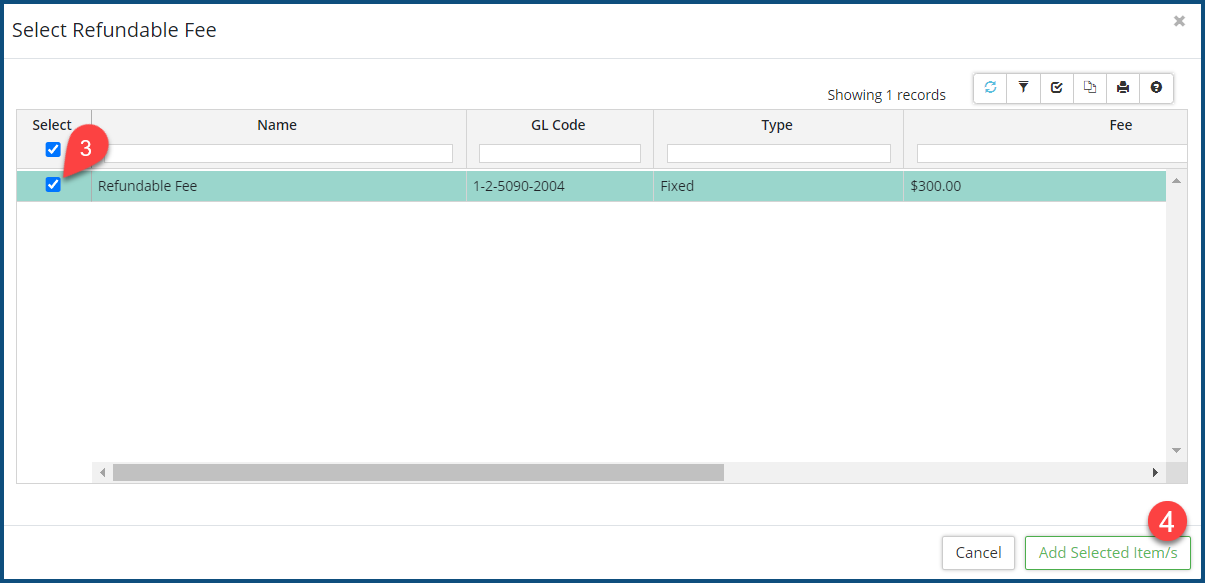
- Check ✅ ❸ the refundable fees to be added.
- Click Add Selected Item/s ❹.
Log
The log displays all activity in the system that relates specifically to Building Permits. (Each of the other Permit sub-modules has its own log). Its events appear in reverse chronological order, displaying the user who initiated the event, as well as specific description of the event.
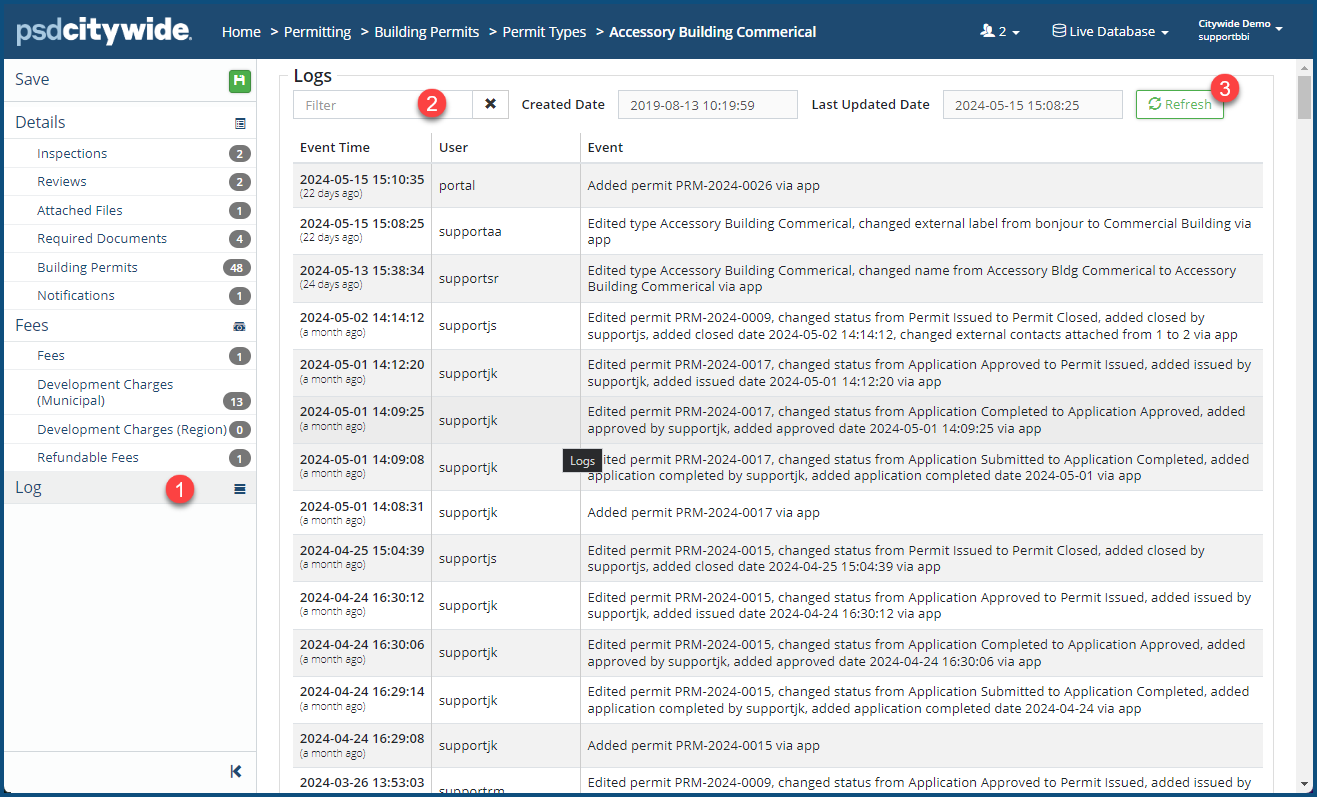
- Click on Log ❶. Logs appears in the right panel.
- Enter the text in the Filter box ❷ to filter the list down to the its matches.
- Click Refresh ❸ to see any entries that have been logged since this screen has been opened.


