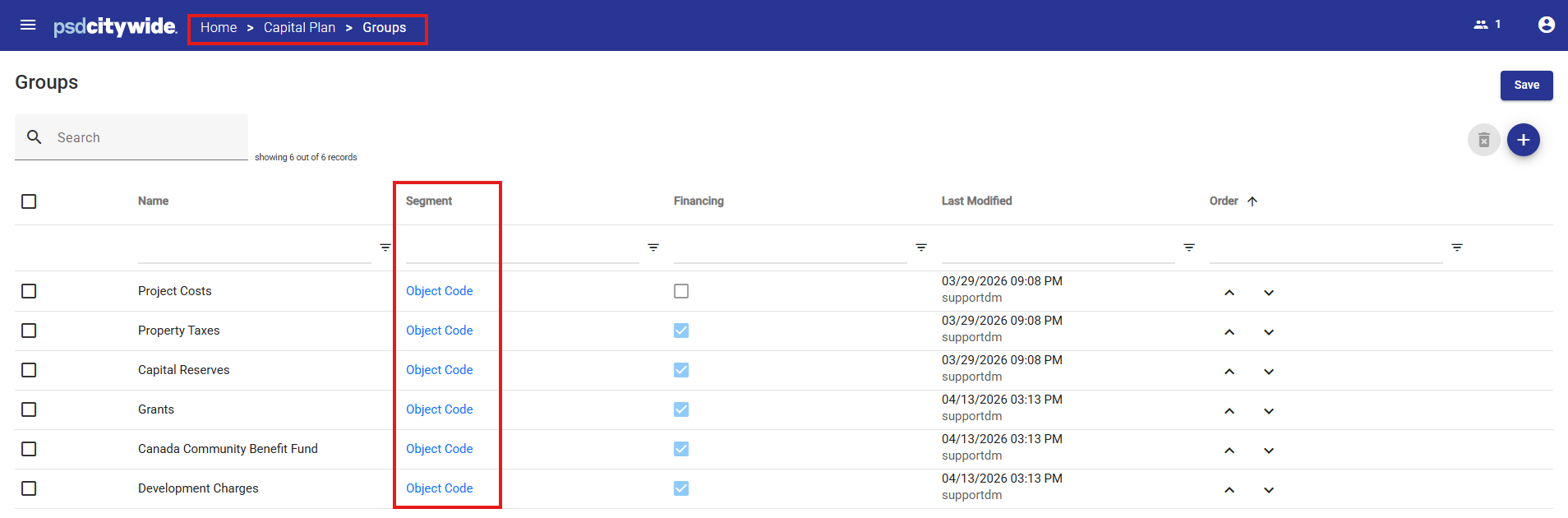
Capital Account Number Key Segments
The COA Class Key for Capital Plan is called the Capital Account Number.
It is configured in Model Administration > Classes > Capital > Key Segments.
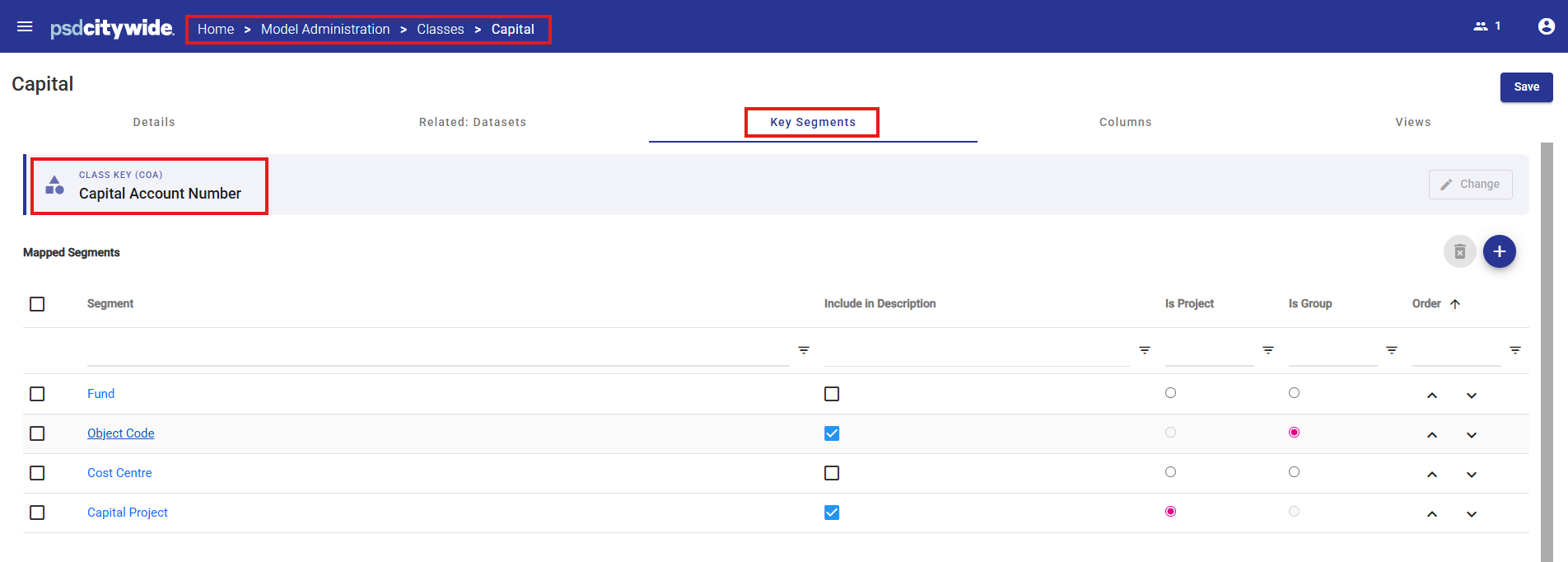
All Attributes that are flagged “Include in Key Segments” in the Attributes area are available for mapping .
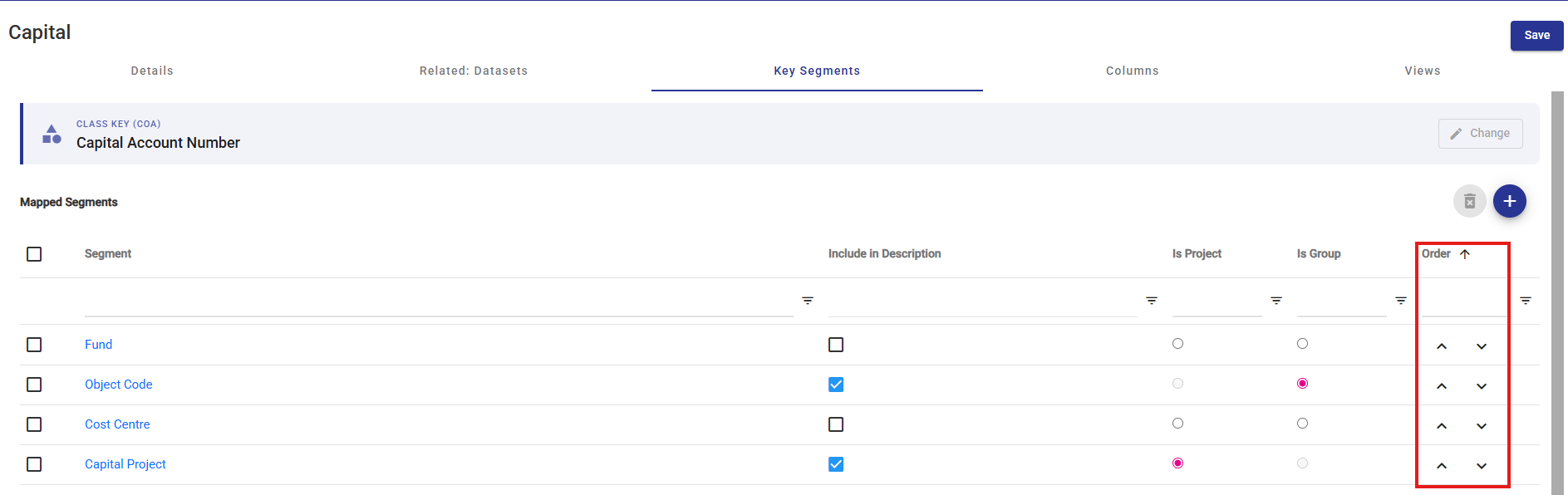
Key Segments must be arranged in the same order used in the organization’s ERP system.
The segment order can be adjusted using the up and down arrows in the Order column.
Typically, this configuration is completed during implementation by a PSD Advisor, and changes are rarely required after the initial setup.
Capital Account Number Item Descriptions
Each individual Capital Account Number Item includes a description, which is usually constructed from the description(s) of one or more of its related Key Segments.
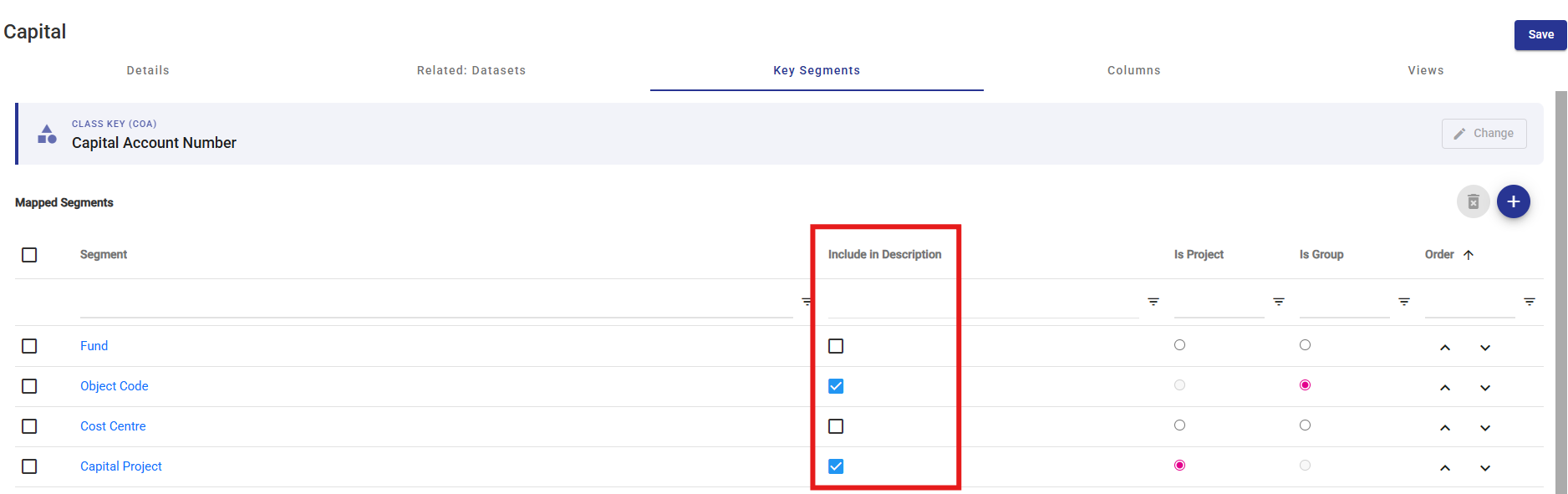
To define the default description to be used when new Capital COA Class Key Items are created using Citywide Budgeting system tools and automations, check 'Include in Description' for the applicable Key Segments.
If more than one segment description is selected, the system will combine the descriptions, in the order specified, separating each with a " - ".
Is Project
Defines which Key Segment from the Capital COA Class Key will be used to represent capital projects within the Capital Plan module.
Select the radio button Is Project beside the appropriate Key Segment to identify the segment that represents the Capital Project (Capital Project in the example above).
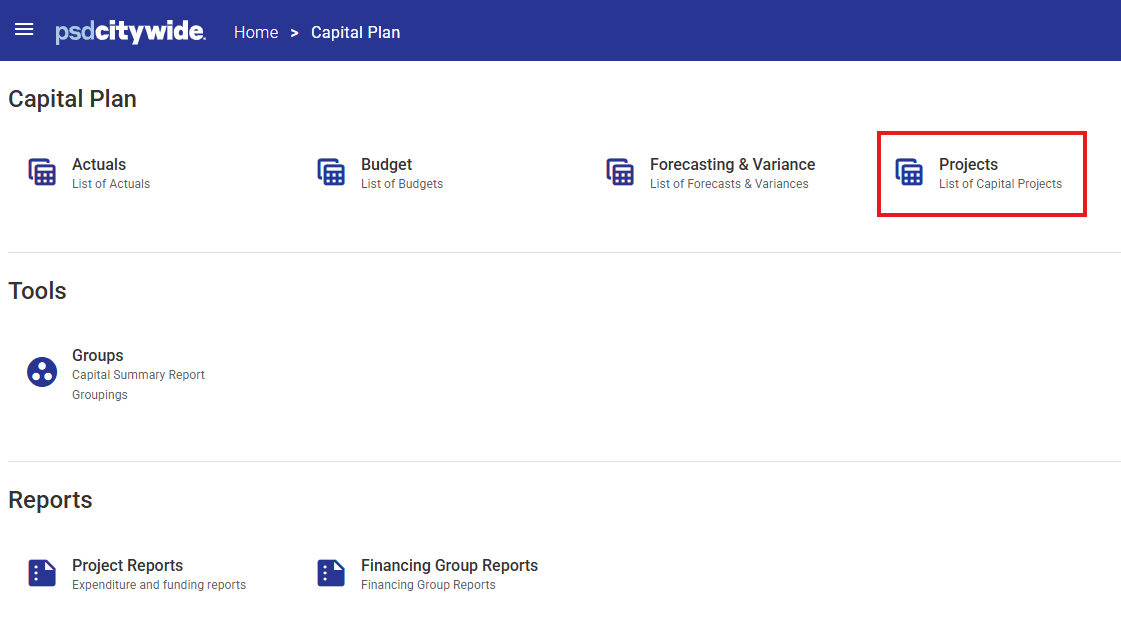
Projects are configured and maintained in Capital Plan > Projects.
Is Group
Defines which Key Segment from the Capital COA Class Key will be used to categorize expenditure and financing accounts for reporting purposes in Project Summary Report and Financing Group reports.
Select the radio button Is Group beside the appropriate Key Segment to identify the segment that represents the reporting Group (Object Code in the example above).
Category Groups are configured and maintained in Capital Plan > Groups.