


Citywide Budgeting Standard Reports share a similar user interface and report design fields, allowing users to easily design, run and save reports for future use.
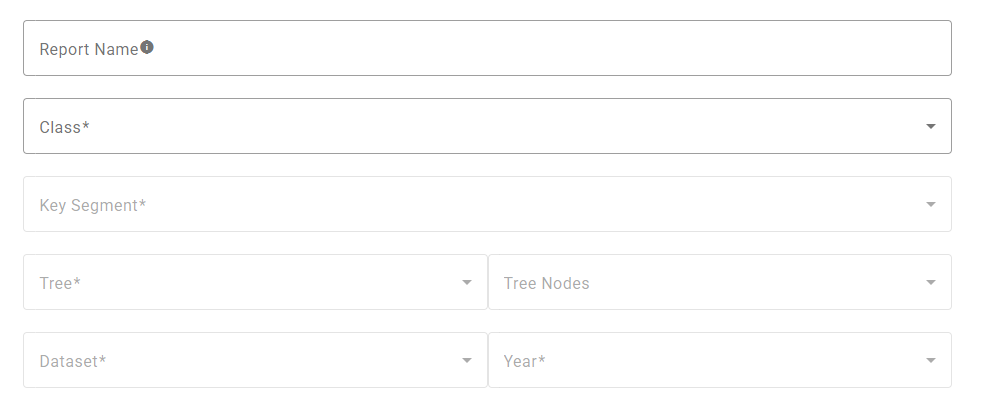
Standard Report Design Fields
- Report Name - A user-defined field. The Report Name will appear as a report title on execution.
- Class* - the classes are module-specific:
- Operating Plan - Operating Class
- Capital Plan - Capital Class
- Key Segment* - the key segments are module-specific:
- Operating Plan - Account Number
- Capital Plan - Capital Account Number
- Tree* - the tree defines the reporting roll-up for the report. Any Tree which is related to the Key Segments above can be used in reporting. At a minimum these will include the Organization and Account Categories trees.
- Project Reports will rely on a Tree that is associated to the Attribute that is marked as the 'Is Project.'
- Tree Nodes - selecting one or more specific tree nodes in the report definition restricts the report output to only include Key Segment Items allocated to the selected Nodes.
- Dataset* - the Dataset from which data is to be extracted when the report is executed.
- Year* - the fiscal year from which data will be extracted when the report is executed.
* - field is mandatory
Running a Report
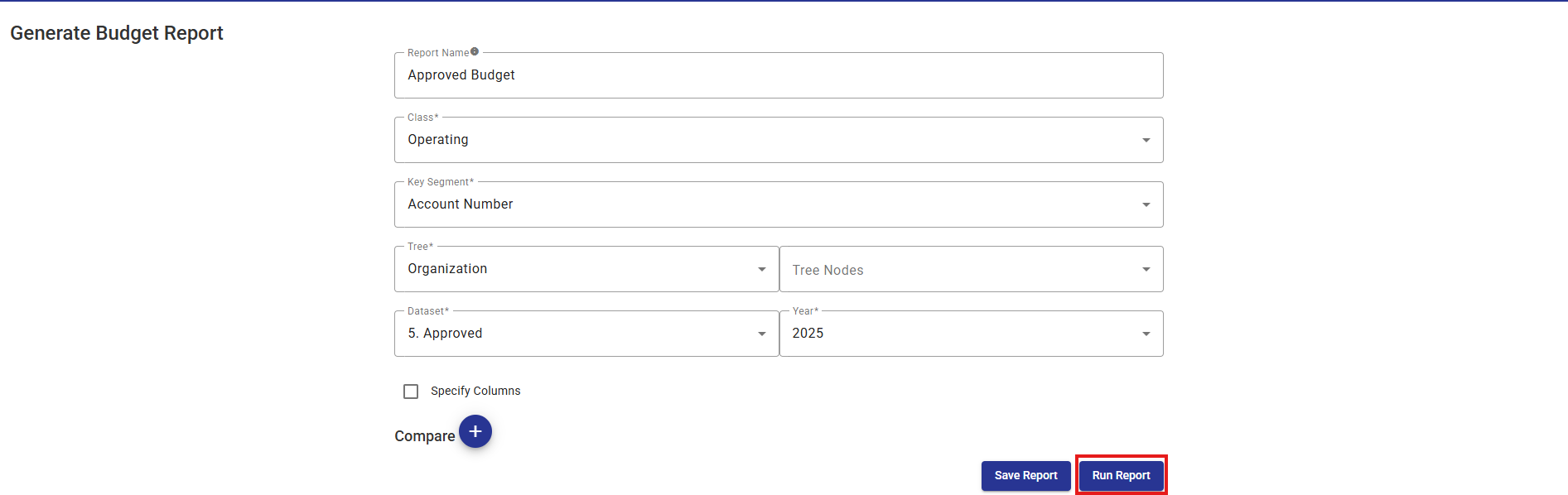
Once all required fields have been completed, the report can be run immediately. Running a report executes the report but does not save it for future use.
1. Click the Run Report button to run the report.
Saving a Report
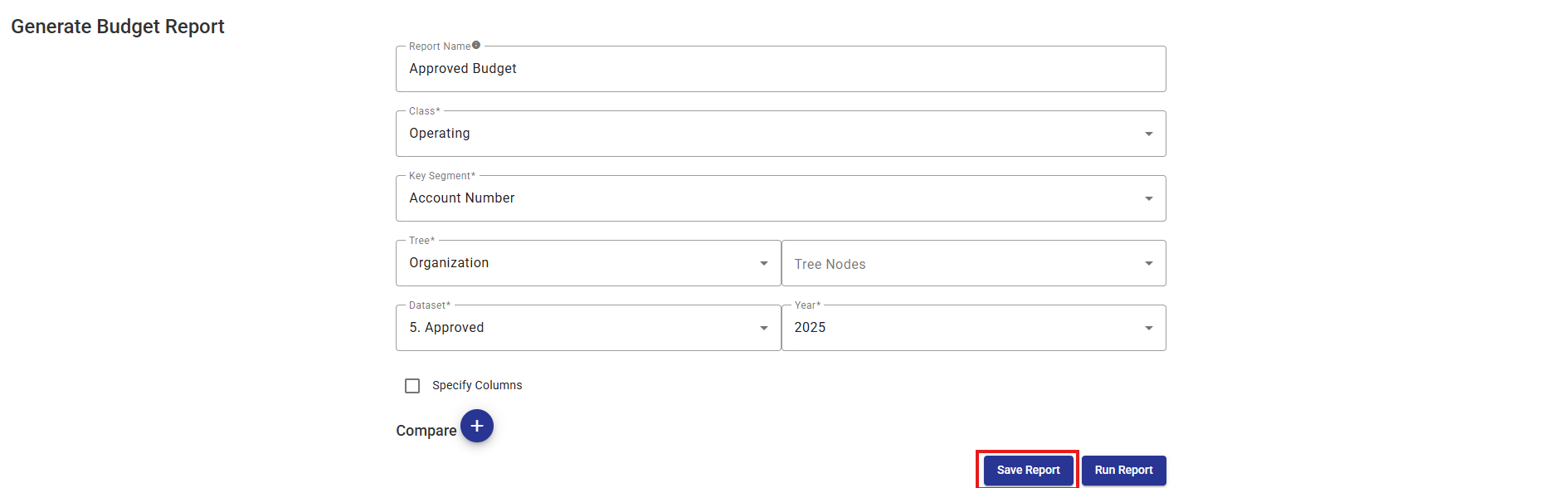
Once all required fields have been completed, the report can be saved. Saving a report saves a copy of the report name and related design settings in the Saved Reports list at the bottom of the page.
Saved reports are available to all users with Reports Permissions enabled.
1. Click the Save Report button to save the report.
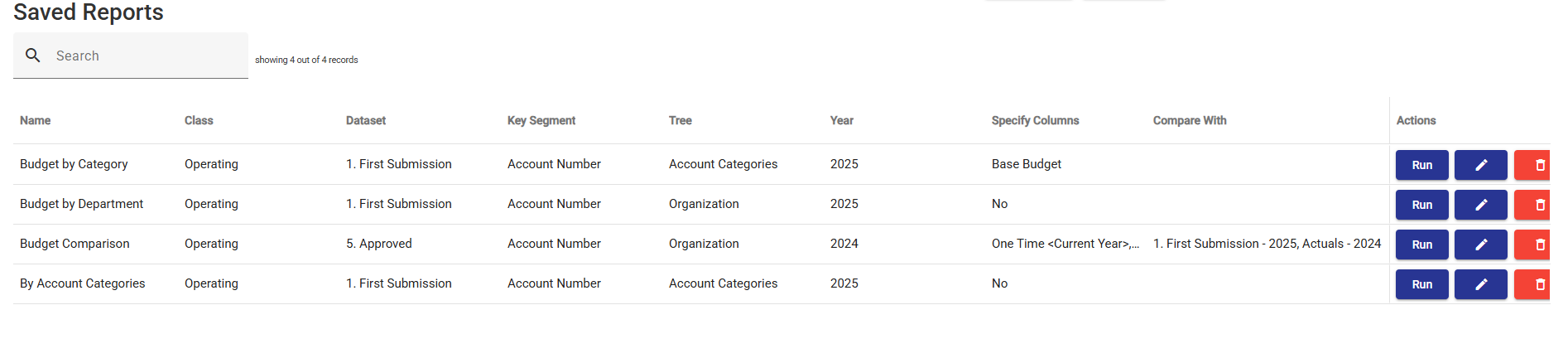
Example of saved reports list.
Working with Saved Reports
Saved reports be run, edited or deleted.

Run  - Opens and executes the selected saved report using its predefined settings, filters, and parameters.
Edit  - Opens the selected saved report so that its properties, filters, grouping, sorting, columns, or other report settings can be modified.
Delete  - Permanently removes the selected saved report from the system. Once deleted, the report configuration cannot be recovered.
Deleting a saved report removes only the report definition. It does not delete any underlying budget, forecast, actual, or capital planning data.
Action Menu Items in Standard Reports
The following actions are available in from the global Action Menu in all Standard Reports.

Refresh  - Updates/re-runs the report, using the current report settings, and retrieves the latest available data from the system.
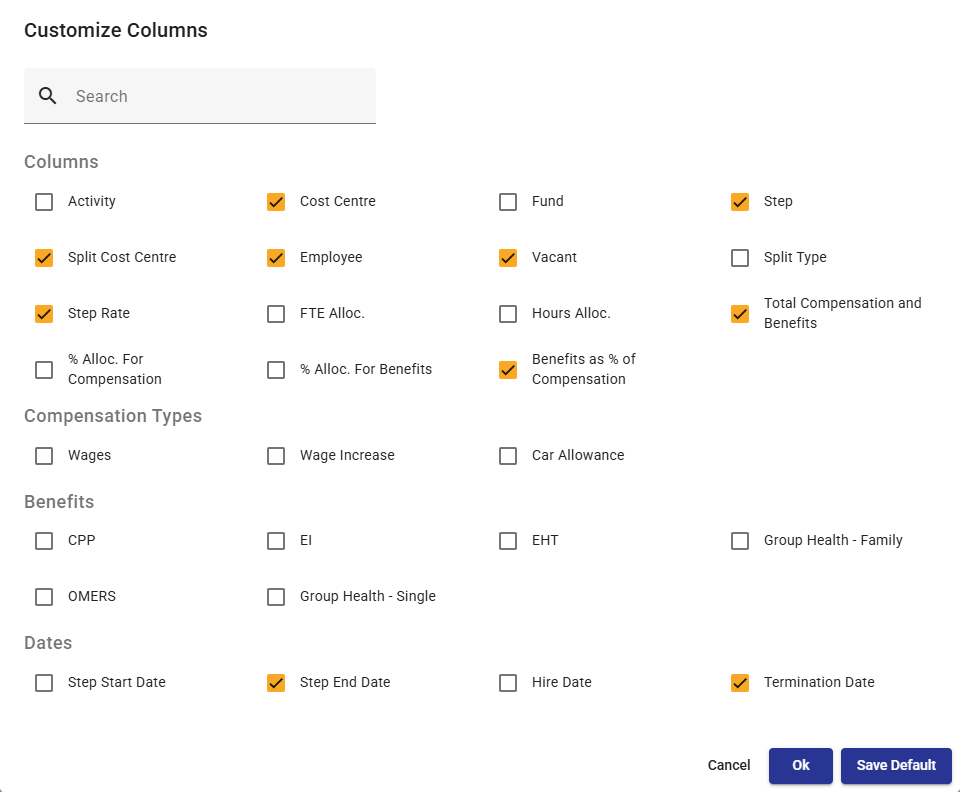
Customize Columns  - Allows users to use checkboxes to select columns to display or hide in the report.
Toggle Groups  - Expands or collapses grouped rows in the report to show or hide detailed information within each group.
 - Grouped rows are collapsed
 - Grouped rows are expanded
Export  - Exports the report results to a supported file format (Excel, .CSV or .PDF) for further analysis, distribution, or printing.


