


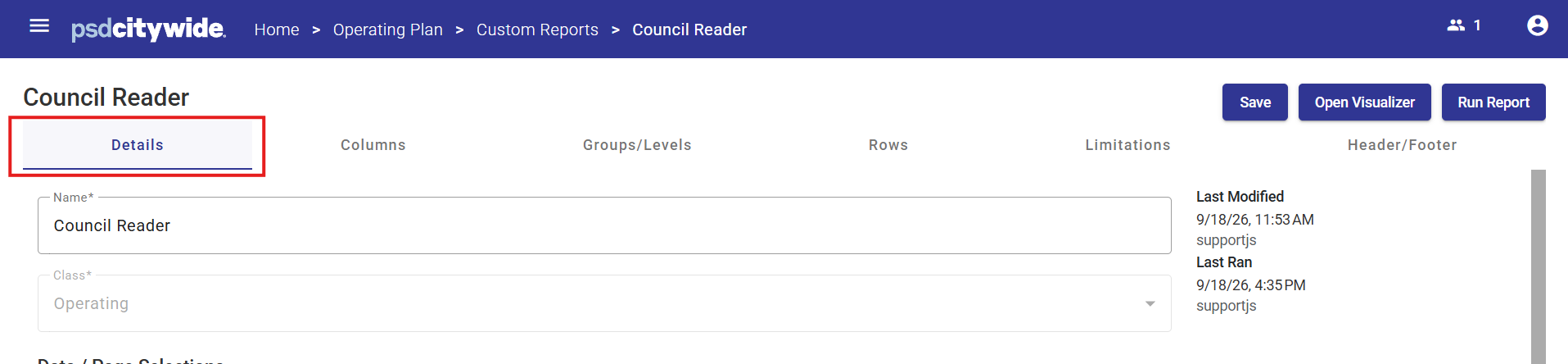
- Name - specify the name of the report this will also be displayed as the Report Title if added to a Header.
- Class - this is locked based on which modules this Custom Report was created from either Operating or Capital.
- Last Modified - identify the last time this report was changed and then saved.
- Last Ran - identify the last time this report was used.
Data/Page Selection
Data Selection and Page Selection are concepts that are related to each other and their functionality overlaps. For a detailed example putting these two concepts together and some common uses please see the bottom of this article.
- Data Selection helps an end user select the COA Class Keys that are in this Custom Report.
- Page Selection represent how many report instances are needed to create the Custom Report. There can be one Page Selection or there can be many.
- To start using Data/Page Selections the report designer must select a COA Class Key relationship or hierarchy. What changes:
- Data Selection - when designing or running this report select one or more Items from the relationships or hierarchies
- Page Selection - each Item selected from the relationship or hierarchy becomes a report instances.
- Page Selections can then be further controlled to
- Have a visual separation from each other such as a Page Break or be listed in an interactive drop down box.
- Display as one continuous table
- Data/Page Selection does not control the grouping/subtotals that show up in each report instance, that is done using the Groups/Levels tab in a Custom Report.
- A report designer does not need to select a relationship or hierarchy. The Custom Report can remain at the COA Class Key (Segment) as well.
Segment
This is required and defines the COA Class Key that will be used in the Custom Report. Reminder, all financial data entered into Citywide Budgeting must be associated at the COA Class Key level and the Class Columns are the cells/columns that you enter into.
Type
This selection that you make here will impact the way to select COA Class Keys, how a end user running the report selects the COA Class Keys, and this step creates Page Selections:
- Segment - stay with COA Class Key.
- Related Segment - pick one of the Key Segments used to create the COA Class Key. This is configured in the Key Segments tab of each Class. For example, being able to pick by the Fund.
- Tree Node - pick a Tree that is related to the COA Class Key. For example, being able to pick the Financial Services Node from my Organization Tree.
Run Type
When an end user presses the Run Report button what will happen next.
- Static - execute the report immediately. The Dataset, Year, and Date Selection Items have already been pre-determined.
- Run Time - when an end user executes the report they will need to provide the and Dataset, Year, and Date Selection Items.
Initial Expansions
Only used when Data/Page Selection is set to Tree and this selection is made a Runtime. This property controls how the Tree is displayed in the Run Report dialogue either Expand all nodes or only the Top level only is expanded.
Static Dataset/Year
Only used when the report is a Static. Set the Dataset and Year that will be used to generate the report.
Note - you can still use limitation on the COA Class Keys if you don't want them considered in a Custom Report.
Page Selection
The Type of the Page Selection was already set as either {Segment, Related Segment, or Tree Node.} Now, the Custom Report requires instructions on how to formulate page breaks.
- Print Continuous - keep all the Page Selections in one long table.
- Print by Page Break - create a visual separation of each Page Selection only; this can be a Page Break, a Title at the top of the table, or a interactive list in the browser.
Both selections are available when the report is Static. On a Runtime report, the end user will get to pick their Page Selections and it always work as a 'Print by Page Break.'
Data Display
Add an additional mask when displaying the Page Selection Item in an executed report. A Page Selection can changed by inserting or deleting characters. Valid masking characters are the following:
- Space – represents the underlying character
- ^x where x is the character to be inserted
- # where # is used to remove a character
Any other character will be treated as a constant.
Format
- A report designer can enable Show the grid lines so when the report executes, all cells will have a full outline or border.
- Set the Font, Font Size and Colour for the report. The available Fonts are pre-built into Citywide Budgeting.
- These are the Custom Report defaults, and can be changed in other parts of the Custom Report such as Columns.
Page Setup
- When generating a PDF, specify the Paper Size, Orientation, and the Margins.
- The available Page Sizes are pre-built into Citywide Budgeting.
Example of Page Selection
Page selection capabilities allow you to generate multiple report instances segmented by specific Trees or Related Segments. To show this with a simplified example:
- A Custom Report has the Data Selection set to Related Segment which is Department.
- Page Selection - the following Departments are selected 10, 20, and 30.
- This is the order of operations after pressing Run Report:
- Page Selection # 1 - Create a copy of the report using Department 10
- Gather all COA Class Keys that are related to Department 10.
- Get the financial data (Datasets) based on the report columns configured.
- Generate the report using as many pages as needed. Page breaks are allowed within the 'Department 10 Page Selection'.
- Since this Department has many rows of budget data. This report takes 3 pages.
- Add a Page Break to signify the end of this Page Selection.
- Page Selection # 2 - Create a copy of the report using Department 20
- Repeat the same steps as above for Department 20.
- This report takes 2 pages.
- Page Selection # 3 - Create a copy of the report using Department 30
- Repeat the same steps as above for Department 30.
- As a Revenue only Department, this only has a few budget rows, this report takes 1 page.
- The results of steps 1-3 is the following:
- A single PDF generates including 6 pages, with a page break between each Department.
- Or an end user can use a browser to choose which Page Selection (Department) to review in the table.
- Page Selection # 1 - Create a copy of the report using Department 10
Tips for using Data/Page Selection
- A report where end users can pick the specific Department(s) they want, and get a new page for each Department(s) they have selected requires:
- Data Selection = Related Segment
- Run Type = Runtime
- Page Selection = Print by Page Break
- A report where end users can pick the specific Department(s) they want, and get a single table listing all the Department(s) they have selected requires:
- Data Selection = Related Segment
- Run Type = Runtime
- Page Selection = Print Continuously
- When using a Tree Node as the Data Selection
- An end user can select as many Nodes as they want
- Picking the top level of the Tree creates a Summary of all Node
- A handful of Nodes that are relevant can then be selected
- When using Segment as the Data/Page Selection, this is likely a summary report that will display the full organization's budget. A report designed as such can organize the data into levels and subtotals using the Groups/Levels tab in a Custom Report.


