


Create a New Custom Report
- From the Custom Reports screen press the Add icon.
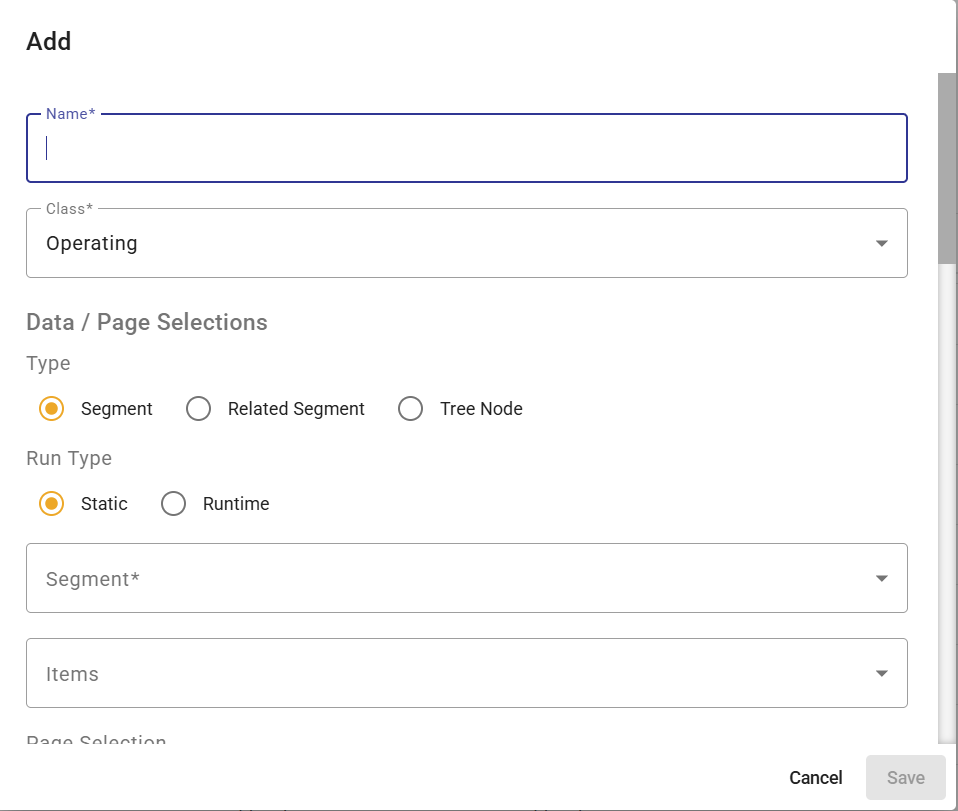
- The Custom Report Add dialogue will popup.
- At a minimum, the following fields are required, if you change nothing else, before Saving.
- Name
- Segment
- Static Dataset
- Static Year

Similarities to Views
If an end user has already completed training on configuring CWB Views many of the features will be familiar and function the same way as when making their first Custom Report.
Listed below are all the tabs that are involved in the design of a Custom Report. If the functionality is the same as that of a View, a link to the appropriate article for Views will be included.
Any differences for Custom Reports will be highlighted in each section. A new article has also been written to highlight Custom Report only features.
Custom Report Tabs
Details
This tab controls the overarching features of the Custom Report. This can include creating a static report, paper sizes and default font. Please follow this article for more information.
Columns
Columns may be defined using either a table and its related attribute panels within the Columns tab, or via the Visualizer Tool. When first creating a Custom Report, columns are automatically created by default for each Class Column defined in the Class. These default columns can be deleted, modified or added to as required and the ability to change fonts and colours.
Types of Columns supported in Custom Report
- Calculated
- Class Column
- Comparative
- Segment relationship
- Tree Relationship
Differences in Custom Reports
- No controls related to budget input such as Hide Balance or Hide Line Item.
- Regarding Custom Reports, the Column Name is how it will display once you Run Report in a single line. There is currently no support for three-line descriptions.
- Expect the same ability to format the columns.
Groups/Levels
The Group/Level determines which COA Class Key Segments (or related hierarchy element) from the Operating or Capital Class will appear in the Custom Report. A major enhancement, Custom Reports are permitted to have multiple Groups/Levels. Please follow this article for more information.
Rows
Rows determine how data will be grouped and displayed in the View. Each Row is numbered and will have its own user-defined characteristics.
Types of Rows supported in Custom Report
- Custom
- Data
Differences in Custom Reports
- On Custom Reports there is control over the Zero/No Data Behaviour the Custom Report. See #Custom Report Definitions.
- On Custom Reports there is control over the Automatic Totals. See #Custom Report Definitions.
- Expect the same ability to format the Rows.
Limitations
Limitations can be used to limit the data included in the Custom Report. The data that appears in a Row may be limited by defining a range or ranges to filter out unwanted data.
Differences in Custom Reports
- On Custom Reports you cannot limit at the Selection level that is controlled on the Details tab.
Header/Footer
For each physical page (PDF) that is generated for a Custom Report configure the Header/Footer. This can include showing the logo of your organization, adding page numbers and displaying the date the report ran. Please follow this article for more information.
Visualizer
The Visualizer tool can be used to graphically build Columns and Rows, while seeing an accurate representation of how the data will appear when the Custom Report is Run. It is usually preferable to define Rows within the Visualizer because this tool make it easier to see the design and formatting results.
Differences in Custom Reports
- No controls related to budget input i.e. Lock Rows from Editing
Custom Report Definitions
Zero/No Data Behaviour
Based on the needs of your organization you can control if additional actions should be taken when the Custom Report returns a row with zero data or with no data. For example, a Department doesn't have any budgets but it was included when building the Custom Report so all the column values are now $0.
Options are:
- Show Zero - Display as $0
- Show Blank - Display as no characters
- Drop Rows - remove this record from the report
This is supported in Rows and in Groups/Levels.
Automatic Totals
Allow the report to create an additional row in the report that will show a preformatted total. This is supported in Rows and in Groups/Levels.
Navigate to other articles about Custom Reports:
Related Articles: Custom Reports - Run Report


